

Edge Filters
Edge Filters provide granular access control and security policy enforcement for MCP (Model Context Protocol) servers and tools, enabling administrators to define precise rules for tool usage, apply security scanners, and enforce posture checks across network groups.
Overview
The Edge Filters feature allows administrators to create comprehensive security policies that bind together tools, scanners, posture checks, and target groups. This multi-layered approach ensures that only authorized users with compliant devices can access specific AI tools and services while maintaining security standards.
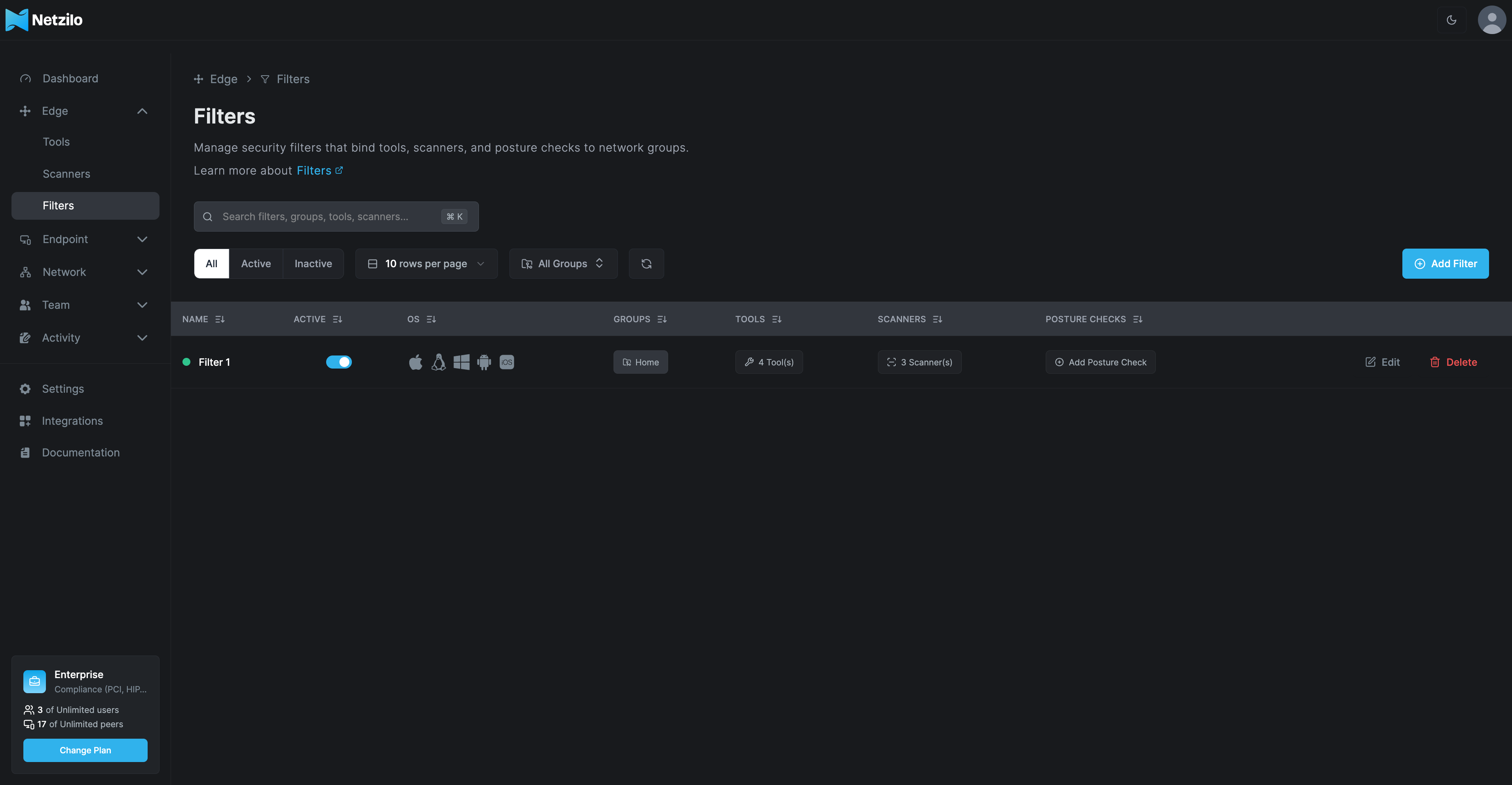
Filters Dashboard
The main dashboard provides centralized management for all active filters with key information:
- Filter Name: Unique identifier for each filter policy
- Active Status: Enable/disable toggle for immediate control
- Operating Systems: Supported platforms (Mac, Linux, Windows, Android, iOS)
- Groups: Network groups the filter applies to
- Tools: Number and names of tools controlled
- Scanners: Applied security scanners count
- Posture Checks: Compliance requirements
Dashboard Views
- All: Complete list of all configured filters
- Active: Currently enabled filters only
- Inactive: Disabled or draft filters
Creating and Configuring Filters
Target Configuration
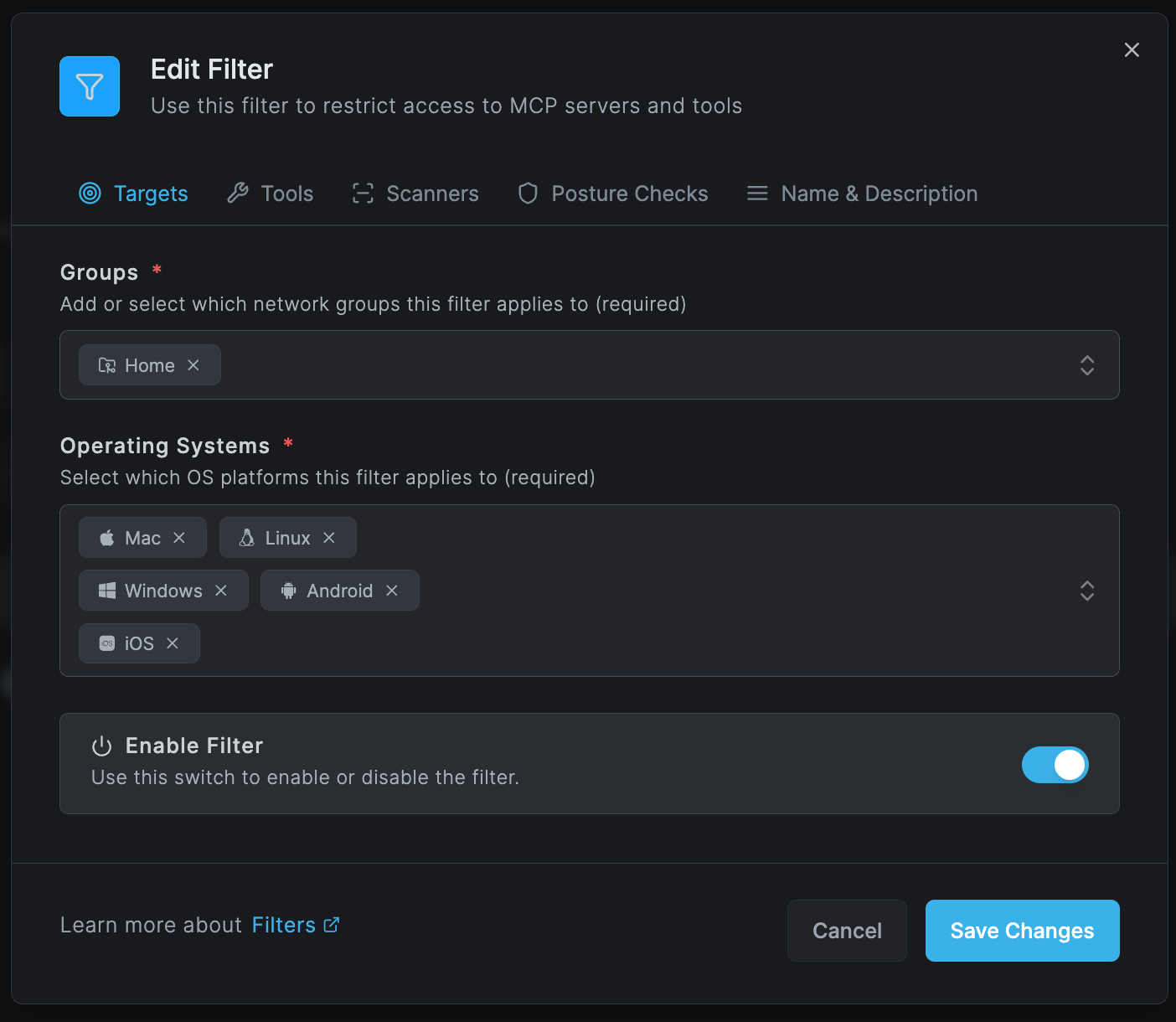
Groups Configuration
Define which network groups this filter applies to:
- Home: Default group for all users
- Engineering: Development team members
- Sales: Sales department users
- Marketing: Marketing team
- Finance: Financial department with elevated security
- Executive: C-level executives with special access
- Contractors: External contractors with limited access
- Custom Groups: Organization-specific groups
Operating Systems
Select supported platforms (required field):
- Mac: macOS devices (laptops, desktops)
- Linux: Linux distributions
- Windows: Windows 10/11 workstations
- Android: Mobile devices and tablets
- iOS: iPhones and iPads
At least one group and one operating system must be selected for the filter to be valid.
Tools Configuration
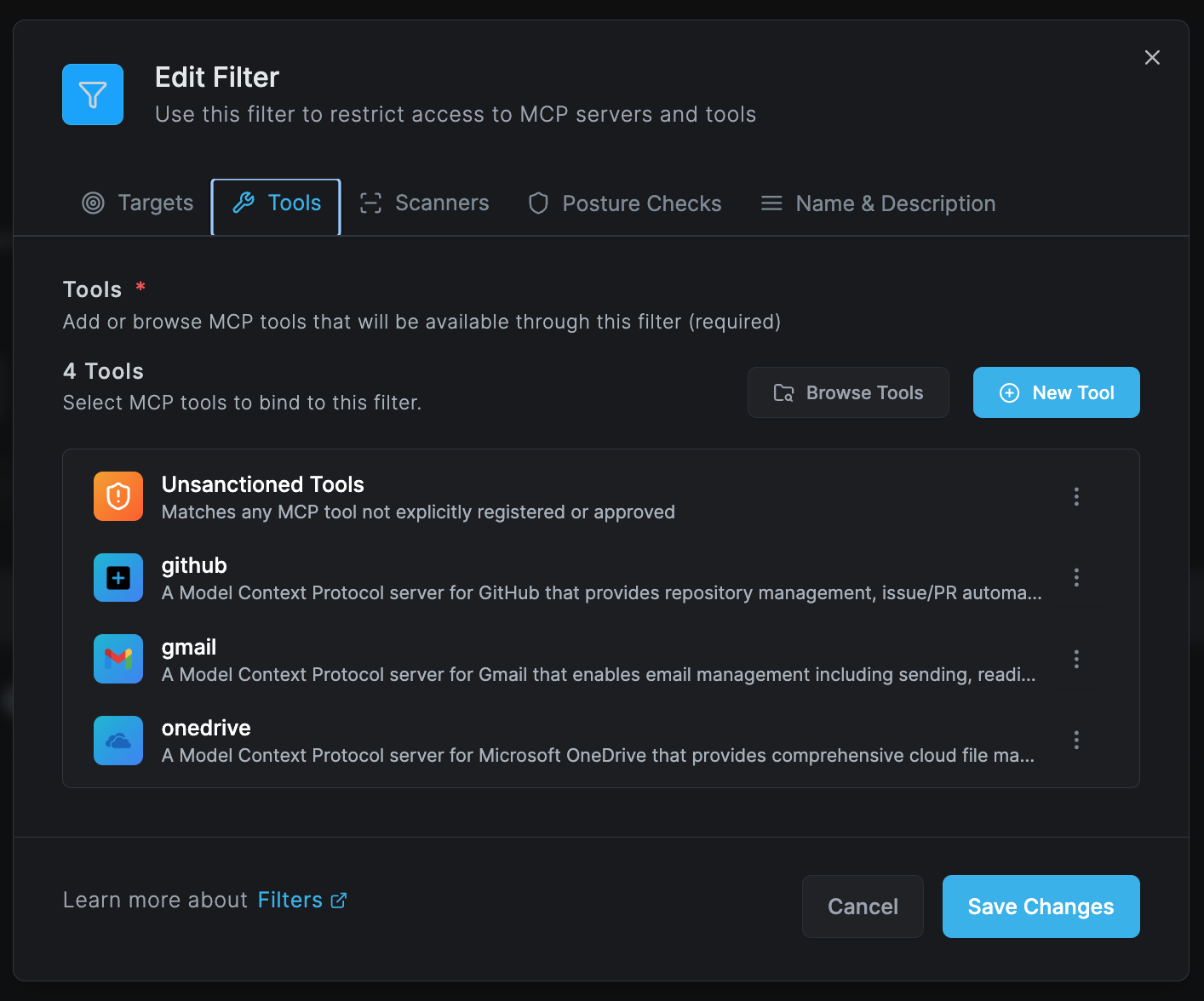
Specify which MCP tools are available through this filter:
Tool Selection Options
-
Unsanctioned Tools
- Special category for unapproved tools
- Matches any MCP tool not explicitly registered
- Useful for blocking shadow IT
-
Approved Tools
- GitHub: Repository management, issue/PR automation
- Gmail: Email management including sending and reading
- OneDrive: Microsoft OneDrive cloud file management
- Slack: Team communication and collaboration
- Jira: Project management and issue tracking
- Salesforce: CRM and customer data access
- Custom Tools: Organization-specific integrations
Adding New Tools
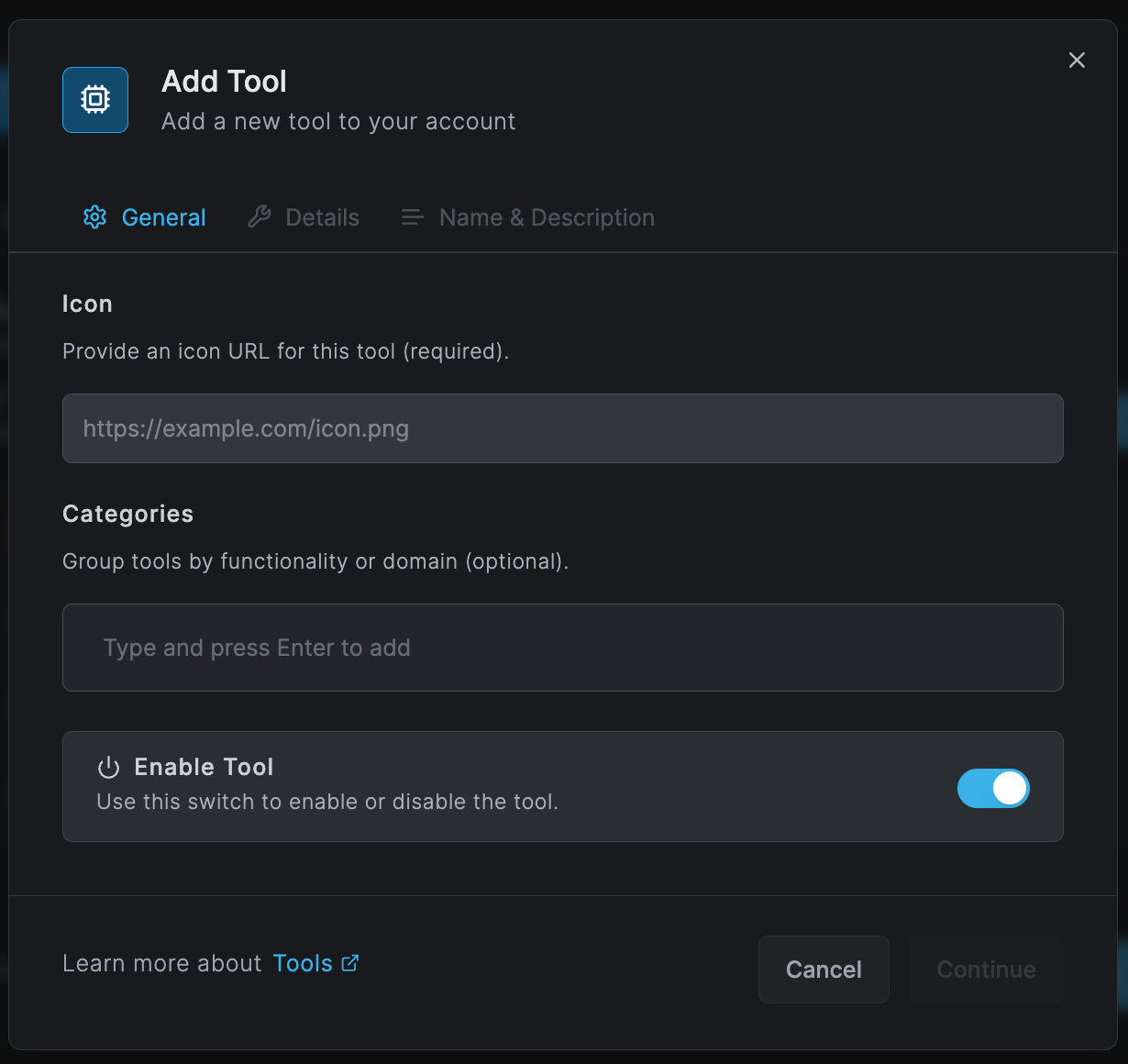
When adding a new tool to a filter:
General Settings
- Icon URL: Visual identifier (e.g.,
https://example.com/icon.png) - Categories: Group by functionality (AI & ML, Security, Productivity)
- Enable Toggle: Activate/deactivate the tool
Tool Details (configured separately in Tools section)
- Type (HTTP, SSE, WebSocket, stdio)
- Endpoint URLs
- Authentication headers
- API configurations
Scanner Integration
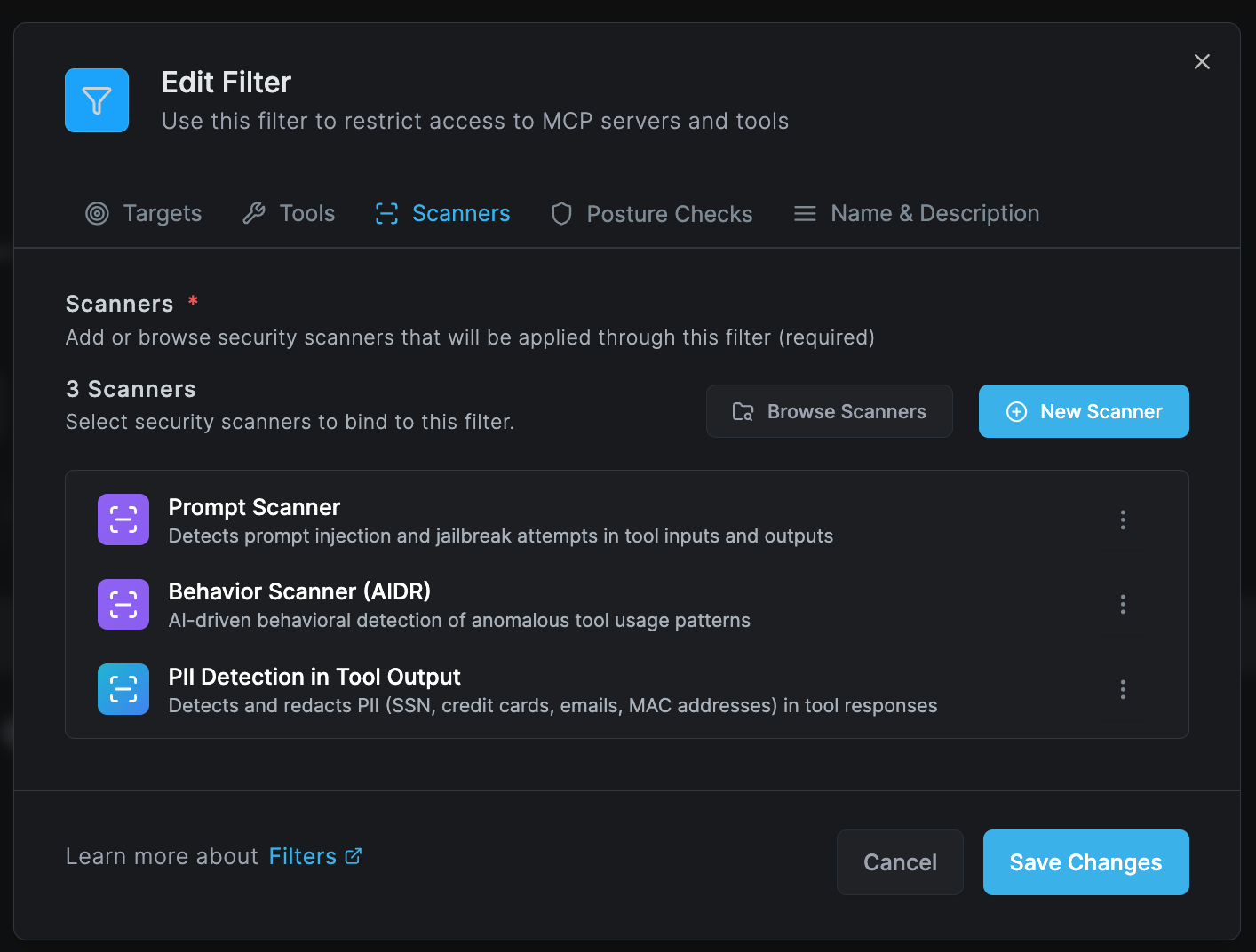
Apply security scanners to monitor and protect tool communications:
Available Scanners
-
Prompt Scanner
- Detects prompt injection and jailbreak attempts
- Monitors both inputs and outputs
- Real-time threat detection
-
Behavior Scanner (AIDR)
- AI-driven behavioral detection
- Identifies anomalous tool usage patterns
- Machine learning-based threat analysis
-
PII Detection in Tool Output
- Detects and redacts personal information
- SSN, credit cards, emails, MAC addresses
- GDPR/CCPA compliance enforcement
-
API Key Scanner
- Identifies exposed credentials
- Prevents secret leakage
- Automatic redaction
-
Custom Scanners
- Organization-specific rules
- Industry compliance requirements
- Proprietary detection patterns
Posture Checks Configuration
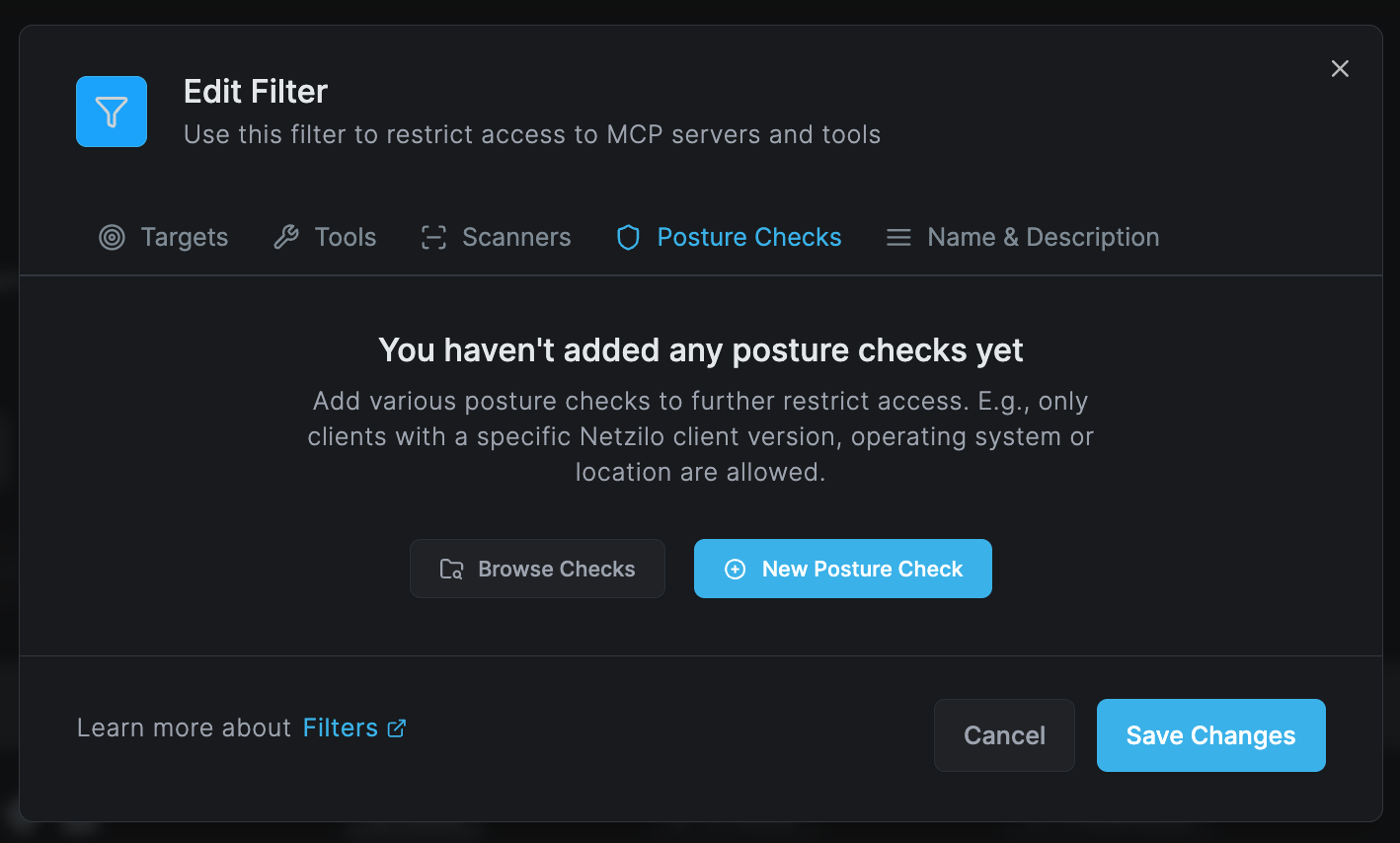
Add posture checks to enforce device compliance:
Available Posture Checks
Client Version Checks
- Minimum Netzilo client version
- Specific version requirements
- Auto-update enforcement
Operating System Requirements
- OS version minimums
- Security patch levels
- Specific OS builds
Location-Based Access
- Geofencing restrictions
- Country-based access control
- IP range limitations
Device State Checks
- Antivirus status
- Firewall configuration
- Disk encryption
- Screen lock settings
Network Requirements
- VPN connection status
- Network segment verification
- Wi-Fi security standards
Posture checks are evaluated in real-time and can dynamically revoke access if compliance changes.
Name and Description
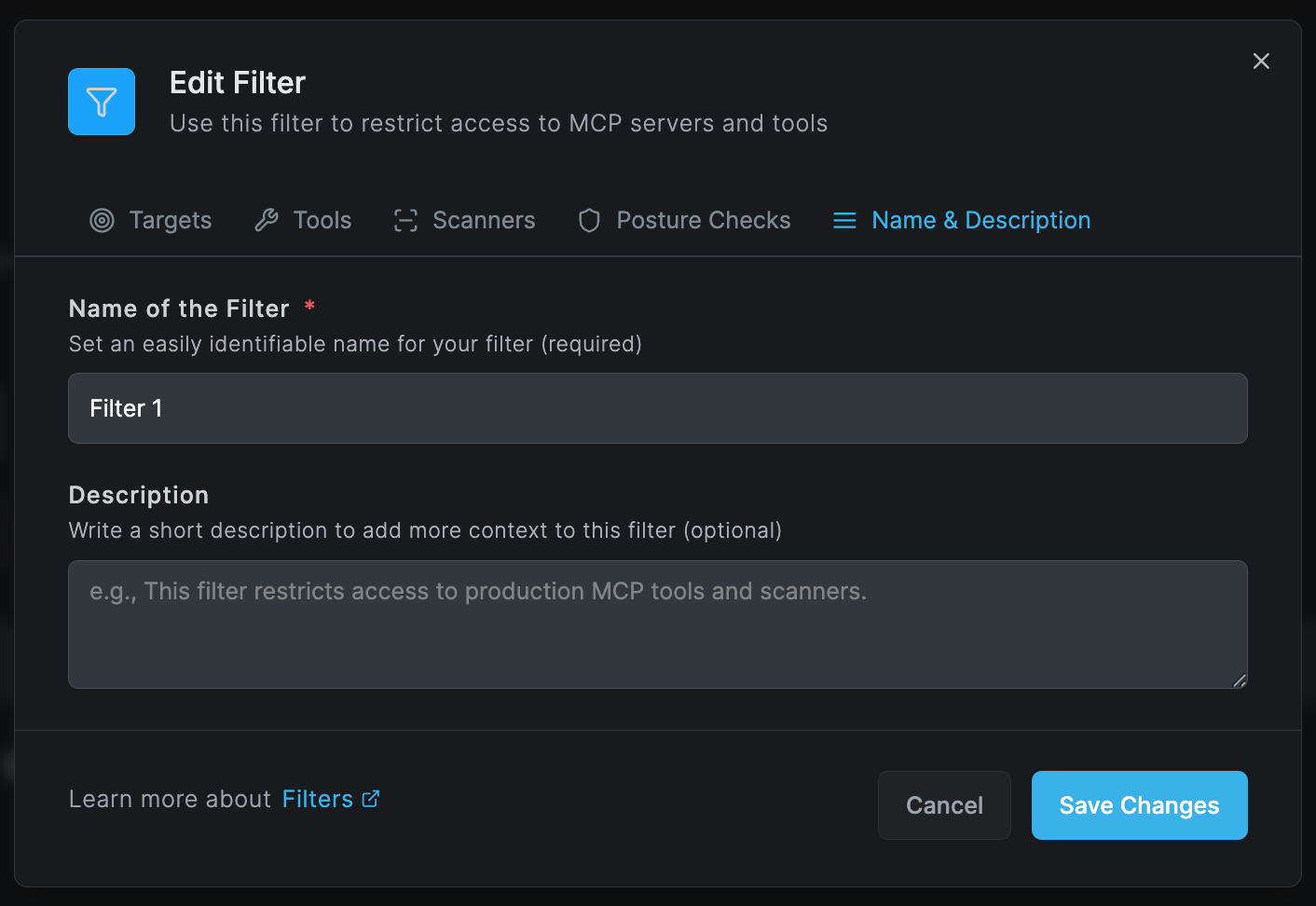
Filter Naming
- Use descriptive, unique names
- Include purpose or department
- Examples:
- "Production AI Tools - Engineering"
- "Executive Dashboard Access"
- "Contractor Limited Toolset"
- "GDPR Compliant Filter - EU Users"
Description Guidelines
- Explain the filter's purpose
- Document security requirements
- Note any special conditions
- Include compliance references
- Example: "This filter restricts access to production MCP tools and scanners for the engineering team with enhanced security scanning."
Filter Management Best Practices
Layered Security Approach
-
Baseline Filters
- Create organization-wide default filters
- Apply minimum security standards
- Enable essential scanners
-
Department-Specific Filters
- Tailor access to team needs
- Apply role-based restrictions
- Department-appropriate tools
-
High-Security Filters
- Executive and sensitive data access
- Maximum scanner coverage
- Strict posture checks
Filter Priority and Conflicts
Resolution Order
- Most specific filter applies first
- Group membership determines priority
- Operating system matches are required
- Active filters override inactive
Conflict Resolution
- User receives most permissive access
- Security scanners are cumulative
- Posture checks use strictest requirements
Advanced Filter Configurations
Multi-Factor Filter Chains
Create complex security policies by chaining filters:
Filter 1 (Baseline) → Filter 2 (Department) → Filter 3 (Project)
Each layer adds:
- Additional tools
- More scanners
- Stricter posture checks
Conditional Filters
Time-Based Access
- Business hours only
- Maintenance windows
- Temporary access grants
Context-Aware Filtering
- Network location (office/remote)
- Device trust level
- User risk score
Dynamic Filter Updates
Automated Adjustments
- Threat level changes
- Compliance requirements
- Incident response
API-Driven Management
// Example API call to update filter
PUT /api/filters/{filterId}
{
  "tools": ["github", "gmail"],
  "scanners": ["prompt-scanner", "pii-detection"],
  "postureChecks": ["min-version", "location"]
}
Monitoring and Compliance
Filter Analytics
Track filter effectiveness through:
- Usage Metrics: Tool access frequency
- Block Events: Denied access attempts
- Scanner Detections: Threats prevented
- Posture Failures: Compliance issues
Audit Logging
All filter events are logged:
- Filter creation/modification
- Enable/disable actions
- Access grants/denials
- Scanner triggers
- Posture check results
Compliance Reporting
Generate reports for:
- Regulatory compliance (GDPR, HIPAA, SOC2)
- Security audits
- Access reviews
- Incident investigations
Filter Templates
Standard Templates
Developer Access Filter
- Tools: GitHub, VS Code, Terminal access
- Scanners: Code security, secret detection
- Posture: Latest OS, antivirus active
Executive Access Filter
- Tools: Analytics dashboards, CRM
- Scanners: All available scanners
- Posture: Encrypted disk, biometric auth
Contractor Limited Filter
- Tools: Project-specific only
- Scanners: Data exfiltration prevention
- Posture: Time-based access, location checks
BYOD Filter
- Tools: Limited corporate access
- Scanners: Enhanced monitoring
- Posture: MDM enrollment, compliance apps
Troubleshooting Filters
Common Issues
Filter Not Applying
- Verify group membership
- Check OS compatibility
- Ensure filter is active
- Review priority conflicts
Tools Not Accessible
- Confirm tool is in filter
- Check scanner blocks
- Verify posture compliance
- Review user permissions
Performance Impact
- Optimize scanner selection
- Review filter complexity
- Check network latency
- Monitor resource usage
False Positives
- Tune scanner sensitivity
- Review detection patterns
- Add exceptions carefully
- Document bypass reasons
Integration with Other Features
Tools Integration
- Filters control Edge Tools access
- Tool availability per group
- Conditional tool activation
Scanners Coordination
- Leverages Edge Scanners
- Scanner results affect access
- Real-time threat response
Activity Monitoring
- Filter events in Activity Logs
- Access patterns analysis
- Security incident correlation
Best Practices Summary
- Start Simple: Begin with basic filters and add complexity
- Test Thoroughly: Validate filters with test groups first
- Document Everything: Maintain clear filter documentation
- Regular Reviews: Audit filter effectiveness monthly
- User Communication: Inform users of access changes
- Emergency Procedures: Have bypass processes for critical situations
- Continuous Improvement: Refine based on security events
Next Steps
- Configure Edge Tools - Set up tools for filters
- Deploy Edge Scanners - Enable security scanning
- Review Activity Reports - Monitor filter effectiveness
Edge Filters require an Enterprise license. Additional filter slots and advanced configurations are available through your account manager.