

Managing Profiles
Netzilo ensures the protection of data on endpoints by creating secure workspace and browser protection areas through profiles, offering comprehensive protection and control for any application. These environments, equipped with various security features, allow for the addition of posture checks, facilitating the creation of advanced control and access scenarios.
Overview
Profiles in Netzilo are designed to provide protection at every stage where data is present, utilizing the latest technologies to establish high-level security areas. Each profile type serves specific security needs and can be configured with granular controls.
Creating Profiles
After accessing the Endpoint > Profiles tab, click on the Add Profile button to create a new profile. In the popup:
- Specify operating system and applied groups
- Select protection methods:
- Netzilo Workspace
- Disposable Browser
- Netzilo Browser Extension
- Enterprise Browser
- Provide a name and description for your profile
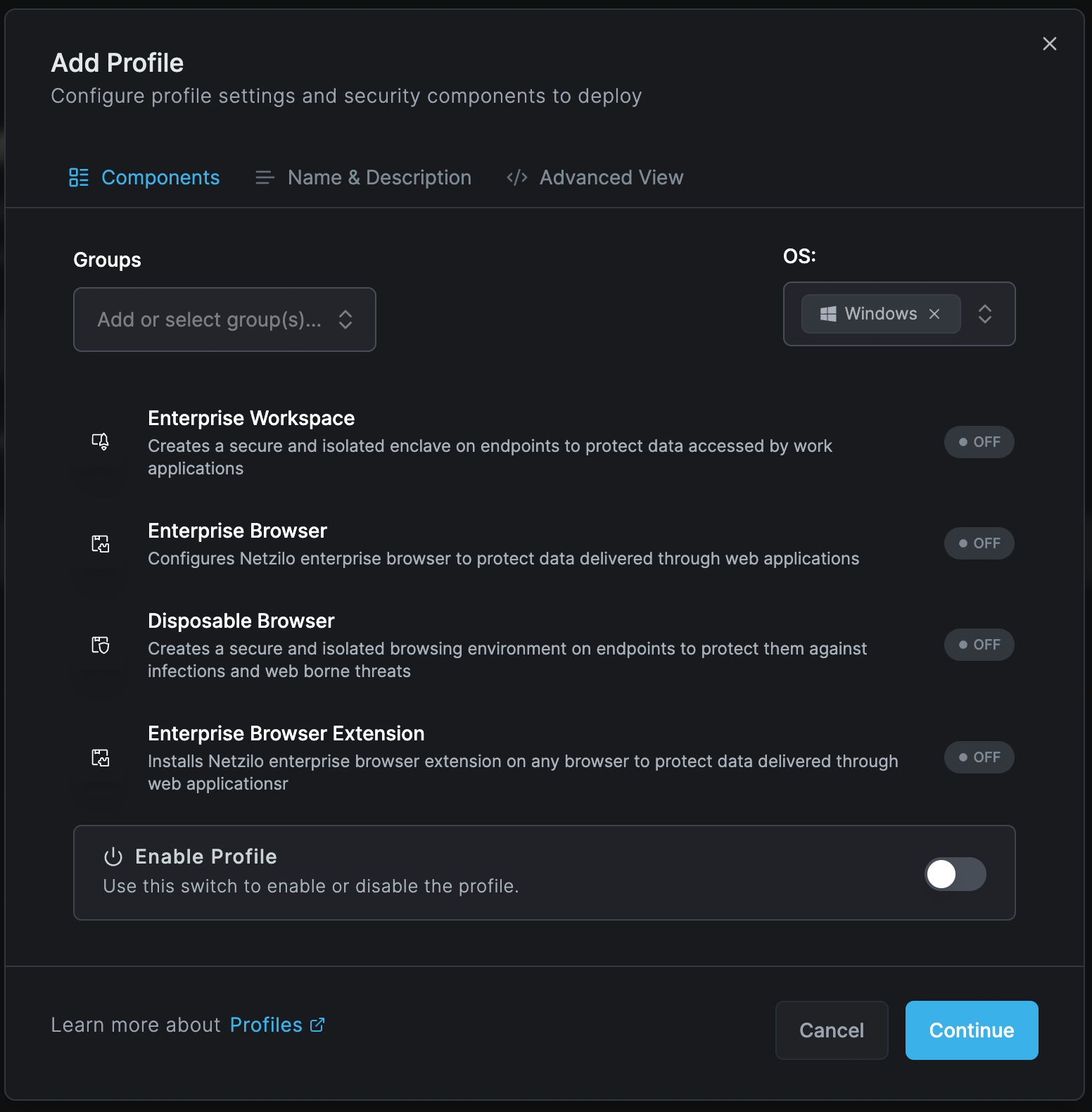
Profile Types
Netzilo offers four distinct profile types to meet different security requirements:
Creates a secure and isolated enclave on endpoints to protect data accessed by work applications. This module ensures all activities occur within a protected workspace, minimizing the threat of data breaches and maintaining strict control over sensitive information.
Key Features:
- Isolated enclave with full encryption
- Work app protection
- Desktop activity recording
- Watermarking and DLP controls
Provides a secure, managed browser environment for accessing web applications and sensitive data. It enforces security policies such as data loss prevention, access controls, and activity monitoring.
Key Features:
- Managed bookmarks and shortcuts
- Domain-specific restrictions
- Granular protection settings
- Advanced security controls
Offers disposable browsers that can be used for specific sessions and then discarded. This approach ensures that no data is left behind once the session ends, preventing any potential security breaches from lingering data.
Key Features:
- Session-based browsing
- No data persistence
- Automatic cleanup
- Enhanced security for sensitive transactions
Installs Netzilo enterprise browser extension to protect data delivered through web applications. It monitors and controls access to web applications, ensuring data remains protected during online interactions.
Key Features:
- Real-time web protection
- DLP controls for web content
- AI prompt injection prevention
- Content redaction and masking
Managing Profiles
Once you have finished configuring a profile, click Add Profile to save it. You will then see your new profile in the table:
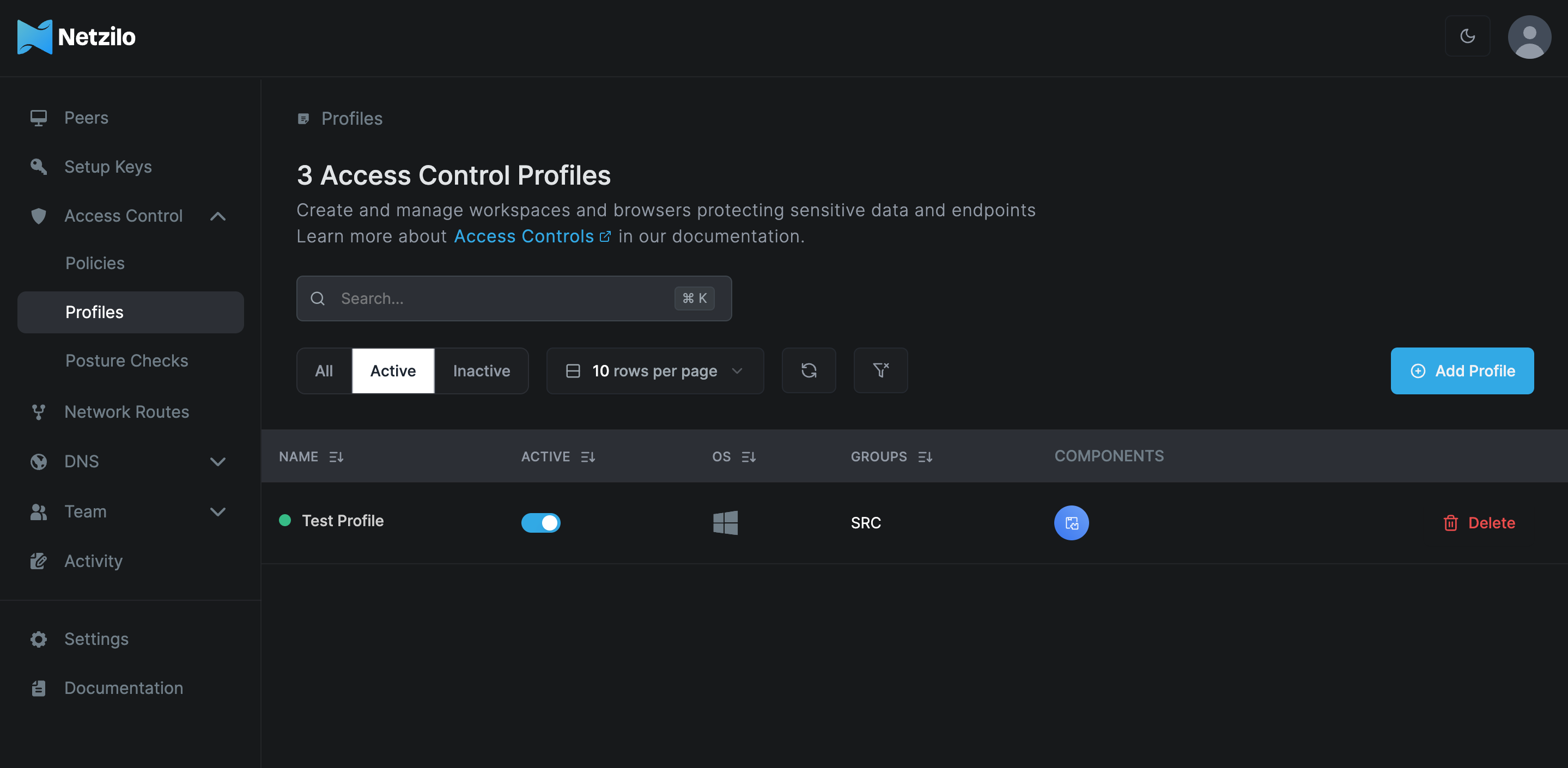
Profile Actions
- Edit: Modify existing profile configurations
- Enable/Disable: Activate or deactivate profiles
- Delete: Remove profiles no longer needed
- Clone: Duplicate profiles for similar configurations
Profiles can be combined to create comprehensive security layers. For example, you might use Enterprise Workspace for native applications while also deploying Browser Extension for web-based access.
Best Practices
- Start with least privilege: Begin with restrictive settings and gradually allow access as needed
- Use posture checks: Always include device compliance checks for sensitive profiles
- Regular reviews: Periodically audit profile configurations and usage
- Test thoroughly: Validate profiles with test groups before wide deployment
- Document policies: Maintain clear documentation of profile purposes and restrictions
Next Steps
Choose a profile type to configure:
- Configure Enterprise Workspace - For native application protection
- Configure Enterprise Browser - For managed browser environments
- Set up Disposable Browser - For temporary secure sessions
- Deploy Browser Extension - For web application protection