

Enterprise Workspace
Enterprise Workspace creates a secure and isolated enclave on endpoints to protect data accessed by work applications. This module ensures all activities occur within a protected workspace, minimizing the threat of data breaches and maintaining strict control over sensitive information.
Overview
The Enterprise Workspace module provides a comprehensive security solution for native applications by creating virtualized, encrypted environments where sensitive work can be performed safely. All communications within the workspace are fully encrypted, and the environment can be configured with various security controls.
Configuration
Work Apps
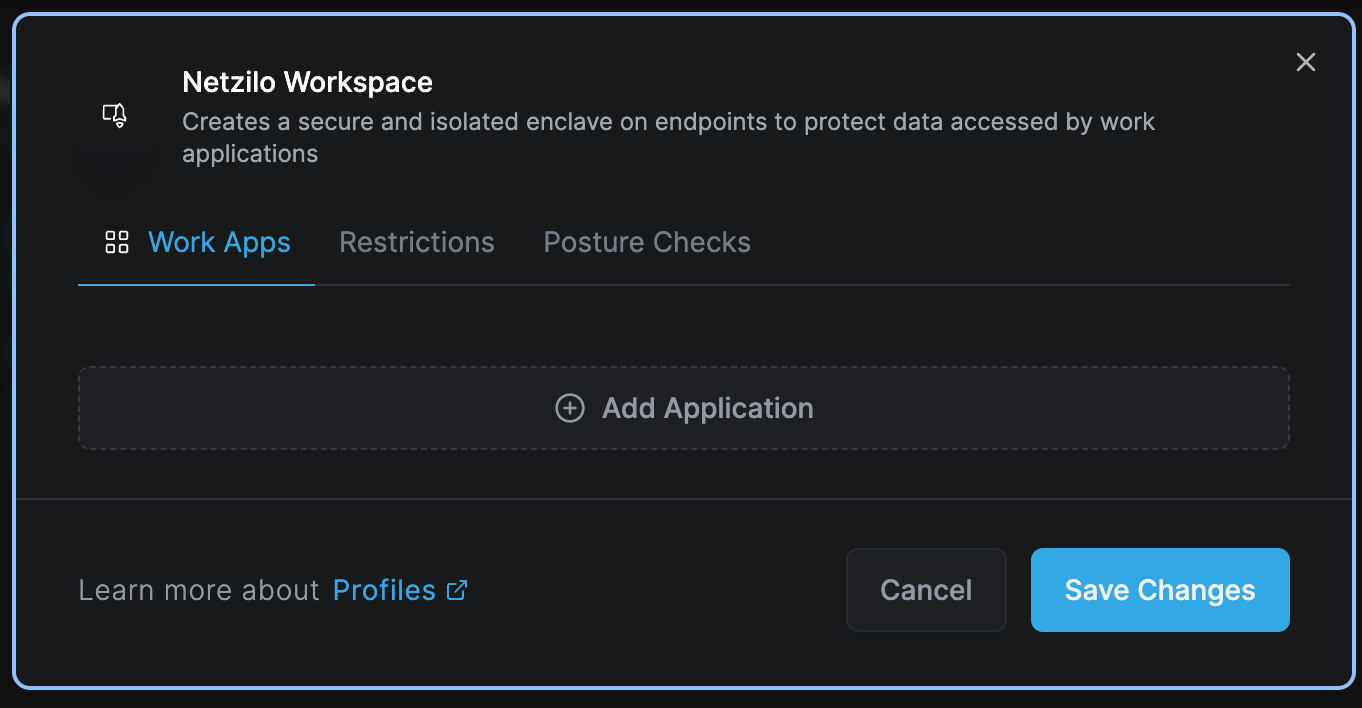
To protect and run a native application within a secure environment using Netzilo, simply use the Add Application feature in the Workapp section.
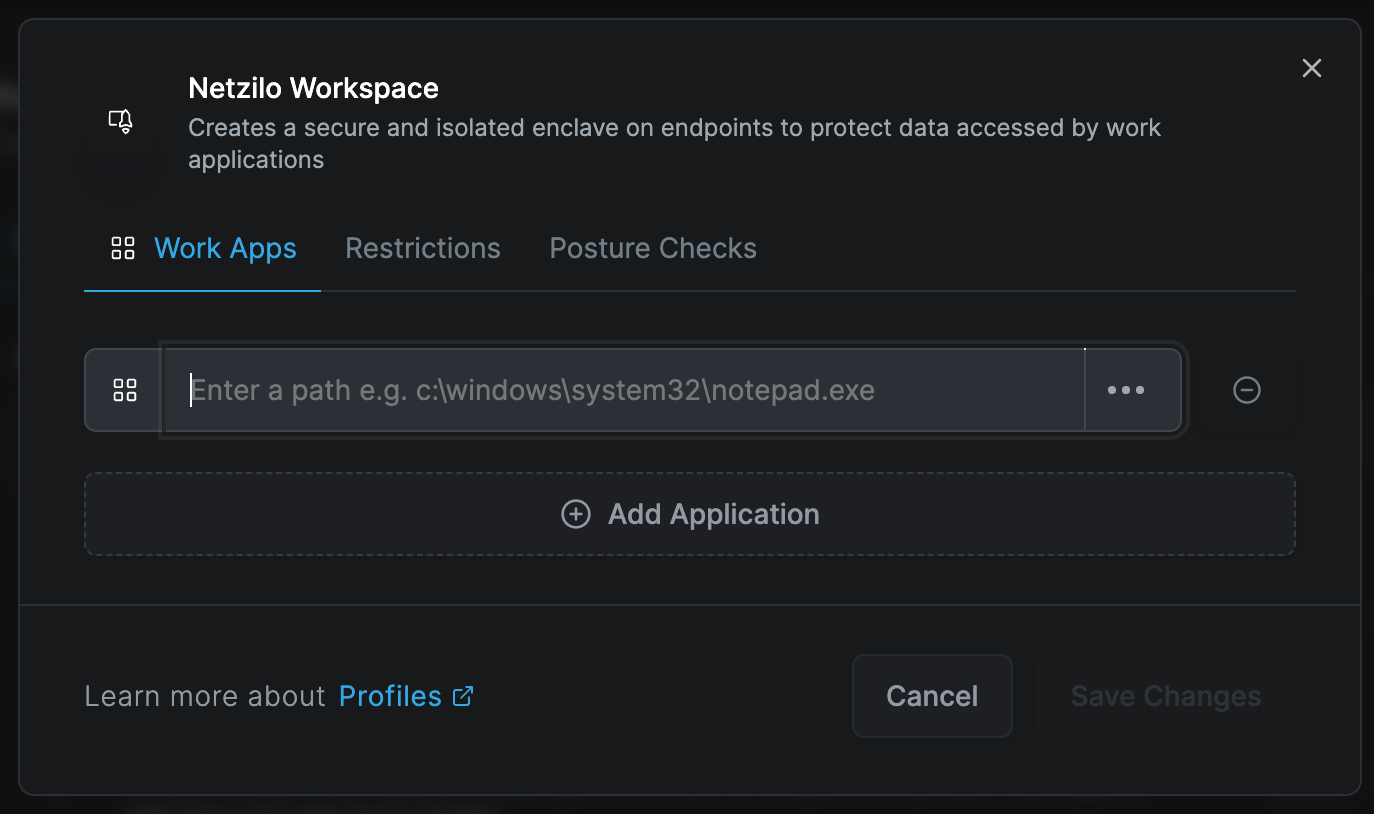
Enter the path information of the native application you wish to secure. This section also supports regular expressions for added flexibility.
The application must be present on the end user's device. Netzilo does not distribute applications but secures existing ones.
Restrictions
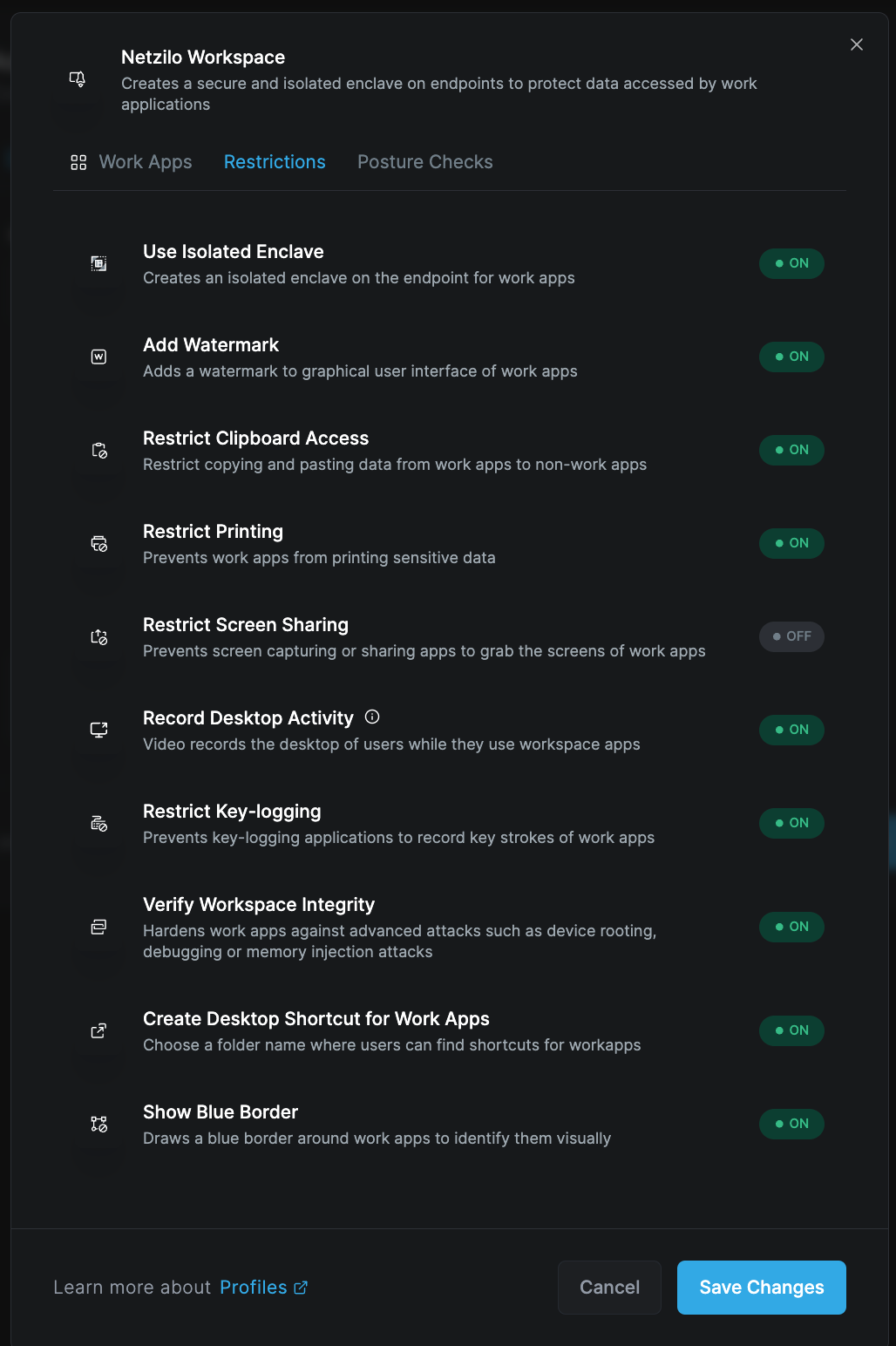
For the defined Workapp, you can specify the desired protection features and restrictions by selecting the Restrictions tab. This tab provides a comprehensive list of all available protection features, which can be activated in real-time from this page.
Security Features
Use Isolated Enclave
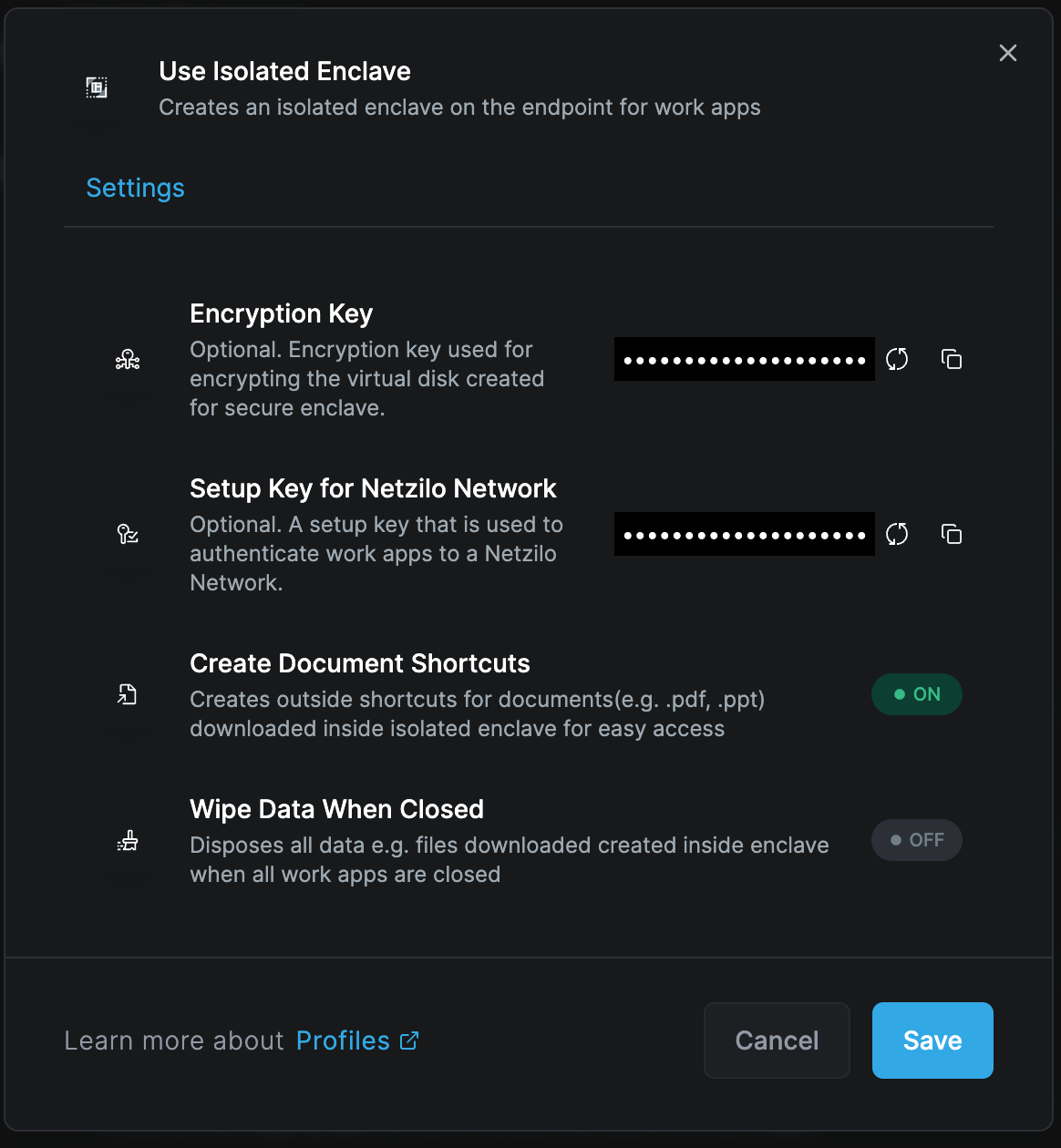
This feature facilitates the virtualization of the workspace on the operating system, ensuring all communications are fully encrypted.
Key capabilities:
- Virtual overlay networks for secure corporate access
- Document shortcuts for direct desktop access
- Encrypted document management
- Configurable data retention policies
You can decide whether encrypted documents downloaded within the workspace should be wiped or retained when the workspace is closed.
Add Watermarks
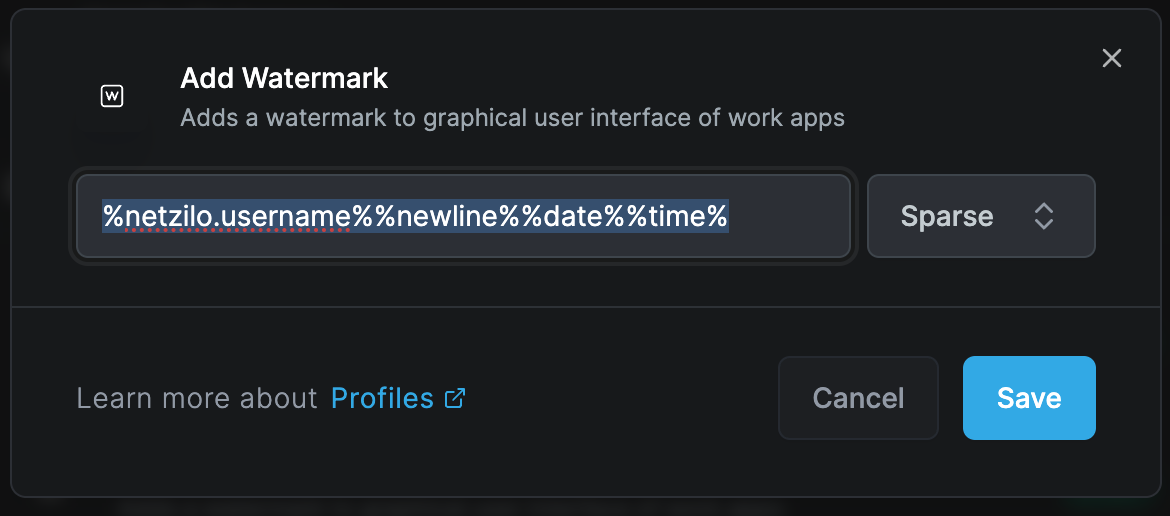
Define watermark text that appears within the workspace screen. For example, you can display:
- Username of the workspace user
- Current date and time
- Classification levels
- Custom security messages
Example watermark format:
[USERNAME] - [DATE] - CONFIDENTIAL
Restrict Clipboard Access
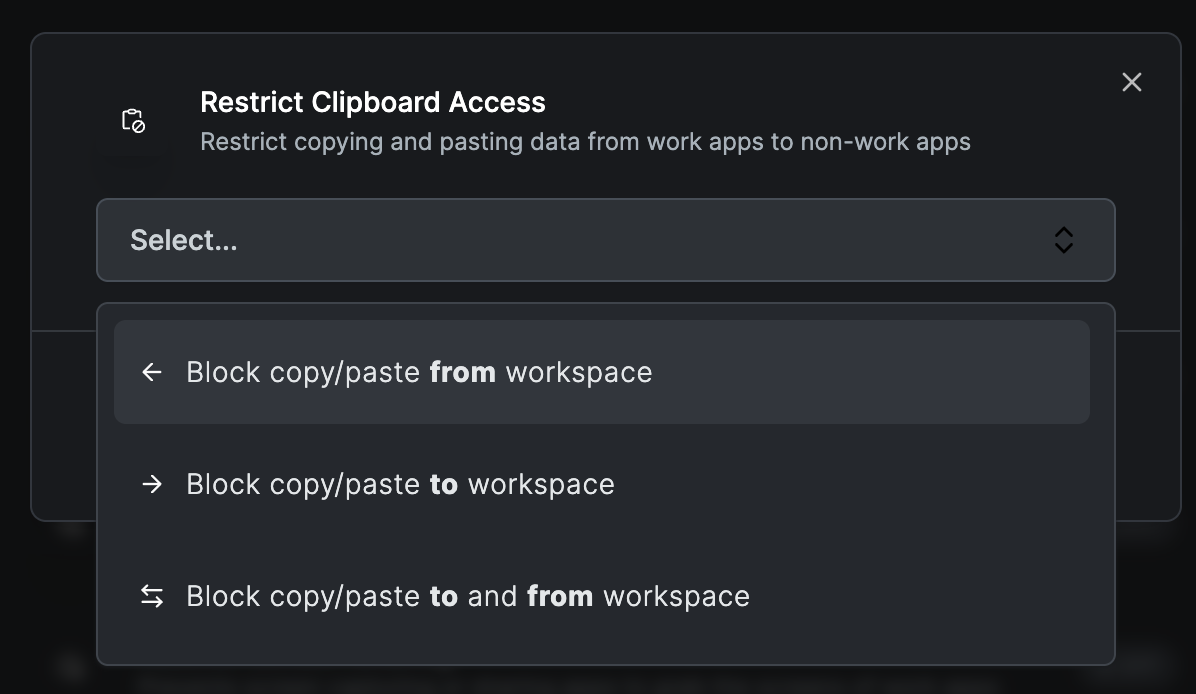
This feature prevents users from copying and pasting data from the workspace to external applications. It's designed to prevent sensitive data within the workspace from being transferred out.
Protection levels:
- Block all clipboard operations
- Allow copy within workspace only
- One-way clipboard (paste in only)
- Monitored clipboard with logging
Restrict Printing
Blocks the ability to print documents or content displayed within the workspace, ensuring that sensitive information cannot be printed.
Options:
- Complete print blocking
- Virtual printing to PDF with watermarks
- Audit logging of print attempts
Restrict Screen Sharing
Prevents screen capture or sharing applications from recording the workspace screen. If an attempt is made, the screen will be completely obscured, preventing any visual information from being captured.
Protection against:
- Screen recording software
- Remote desktop viewing
- Screenshot tools
- Video conferencing screen share
Record Desktop Activity
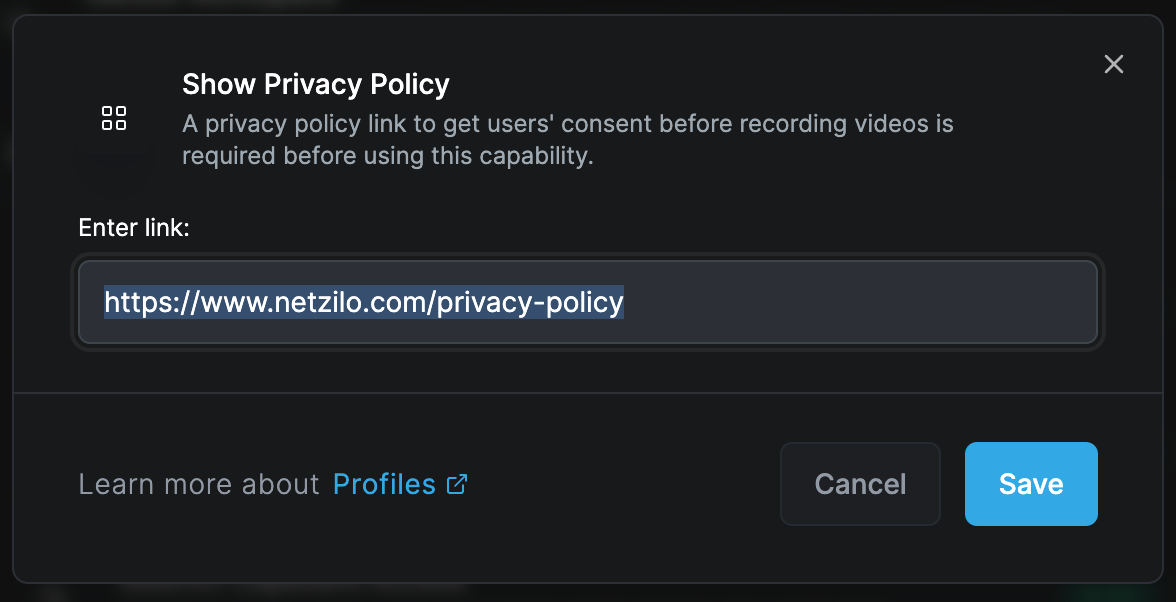
Enables recording of desktop activity during workspace use, with storage options:
- Amazon S3 cloud storage
- Local Min.io storage
- Custom storage endpoints
Important requirements:
- Storage integration must be configured
- Privacy policy document link required
- User must accept privacy policy before recording
- Continuous recording notification displayed
- Workspace closes if recording stops
Screen recording logs can be viewed in Activity Reports for audit and compliance purposes.
Restrict Key-logging
Protects against keylogger attacks by preventing any keylogger software on the device from reading or stealing data from keystrokes within the workspace.
Protection includes:
- Hardware keyloggers
- Software keyloggers
- Kernel-level keyloggers
- Browser-based keyloggers
Verify Workspace Integrity
When activated, the workspace automatically protects itself against attacks such as:
- Memory injection
- Process hollowing
- DLL injection
- Code manipulation
The system will automatically terminate the session to safeguard the workspace if any integrity violation is detected.
Create Desktop Shortcut for Work Apps
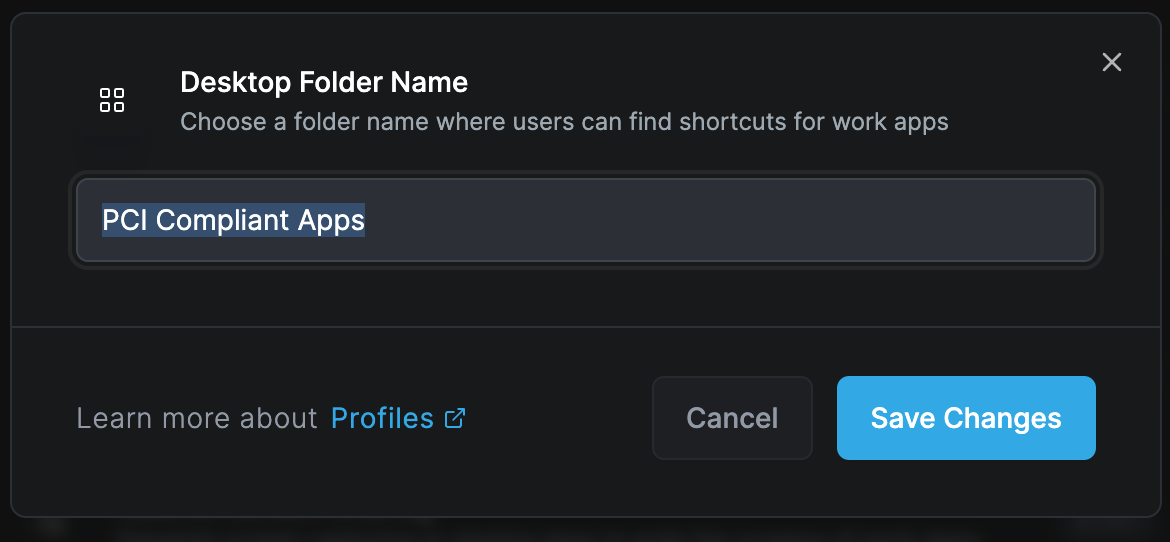
Automatically creates a folder on the desktop for easy access to workspace applications. If these applications are also present on the device, they can be launched directly from this folder within the workspace.
Show Blue Border
Surrounds the workspace with a blue border, making it:
- Distinguishable from other applications
- Clear indication of secure environment
- Visual reminder of protected status
- Compliance with security policies
Posture Checks
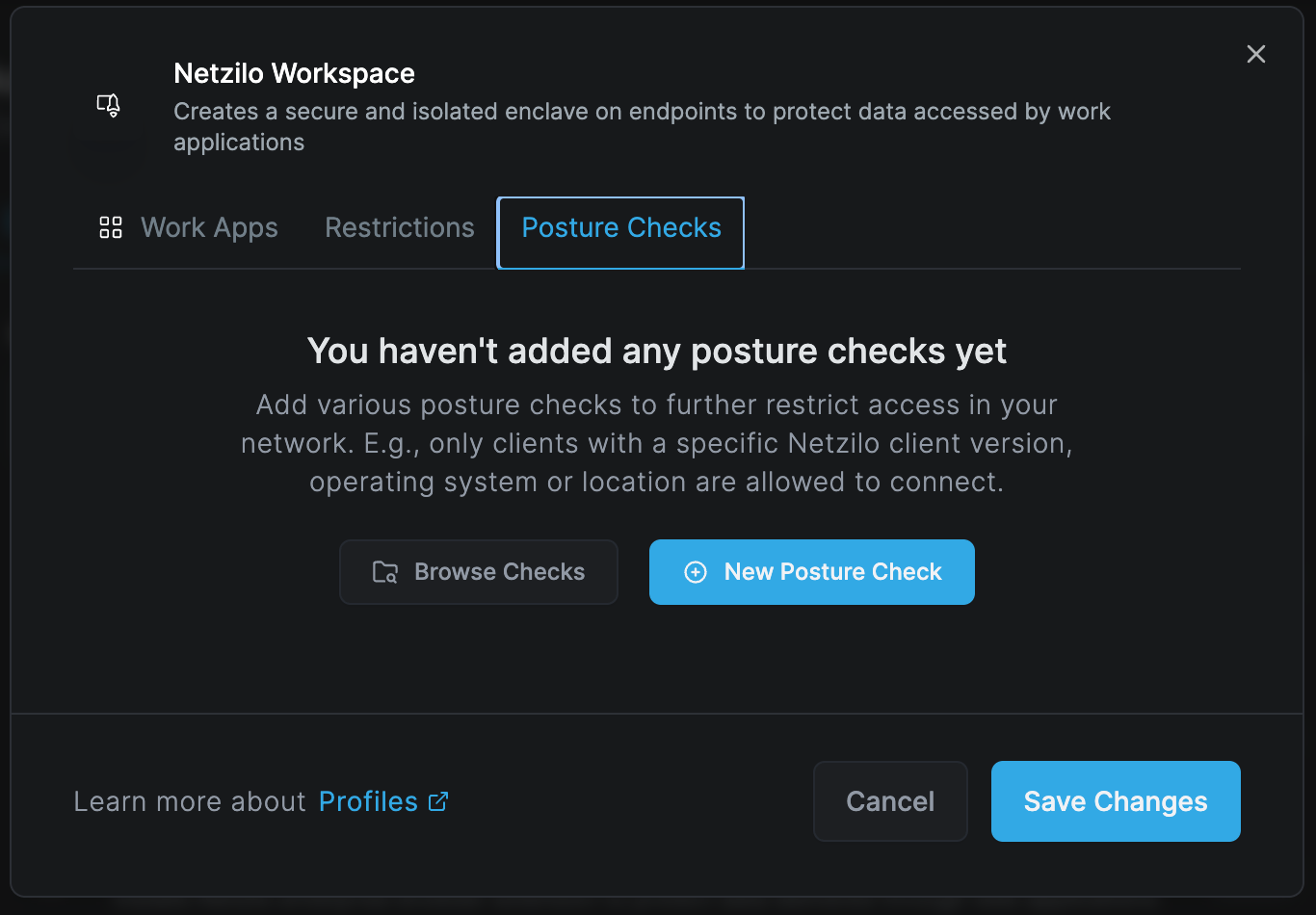
Apply additional posture check controls to the workspace:
- Navigate to the Posture Check tab
- Select New Posture Check
- Choose from available posture check options
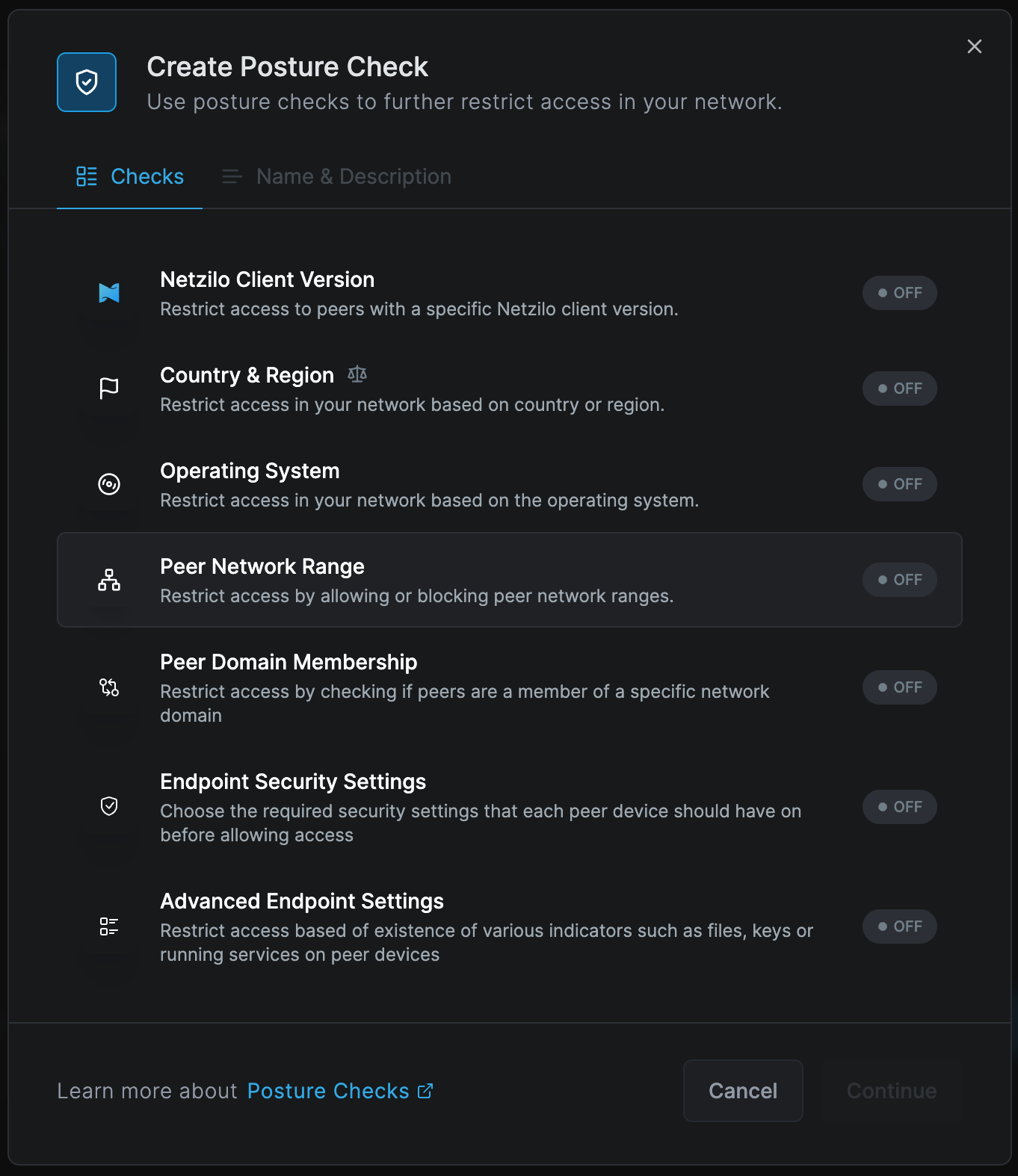
Posture Check Configuration
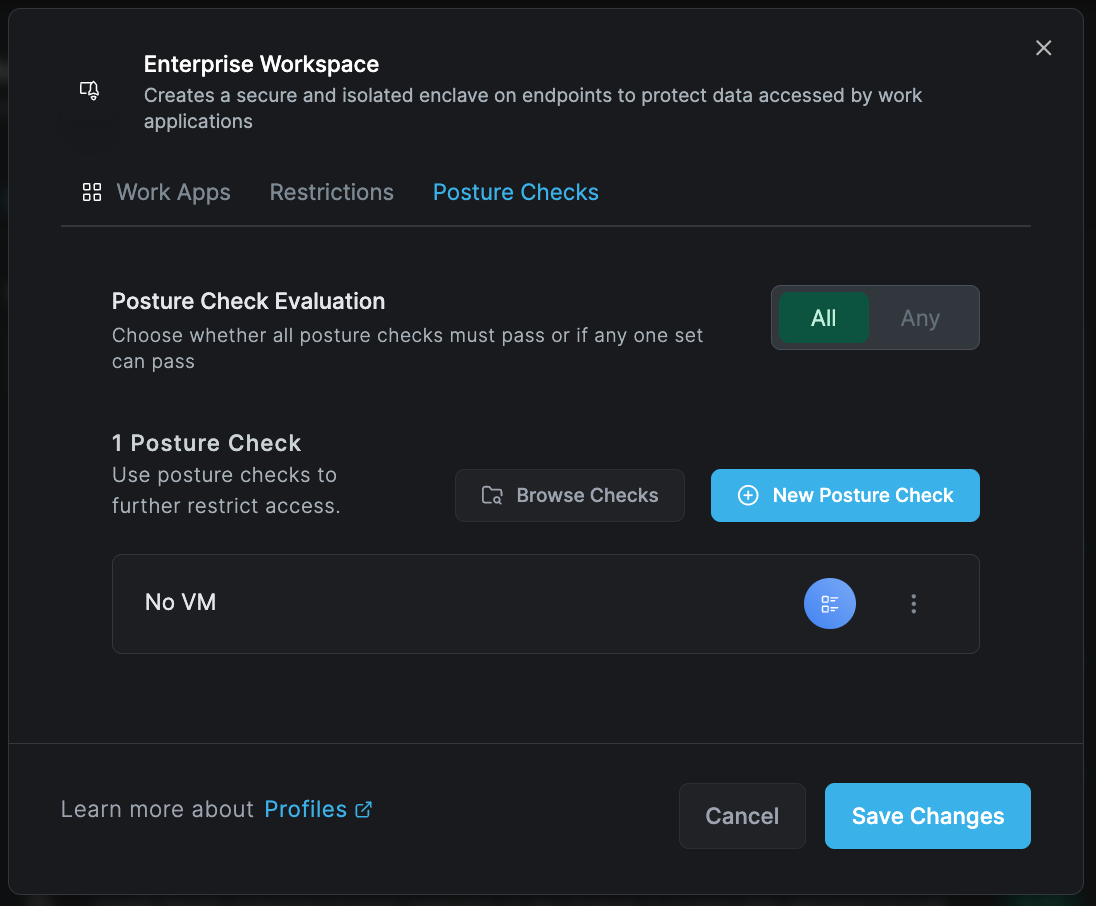
You can use All and Any options within postures:
- All: All conditions must be met (AND logic)
- Any: At least one condition must be met (OR logic)
By activating different types of posture groups and selecting Any or All in the Evaluation section, you can create complex compliance requirements.
Saving Changes
Once all configurations are complete, click Save Changes to activate your workspace. The profile will be immediately available for deployment to specified user groups.
Use Cases
Development Environments
- Secure coding environments
- Protected access to source code
- Isolated testing environments
- Compliance with security standards
Financial Applications
- Banking software protection
- Trading platform isolation
- Secure document processing
- Audit trail maintenance
Healthcare Systems
- Patient data protection
- HIPAA compliance
- Medical record access control
- Secure communication tools
Legal and Compliance
- Document management systems
- Case file protection
- Client data isolation
- Regulatory compliance
Best Practices
- Start with maximum security: Enable all protections initially, then selectively disable based on business needs
- Regular posture checks: Implement comprehensive device compliance checks
- User training: Ensure users understand the blue border and workspace indicators
- Audit regularly: Review desktop recordings and activity logs
- Update paths: Keep application paths current as software updates
- Test thoroughly: Validate all restrictions with pilot groups before full deployment
Troubleshooting
Common Issues
Workspace won't launch
- Verify application paths are correct
- Check posture compliance
- Ensure user has necessary permissions
- Validate storage integration for recording
Performance issues
- Review number of active restrictions
- Check network connectivity for encrypted tunnels
- Optimize recording quality settings
- Validate system resources
Application compatibility
- Test applications in isolated environment first
- Check for conflicting security software
- Verify regular expression patterns
- Review application dependencies
Related Features
- Posture Checks - Device compliance requirements
- Activity Reports - View workspace activity logs
- Setup Keys - Deploy workspace profiles