

Setup Keys
A setup key is a pre-authentication key that lets a device join your network without a
user signing in. The device presents the key once, at its first netzilo up, and joins
the account with the key's groups. This is how you enrol servers, routing peers,
containers, CI runners and anything installed by automation such as Ansible, CloudFormation
or Terraform.
Manage setup keys under Endpoint > Setup Keys.
How it works
-
You create a key and choose its auto-assigned groups, how often it may be used, how long it is valid and whether the peers it enrols are ephemeral.
-
The device runs the Netzilo client with the key:
sudo netzilo up --setup-key <SETUP KEY>On a self-hosted server, add the management address of your server:
sudo netzilo up --setup-key <SETUP KEY> --management-url https://netzilo.example.com -
The device joins as a peer with no owner, in the key's groups. The policies of those groups apply to it at once.
Peers enrolled with a setup key differ from peers that joined with single sign-on:
- They have no owner, so login expiration does not apply to them.
- They appear under Agents in the AI Agent Activity report.
- An Enterprise Workspace that has a setup key joins as its own peer,
<host>-WORKSPACE, with that key. See Enterprise Workspace.
To tie an unattended device to a user, use an access token instead of a setup key. See Agents and Install Netzilo.
The setup keys list
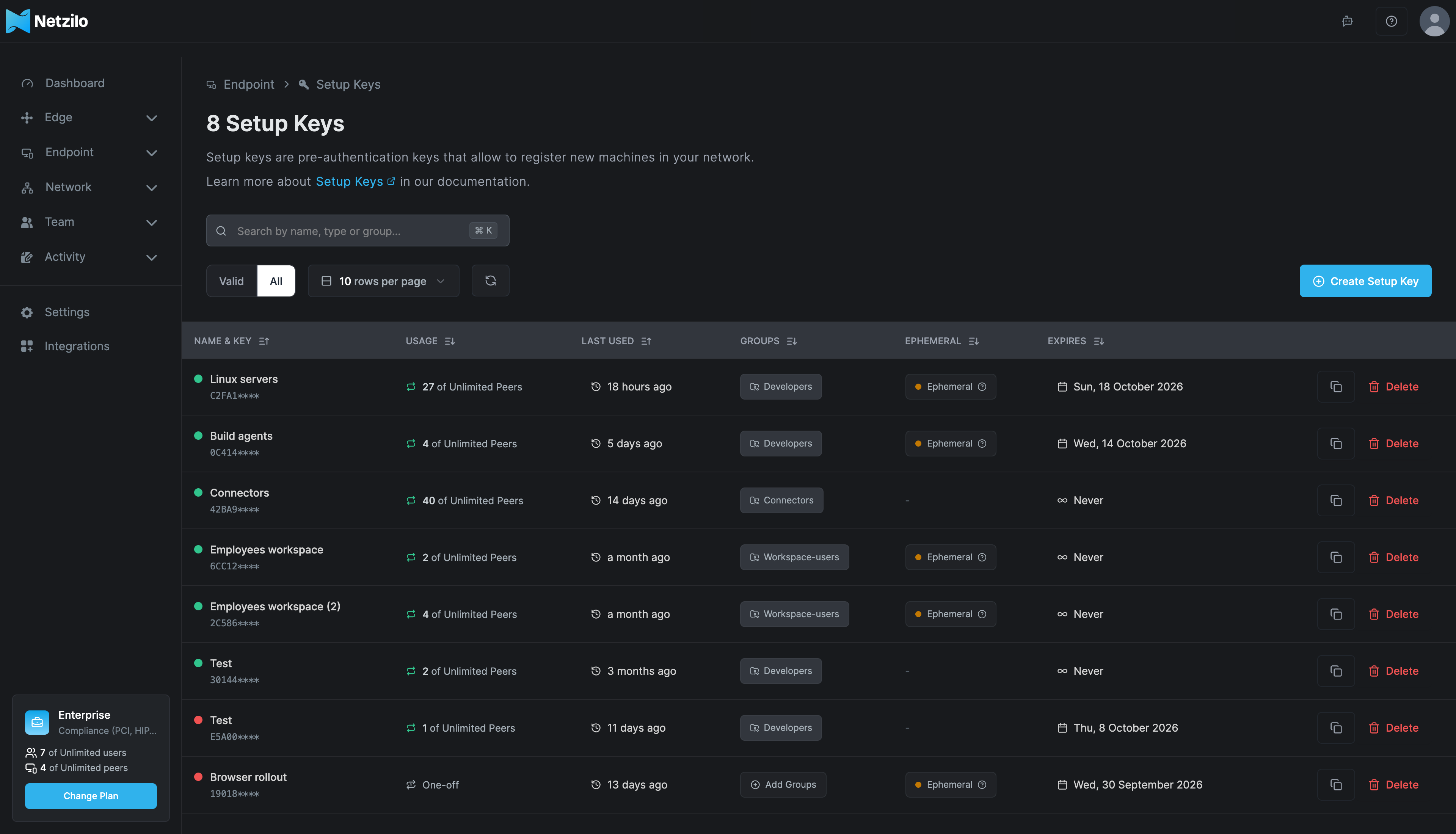
| Column | What it shows |
|---|---|
| Name & Key | The key's name, the first characters of the key, and a dot that is green while the key is valid. |
| Usage | How many peers the key has enrolled, out of its limit: x of N Peers, x of Unlimited Peers, or One-off. |
| Last used | When the key last enrolled a peer. |
| Groups | The auto-assigned groups. Click to change them. |
| Ephemeral | The Ephemeral badge when peers enrolled with the key are ephemeral. |
| Expires | The expiry date, or Never. |
Each row also has a copy button and Delete. Use Valid to hide keys that are expired, revoked or used up, and All to show every key. Search by name, type or group.
Create a setup key
Click Create Setup Key.
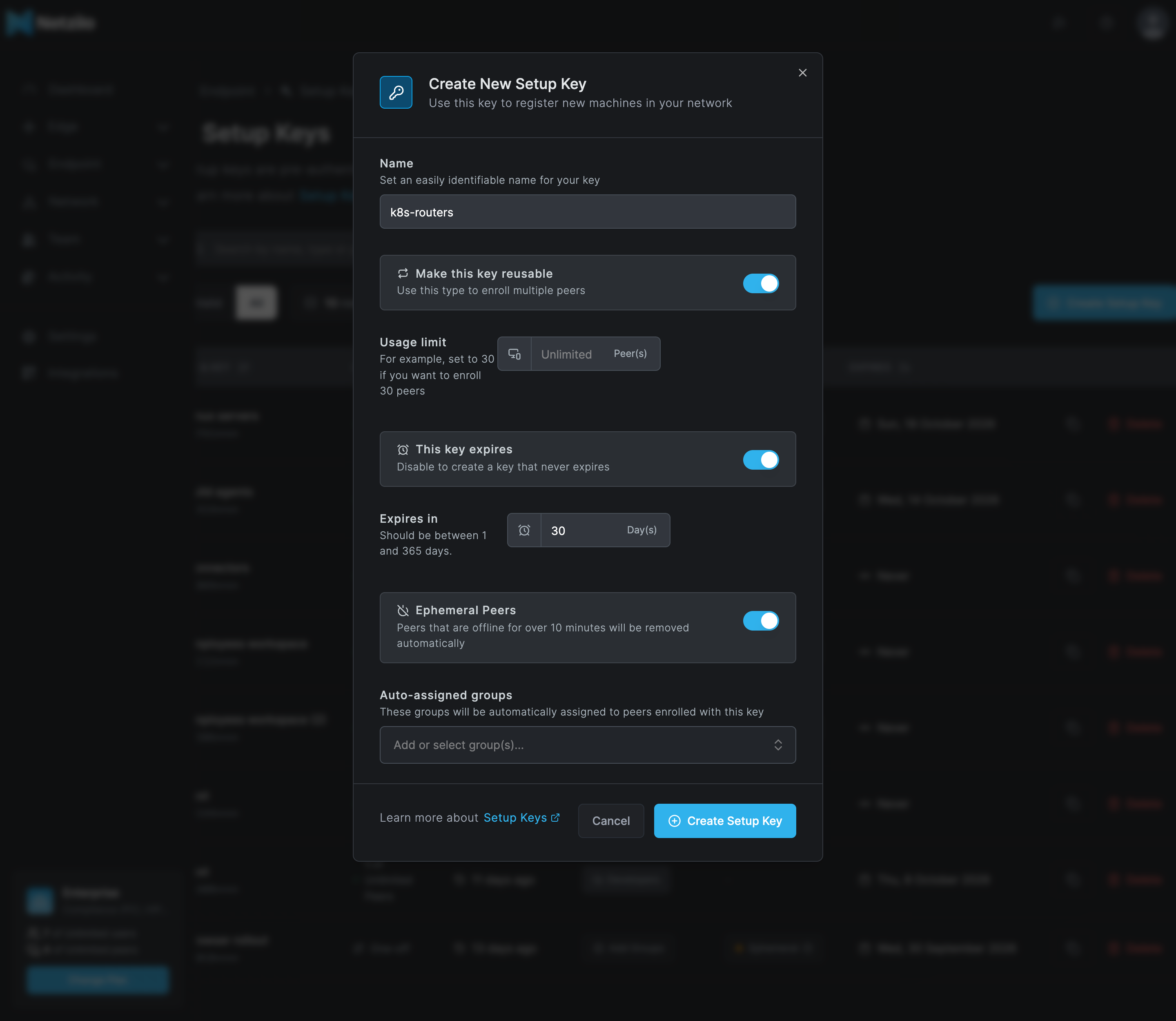
| Field | What to enter |
|---|---|
| Name | A name you recognise, such as k8s-routers. |
| Make this key reusable | Off: a one-off key that enrols a single device. On: a reusable key for many devices. |
| Usage limit | Reusable keys only. How many devices the key may enrol, for example 30. Empty means unlimited. |
| This key expires | On by default. Turn it off for a key that never expires. |
| Expires in | The key's lifetime in days, between 1 and 365. The default is 7. |
| Ephemeral Peers | Peers enrolled with this key are deleted after 10 minutes offline. Use it for autoscaling groups, Kubernetes pods and CI runners. |
| Auto-assigned groups | The groups every peer enrolled with this key joins. |
Click Create Setup Key. The dialog shows the full key once, with a Copy to clipboard button. Store the key in a secure place: it is not shown again.
Changing a key's auto-assigned groups affects only peers enrolled after the change. Peers already enrolled keep their groups; change those on the peer or with Assign Groups in the peers list.
Choose the right key
| Use | Key |
|---|---|
| One server | One-off, expires in 1 to 7 days, auto-group such as servers. |
| A fleet installed by automation | Reusable, usage limit equal to the expected number of devices, expires in 30 days, auto-groups per role. |
| Autoscaling, Kubernetes, CI | Reusable, Ephemeral Peers on, unlimited usage, an auto-group such as k8s-routers or ci. |
| Kiosks and shared devices | Reusable, This key expires off, an auto-group such as kiosks. |
| An Enterprise Workspace's own network peer | Reusable. A one-off, expired, revoked or used-up key leaves the workspace with no network. |
Rotate keys on a schedule: create the new key, update your automation, then delete the old key.
Revoke, delete and expire
Deleting a key, letting it expire or revoking it stops new devices from joining with it. Peers that already joined with the key stay connected. To remove them, delete the peers under Endpoint > Peers.
The dashboard offers Delete. To revoke a key while keeping it in the list, set
"revoked": true on it through the API; see Setup Keys API.
What a device sees
A refused key produces one of two errors on the device:
| Error | Meaning |
|---|---|
couldn't add peer: setup key is invalid | The key exists on this server but is expired, revoked or over its usage limit. Activity > Events shows a failed login naming the key and the reason. |
failed adding new peer: account not found | This server does not know the key: a typo, a key from another server, or the client points at the wrong management address. |
Creating, updating, revoking and deleting keys, and peers joining with a key, are recorded
under Activity > Events, for example setupkey.add, setupkey.revoke,
setupkey.overuse and setupkey.peer.add.
Troubleshooting
The device says setup key is invalid. Check the key's row: an expired date, a red
dot, or a usage count that reached its limit. Create a new key, or raise the usage limit
of a reusable key.
The device says account not found. Check the management address on the device
first, then that the key was created on this server.
Peers enrolled with a key keep disappearing. The key has Ephemeral Peers turned on, and the peers go offline for more than 10 minutes. Use a non-ephemeral key for permanent devices.
A Linux device enrolled with a setup key shows up twice after an upgrade. The one-line
installer logs the client out when it upgrades, and the device joins again as a new peer.
Delete the stale entry and run netzilo up --setup-key again if needed. To upgrade without
losing the enrolment, replace the netzilo binary and run sudo netzilo service restart.
Login expiration cannot be turned on for a peer. The peer joined with a setup key and has no user to sign in again. This is by design.
Related Documentation
- Peers - The devices enrolled with your keys
- Install Netzilo - Install the client on every platform
- Installer command lines - Silent installs with a setup key
- Routing peers and Kubernetes - Ephemeral routing peers
- Enterprise Workspace - The workspace's own network peer
- Setup Keys API - Create and revoke keys from automation