

Agents
Agents are accounts that do not belong to a person and cannot sign in. You use them to create access tokens for the Netzilo API, so scripts, infrastructure-as-code and integrations keep working when an employee leaves. In older versions of the dashboard, agents were called service users.
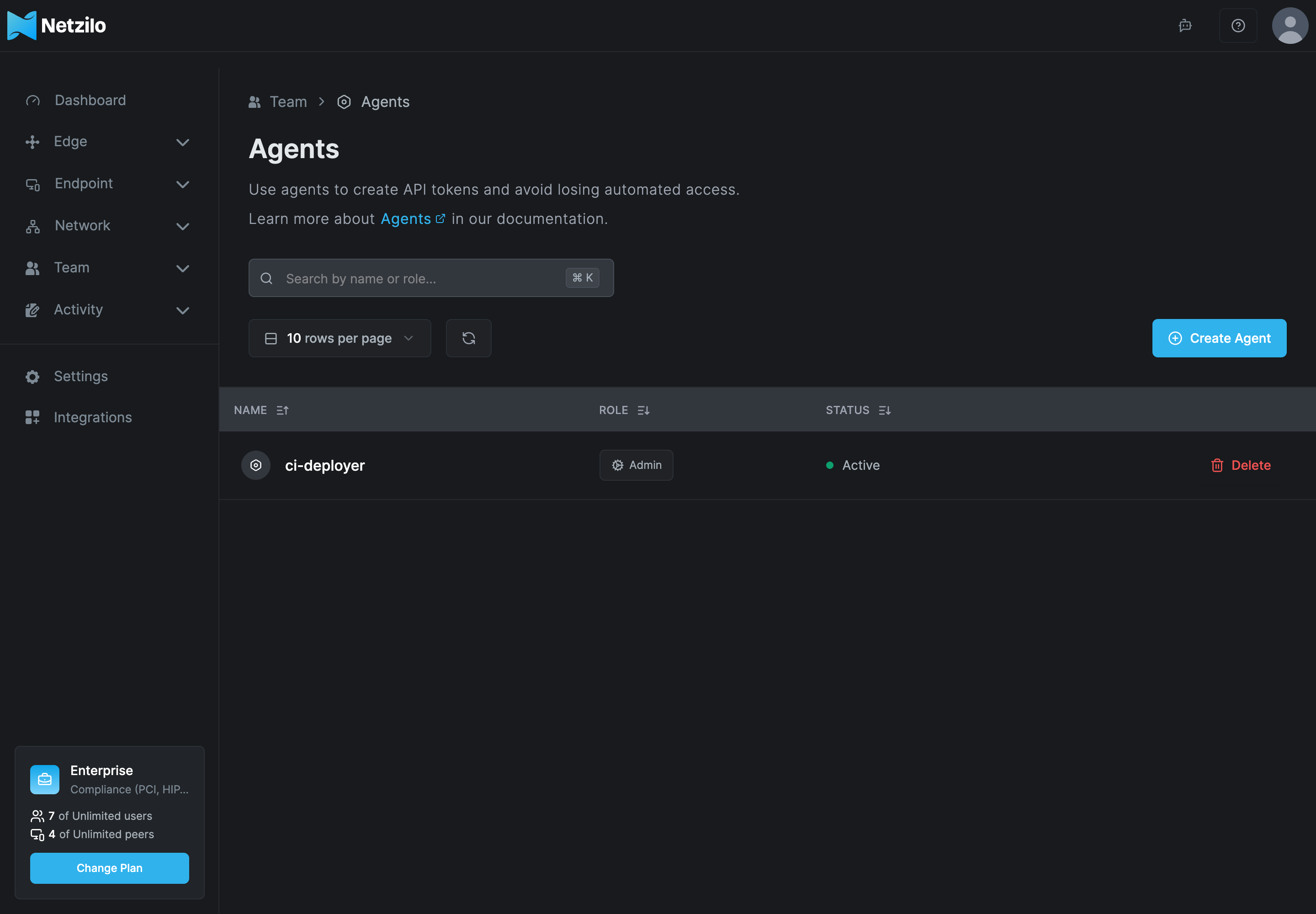
Agents are under Team > Agents.
Use an agent's token for:
- Automated scripts and infrastructure-as-code tools such as Ansible or Terraform that configure your Netzilo network.
- Third-party integrations that need your account's data without anyone's personal account.
- Command-line tools such as curl.
Agents count towards the Free plan's 5 users. See Plans & Billing.
Create an agent
- Go to Team > Agents and click Create Agent.
- Fill in the dialog and click Create Agent:
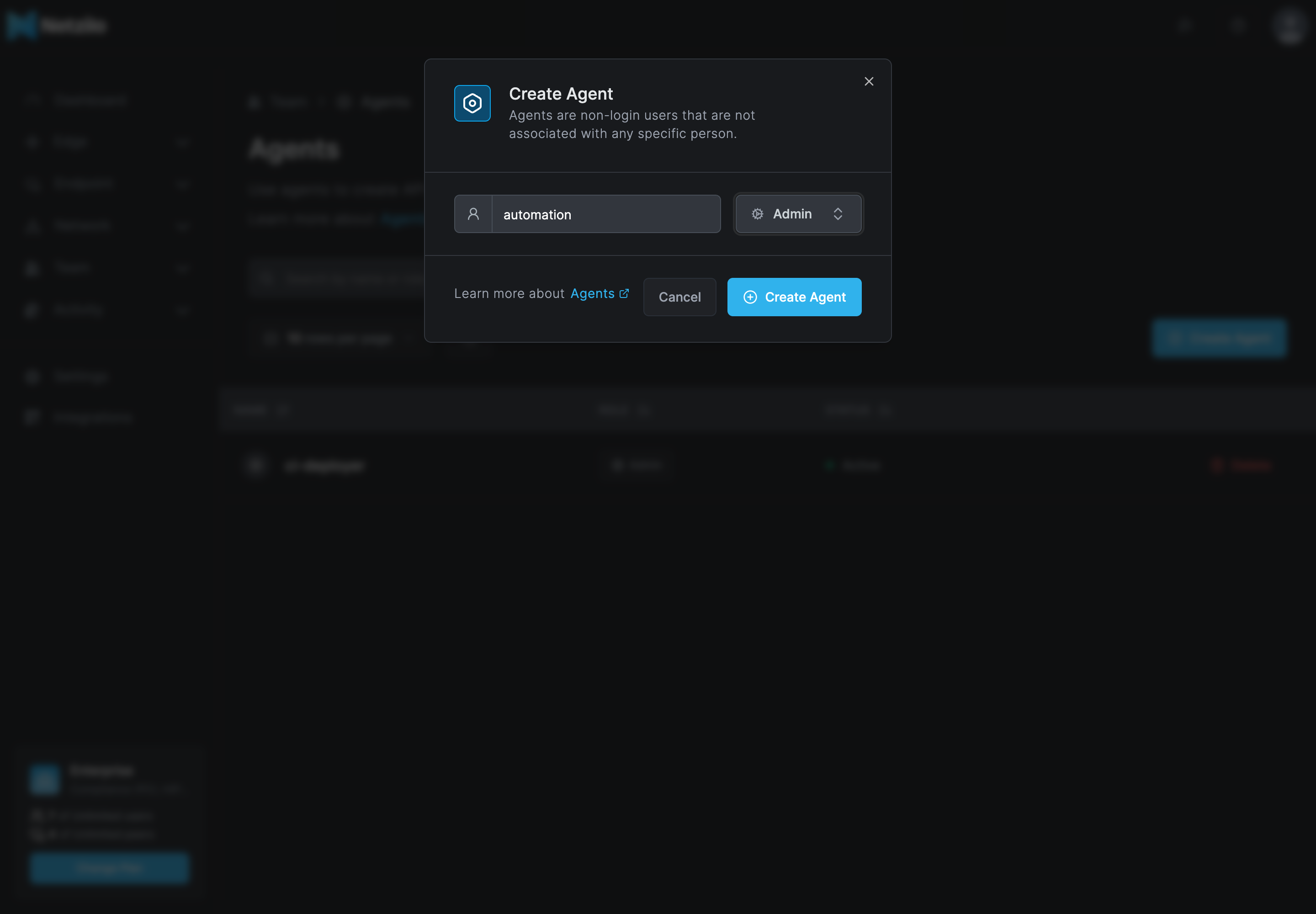
| Field | What to enter |
|---|---|
| Name | A name that says what the agent is for, such as automation or reporting |
| Role | User to read, Admin to read and change |
An agent with the User role reads only what a regular user may read. It cannot read the administrator-only parts of the API, such as groups, posture checks, DNS, events, reports, settings, integrations and the Edge objects. Diagnosis and most automation need an Admin agent.
Keep agents to a minimum and give each the least role its job needs. The role, not the token, decides what a token can do.
Create an access token
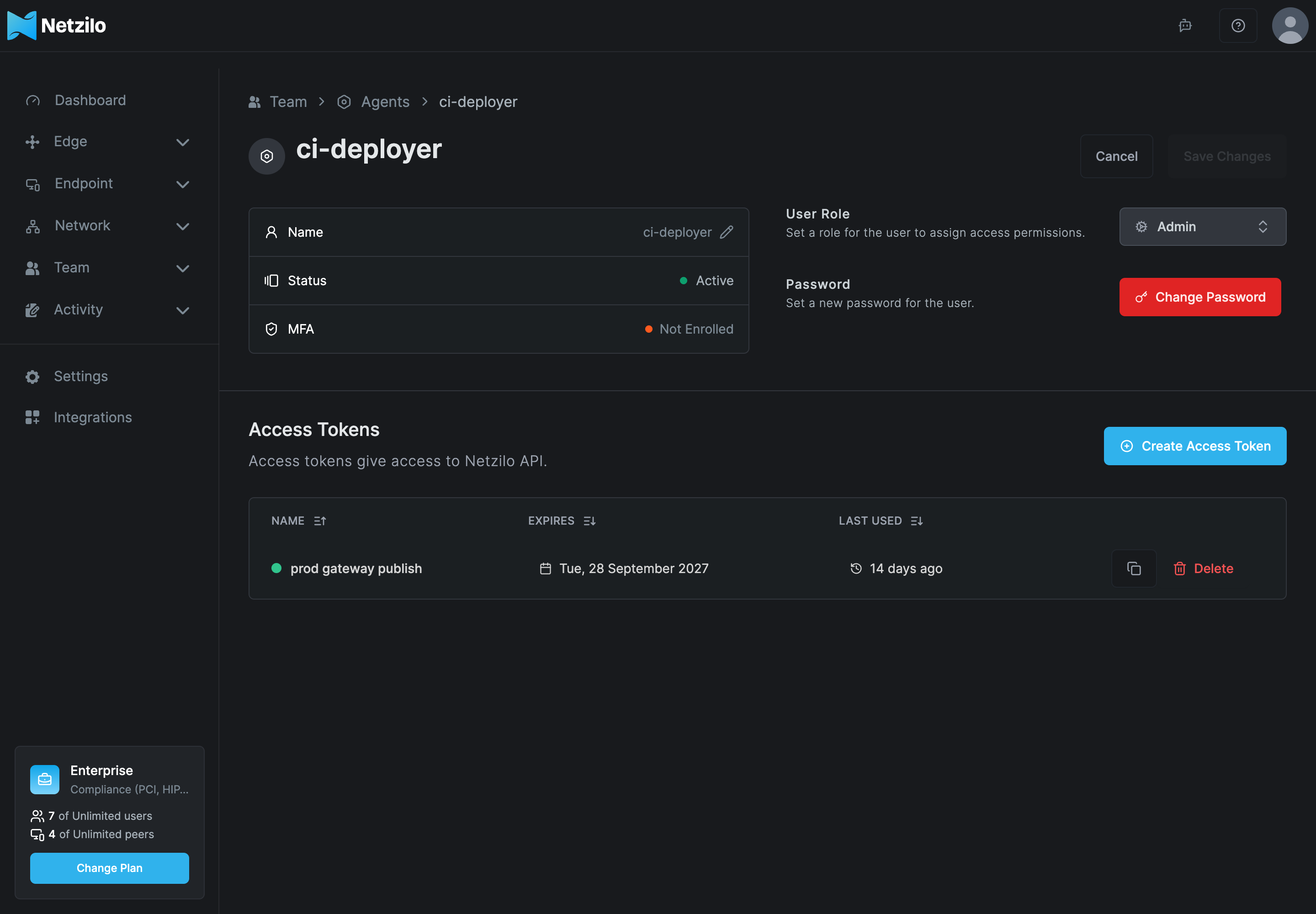
- Under Team > Agents, click the agent.
- Under Access Tokens, click Create Access Token.
- Fill in the dialog and click Create Token:
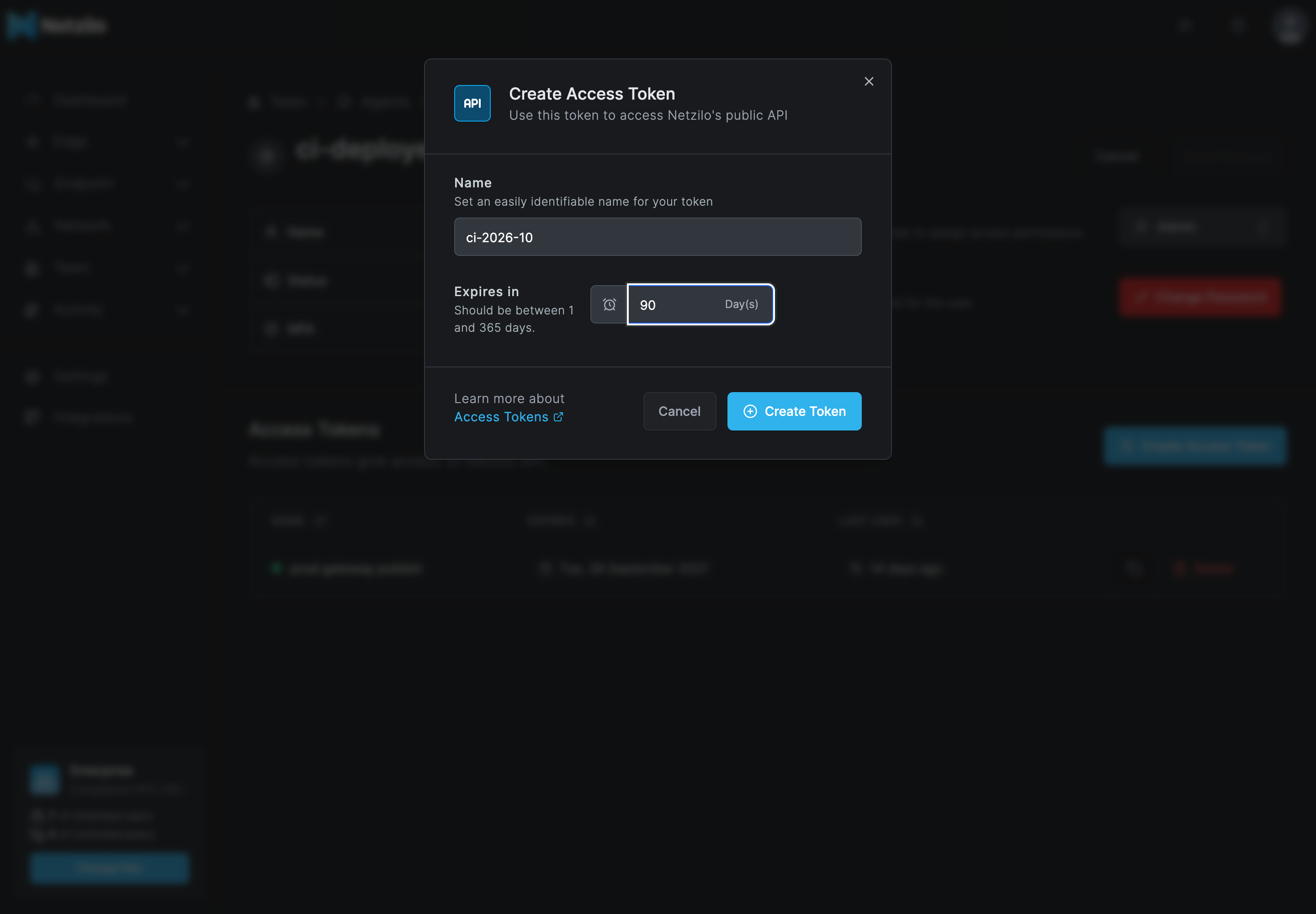
| Field | What to enter |
|---|---|
| Name | A name you will recognise later, such as ci-2026-10 |
| Expires in | Between 1 and 365 days |
- The dialog Access token created successfully! shows the token once. Click Copy to clipboard and store it in a secret store. Netzilo keeps only a hash of it, so it cannot show it again.
You cannot change a token after you create it. Create a new one instead.
Your own tokens are under the user menu, Profile Settings > Access Tokens, see Profile Settings. A token there acts with your role, and stops working when your account is blocked or deleted. Administrators can also create tokens on a regular user's page, see Users. No one can create a token for another admin or for the owner.
The AI Gateway token that the Workplace creates, and the (MCP) tokens of applications such as Claude Desktop, only identify a user to AI gateways. They cannot be used with the API.
Use the token
Send the token in the Authorization header. The API is at https://srv.netzilo.com/api
on Netzilo Cloud, and at https://<your-domain>/api on a self-hosted server.
List users with an access token
curl https://srv.netzilo.com/api/users \
  -H "Authorization: Token nzl_..."
Authorization: Bearer nzl_... is accepted too. Every request runs with the role of the
token's owner. See the API reference for the endpoints.
Things to design around:
- The API has no version prefix and no idempotency keys. A retried create can create a duplicate, so check before you create.
- Only
/api/events/paginatedpaginates. Every other list returns everything. - A
PUTreplaces the whole object. Read it first, change the field, and write it back. - Field validation errors return HTTP 422, not 400.
Rotate a token
Create the new token before you delete the old one:
Rotate the token of the agent named automation
export NZ_URL=https://srv.netzilo.com/api
export NZ_TOKEN=nzl_...   # the current token
nz() { curl -sS -H "Authorization: Token $NZ_TOKEN" -H 'Content-Type: application/json' "$NZ_URL$1" "${@:2}"; }

AGENT=$(nz "/users?service_user=true" | jq -r '.[] | select(.name=="automation") | .id')
nz /users/$AGENT/tokens -X POST -d '{"name":"ci-'$(date +%Y%m)'","expires_in":90}' | jq -r .plain_token
nz /users/$AGENT/tokens | jq '.[] | {id,name,expiration_date,last_used}'
# store the new token, then delete the old one:
# nz /users/$AGENT/tokens/<old token id> -X DELETE
Nothing warns you before a token expires. Put its expiry date in your calendar or your secret store.
Delete an agent
Click Delete on the agent's row under Team > Agents. Its tokens stop working.
Troubleshooting
The API answers 401 token invalid. The token is mistyped, expired or deleted. The API
cannot tell which. Create a new token.
The API answers no valid authentication provided. The Authorization header is
missing or malformed. Send Authorization: Token nzl_....
The API says the user has no access or is blocked. The token's owner is blocked.
The API answers 403 only users with admin power can perform this operation. The agent
has the User role. Change it to Admin on the agent's page, or use another agent.
Creating an agent fails with maximum number of users reached. The Free plan allows 5
users, agents included.
A token works for some paths and is refused for others with token scope "mcp". It is
an AI Gateway or (MCP) token. Create a token on an agent instead.
Related Documentation
- API introduction - Endpoints, requests and responses
- Users - Roles and tokens for regular users
- Profile Settings - Your own access tokens
- Plans & Billing - User limits, agents included