

Agentic Access
Agentic Access is the Workplace tab where you connect your AI tools to the company's Netzilo AI Gateway. It lists the LLM gateways and MCP servers granted to you, creates the access token your tools use, and gives you the exact settings for Claude Code, Cursor, VS Code, the OpenAI and Anthropic SDKs, curl and Claude Desktop.
The tab is at Workplace > Agentic Access (/workplace#gateways), for every user,
regular users included. It appears only when an enabled gateway filter grants you at least
one gateway address or one MCP server or bundle. Administrators set this up under Edge >
Filters, see Filters and AI Gateway.
How it works
- An administrator runs a Netzilo AI Gateway, adds providers, models and MCP servers, and grants them to your groups in a gateway filter.
- The Agentic Access tab shows each gateway address and each MCP server you are granted.
- You create an access token on the page. It identifies you to the gateway and to nothing else.
- You point your AI tool at the gateway address with that token. Claude Desktop signs in with your organization instead and needs no token.
- Every request goes through the gateway. It checks which models you may use, your usage limits and the company's guardrails, and refuses with a reason when a check fails.
The Agentic Access tab
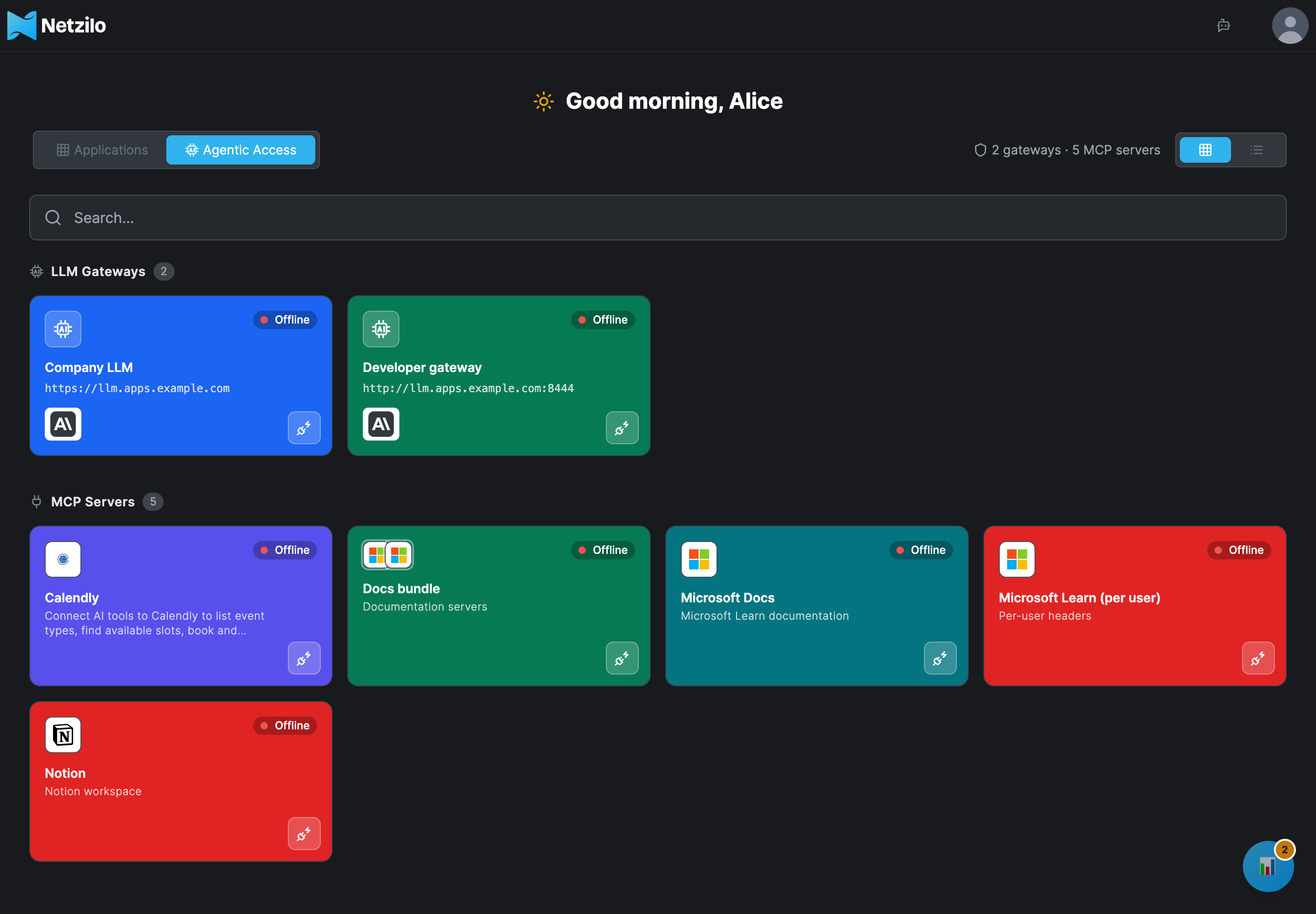
The counter reads, for example, 2 gateways · 5 MCP servers. The tab has two sections.
LLM Gateways shows one card per gateway address: the name your administrator gave it (or its host), its address with a copy button, the icons of its providers (hover to see each provider's models), a status pill and a Connect button.
| Pill | Meaning |
|---|---|
| Online · n ms | Your browser reached the gateway with your session and it answered in n milliseconds. |
| Offline | The gateway did not answer within 8 seconds. The page checks again every 30 seconds. |
| Dot only | The first check is still running. |
MCP Servers shows one card per MCP server and bundle granted to you. A bundle shows the icons of the servers it combines.
| Pill | Meaning |
|---|---|
| Online | The server listed its tools through the gateway. |
| Offline | It did not. |
| Needs Attention | You still have to connect: sign in to the server, enter a value it needs, or finish the servers of a bundle. An administrator may also still have to sign in for a shared account. |
The list view, chosen with the button at the top right, adds each MCP server's authentication state: Not Required, Needs Sign In, Needs Input or Authenticated.
Click a card to open its dialog. The square button on a card opens the dialog's Connect tab directly. With nothing granted, the tab reads No gateway yet. When an AI gateway is granted to you, it appears here with its models and MCP servers.
Connect an AI tool to an LLM gateway
The gateway dialog has the tabs Connect, Models, Guardrails and Details. Connect has one tab per client: Claude Code, Python, Node.js, Anthropic SDK, Cursor and curl. Each shows three steps.
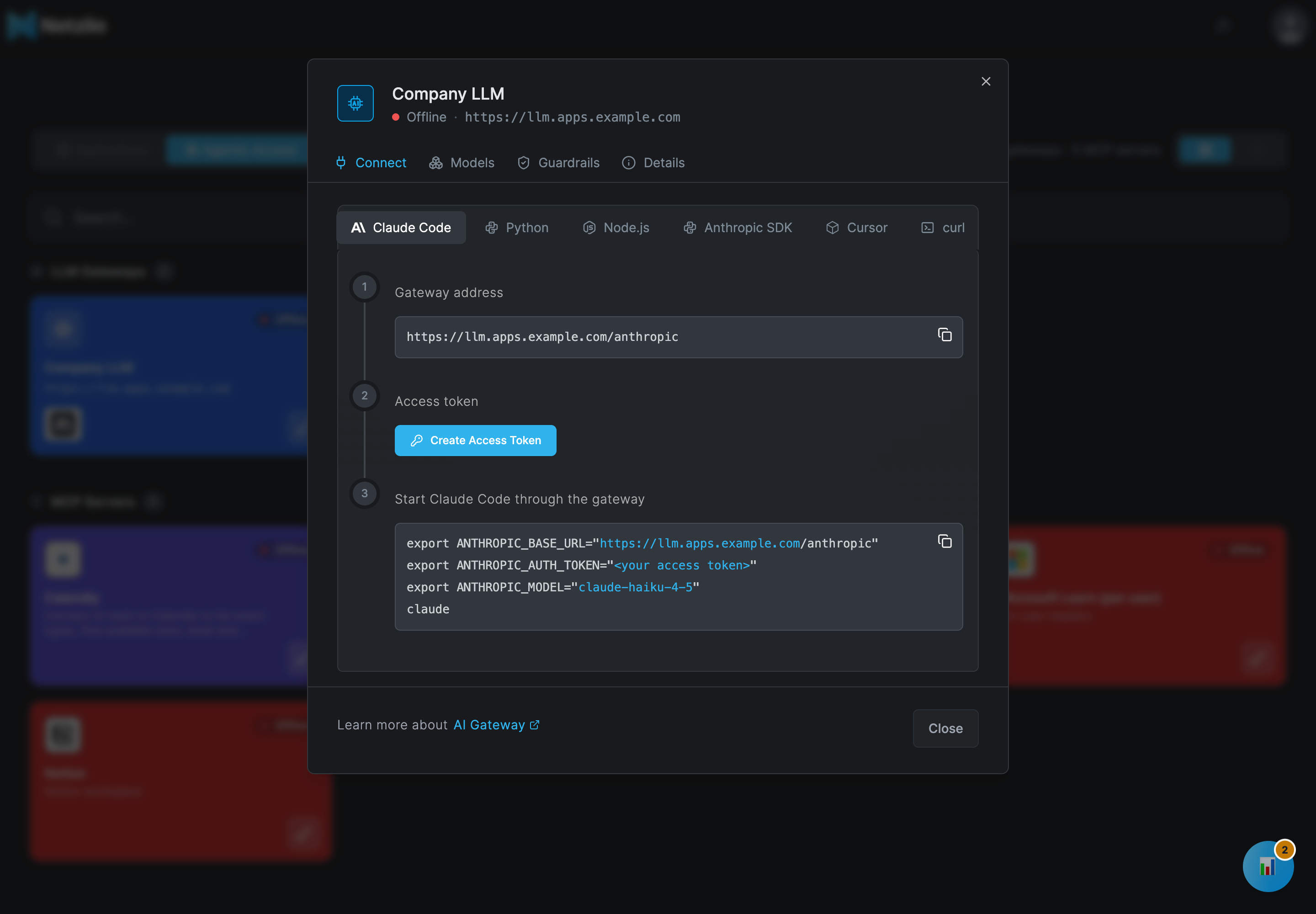
- Gateway address. The address your client needs:
<gateway>/anthropicfor Claude Code and the Anthropic SDK,<gateway>/v1for Python, Node.js and Cursor, and the gateway address itself for curl. - Access token. Click Create Access Token, see The AI Gateway access token.
- The snippet for your client, with your token filled in once it exists.
| Client | What to set |
|---|---|
| Claude Code | ANTHROPIC_BASE_URL="<gateway>/anthropic", ANTHROPIC_AUTH_TOKEN="<token>", ANTHROPIC_MODEL="<model>", then run claude |
| Python (OpenAI SDK) | OpenAI(base_url="<gateway>/v1", api_key="<token>") |
| Node.js (OpenAI SDK) | new OpenAI({ baseURL: "<gateway>/v1", apiKey: "<token>" }) |
| Anthropic SDK | anthropic.Anthropic(base_url="<gateway>/anthropic", auth_token="<token>"). Use auth_token, not api_key. |
| Cursor | Settings > Models: OpenAI API Key = the token, Override OpenAI Base URL = <gateway>/v1, and the model |
| curl | curl <gateway>/v1/chat/completions -H "Authorization: Bearer <token>" |
<model> is the first model the gateway lists for you. Any other OpenAI-compatible client
works the same way: base URL <gateway>/v1 and the token as the API key. Any other
Anthropic-compatible client: base URL <gateway>/anthropic and the token as a bearer
(auth) token. For Claude Desktop, see
Sign in to Claude Desktop with your organization.
The other tabs of the dialog:
- Models lists the models you may use, each with a copy button. When the gateway does not answer, it lists what your filters grant.
- Guardrails lists the guardrails that apply to your traffic.
- Details lists the status, the latency and the three addresses of the gateway.
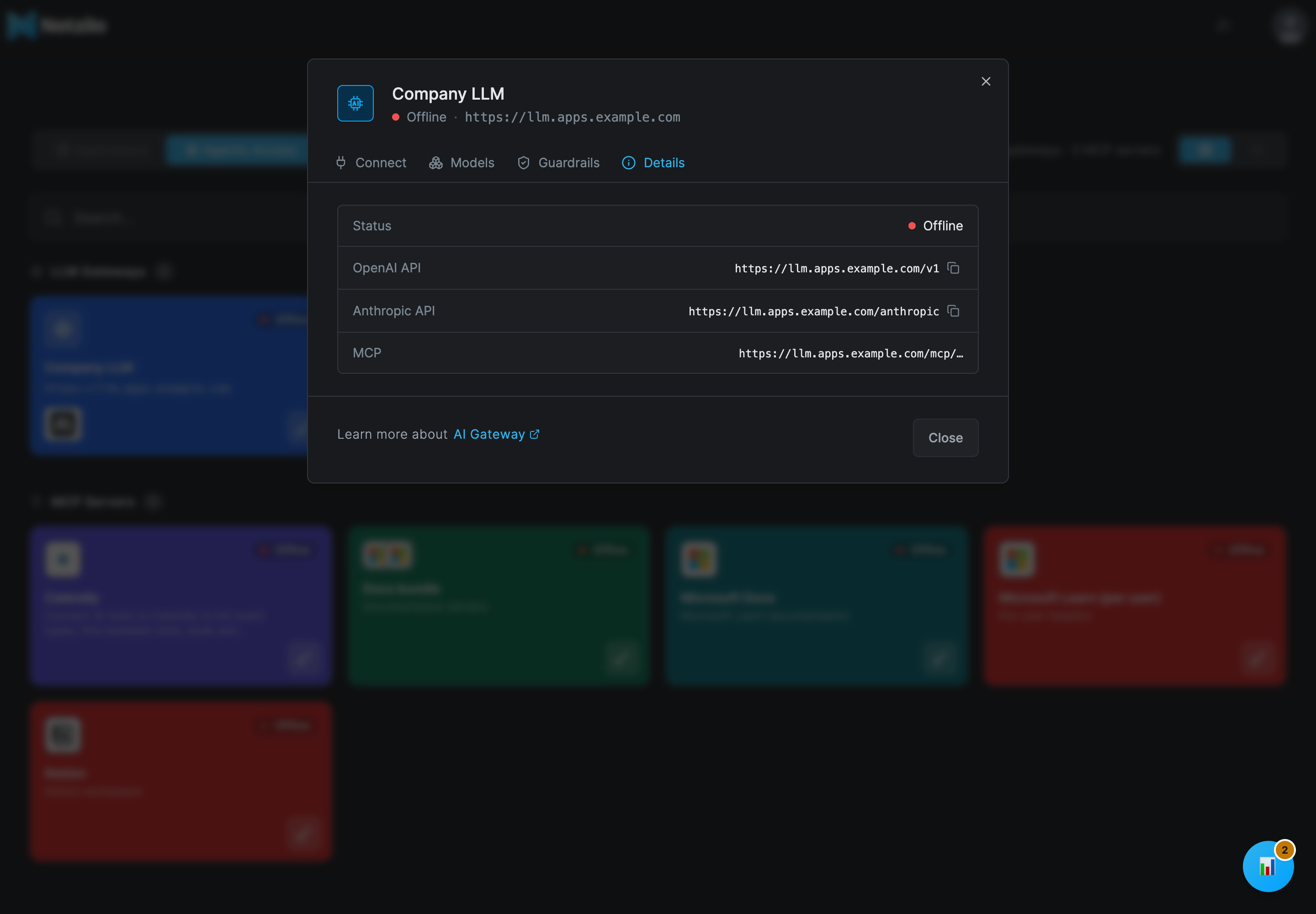
| Row | Address | Used by |
|---|---|---|
| OpenAI API | <gateway>/v1 | OpenAI-compatible clients |
| Anthropic API | <gateway>/anthropic | Claude Code, the Anthropic SDK, Claude Desktop |
| MCP | <gateway>/mcp/… | MCP clients; each server has its own path |
The AI Gateway access token
Create Access Token creates a personal access token named AI Gateway for you:
- It is valid for 90 days.
- It can only identify you to AI gateways. It cannot read or change anything else through the Netzilo API.
- The page keeps it in this browser only. It shows it masked, and the copy button copies the real value. In another browser, create another token.
- It appears under Profile Settings > Access Tokens. Delete it there when you no longer need it or if it leaks; it then stops working within about a minute.
If creating the token fails, the page says The access token could not be created.
Connect an MCP server
The MCP server dialog has the tabs Overview, Connect, Tools and Guardrails.
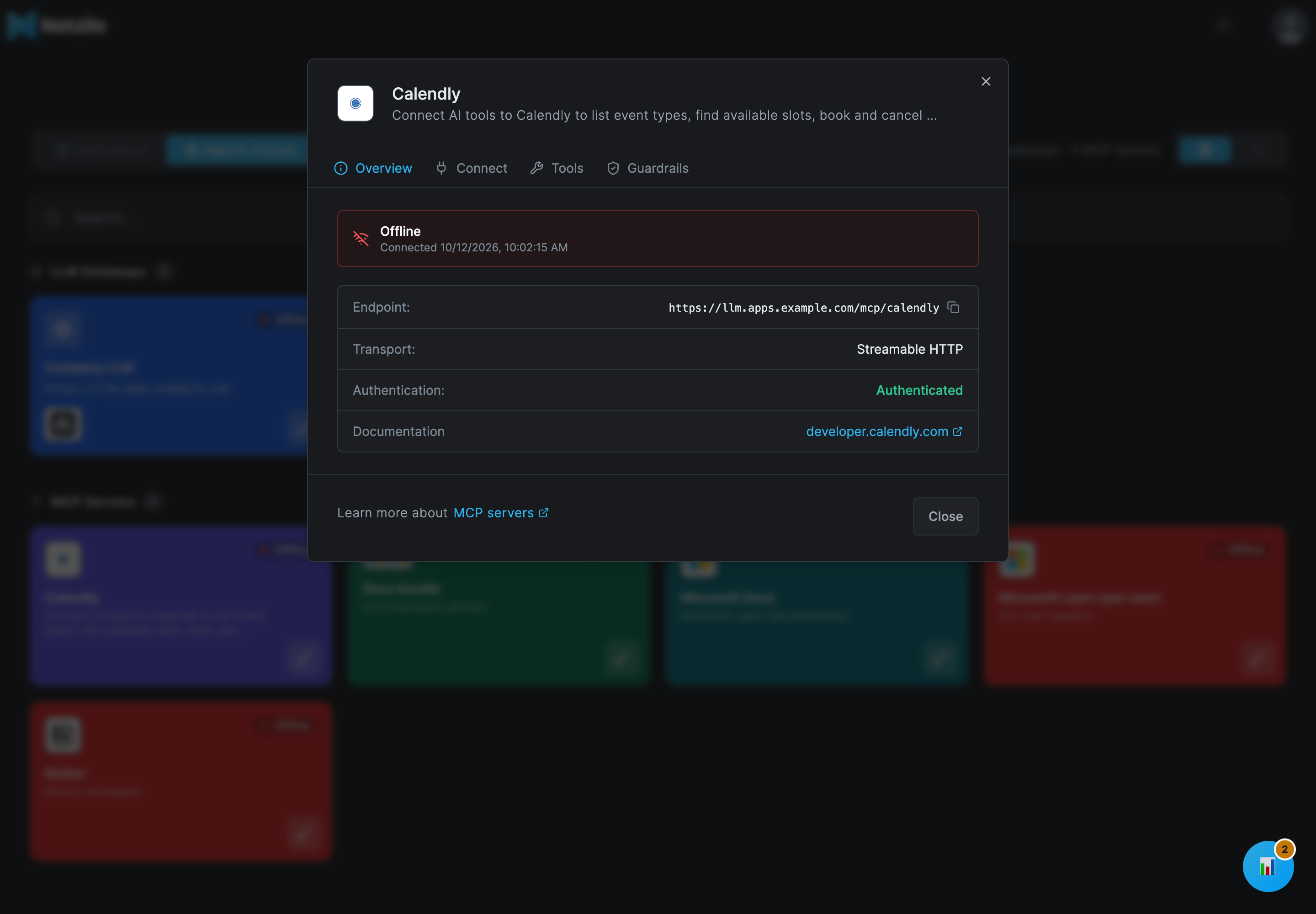
Overview shows a status panel and the rows Endpoint (<gateway>/mcp/<server>),
Transport (Streamable HTTP), Authentication, Servers for a bundle, and
Documentation when the server has a link. The status panel is where you connect:
| The panel says | What to do |
|---|---|
| Connect your (server) account to use its tools | Click Connect. The server's sign-in opens in a pop-up window. When it finishes, the page says The server is connected for you. |
| Your (server) connection expired | Click Reconnect. |
| One input per value the server needs, such as an API key | Enter the values and click Connect. |
| An admin has not connected this server yet. | An administrator has to sign in for the shared account first. |
| Finish setting up (servers) to use all of its tools. | A bundle: connect the servers it names first. |
| The number of tools and Connected with a date | Ready. Disconnect removes your own sign-in or values. |
If connecting fails, the page says Could not connect and the reason, for example The sign-in was not completed within 10 minutes. or The browser blocked the sign-in window. Allow pop-ups for this site and try again.
Connect has one tab per client: Claude Code, Cursor, VS Code, Claude Desktop and curl.
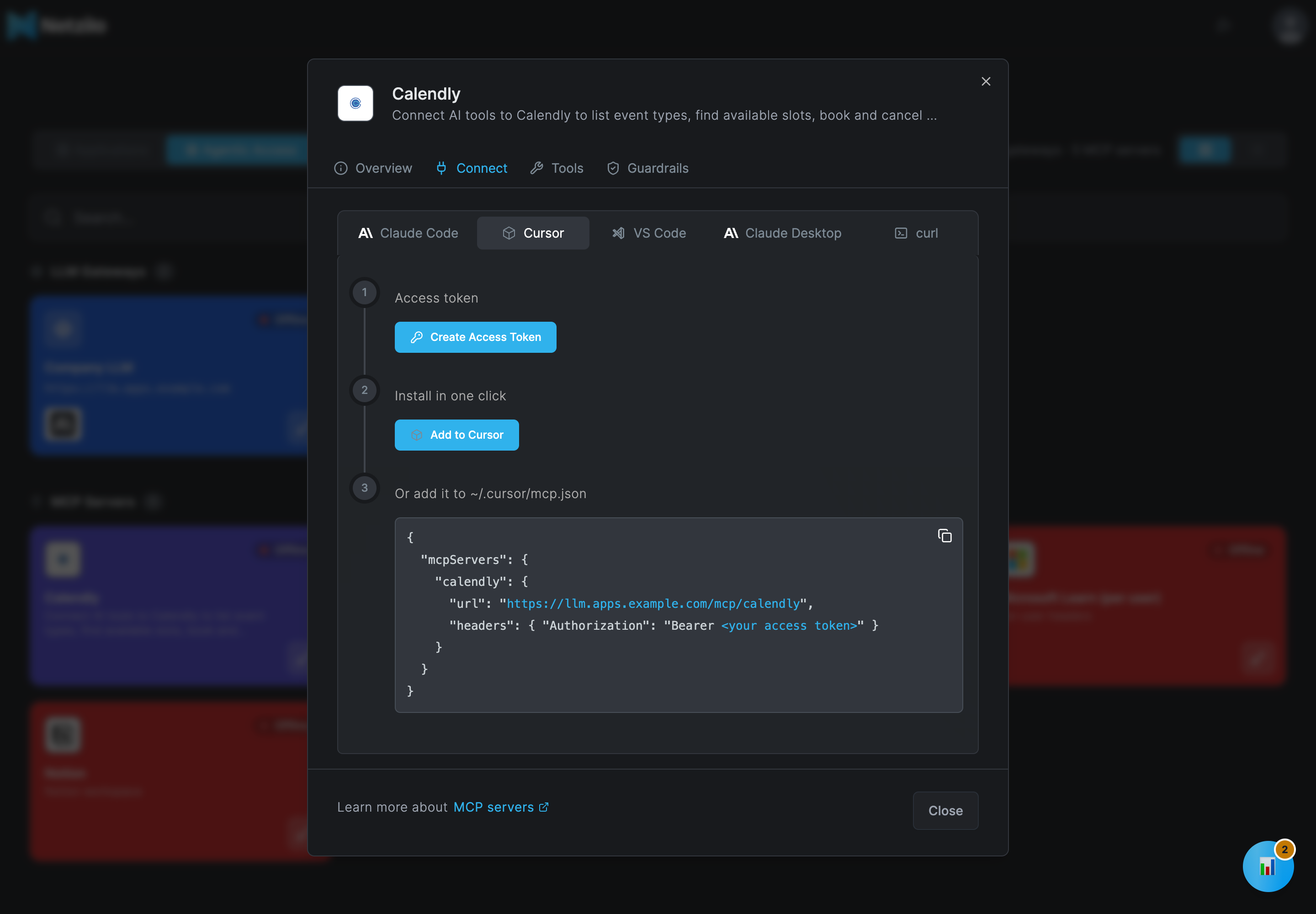
| Client | Steps |
|---|---|
| Claude Code | Create the access token, run claude mcp add --transport http <name> <endpoint> --header "Authorization: Bearer <token>", then check it with claude mcp list. |
| Cursor | Create the access token, then Add to Cursor, or add the server to ~/.cursor/mcp.json. |
| VS Code | Create the access token, then Add to VS Code, or add the server to .vscode/mcp.json. |
| Claude Desktop | Open Settings > Connectors > Add custom connector, paste the server address, and sign in with your Netzilo account when asked. No token is needed: you approve Claude on the consent page, see The consent page for MCP connectors. |
| curl | Create the access token and list the server's tools from a terminal. |
Tools lists the server's tools once the gateway reports them. Guardrails lists the guardrails that apply.
Sign in to Claude Desktop with your organization
Claude Desktop can sign in through the gateway without a token:
- In Claude Desktop, set the gateway endpoint to the Anthropic API address from the
Details tab. It ends in
/anthropic. The/v1address and the bare gateway address do not work for this. - Choose Sign in with your organization.
- Claude shows a code such as
BCDF-GHJKand opens a page in your browser headed Claude wants to access your Netzilo account. - Check that the code on the page is the one Claude shows you (Make sure this code is the one Claude shows you:), then click Allow.
- The page says Access allowed. Claude signs in on its own within a few seconds. You can return to it now. Go back to Claude.
Deny ends the sign-in: Access denied. Nothing was shared. Claude is told that you declined.
When the page opens without a code, it asks for it first:
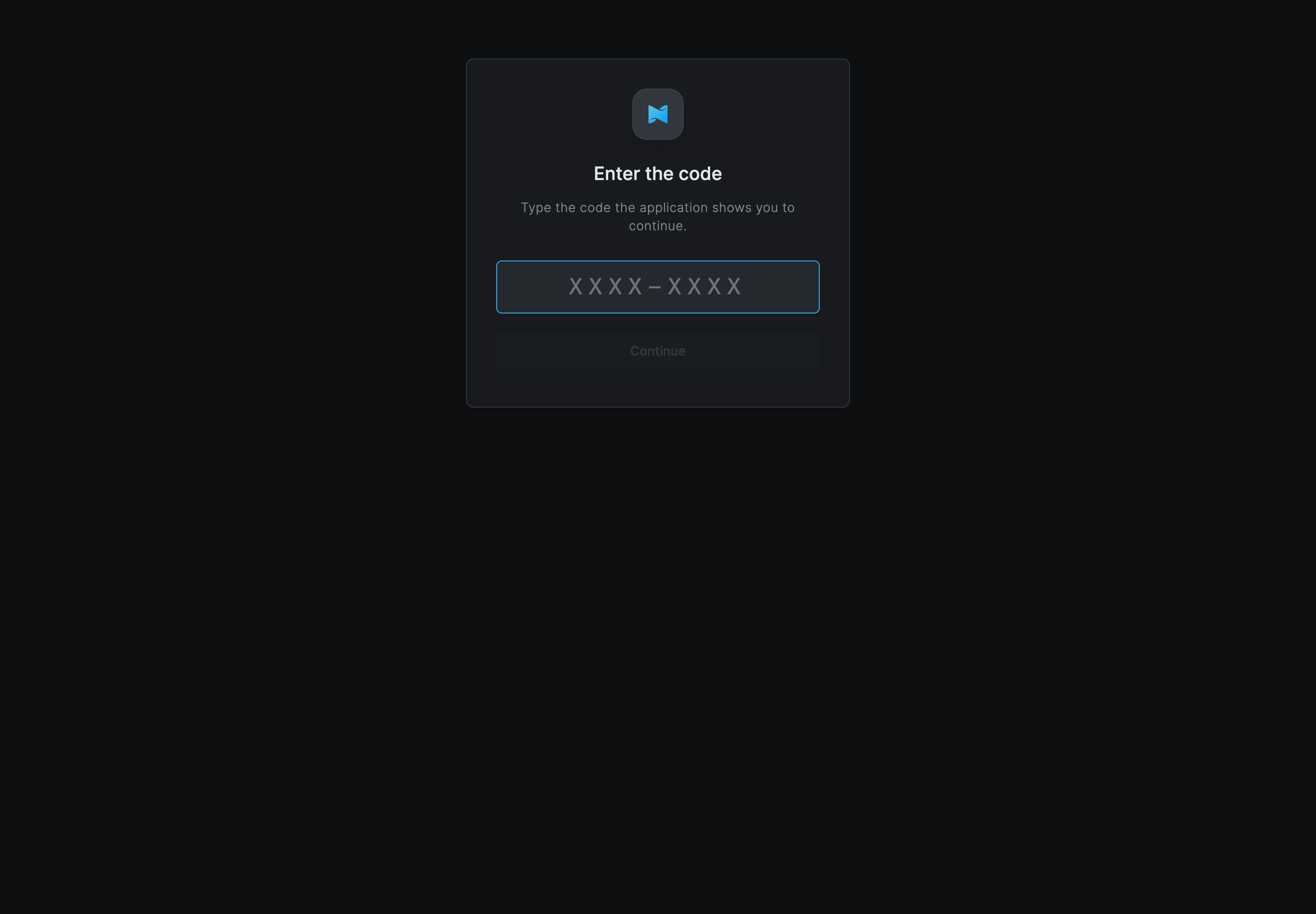
Type the code as Claude shows it and click Continue. That code was not found or has expired. Check it and try again. means the code was mistyped or is older than 10 minutes: retype it, or start the sign-in again in Claude.
Approving creates an access token in your name called Claude (MCP). An application that does not name itself appears as Device sign-in (MCP). The token lasts one day and Claude renews it for up to 30 days, so you are not asked again. It is listed under Profile Settings > Access Tokens. To sign Claude out of the gateway, delete it there; Claude asks you to sign in the next time.
The consent page for MCP connectors
An MCP client that signs in by itself, such as a Claude Desktop custom connector, sends you to a consent page in the browser:
- The heading names the application: (application) wants to access your Netzilo account.
- This will allow (application) to: use the AI gateway at the gateway's host as you; call the MCP servers and models your filters grant you; keep an access token in your name until you revoke it.
- Allow takes you back to the application (Taking you back to the application). Deny shares nothing.
The token the application receives is listed under Profile Settings > Access Tokens like the Claude Desktop one, and you revoke it there.
What users see
Tell employees:
- The gateway is how your AI tools reach the company's models and tools. Point the tool at the address on your Agentic Access card, with the access token the page creates for you. The token is yours. Do not share it, and delete it under Profile Settings > Access Tokens if it leaks.
- Your prompts and the tools' results are checked against the company's guardrails on the way. A refused request says why.
- What is recorded about your use: which model or tool you used, when, how many tokens and what it cost. The text of a prompt is recorded only when a guardrail matched it.
- Needs Attention on an MCP server means you still have to connect it: open it and click Connect.
- In Claude Desktop, set the endpoint to the gateway address followed by
/anthropicand choose Sign in with your organization. Check that the code on the approval page matches, then click Allow.
Troubleshooting
There is no Agentic Access tab. No enabled gateway filter targets a group you are in, or the filter grants no gateway address and no MCP server. An administrator fixes this under Edge > Filters.
The card says Offline, but the gateway works from a terminal. The gateway does not accept requests from the Workplace's address. This is a gateway setting, see AI Gateway.
The card says Offline and the terminal fails too. Your network cannot reach the gateway address. A gateway reached through Netzilo needs the Netzilo client connected and a policy that lets you reach the gateway. A published gateway address needs you in the groups of that application.
The tool gets 401 a Netzilo credential is required. The token is mistyped, expired
(90 days), deleted, or belongs to another account. Create a new one in the dialog.
The Anthropic SDK or Claude Desktop gets 401 while curl works. The token was passed as
the API key, which the gateway does not accept. Pass it as the auth token
(ANTHROPIC_AUTH_TOKEN, auth_token=) with the base address <gateway>/anthropic.
405 Method Not Allowed on /v1/messages. The Anthropic base address lacks
/anthropic.
Claude Desktop shows gateway SSO discovery failed: 401 or Gateway returned HTTP 405.
The endpoint in Claude is not the /anthropic address. Set it exactly to
<gateway>/anthropic.
Claude Desktop shows gateway SSO metadata invalid, server does not advertise device_authorization_endpoint or device init failed: HTTP 400. The gateway, the
reverse proxy in front of it, or the Netzilo Server is older than the organization
sign-in. Ask your administrator to upgrade.
You clicked Allow and Claude keeps waiting. Claude checks every 5 seconds. Wait a few seconds. If it still waits, start the sign-in again: an approval must be collected within 5 minutes.
Claude Desktop signed in once and now refuses. Its Claude (MCP) token was deleted or
has expired. Sign in again in Claude. On macOS, as a last resort, quit Claude and remove
the custom3pGatewaySso key from config.json under ~/Library/Application Support/Claude-3p/ (keep a backup) to make Claude forget the old sign-in.
403 no model is granted to this user or model … is not granted to this user. The
Models tab lists what you may use. Ask your administrator for the model.
429 or 402. A usage limit was reached. Wait for the limit's window, or ask your administrator to raise it, see Limits.
403 with type: netzilo_policy and a reason. A guardrail blocked the prompt, the answer
or a tool call. The Guardrails tab names the guardrails that apply.
An MCP tool answers Connect <server> in your Workplace…, or a server shows Needs
Attention after it worked. Your sign-in to that server is missing or could not be
renewed. Open the server and click Connect or Reconnect.
It works for an administrator but not for a user. Their groups differ, and so do the filters that apply to them. Compare the two users' groups and the gateway filters that target them.
Related Documentation
- Workplace - Applications, devices and private access
- Profile Settings - See and delete your access tokens
- AI Gateway - Run and expose the Netzilo AI Gateway
- Filters - Grant gateways, models and MCP servers to groups
- MCP - MCP servers and bundles
- Guardrails - The checks applied to prompts, answers and tool calls