

Profile Settings
Profile Settings is your own user page. Every user has it, regular users included. It shows your profile and lists your Access Tokens: the ones you create for scripts, the AI Gateway token the Workplace creates for your AI tools, and the tokens of applications you approved, such as Claude Desktop.
Open it from the user menu: click your avatar in the top-right corner of the header, then Profile Settings.
The user menu
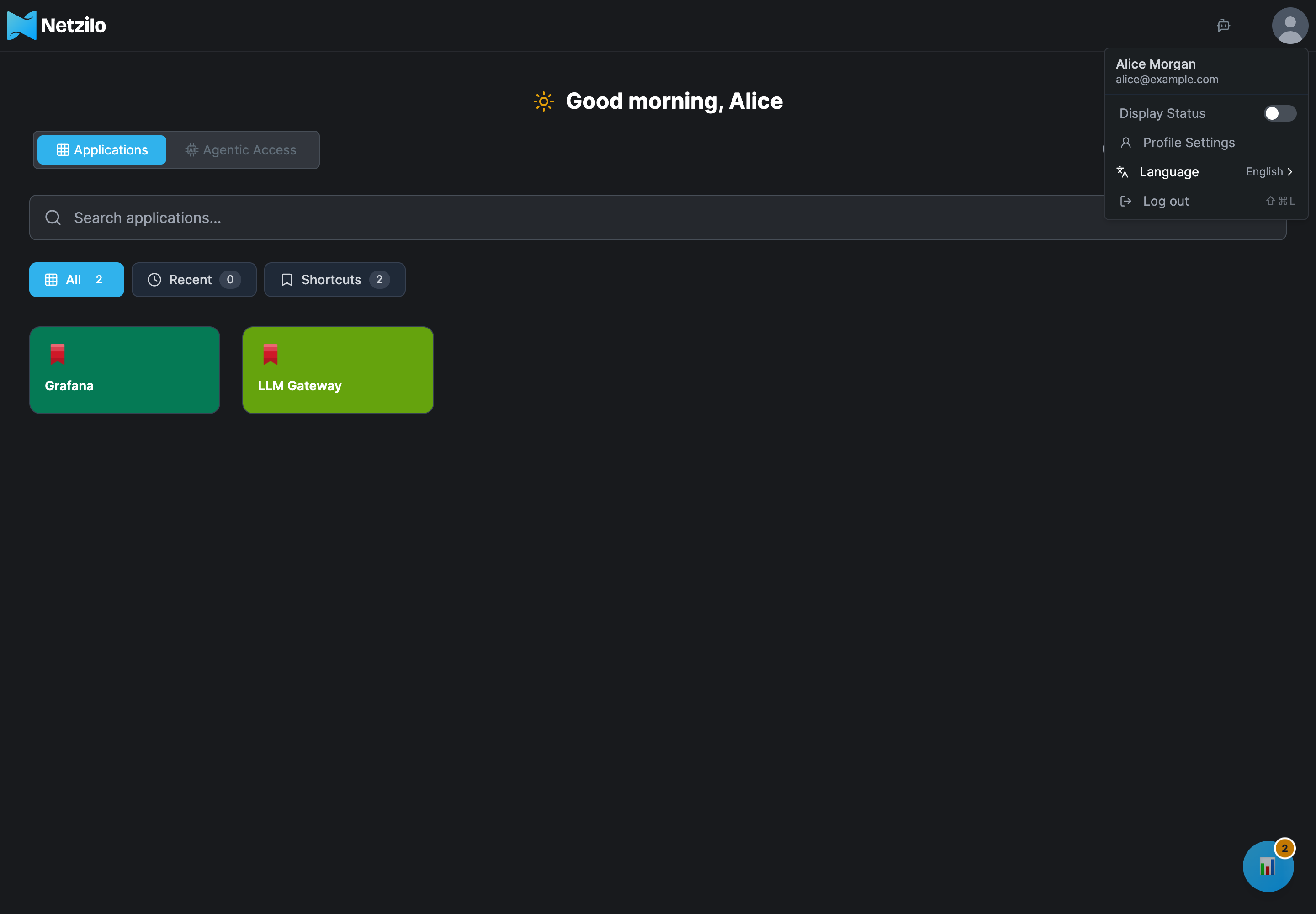
| Item | What it does |
|---|---|
| Display Status | Shows or hides the connection status of the Netzilo client on this computer, in the Workplace's bottom-right panel. Appears only on the Workplace. See Workplace. |
| Profile Settings | Opens your own user page. |
| Language | Switches the dashboard between English and Türkçe. |
| Log out | Signs you out of the dashboard and the Workplace. |
What you see
A regular user sees their Name, E-Mail, Status and Last login, all read only, and their Access Tokens. Nothing else on the page can be changed by a regular user: an administrator changes names, groups and roles under Team > Users.
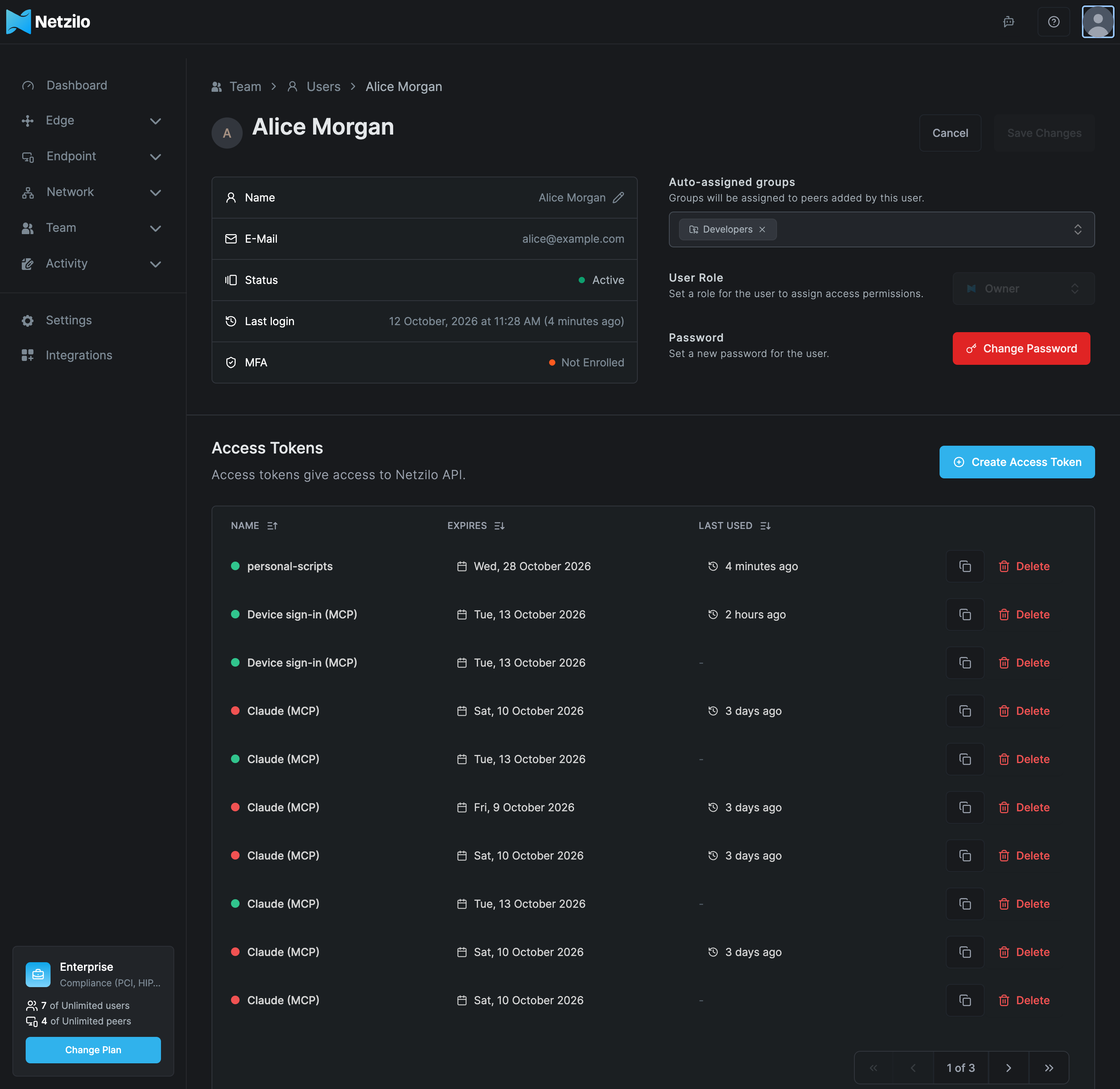
An administrator or owner sees the same page as their entry under Team > Users: the name with a pencil to edit it, MFA, Auto-assigned groups, User Role, Password with Change Password, and Access Tokens. You cannot change your own role; another administrator does that. See Users.
Create an access token
-
Under Access Tokens, click Create Access Token.
-
Fill in the dialog:
Field What to enter Name A name you will recognise, such as laptop-scriptsExpires in Between 1 and 365 days. The default is 30. -
Click Create Token. The dialog shows the token once: This token will not be shown again, so be sure to copy it and store in a secure location. Click Copy to clipboard and store it safely.
The list shows each token's Name, Expires date and Last used time. To delete a token, click Delete on its row and confirm. A deleted token stops working at once for the API; a gateway may accept it for up to a minute longer.
Tokens that appear on their own
| Token | Created by | Valid | Can do |
|---|---|---|---|
| AI Gateway | Create Access Token on the Workplace's Agentic Access tab | 90 days | Identify you to AI gateways only |
| Claude (MCP), or another application's name with (MCP) | Claude Desktop's Sign in with your organization, or an MCP connector you approved on the consent page | 1 day, renewed by the application for up to 30 days | Identify you to AI gateways only |
| Device sign-in (MCP) | The same sign-in, from an application that does not name itself | as above | as above |
Deleting one of these signs that tool or application out of the gateway; it asks you to sign in again the next time. See Agentic Access.
What a token can do
A token you create here acts as you, with your role:
- A regular user's token reads what that user may see through the Netzilo API: their own devices and what applies to them. It can manage only that user's own tokens and MCP sign-ins.
- An administrator's token can do everything the administrator can do in the dashboard. For automation, use an agent's token instead, so it does not stop working when a person leaves. See Agents.
The AI Gateway and (MCP) tokens are narrower: they only identify you to AI gateways and cannot be used for scripts against the API.
Troubleshooting
The token was shown once and I did not copy it. Delete it and create a new one. Netzilo stores only a hash of the token.
A tool stopped working after I deleted a token. The tool used that token. Create a new token, or sign the application in again.
There are many Claude (MCP) tokens. Each sign-in from Claude Desktop or a connector creates one. Delete the ones you no longer use; the application whose token you delete asks you to sign in again.
Creating a token fails. A blocked user cannot create tokens. Ask your administrator.
Related Documentation
- Workplace - Your applications and devices
- Agentic Access - The AI Gateway token and Claude Desktop sign-in
- Users - What administrators manage for each user
- Agents - Service accounts and tokens for automation