

Hosting on Azure
You can deploy a complete Netzilo Server into your own Azure subscription from the Azure Marketplace. A guided wizard (a managed application) creates the virtual machine, its network, a static public IP and the network security group, installs everything on first boot and gets a free HTTPS certificate. You fill in the wizard, point your domain at the new IP and sign in.
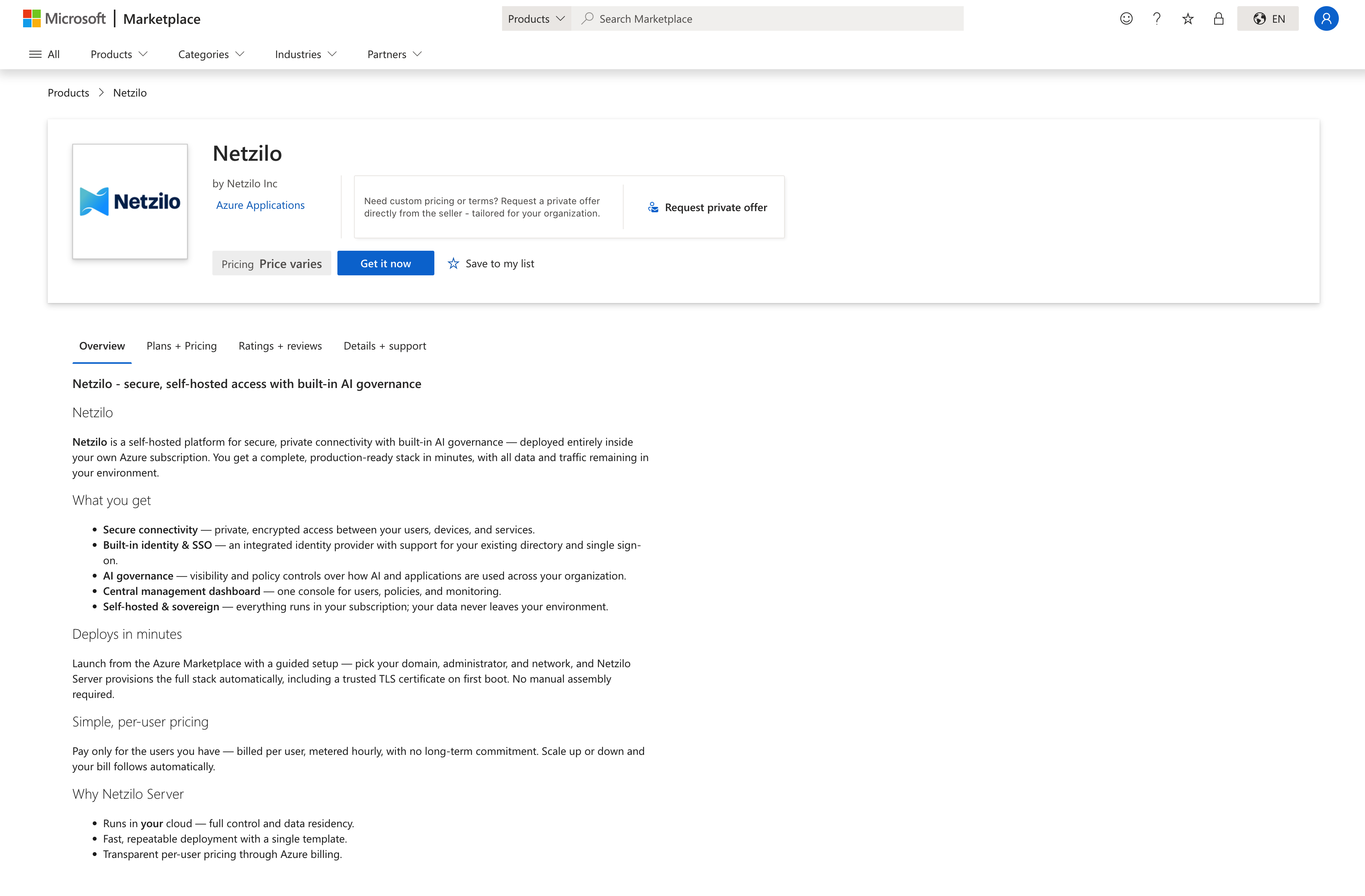 View Netzilo on the Azure Marketplace
The domain you choose is permanent and cannot be under netzilo.com. Moving the server
to another domain later means a new deployment and enrolling every device again.
How it works
The managed application deploys into your subscription:
- a virtual machine with a 30 GB Premium SSD, from the Netzilo image. It runs ten containers: the dashboard, management, signal, the identity provider, the relay, the database, the cache, the HTTPS front door, the AI Assistant's worker and the clientless-access gateway on port 8443. With a published applications domain, an eleventh container serves published applications;
- a virtual network, a static public IP and a network security group with the ports listed in Ports;
- a system-assigned identity for the VM with Reader on the resource group, which metering uses to find the managed application.
On first boot the VM installs the server from the images on its disk; nothing is downloaded. Every image is pinned to a fixed version. The database runs on the VM: the wizard has no external database option.
Billing is per named user, per hour, through Azure Marketplace. Only people count: Agents (non-login service users) are not billed. After the first sign-in the account runs as Enterprise, with every feature and no limits.
Before you start
- An Azure subscription.
- A domain you can add DNS records to, for example
go.example.com. - Optional: a second domain for published applications, for example
apps.example.com, see Published applications. - Optional: an SSH public key for signing in to the VM later. You can choose a password in the wizard instead.
Step 1: Deploy from the wizard
- In the Azure portal, open Marketplace, search for Netzilo, open the listing and select Create.
- Fill in the wizard.
Basics. Choose the Subscription, Resource group and Region, then:
| Field | What to enter |
|---|---|
| Domain (FQDN) | For example go.example.com |
| Published applications domain (optional) | For example apps.example.com. Leave empty to skip |
| Admin email (login) | Your sign-in name, for example alice@example.com |
| Admin first name, Admin last name | The first administrator |
| Admin password, Confirm admin password | At least 12 characters, with an uppercase letter, a lowercase letter, a number and a symbol |
Virtual machine. Choose the VM size (the recommended default suits most cases, see
Sizing), the OS login username (SSH) (default azureuser), and an
SSH public key or a password.
Network & access. Allowed admin source CIDR is the range allowed to use SSH, for
example 203.0.113.5/32. The default * allows any address. It limits only port 22:
the dashboard on ports 80 and 443 is always public.
- Give the deployment an Application name, accept the Managed resource group, then select Review + create and Create.
Step 2: Point your domain at the server
When the deployment finishes, open its Outputs:
| Output | Use |
|---|---|
publicIpAddress | The server's static public IP |
dashboardAddress | The address to open once DNS is set |
sshCommand | How to sign in to the VM |
dnsReminder | The DNS record the server expects |
Create the DNS A record go.example.com A <publicIpAddress>. For published
applications, also create *.apps.example.com A <publicIpAddress>. The server gets its
certificate within a few minutes after the record resolves.
Step 3: Sign in
Open https://go.example.com and sign in with the admin email and password you entered.
You are not asked to change the password. A certificate warning means DNS has not reached
the server yet or the certificate is still being issued: check the A record, wait a
minute and reload.
After the first sign-in
- Set up backups. Nothing is backed up automatically. See Backup and restore.
- Configure e-mail (SMTP) for invitations and password resets. See Identity provider and SSO.
- Switch on clientless access and published applications under Settings > Permissions, if you use them. See Clientless-access gateway and Published applications.
- Connect an AI provider under Integrations > Artificial Intelligence to show the AI Assistant. See AI Assistant.
There is one server and no high availability; you recover by restoring a backup to a new deployment.
Manage the server
Sign in over SSH with the username and key or password you set:
ssh azureuser@<publicIpAddress>. The sign-in message shows the admin credentials, which
are also in /opt/netzilo/CREDENTIALS. Nothing is published back to Azure. The compose
folder is /opt/netzilo/run, and first-boot setup logs to
/var/log/netzilo-firstboot.log.
cd /opt/netzilo/run
sudo docker compose ps          # what's running
sudo docker compose logs -f     # follow logs
Every image on the server is pinned to a fixed version, so docker compose pull changes
nothing. To update, follow Upgrade and add components. Never delete
/opt/netzilo/.provisioned or run first boot again: that installs a new, empty server over
the existing one.
Sizing
| VM size | vCPU | Memory | Good for |
|---|---|---|---|
Standard_D2s_v5 (recommended) | 2 | 8 GB | Most deployments, up to a few hundred devices |
Standard_D4s_v5 | 4 | 16 GB | Larger networks or heavier relay traffic |
The disk is 30 GB. Watch its use (df -h /); 40 GB is recommended for long-running servers.
Ports
The deployment creates the network security group. For reference:
| Port(s) | Protocol | Source | Purpose |
|---|---|---|---|
22 | TCP | Allowed admin source CIDR | SSH |
80 | TCP | Public | Certificate validation and the redirect to HTTPS |
443 | TCP | Public | Dashboard, API, sign-in, and the connection devices keep to the server |
3478 | TCP and UDP | Public | STUN and TURN |
5349 | TCP and UDP | Public | TURN over TLS |
49152-65535 | UDP | Public | Relay allocations |
8443 | TCP | Public | Clientless-access gateway |
Deployments from older versions lack port 8443. Add the rule to the deployment's network security group (pick a free priority):
az network nsg rule create -g <resource-group> --nsg-name <nsg> -n Allow-Gateway-8443 \
  --priority 1010 --direction Inbound --access Allow --protocol Tcp --destination-port-ranges 8443
The VM also needs outbound HTTPS to the Azure Marketplace metering endpoint; the default outbound rule allows it.
Troubleshooting
A certificate warning in the browser. DNS does not point at the VM's public IP yet, or the
certificate is still being issued. Check the A record against the publicIpAddress
output, wait a minute and reload.
The dashboard does not load. First boot is still running. Wait a few minutes after the
deployment finishes, and check /var/log/netzilo-firstboot.log.
SSH does not connect. The allowed admin source CIDR does not include your address. Widen it, or connect from an allowed address.
Browsers with the extension show "Private access: unavailable". Port 8443 is not open on an older deployment. Add the rule above.
Relayed devices cannot pass traffic. Check that 49152-65535/udp is open. If it is, add
external-ip=<public IP>/<private IP> to /opt/netzilo/run/turnserver.conf and run
sudo docker compose restart coturn in /opt/netzilo/run.
For other problems, see Troubleshooting. Need help? Write to support@netzilo.com.
Related Documentation
- Self-hosted vs. Cloud - what you run yourself
- Server reference - containers, files and ports
- Upgrade and add components - update a marketplace server
- Backup and restore - protect the server's data