

Limits
A limit caps what a user may spend through the Netzilo AI Gateway, or how many tokens or requests they may use, over a time window. You define a limit once and apply it through gateway filters. Every user a filter targets gets their own counters: a limit is never a shared pool for a team.
You manage limits under Edge > Limits. Only administrators and owners see this page.
How it works
- You define a limit with at least one of three caps: Spend in US dollars, Tokens or Requests, each with its own reset window.
- You attach the limit to one or more gateway filters on their Limits tab.
- The AI Gateway counts each user's usage against the limit. Spend comes from the gateway's built-in pricing catalogue, in US dollars, at the time of the request.
- When a user reaches a cap, the gateway refuses their requests until the window resets.
The rules to keep in mind:
- Per user. Each user of the filter has their own counters. A monthly spend of $50 on a filter for 20 developers means $50 for each of them, not $50 for the team.
- The lowest value wins. When several filters apply to a user, the lowest spend, the lowest token quota and the lowest request quota apply, each taken separately. Adding a second filter with a higher limit does not give a user more.
- Per gateway. Counters live on the gateway. Two gateways count separately.
- Counters restart whenever the user's grants or limits change, for example when you edit the limit or the filter.
The Limits list
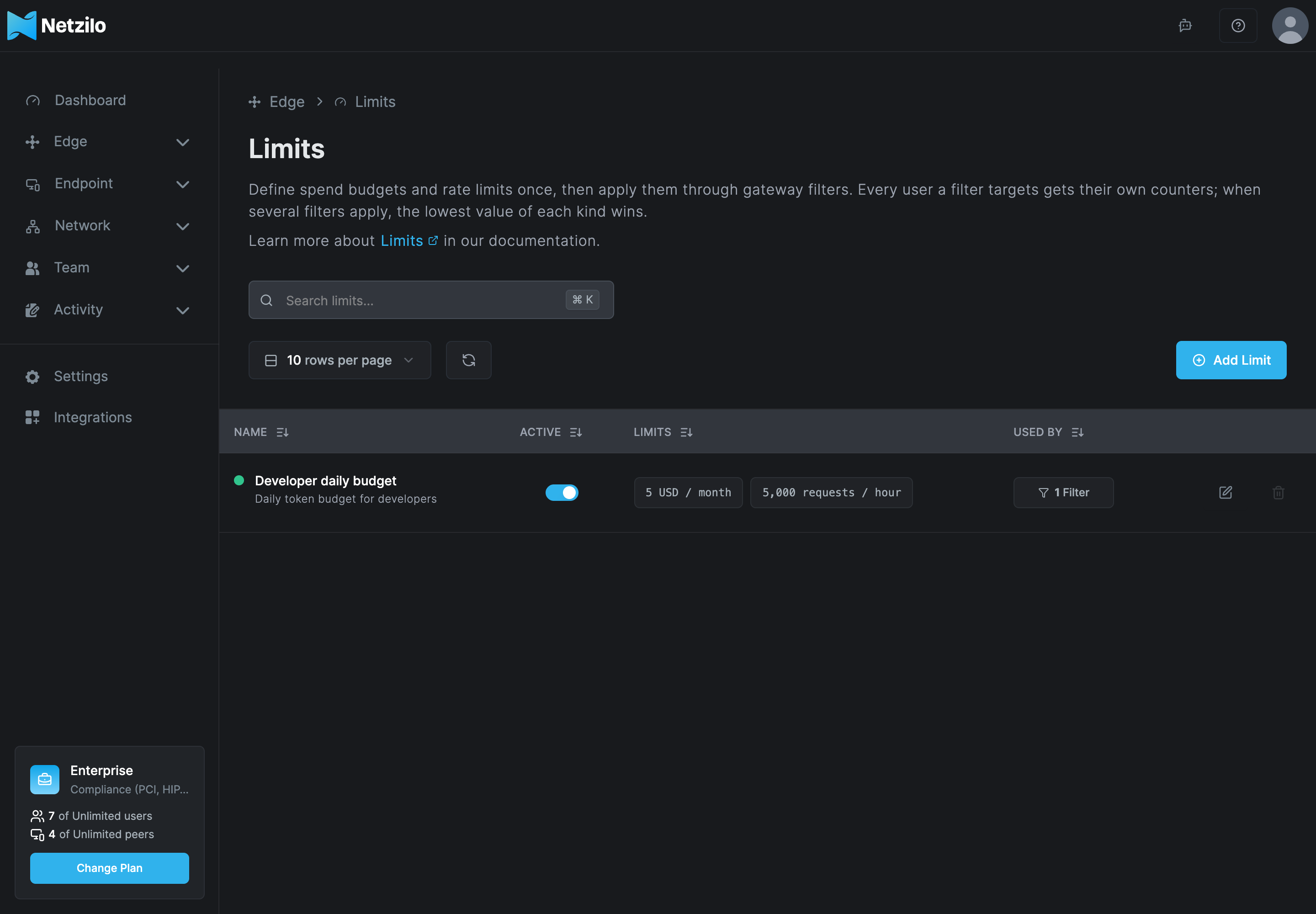
| Column | What it shows |
|---|---|
| Name | The limit's name and description. |
| Active | Whether the limit is enabled. A disabled limit is not applied by the filters that carry it. |
| Limits | Each cap and its window, for example 50 USD / month or 2,000,000 tokens / day. |
| Used by | The filters that carry the limit. |
Add a limit
Click Add Limit.
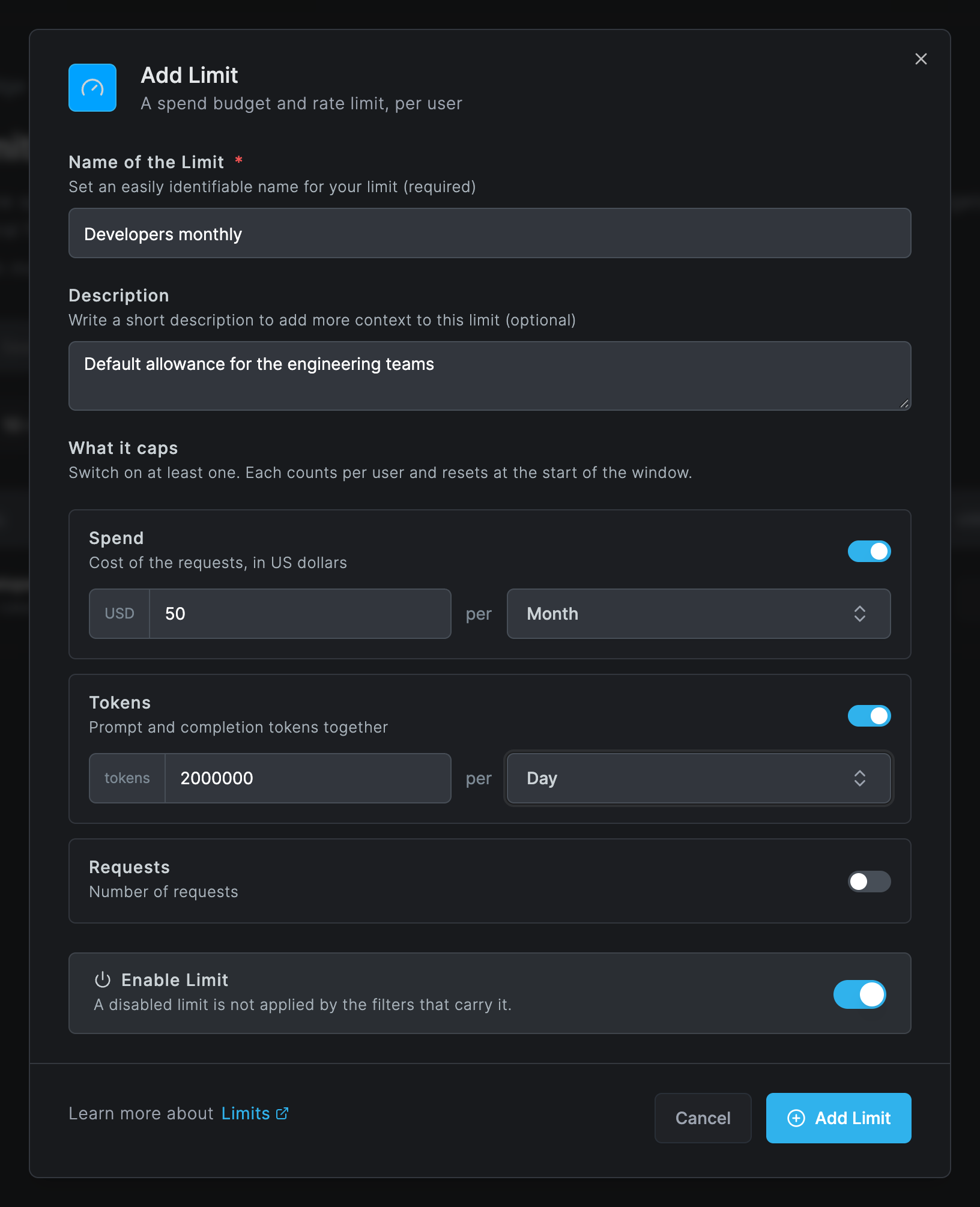
| Field | What to enter |
|---|---|
| Name of the Limit | A name unique in the account, for example Developers monthly. |
| Description | Optional. |
| Spend | The cost of the requests in US dollars, per Hour, Day, Week, Month or Year. |
| Tokens | Prompt and completion tokens together, per window. |
| Requests | The number of requests, per window. |
| Enable Limit | A disabled limit is not applied by the filters that carry it. |
Switch on at least one of Spend, Tokens and Requests. Each switched-on value must be a positive number. Each counts per user and resets at the start of its window. The window defaults to Month.
Click Add Limit. Creating, updating and deleting a limit are recorded in Activity > Events.
Apply the limit
- Go to Edge > Filters and open the gateway filter for the users you want to cap.
- On the Limits tab, click Browse Limits and pick the limit, or Add Limit to create one from there.
- Save the filter.
See Filters.
What users see
When a user reaches a cap, the gateway answers their request with HTTP 429 or 402 and the reason,
for example that the budget is exceeded or a token or request limit was reached. The refusal is
recorded as an AI blocked event in Activity > Events, with the user as actor, and as a
limited request in the AI Usage report.
Users see no remaining quota anywhere: the Workplace does not show it, and there is no per-user counter view in the dashboard. The AI Usage report shows spend after the fact.
To lift a block before the window ends, raise the limit, which also restarts the counters, or move the user to a group whose filters do not carry it.
Delete a limit
A limit cannot be deleted while a filter carries it. The delete button is disabled and its tooltip says how many filters use it. Remove the limit from those filters first.
Troubleshooting
A user is refused on their first request. Another filter that applies to them carries a lower value, or the window is short with a small maximum, for example a few requests per hour. List the user's gateway filters under Edge > Filters and compare their limits.
A user gets less than you intended. The lowest value across all their filters wins. Raise the limit on the filter with the lowest value, or remove the user from that filter's groups.
A team budget runs out sooner or later than expected. Limits are per user, never pooled. Divide the team budget by the number of users when you set the value.
Costs look wrong. Cost comes from the gateway's built-in pricing catalogue. Self-hosted models cost 0, and there is no custom price list.
Related Documentation
- Filters - attach limits to the users of a group
- Providers - the models the limits apply to
- AI Gateway - the gateway that counts and enforces limits
- AI Usage - spend and usage per user after the fact
- Events - AI blocked events for refused requests