

AI Workspace
The AI Workspace is the Workplace section where you chat with the AI models your company grants you and let them use the company's MCP tools. Everything goes through the company's Netzilo AI Gateway with your own sign-in: the models you may use, your usage limits and the company's guardrails apply exactly as they do to any other AI tool. You decide on every tool call, unless you choose to let them run on their own.
Open it with AI Workspace in the Workplace menu. It appears only when an enabled gateway filter grants you at least one AI gateway address or one MCP server or bundle. Administrators set this up under Edge > Governance > Filters, see Filters and AI Gateway.
How it works
- You choose a model. The list holds every model the gateways granted to you serve to you.
- You type a message, and optionally attach files and MCP servers to the conversation.
- The message goes to the gateway that serves the chosen model, signed in as you. No access token is needed: the AI Workspace uses your Workplace sign-in.
- The gateway checks the model grant, your limits and the guardrails, then forwards the message to the model and streams the answer back.
- When the model wants to use a tool, the AI Workspace asks you first. The tool runs on the MCP server through the gateway, and its result goes back to the model.
The AI Workspace adds no instructions of its own: the model receives only your conversation, the attached files and the descriptions of the attached tools.
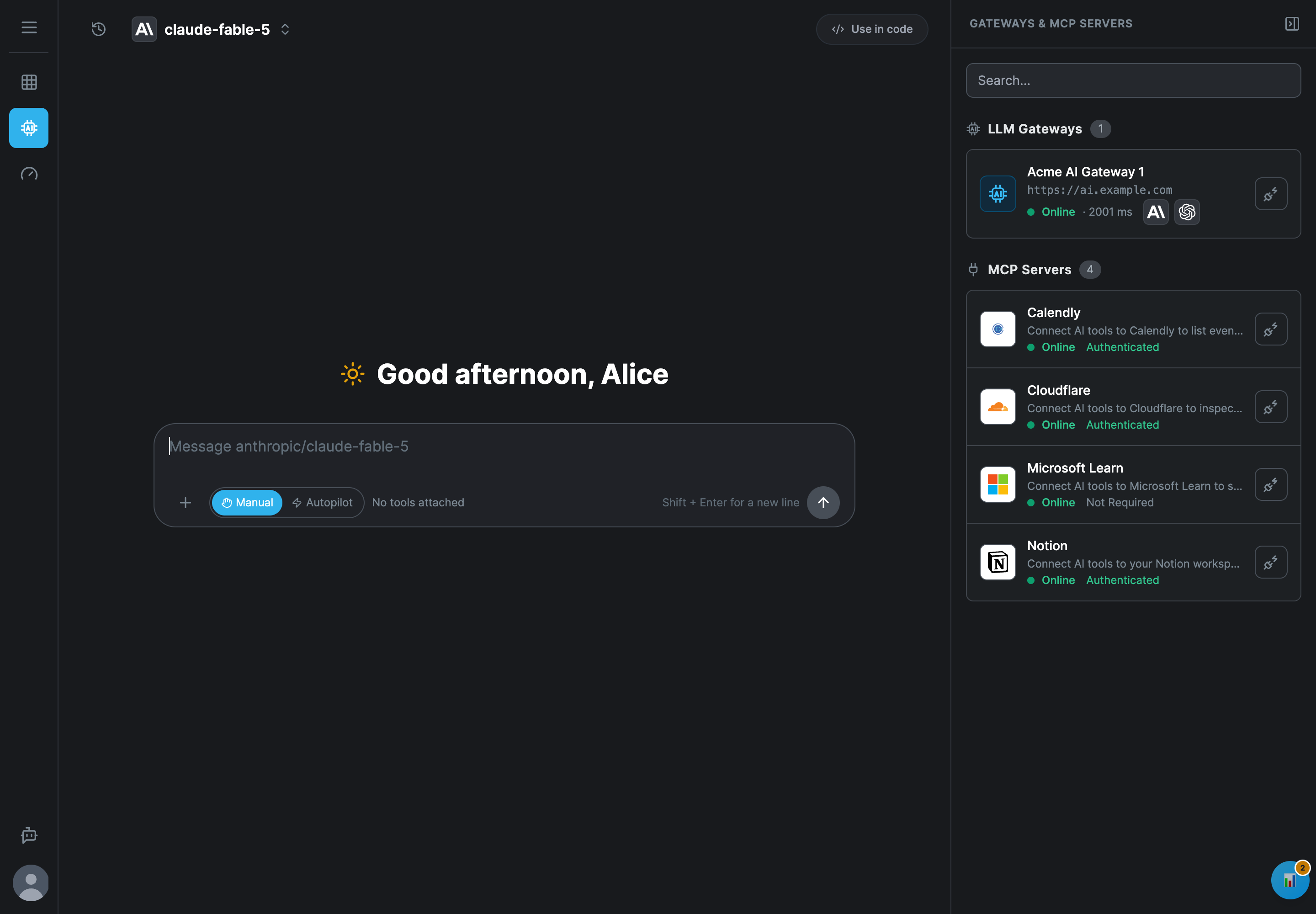
A new conversation shows the greeting with the message box in the middle of the page. Once the conversation starts, the message box moves to the bottom and the conversation fills the page above it.
The panel on the right, Gateways & MCP Servers, lists the gateways and MCP servers granted to you, with their status. Click one to see its details or to connect it, see Agentic Access.
Choose a model
Click the model name at the top of the page:
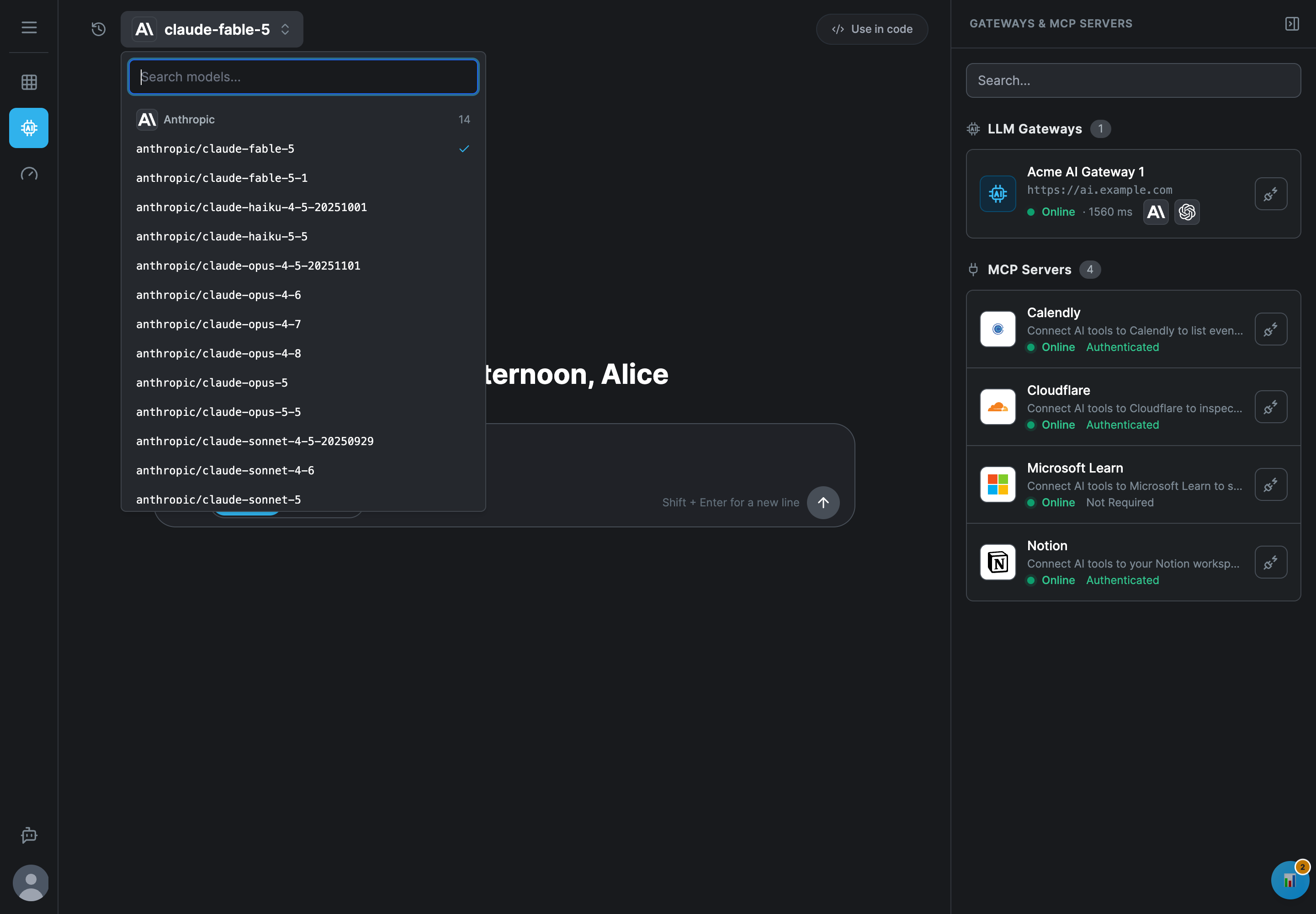
- The list groups the models by provider, with the number of models each one has. With more than one gateway, it groups them by gateway first.
- Search models... filters by model, provider or gateway name.
- The conversation runs through the gateway that serves the model you choose. The browser remembers your choice for the next time.
- The list holds only the models of gateways that answer. When the gateway of your model stops answering for a moment, your choice stays; the message box says No gateway answers right now. and you cannot send until it answers again.
Write a message
Type in the message box. Enter sends; Shift + Enter starts a new line. While the model works, three dots show that it is thinking, and the answer appears as it is written. Stop (the square button in place of the send button) ends the answer, and any tool call still running, at once.
The answer is shown with its formatting, tables and code blocks. Images in an answer are shown as links and are not loaded: an answer can never make your browser fetch an address on its own.
When the gateway refuses a message, the conversation shows the reason, for example Refused: followed by the guardrail's message or the limit that was reached. The refused message is not sent again with your next messages, so the conversation can go on. The response was blocked by a content filter. means a content filter stopped the answer on its way back.
Attach files and tools
The + button at the bottom left of the message box opens the attachments:
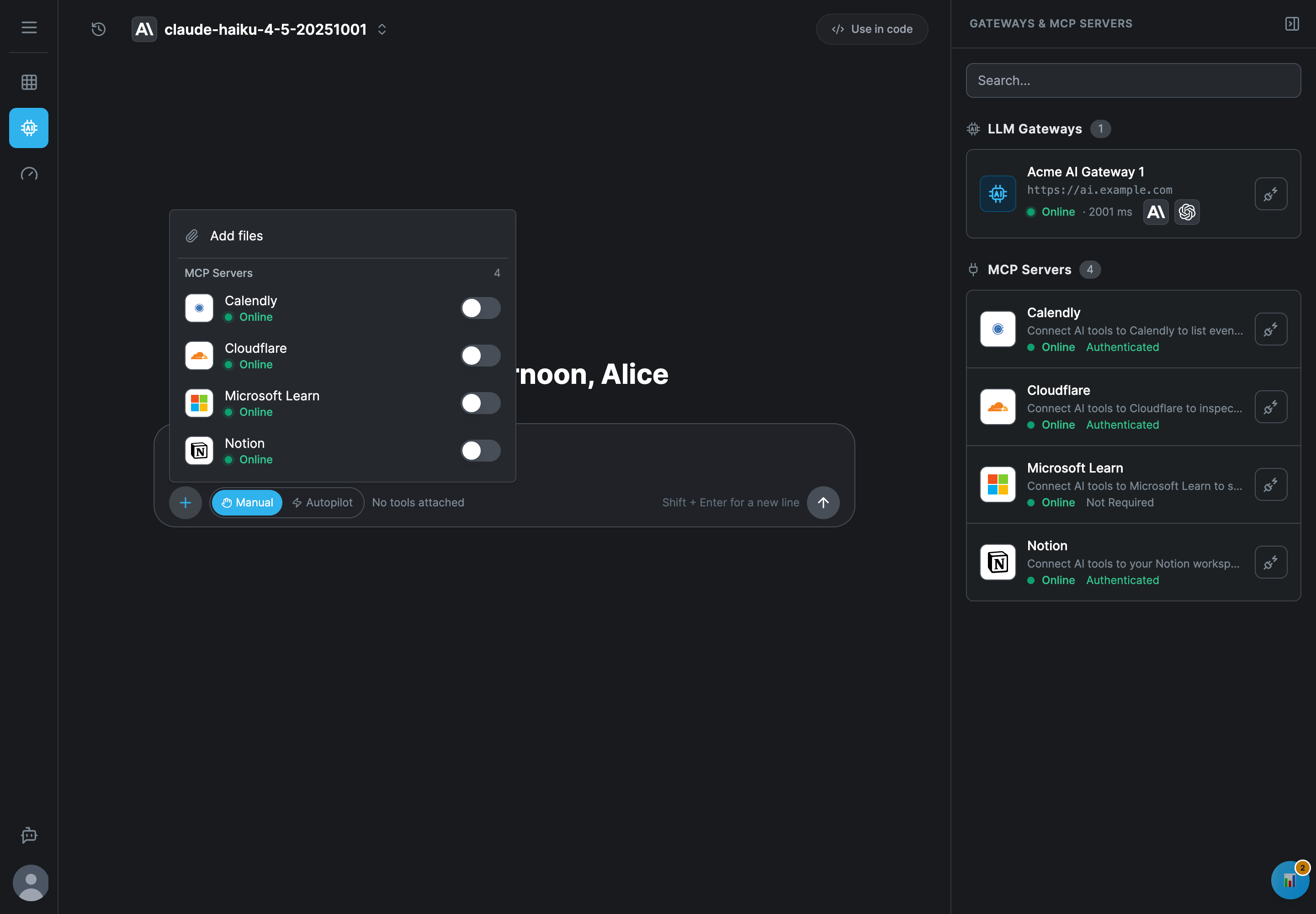
Add files attaches files to your next message:
| Kind | Types | Up to |
|---|---|---|
| Images | Any image | 5 MB each. The model must accept images. |
| Text | Text files, .json, .md, .csv, .yaml, .yml, .log, .xml | 200 KB each. The text is sent with your message. |
A file over its limit is not added. Each attached file shows as a chip above the message; click its × to remove it.
MCP Servers lists the MCP servers and bundles granted to you, each with its status. Turn a server's switch on to give its tools to the model for this conversation. A server that needs you to sign in first shows a connect button instead of a switch: it opens the server's Connect tab, see Connect an MCP server.
The attached servers show as chips above the message, and the line under the message box counts them and their tools, for example 1 MCP server · 3 tools. The tools of (server) could not be loaded. means the server did not list its tools through the gateway.
Tool calls: Manual and Autopilot
The two buttons under the message box choose what happens when the model wants to use a tool. Manual is the default every time the page opens.
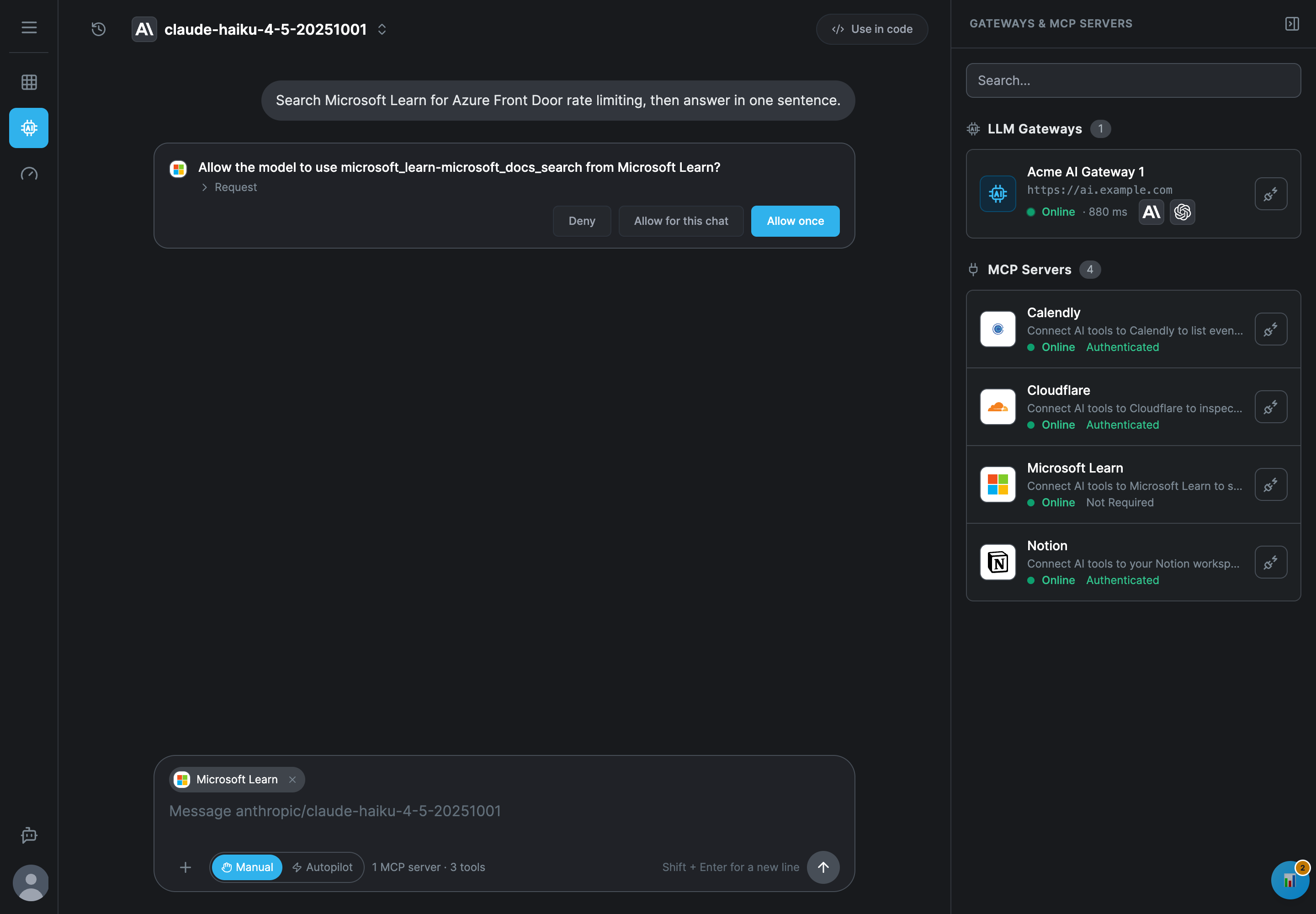
Manual asks before every tool call: Allow the model to use (tool) from (server)? Click Request to see the arguments the model wants to send. Then:
| Button | What happens |
|---|---|
| Allow once | This call runs. The next call asks again. |
| Allow for this chat | This call runs, and every later call of the same tool of the same server in this conversation runs without asking. A new chat asks again. |
| Deny | The call does not run. The model is told The user did not allow this tool call. and goes on without it. |
When the model asks for several tools at once, each one waits for its own answer. The model continues once every call is decided.
Autopilot runs every tool call without asking. Switching it on also runs the calls that are waiting. After ten rounds of tool calls in a row without you, the next calls wait for you again even in Autopilot, so a model that keeps calling tools cannot run on forever. Stop ends a running call: it is marked Failed with Stopped., and nothing runs on its own until you send a message or decide a call.
Each call then shows as a line with the server's mark, the tool, the server and its state: a spinner and Running, a green check when it succeeded, Failed, or Denied. Click the line to see the Request and the Response:
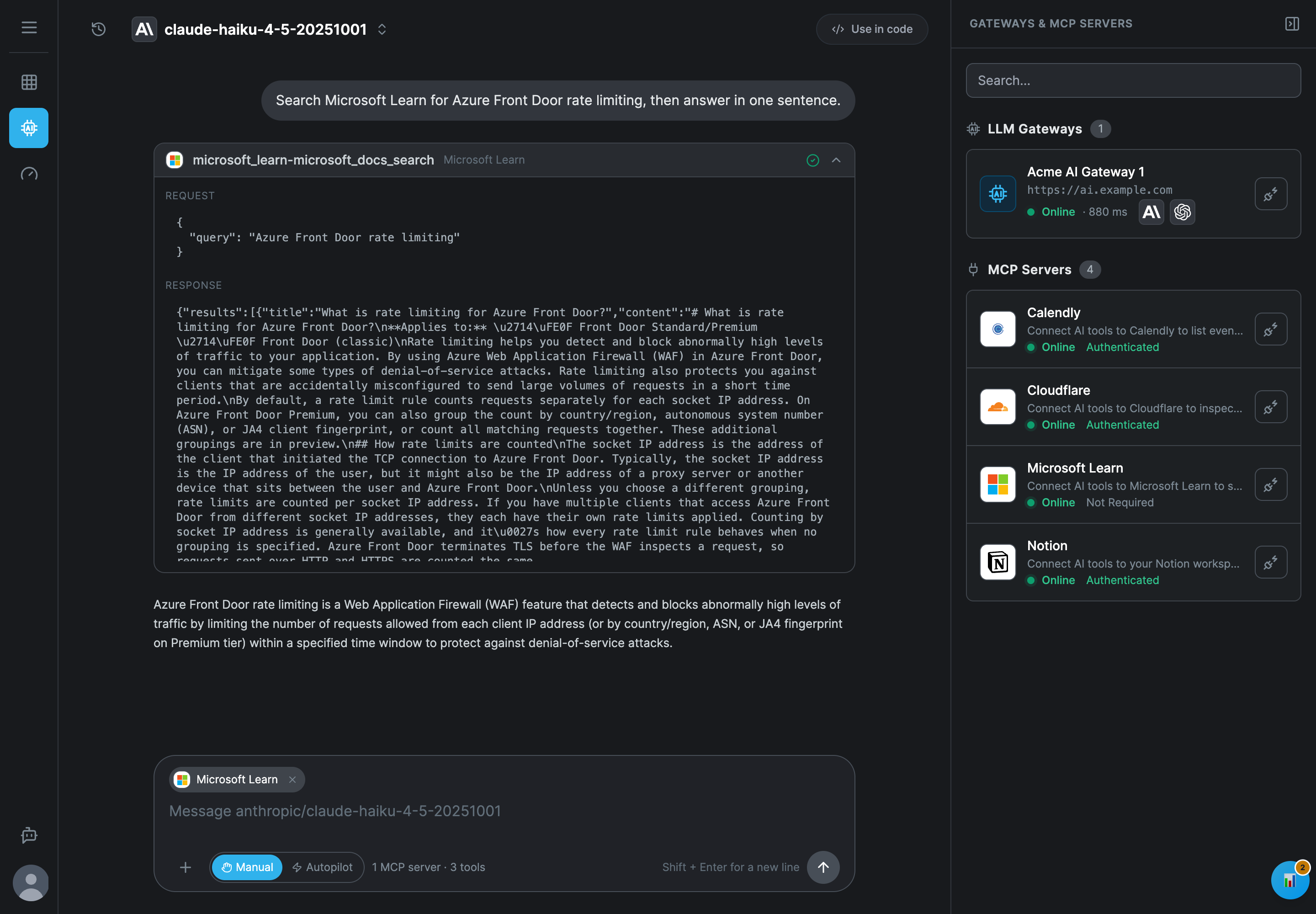
Tool calls go to the MCP server through the gateway, like every other MCP client's: the company's guardrails check the call and its result, and the server sees you as the user.
Chat history
The history button at the top left lists your recent conversations:
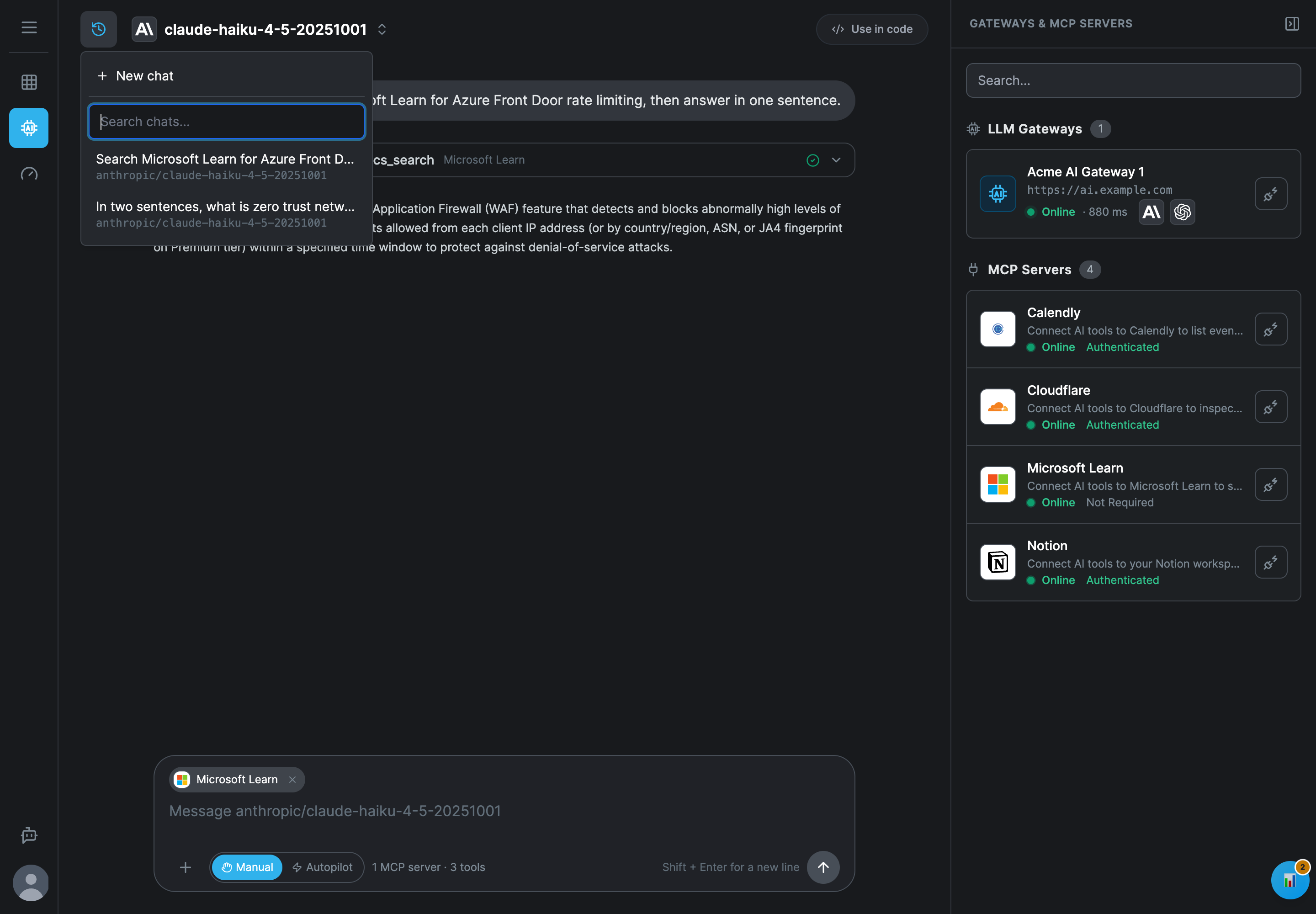
- New chat starts an empty conversation. A conversation still answering stops.
- Search chats... finds a conversation by its title, its model, anything said in it, or the tools and servers it used.
- Click a conversation to open it again with its model and its attached servers. Allow for this chat permissions are not kept: the tools ask again.
Your conversations are kept in this browser only, for your account: the last 20, with their text, tool calls and results. Attached images are not kept, only their names. Signing out of the Workplace removes them from the browser. Another browser or computer starts with an empty history.
The gateway records the AI Workspace's traffic like any other AI tool's, see What users see. Removing your history from the browser does not remove what the gateway recorded.
Use in code
Use in code at the top right opens the gateway's Connect tab with the model you chose filled into every snippet, so you can run the same model from Claude Code, an SDK, Cursor or curl:
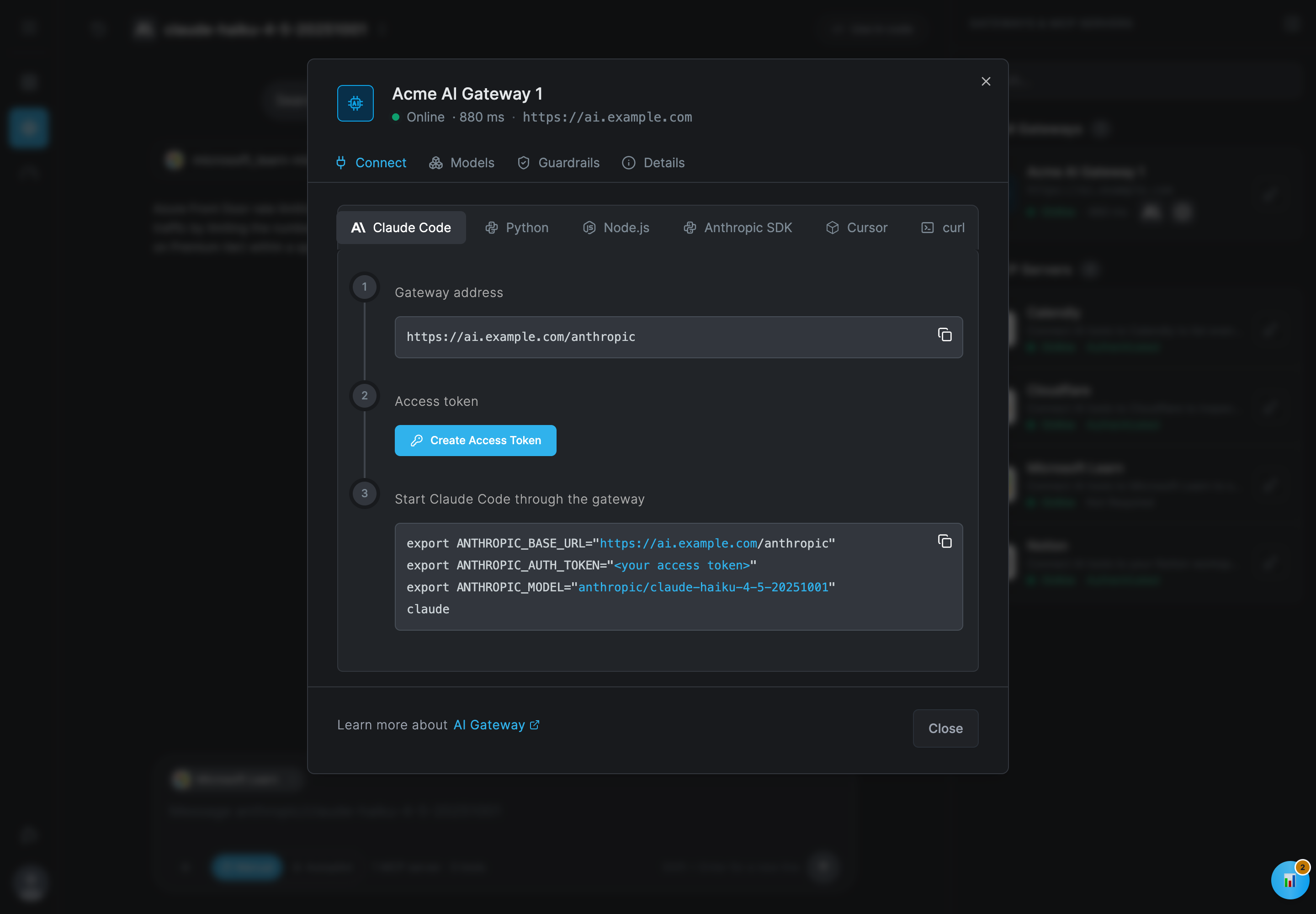
Your own tools need an access token, which the dialog creates. See Connect an AI tool to an LLM gateway.
What users see
Tell employees:
- The AI Workspace is the company's own chat: it uses the models and tools the company grants you, through the company's AI gateway, with your Workplace sign-in.
- Your messages, the answers and the tools' arguments and results pass the company's guardrails and are recorded like any other use of the gateway.
- In Manual mode nothing runs without you: read the request before you allow a tool. Use Allow for this chat for a tool you trust in this conversation, and Autopilot only for tools that cannot change anything you care about.
- Your chat history stays in this browser and is removed when you sign out.
Troubleshooting
There is no AI Workspace in the menu. No enabled gateway filter targets a group you are in, or the filter grants no gateway address and no MCP server. An administrator fixes this under Edge > Governance > Filters.
The message box says No gateway answers right now. Your browser cannot reach the gateway. A gateway reached through Netzilo needs the Netzilo client connected, or this browser's private access, and a policy that lets you reach it. The panel on the right shows each gateway's status.
The model list says No models. Either no gateway answers right now, or the gateways that answer grant you no model. The panel on the right shows each gateway's status; when a gateway is Online, ask your administrator for a model, see Filters.
Refused: … no model is granted to this user or model … is not granted to this user. Choose another model, or ask your administrator for this one.
Refused: … with a guardrail's reason. A guardrail blocked the message, the answer or a tool call. Rephrase the message or leave out what the guardrail names.
Refused after many messages, with a limit. A usage limit was reached. Wait for the limit's window, or ask your administrator to raise it, see Limits.
A server has no switch, only a connect button. It needs your sign-in or a value first. Connect it, then attach it, see Connect an MCP server.
The tools of a server could not be loaded. The server did not list its tools through the gateway. Its status in the panel on the right shows whether it answers; try again later.
An image does not get an answer about it. The model you chose does not accept images. Choose a model that does.
A file was not attached. It is over its limit: 5 MB for an image, 200 KB for a text file.
Tool calls stop asking in Autopilot and wait. Ten rounds of tool calls ran in a row without you. Allow or deny the waiting calls to continue.
A conversation is missing from the history. The history keeps the last 20 conversations in this browser and is removed when you sign out.
Related Documentation
- Workplace - Applications, devices and private access
- Agentic Access - Gateways and MCP servers, and connecting your own AI tools
- AI Gateway - Run and expose the Netzilo AI Gateway
- Filters - Grant gateways, models and MCP servers to groups
- Guardrails - The checks applied to prompts, answers and tool calls
- Limits - Usage limits for users and groups