

Plans and billing
Netzilo plans
Netzilo offers diverse plans to accommodate various networking needs, ensuring scalable and secure connectivity.
-
Free Plan: The Free plan provides secure connectivity for up to 5 users and 100 peers suitable for individuals or small teams. It features disposable network, MFA support, peer-to-peer encryption, access control, routing, private DNS and community support. The Free plan automatically integrates with popular personal identity providers (IdP) like Google, Microsoft, and GitHub. It supports multi-factor authentication (MFA) when enabled in your IdP.
-
Professional Plan: Priced at $5 per user per month. The Team plan offers full-fledged zero trust networking and conditional access. This plan is designed to scale with your organization, supporting unlimited users and unlimited devices, making it ideal for larger teams. With a 14-day free trial (with no minimum user requirements), users can evaluate its advanced features before committing.
Key features of the Professional Plan include:
• Advanced Posture Checks: Ensures secure device compliance. • Disposable Network: Enhances security by creating temporary, isolated network instances. • Conditional Access: Adds another layer of security by enforcing contextual-based access control. • Multi-Factor Authentication (MFA): Strengthens login security by requiring multiple forms of verification. • External IdP and SIEM Support: Seamless integration with external Identity Providers and Security Information and Event Management systems. • 99.9% SLA: Ensures high availability and reliable performance. • On-Premises Support: Available for teams with a minimum of 500 users, providing professional support during working hours (8/5).
This plan is ideal for organizations seeking a scalable, secure solution with robust support for larger teams.
- Enterprise Plan: At $12 per user per month, designed for organizations needing compliance with standards such as PCI and HIPAA, along with advanced data-in-use protection. This plan supports unlimited users and unlimited devices, making it highly scalable for large teams. With a 14-day free trial (minimum 10 users), it provides ample opportunity for businesses to explore its comprehensive features.
Key features include:
• Enterprise Workspace & Browser: A secure environment for managing sensitive operations. • Disposable Browser and Network: Temporary, isolated instances for heightened security. • Conditional Access: Provides context-aware access control. • Multi-Factor Authentication (MFA): Adds a secure layer to user authentication. • External IdP and SIEM Support: Seamless integration with external Identity Providers and SIEM tools. • 99.9% SLA: Guarantees high availability and performance. • On-Prem Support: Available for teams with over 500 users. • 24/7 Premium Support: Includes a dedicated Slack channel for continuous assistance.
This plan is tailored for enterprises that require strict compliance and robust data security measures across their operations.
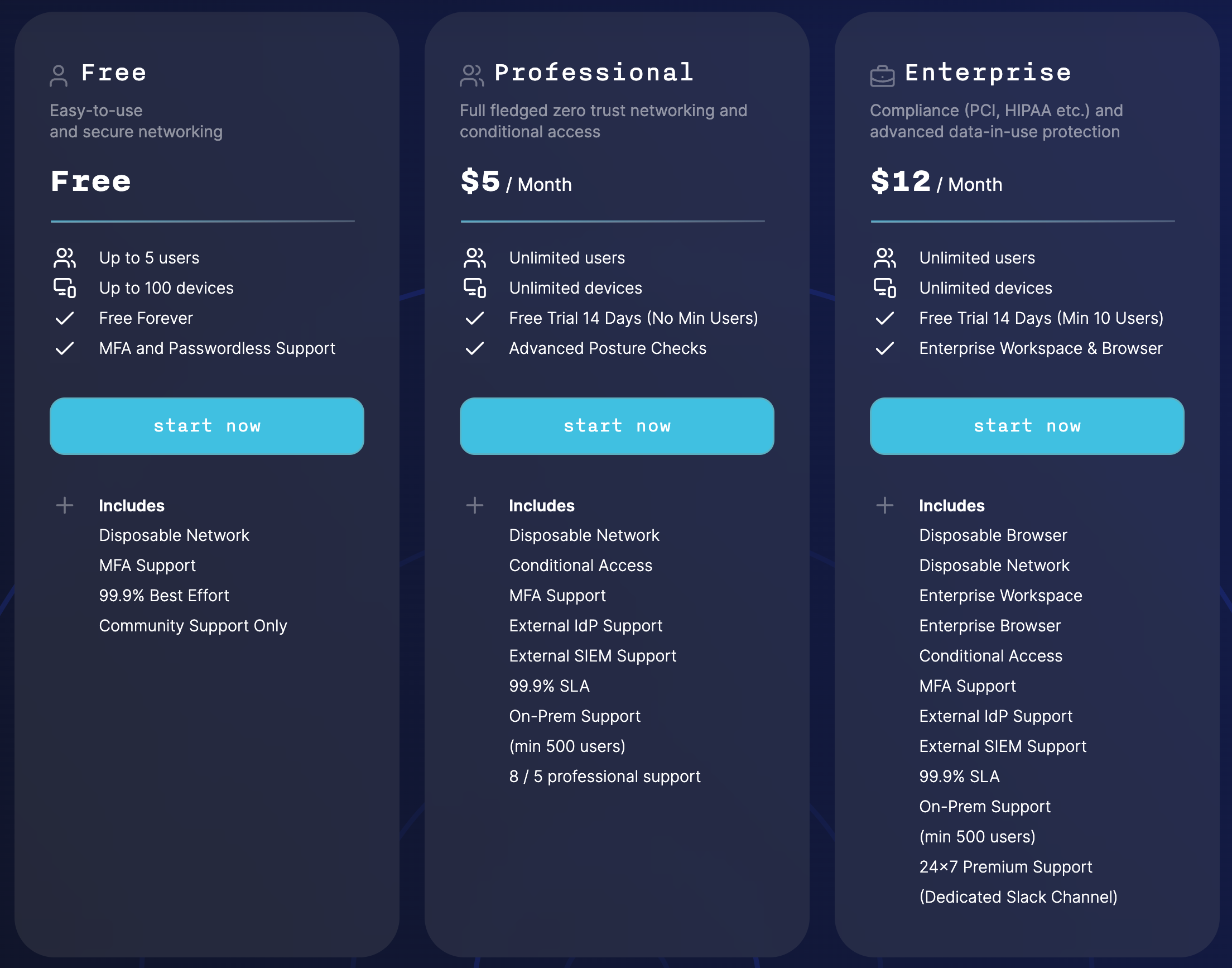
Details can be found on our pricing page.
Starting a subscription
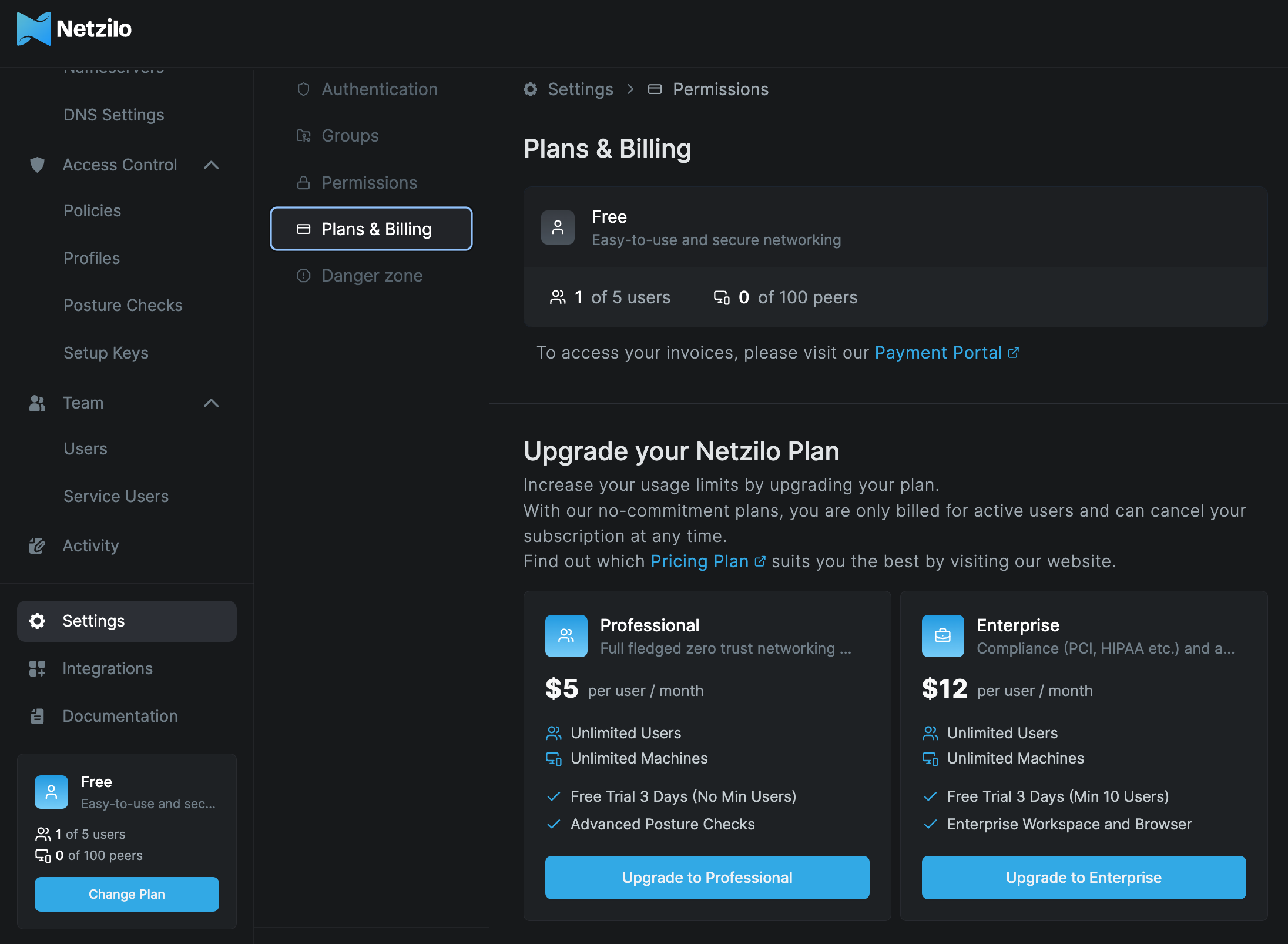
To start or change your current plan, navigate to Settings > Plans & Billing and choose the plan you wish to upgrade or downgrade to.
Payment Information
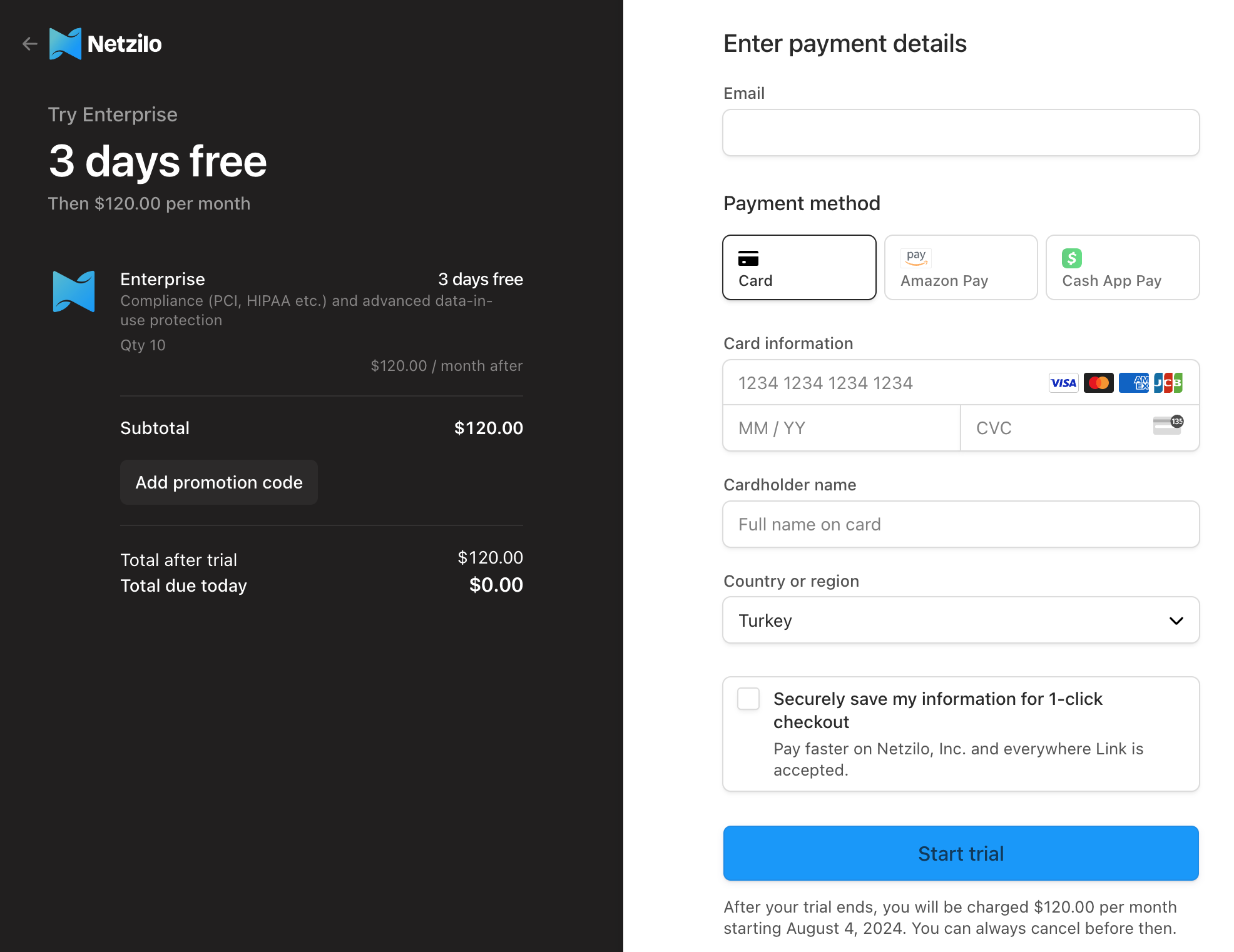
Next, you'll be directed to enter your payment information. Available payment options currently include credit cards, Google Pay, and Link.
Confirmation and billing cycle
After successfully submitting your payment information, the updated version of your plan will be reflected in your account.
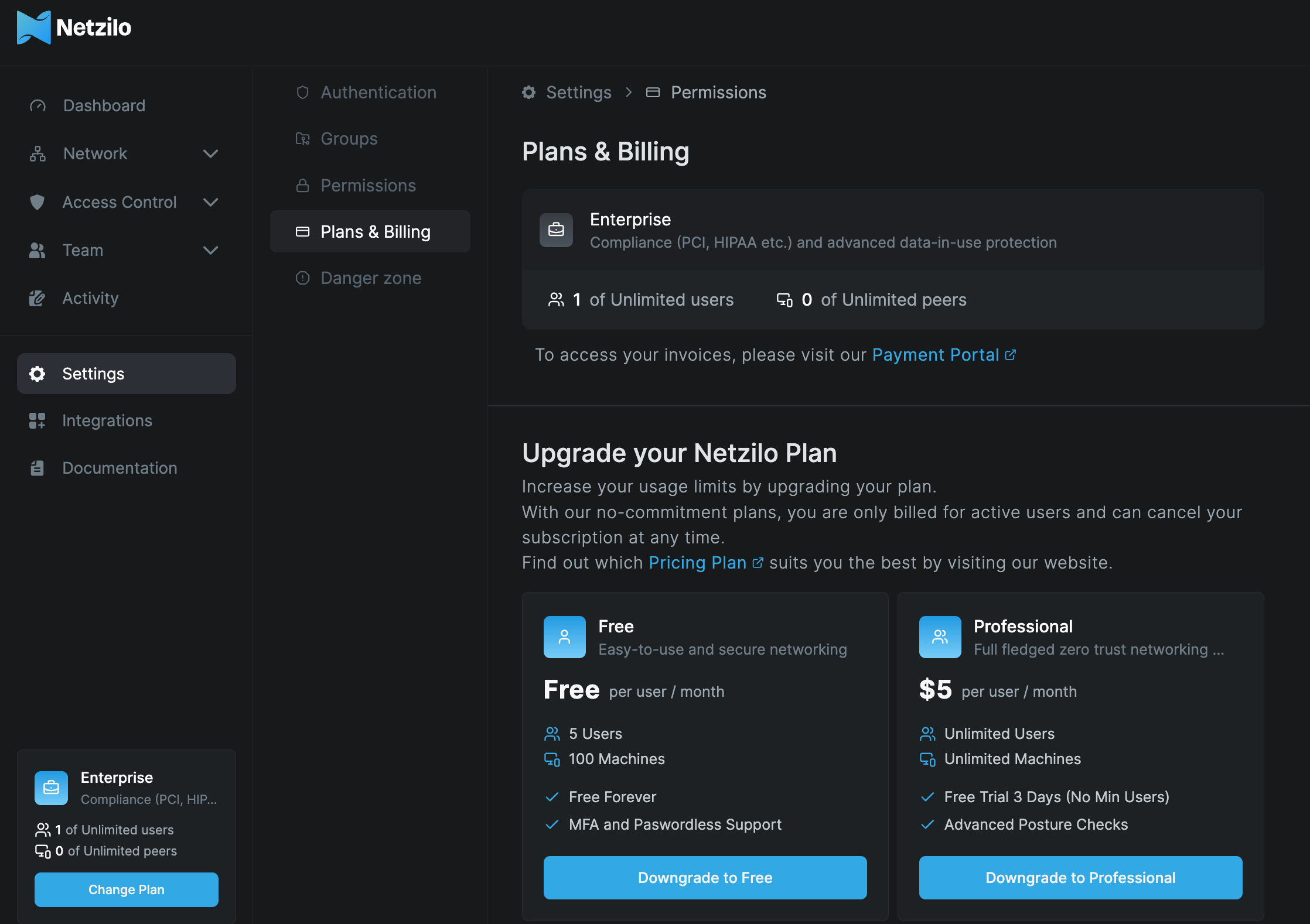
Please note that changes to the number of peers and user counts are updated in our system daily at 2 AM UTC. So, it might take up to 24 hours for these changes to show in your account.
Changing a subscription
Based on your current plan, you have the flexibility to upgrade or downgrade at any time as your needs change.
Your subscription cycle starts on the first day of your original subscription. If you adjust your plan during the billing cycle, and since billing occurs at the end of the subscription month, you will be charged for the plan you are on at the end of the billing cycle.