

Tenant
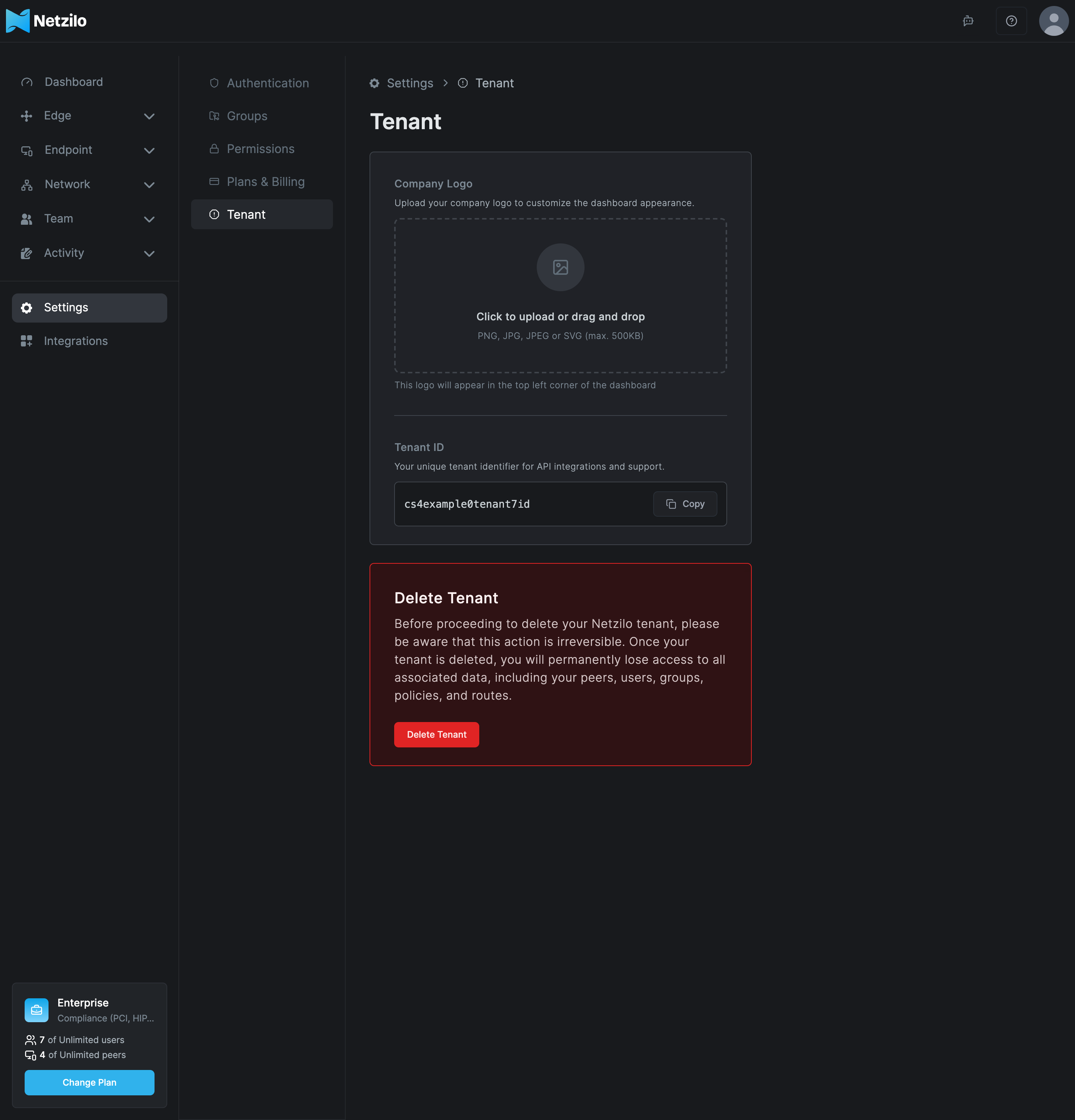
The Tenant tab holds the settings that belong to your organization as a whole: the company logo shown in the dashboard, the tenant name and ID, and the action that deletes the tenant with everything in it.
You find it under Settings > Tenant.
Only the Owner of the account can open this tab. For other administrators the tab is greyed out. To hand the Owner role to someone else, see Transfer ownership.
Upload a company logo
The logo replaces the Netzilo logo in the top left corner of the dashboard. On a self-hosted Netzilo Server it is also shown on the sign-in page when your identity provider has no logo of its own.
- Go to Settings > Tenant.
- Under Company Logo, click the upload area, or drag a file onto it.
- The logo is saved right away. Click it to replace it, or use Remove Logo to go back to the default.
| Field | What to enter |
|---|---|
| Company Logo | A PNG, JPG, JPEG or SVG file of at most 500 KB. |
Find your tenant ID
Tenant Name shows your organization's name, when one is set. Tenant ID is the unique identifier of your tenant. Click Copy next to it and include it when you contact Netzilo support, so that we can find your account quickly.
Transfer ownership
An account has exactly one Owner. To make another user the Owner, go to Team > Users, open the user, set User Role to Owner and confirm. You become an Admin. Only the Owner can do this. See Users.
Delete the tenant
Deleting the tenant removes your Netzilo organization for good: every peer, user, group, policy and route. It cannot be undone, and there is no way to restore the data afterwards.
If your account has a paid subscription, cancel it first under Plans & Billing, so that billing stops. Deleting the tenant does not cancel the subscription for you.
- Go to Settings > Tenant.
- In the Delete Tenant card, click Delete Tenant.
- The dialog Delete Netzilo tenant asks Are you sure you want to delete your Netzilo tenant? This action cannot be undone. Click Delete.
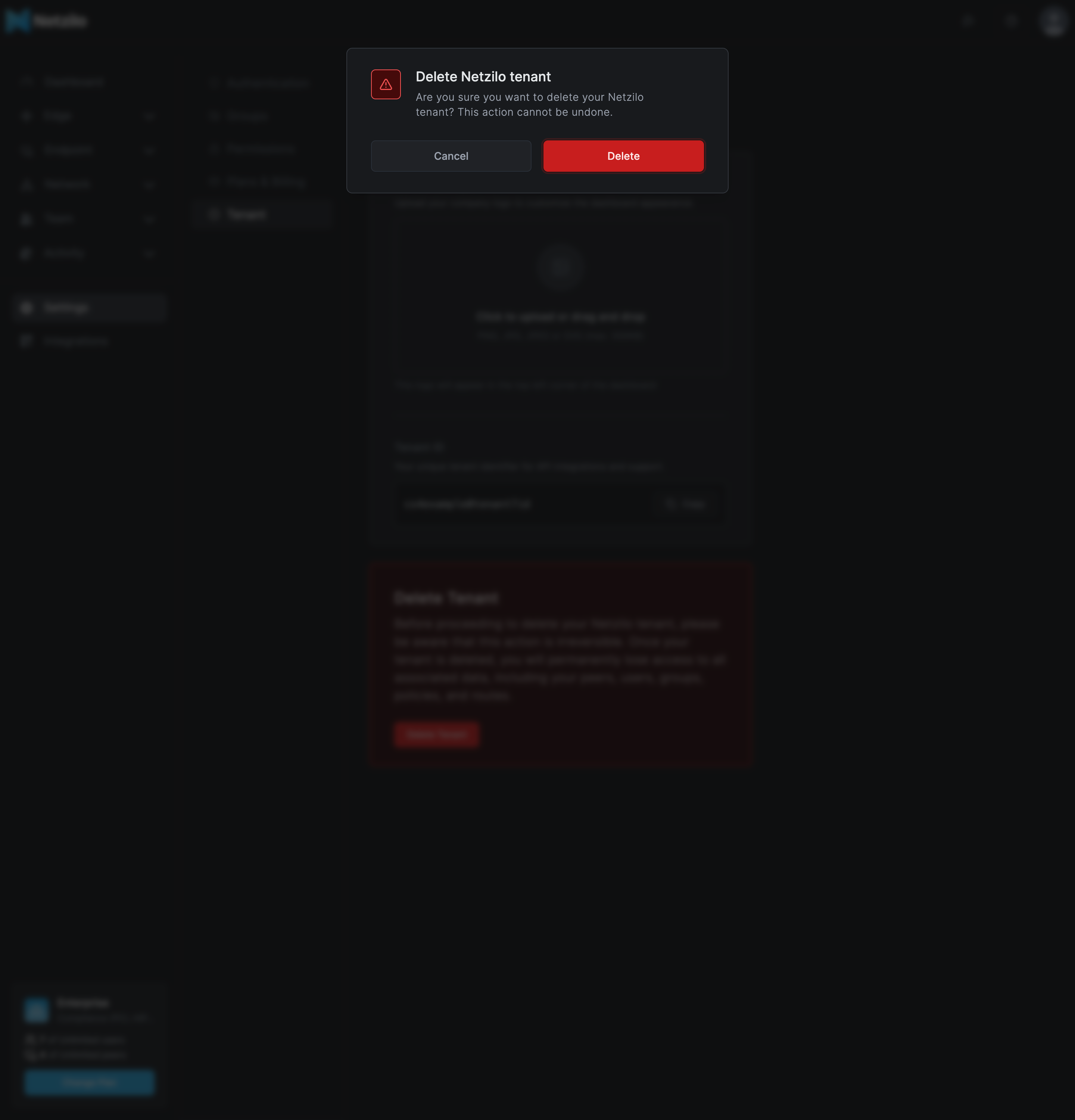
The dashboard signs you out when the tenant is deleted. Devices that were connected lose their access.
Troubleshooting
The Tenant tab is greyed out. You are not the Owner. Ask the Owner, or have the Owner transfer the role to you.
The logo upload fails with "File too large". The file is over 500 KB. Use a smaller image, or an SVG.
The logo upload fails with "Invalid file type". Only PNG, JPG, JPEG and SVG files are accepted.
Related Documentation
- Plans & Billing - Change or cancel your subscription
- Users - Roles and transferring ownership
- Authentication - Peer login and inactivity expiration
- Permissions - Account-wide access switches