

Event Streaming
Event Streaming copies your Netzilo activity events into an object storage bucket that you own. From there your SIEM, data lake or archive picks them up, and you keep the events as long as your own retention rules require.
Two destinations are available: Amazon S3 and Min.io, the S3-compatible object store you can run yourself. You set them up under Integrations > Event Streaming.
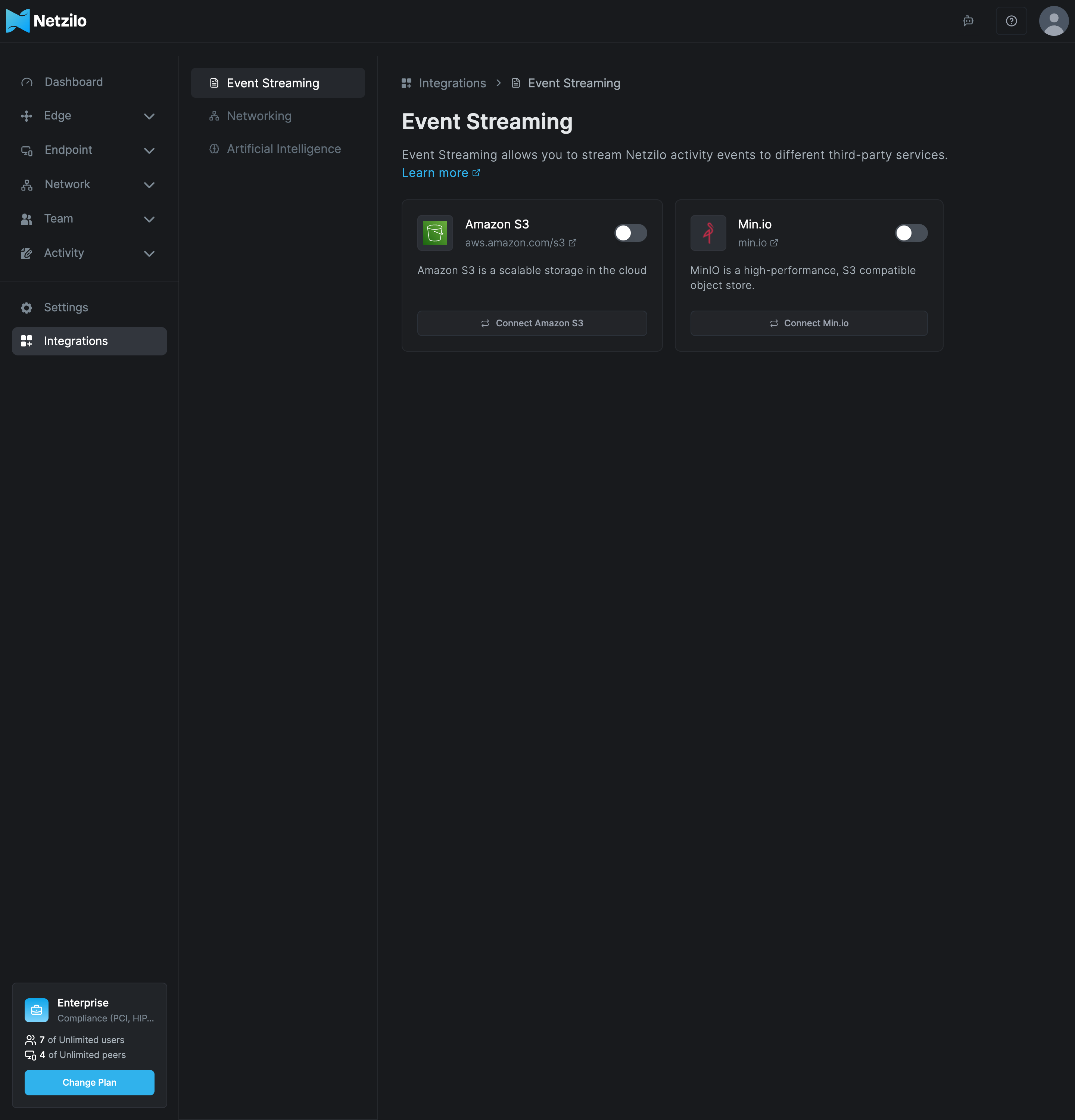
Event Streaming needs the Professional or Enterprise plan. On the Free plan the cards show Upgrade Plan. It works on Netzilo Cloud and on a self-hosted Netzilo Server.
How it works
- You connect one destination: an Amazon S3 bucket or a Min.io bucket, with credentials that may write objects to it. Only one destination is active at a time; while one is connected, the other card is greyed out.
- Netzilo writes each activity event to the bucket as a JSON object named
ID_<id>_<year>_<month>_<day>_<hour>_<minute>_<second>.json. - You point your SIEM or log pipeline at the bucket.
The same bucket also stores the screen recordings of the Enterprise Workspace. A profile can turn on Record Desktop Activity only after Event Streaming is connected, see Enterprise Workspace.
The Event Streaming card on Activity > Events shows whether streaming is Enabled or Disabled.
Stream to Amazon S3
Before you start
- An AWS account in which you may create S3 buckets.
- Permission to create IAM users and policies. If you lack it, ask your AWS administrator.
Step 1: Create an S3 bucket
- Open the Amazon S3 console.
- Select the region for the bucket in the top menu.
- Click Create bucket.
- Give it a descriptive name, such as
netzilo-activity-events, and click Create bucket.
Step 2: Create an IAM user and access key
- Open the IAM console and create an IAM user.
- Create a policy that allows
s3:PutObjectands3:PutObjectAclon the bucket, and attach it to the user:
{
    "Version": "2012-10-17",
    "Statement": [
        {
            "Effect": "Allow",
            "Action": [
                "s3:PutObject",
                "s3:PutObjectAcl"
            ],
            "Resource": "arn:aws:s3:::netzilo-activity-events/*"
        }
    ]
}
- Select the user, open the Security credentials tab and click Create access key.
- Store the Access key and the Secret access key in a safe place. You need both in the next step.
Step 3: Connect Amazon S3 in Netzilo
- Go to Integrations > Event Streaming and click Connect Amazon S3.
- Select your Amazon S3 region: choose the region of the bucket and click Continue.
- Create your S3 Bucket: enter the bucket name and click Continue.
- Create IAM credential: enter the access key and the secret key, then click Connect.
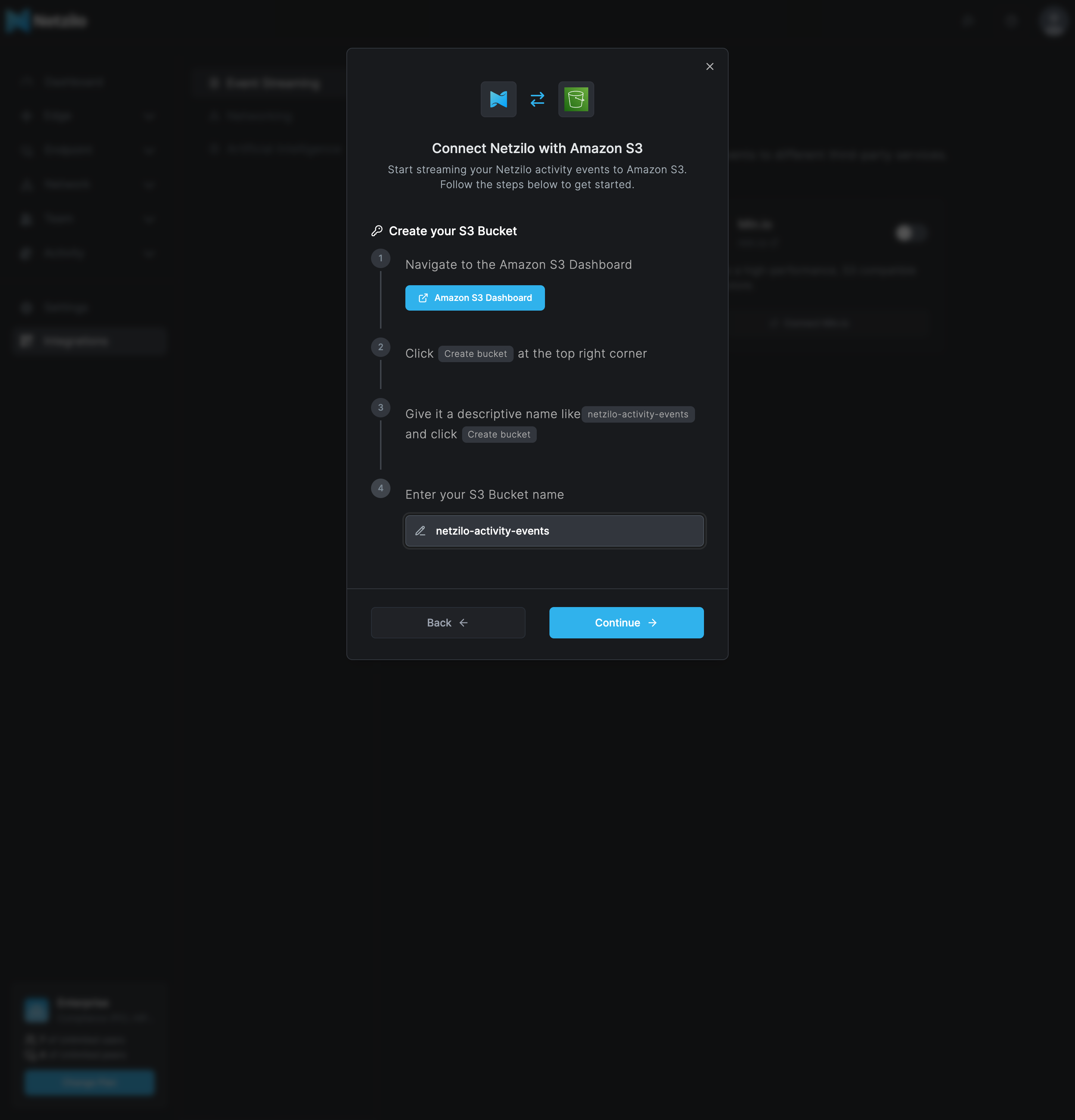
| Field | What to enter |
|---|---|
| Select your Amazon S3 region | The AWS region the bucket is in, such as eu-central-1. |
| Enter your S3 Bucket name | The bucket name only, such as netzilo-activity-events. |
| Enter your Access-Key | The access key of the IAM user. |
| Enter your Secret-Key | The secret access key of the IAM user. |
The Amazon S3 card switches on when the connection is saved.
Stream to Min.io
Before you start
- A running Min.io server that the Netzilo Server can reach over the network. Netzilo Cloud needs an address reachable from the internet.
- A Min.io user that may create buckets and access keys.
Step 1: Connect Min.io in Netzilo
- Go to Integrations > Event Streaming and click Connect Min.io.
- Enter Min.io server endpoint: the address of your Min.io server, such as
https://logs.example.com. - In the Min.io console, open the Buckets tab and click Create bucket. Give the
bucket a descriptive name, such as
netzilo-activity-events. - Enter your Min.io Bucket name and click Continue.
- In the Min.io console, open the Access Keys tab and create a new access key.
- Enter the access key and the secret key, then click Connect.
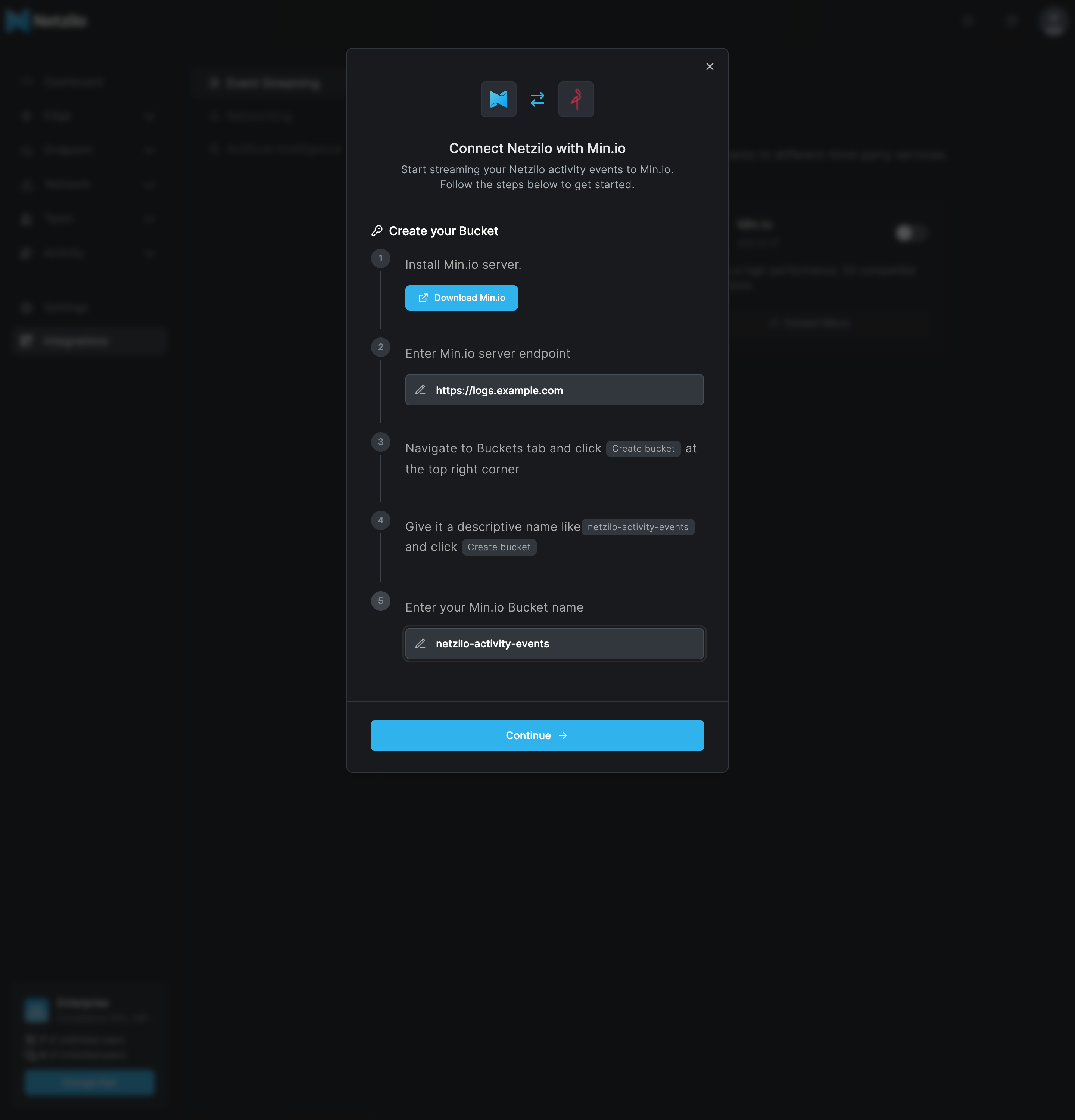
| Field | What to enter |
|---|---|
| Enter Min.io server endpoint | The URL of the Min.io server, such as https://logs.example.com. |
| Enter your Min.io Bucket name | The bucket name, such as netzilo-activity-events. |
| Enter your Access-Key | The Min.io access key. |
| Enter your Secret-Key | The secret key that belongs to it. |
Disable streaming or change the destination
Turn off the switch on the connected card. The dialog Disable this integration? warns that All settings of this integration will be lost. Click Disable. Netzilo stops writing to the bucket; the objects already there stay where they are.
To move to the other destination, disable the current one first, then connect the other.
Manage streaming through the API
The public API offers the same settings:
# Show the current destination; stored keys are masked
curl -H "Authorization: Token $NZ_TOKEN" https://<api-host>/api/event-streaming

# Connect an Amazon S3 bucket
curl -X POST -H "Authorization: Token $NZ_TOKEN" -H 'Content-Type: application/json' \
  https://<api-host>/api/event-streaming -d '{
    "platform": "s3",
    "enabled": true,
    "config": {
      "region": "eu-central-1",
      "bucket": "netzilo-activity-events",
      "access_key": "<access-key>",
      "secret_key": "<secret-key>"
    }
  }'

# Disable it
curl -X DELETE -H "Authorization: Token $NZ_TOKEN" https://<api-host>/api/event-streaming/<id>
For Min.io, use "platform": "min.io" and add "endpoint" to config.
Troubleshooting
The card shows Upgrade Plan. The account is on the Free plan. See Plans & Billing.
No objects appear in the bucket. Check that the IAM policy allows s3:PutObject and
s3:PutObjectAcl on the bucket you entered, and that the bucket name and region are
right. Disable the integration and connect it again with the corrected values.
One card is greyed out. The other destination is connected. Only one is active at a time.
Workspace recordings no longer play. The bucket credentials changed, or the objects were removed from the bucket. Connect the integration again with valid credentials.
Related Documentation
- Events - The activity events that are streamed
- Event reference - Every event type and its code
- Enterprise Workspace - Record Desktop Activity
- Plans & Billing - Plans that include Event Streaming
- Networking - TURN and STUN relays