

Networking
Peers connect to each other directly whenever they can. When a firewall or NAT blocks the direct path, they use a STUN server to learn their public address and a TURN server to relay their traffic. Netzilo provides these relays by default.
The Networking tab lets you replace the built-in relays with a managed service, Twilio or Cloudflare, or with TURN/STUN Servers you run yourself. You find it under Integrations > Networking.
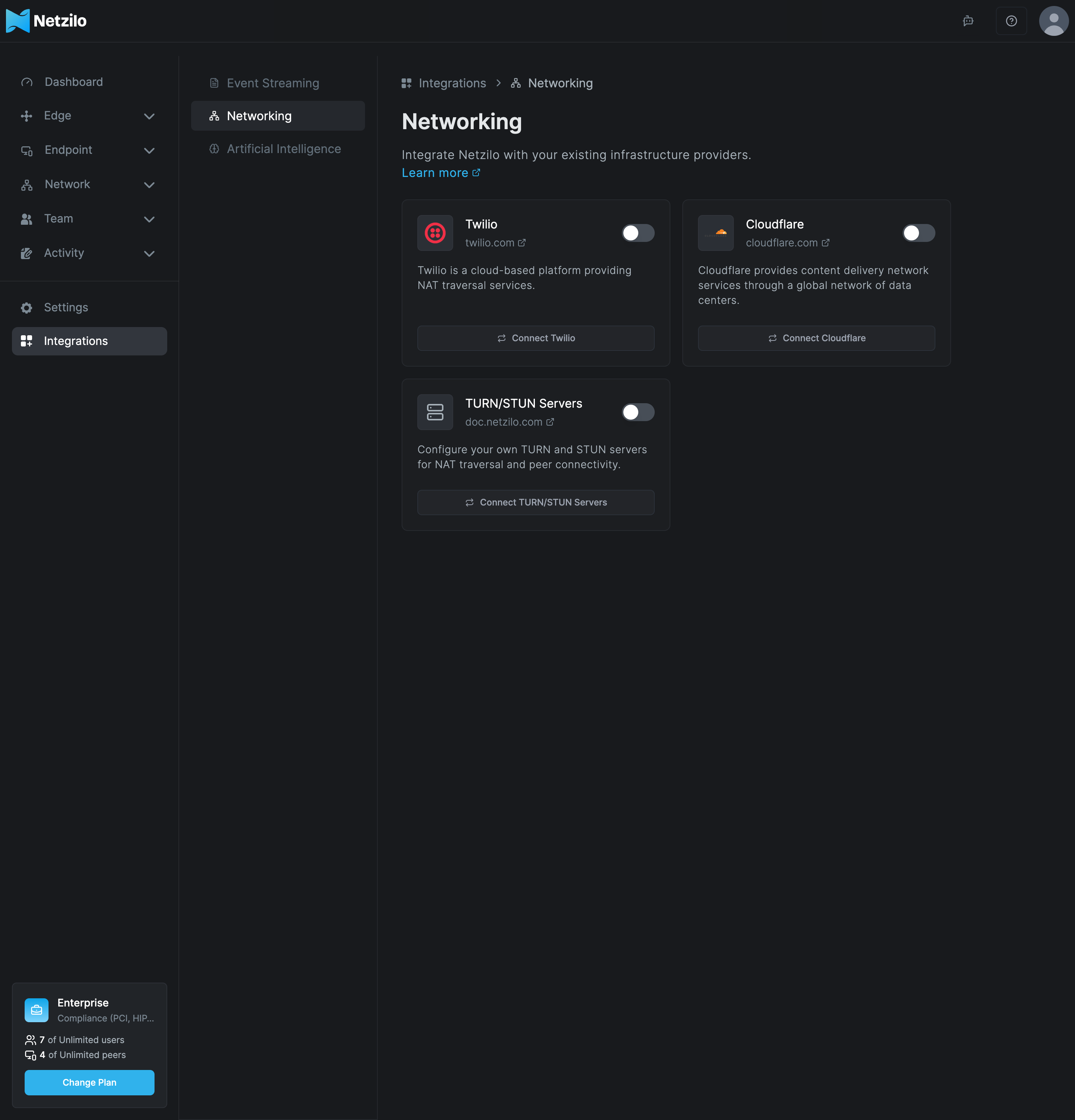
The Networking integrations need the Professional or Enterprise plan. On the Free plan the cards show Upgrade Plan.
How it works
- The three options exclude each other. While one is connected, the other two cards are greyed out.
- The connected option replaces the built-in relays for every peer in the account. Peers that could connect directly keep doing so; only relayed connections change.
- Turning the option off returns all peers to the built-in relays.
Leave this tab alone unless you have a reason: for example, relays closer to your users, or a policy that relay traffic stays on servers you operate.
Connect Twilio
- Go to Integrations > Networking and click Connect Twilio.
- Open the Twilio console and copy your Account SID and Auth Token.
- Enter both and click Connect.
| Field | What to enter |
|---|---|
| Account SID | Your Twilio Account SID, starting with AC. |
| Auth Token | The Auth Token of that account. |
Netzilo checks the credentials with Twilio before it saves them.
Connect Cloudflare
- Go to Integrations > Networking and click Connect Cloudflare.
- Open the Cloudflare dashboard with Cloudflare Dashboard in the dialog, and copy the Token ID and the API Token of your TURN service.
- Enter both and click Connect.
| Field | What to enter |
|---|---|
| Token ID | The token ID from Cloudflare. |
| API Token | The API token that belongs to it. |
Use your own TURN and STUN servers
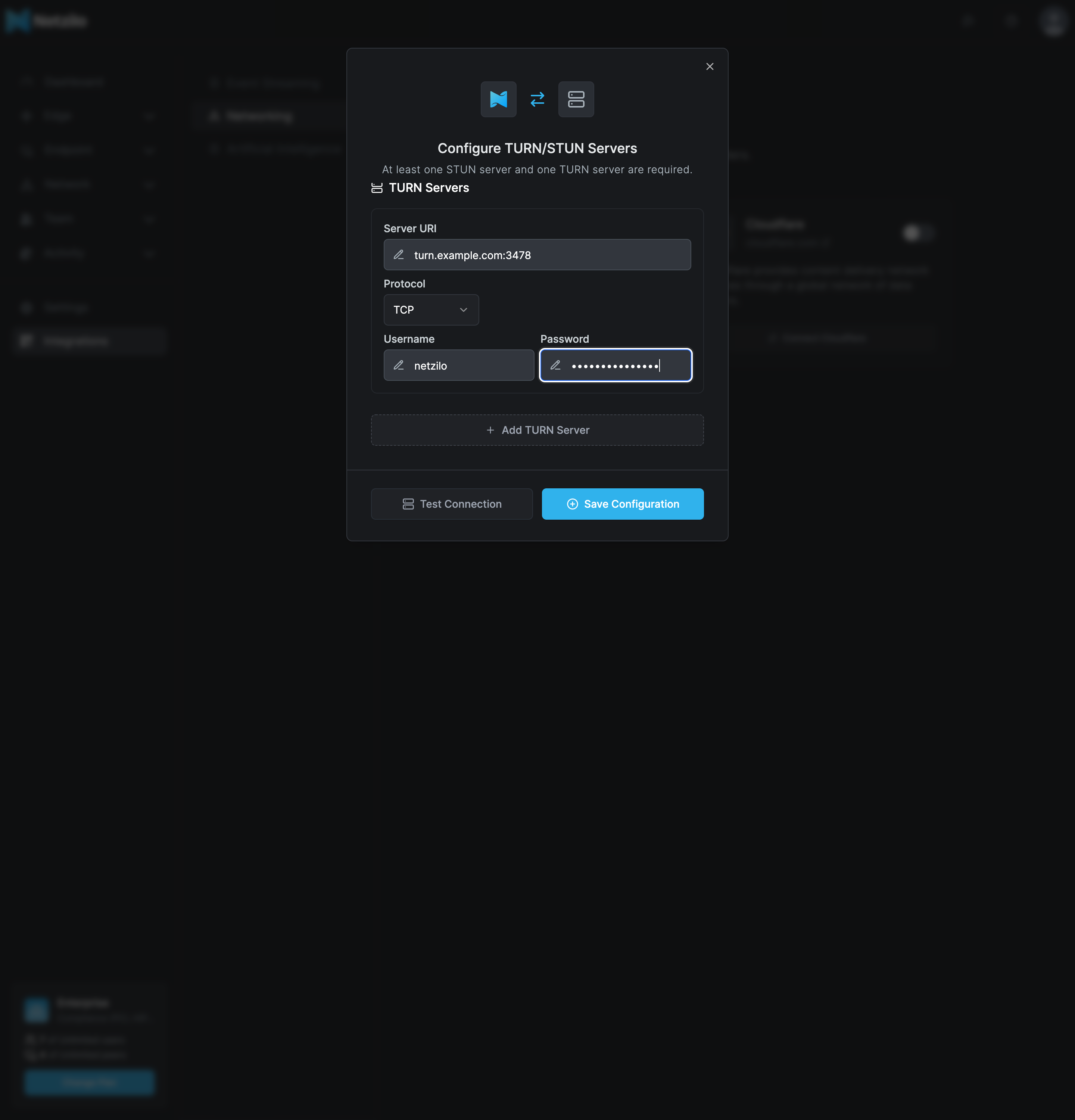
- Go to Integrations > Networking and click Connect TURN/STUN Servers.
- Under STUN Servers, enter a Server URI and choose the Protocol. Use Add STUN Server for more.
- Under TURN Servers, enter a Server URI, the Protocol, a Username and a Password. Use Add TURN Server for more.
- Click Test Connection and wait for the result.
- Click Save Configuration.
| Field | What to enter |
|---|---|
| STUN Server URI | hostname:port, such as stun.example.com:3478. |
| STUN Protocol | UDP or TCP. |
| TURN Server URI | hostname:port, such as turn.example.com:3478. |
| TURN Protocol | UDP, TCP, DTLS or HTTPS. DTLS and HTTPS use TLS to the server. |
| Username, Password | The TURN credentials. Both are required for every TURN server. |
You need at least one STUN server and one TURN server.
Test Connection runs a connectivity test from your browser against the servers you entered. It does not save anything.
| Result | Meaning |
|---|---|
| Connection test successful! Found: … candidates. | The servers answered. The message counts the STUN, authenticated TURN and host candidates found. |
| TURN authentication failed - no relay candidates found… | The STUN part works, but the TURN server refused the credentials or is not reachable. |
| Connection test timeout - servers may be behind firewall or unreachable | No answer in time. Check the address, the port and the firewall. |
| No ICE candidates found - all servers may be unreachable | None of the servers answered. |
The test runs from your browser, so it proves that the servers are reachable from your network. Peers elsewhere may still be blocked by their own firewall.
Disable an integration
Turn off the switch on the connected card. The dialog Disable this integration? warns that All settings of this integration will be lost. Click Disable. All peers go back to the built-in relays. To use the integration again, connect it again with its credentials.
Manage relays through the API
The same settings are available through the public API
at /api/integrations, with the platform twilio, cloudflare or static for your own
TURN/STUN servers. Stored credentials are masked when you read them back.
Troubleshooting
Peers that used to connect show Disconnected after you connected an integration. The integration now provides every peer's relays. Check its credentials, and for your own servers run Test Connection again. Turn the integration off to return to the built-in relays while you fix it.
Test Connection reports a timeout. The servers are not reachable from your browser. Check the address and port, and open the TURN ports in the firewall: usually 3478 and 5349, plus the relay port range your TURN server uses.
Saving fails with "Invalid TURN server format". Enter hostname:port without a
scheme, such as turn.example.com:3478.
The cards show Upgrade Plan. The account is on the Free plan. See Plans & Billing.
Related Documentation
- How Netzilo works - Signal, relays and direct connections
- Troubleshooting client issues - Diagnose peers that do not connect
- Self-hosted troubleshooting - The built-in relay on your own server
- Event Streaming - Stream activity events to a bucket
- Artificial Intelligence - Connect the AI the dashboard uses