

Connect an AI provider
Several Netzilo features are powered by a large language model: the AI Assistant in the dashboard, analysis of the activity your account records, and the detection work behind Edge Scanners. None of them run on a model Netzilo chooses for you — you connect your own provider, and you decide which of its models each feature is allowed to use.
Providers are managed under Integrations → Artificial Intelligence.
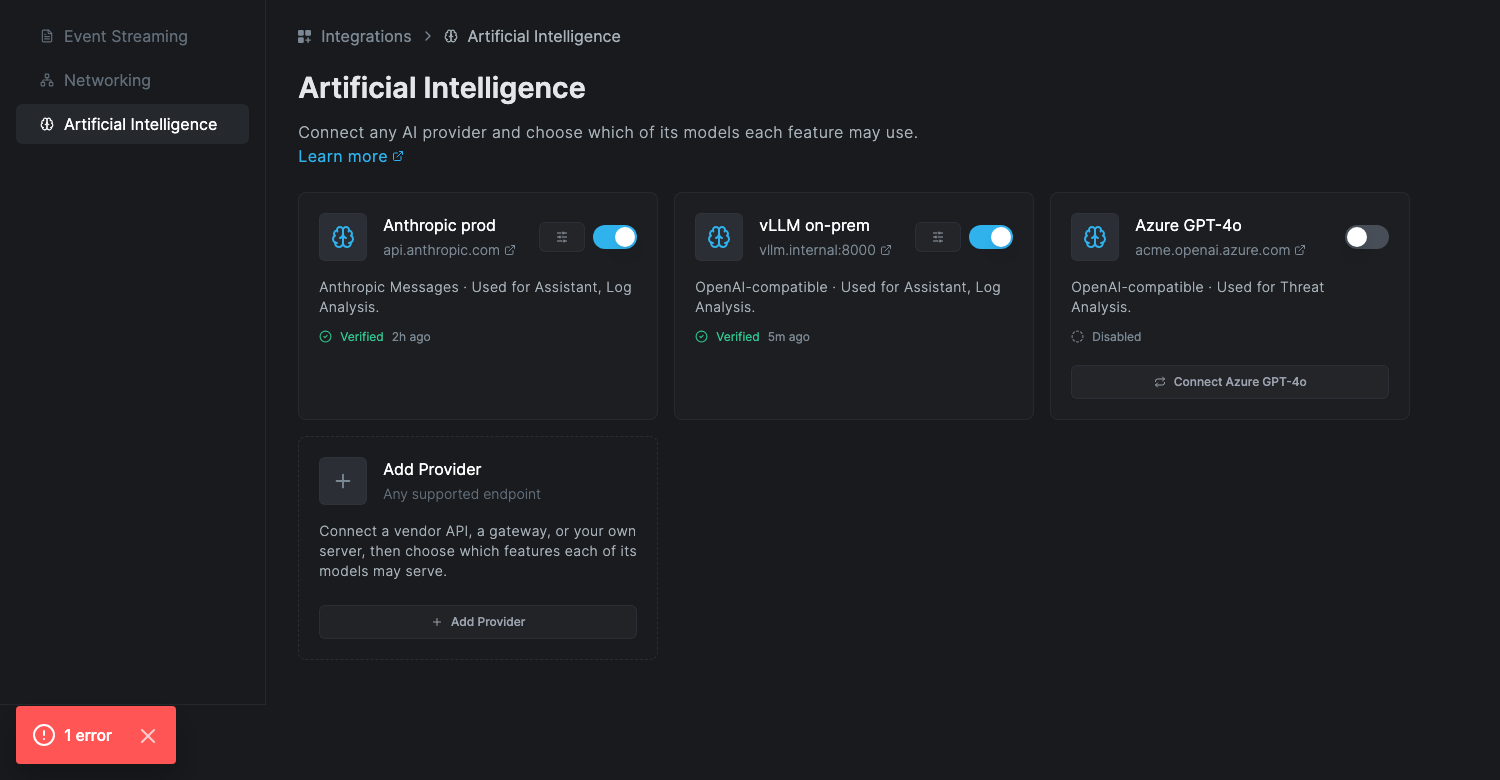
Adding, changing and removing a provider requires the Owner role. Administrators can see which providers exist and pick a model in the AI Assistant.
What a provider is
A provider is one endpoint that speaks a protocol Netzilo supports. That can be a vendor's own API, a hosted gateway, or a server you run yourself. There is no fixed list of supported vendors.
| Protocol | Use it for |
|---|---|
| Anthropic Messages | Anthropic's API, and gateways that reimplement it |
| OpenAI-compatible | OpenAI, Azure OpenAI, Mistral, Groq, Together AI, OpenRouter, DeepSeek, vLLM, Ollama, and any other server implementing the OpenAI Chat Completions API |
The Add Provider card prefills the form for common vendors, but a preset is only a convenience. Anything that speaks one of the two protocols can be connected by filling the form in yourself.
The three features
Every model is approved per feature, and there are three:
| Feature | Covers |
|---|---|
| Assistant | The AI Assistant panel in the dashboard |
| Log Analysis | Risk analysis of discovered tools, and AI Smart Search over your activity |
| Threat Analysis | AI rule generation for Edge Scanners, and prompt scanning |
A feature with no approved model is simply unavailable, and the dashboard says so where you would have used it. Netzilo never falls back to a shared or built-in model.
Add a provider
- Go to Integrations → Artificial Intelligence
- Click Add Provider
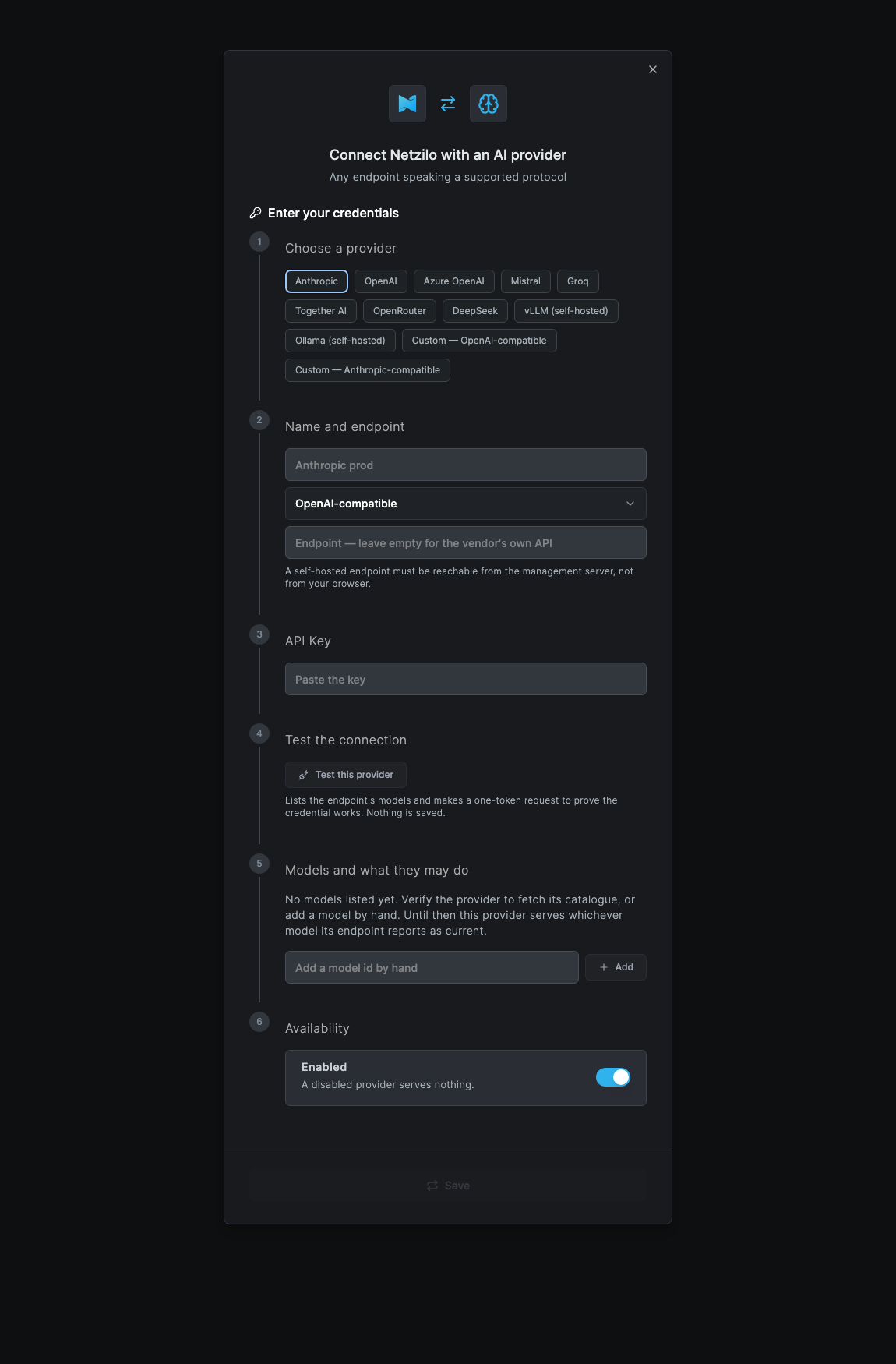
Step 1 — Choose a provider
Pick the vendor you use, or one of the two Custom entries if your endpoint is not listed. This only fills in the protocol and address; you can change either afterwards.
Step 2 — Name and endpoint
Give the provider a name you will recognise later — it appears in the AI Assistant's model
picker and in your activity log, so Anthropic prod is more useful than Anthropic.
Leave Endpoint empty to use the vendor's own API. Fill it in for a gateway or a server you host.
A self-hosted endpoint must be reachable from the Netzilo management server, not from
your browser. An address like http://localhost:11434 will not work: the management
server resolves it on its own machine.
Step 3 — API key
Paste the key for that endpoint. Netzilo never returns a stored key: when you reopen the
provider later the field shows Stored — leave empty to keep it, and leaving it empty
keeps the existing credential.
Endpoints that need no credential, such as a local Ollama or vLLM, can be left blank.
Step 4 — Test the connection
Test this provider asks the endpoint which models it serves and then makes a one-token request to prove the credential actually works. Nothing is saved, so you can test a draft before committing to it.
If it fails, the reason tells you what to fix:
| Result | What it means |
|---|---|
| The endpoint rejected this key | The credential is wrong, expired, or lacks access |
| The management server could not reach this endpoint | Address or network problem — remember it is resolved from the server |
| The endpoint served no catalogue | It works, but does not publish a model list; add model ids by hand |
| The endpoint answered, but refused this model | The model id is wrong for this endpoint |
Step 5 — Models and what they may do
Testing fills in the models the endpoint reported. You can also type a model id and click Add — useful for Azure OpenAI, where the model id is your deployment name.
Nothing is approved until you tick it. A freshly fetched catalogue starts with every box clear, so listing thirty models does not switch on thirty models. Tick a box to let a model serve a feature, or use the checkbox in a column header to approve or clear every model for that feature at once. The star marks the default: the model that answers when nobody picks one explicitly. One model per feature is the default.
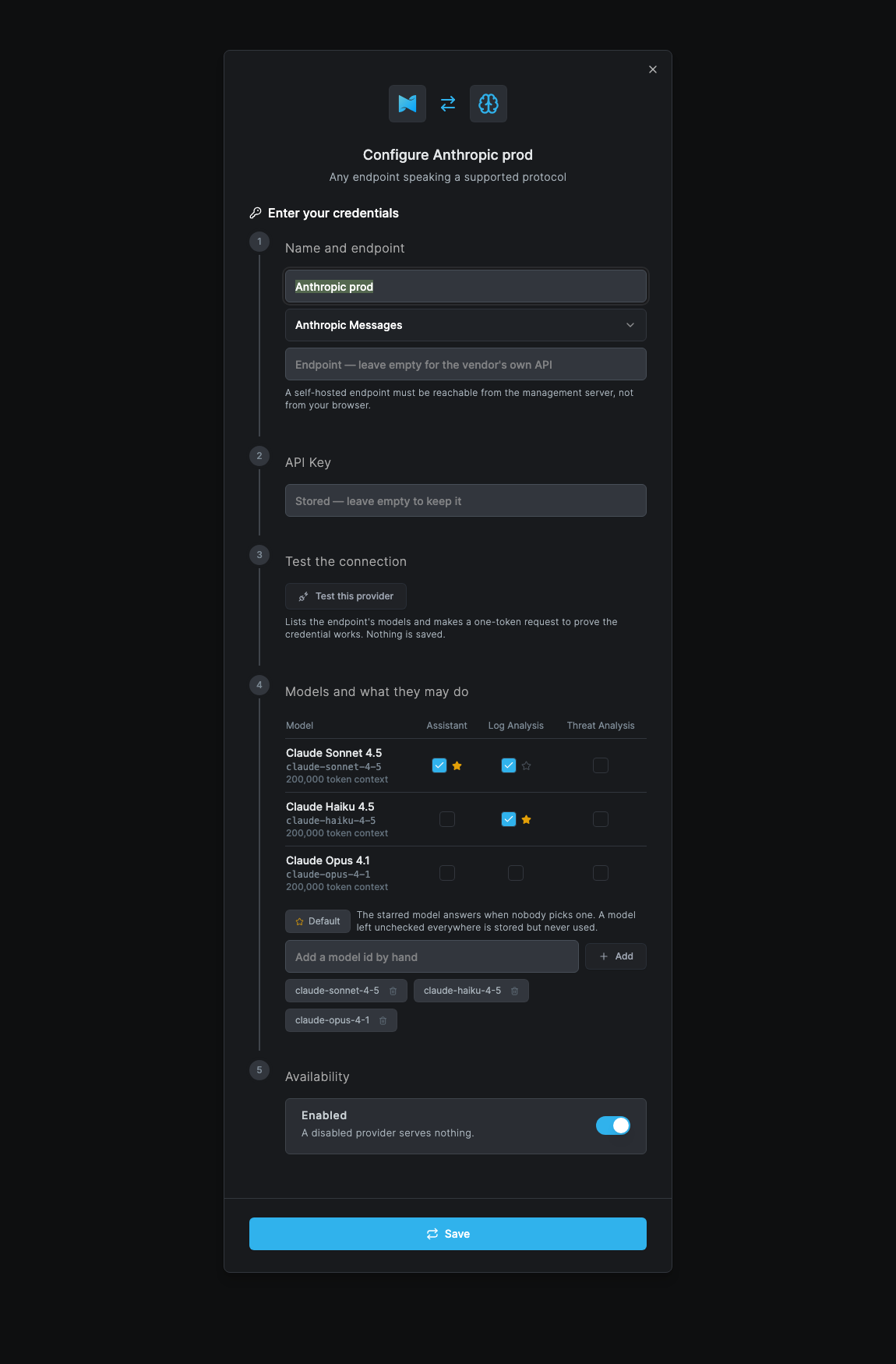
A model left unchecked everywhere is stored but never used — that is how you keep an expensive model available for one feature without exposing it to the others.
If you list no models at all, the provider serves whichever model its endpoint currently reports as newest. That keeps a provider working the moment its key is saved.
Step 6 — Availability
A disabled provider serves nothing, whatever its models are approved for. The switch on the card does the same thing without opening the dialog: switching off disables the provider and keeps its configuration; switching on re-enables it.
Priority breaks a tie when several providers can serve the same feature — lower wins.
Edit or remove a provider
Open the settings button on a card (visible whether the provider is enabled or not). Every
field you leave alone keeps its stored value: the API key field shows
Stored — leave empty to keep it, and headers or priority you do not touch are not
changed. Only what you edit is replaced.
Remove is at the bottom of the dialog. It deletes the provider and its stored credential after a confirmation naming the features that will stop working. The switch on the card never deletes anything.
Choose the model in the AI Assistant
The AI Assistant shows a model picker next to the send button, listing only the models approved for Assistant.
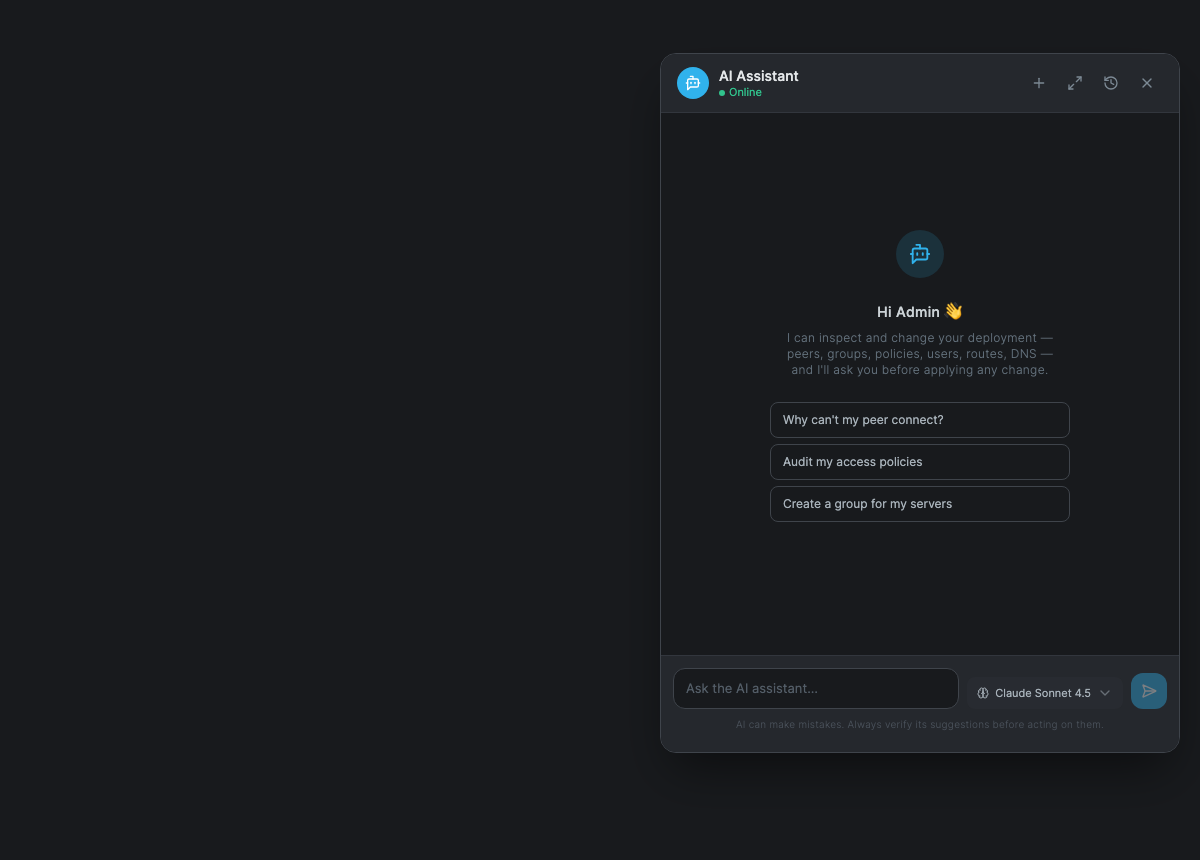
The choice stays with that conversation, so reopening it resumes on the same model. If only one model is approved, the picker shows its name without offering a choice.
Netzilo re-checks the choice on every message. A model you pick explicitly and that has since lost its approval is refused with a message naming it, rather than quietly answered by a different one. A conversation that merely remembers a model which no longer exists — for example a provider that gained a catalogue after the chat started — falls back to the default model and continues; the picker shows what will actually answer.
Using more than one provider
Several providers can serve the same feature. Netzilo picks the one whose model is starred as the default; if none is starred, the provider with the lowest Priority wins, and providers sharing a priority are ordered by name.
A common arrangement is a vendor API for the Assistant and a self-hosted endpoint for Log Analysis, so bulk analysis never leaves your own infrastructure.
Health and auditing
Each card shows when the provider was last verified and when it was last used.
- Verified — a test succeeded at that time
- Failed — the last test did not succeed; hover for the reason
- Not verified — nobody has tested it yet. It is still used; this is not a failure
- Disabled — switched off, serving nothing
Changing the endpoint, the protocol or the key clears a previous Verified result, because it no longer describes what Netzilo would call.
Adding, changing, removing and verifying a provider are all recorded in
activity events as ai.provider.create,
ai.provider.update, ai.provider.delete and ai.provider.verify. API keys never appear
in an event, in the API, or in a log line.
Managing providers through the API
The public API exposes the same resource.
# What this account can serve
curl -H "Authorization: Token $NZ_TOKEN" https://<api-host>/api/ai/capabilities

# The models approved for the Assistant
curl -H "Authorization: Token $NZ_TOKEN" "https://<api-host>/api/ai/models?use=assistant"

# Add a self-hosted provider
curl -X POST -H "Authorization: Token $NZ_TOKEN" -H 'Content-Type: application/json' \
  https://<api-host>/api/ai/providers -d '{
    "name": "vLLM on-prem",
    "protocol": "openai-completions",
    "base_url": "http://vllm.internal:8000/v1",
    "enabled": true,
    "uses": ["log-analysis"],
    "models": [{"id": "llama-3.3-70b", "default_for": ["log-analysis"]}]
  }'
Reading requires an administrator token; creating, changing and deleting require an owner
token. GET /api/ai/providers reports credential_set rather than the key itself.
Upgrading from the previous OpenAI and Anthropic integrations
Earlier versions configured AI as two fixed integration cards. Those are converted automatically when the management server starts:
- each configured integration becomes a provider named
Anthropic,OpenAIorCustom LLM - it is approved for all three features, which is what a configured key did before
- it lists no models, so it keeps tracking the newest model its endpoint offers
- it is marked Not verified until you test it
Nothing needs to be re-entered. Review the approvals afterwards if you want a narrower setup than "every feature".
Deployments that relied on ANTHROPIC_API_KEY or OPENAI_API_KEY environment
variables on the management server must now connect a provider here. Those variables
are no longer read.