

Manage access with posture checks
Netzilo helps administrators control who can access their network by creating policies. These policies decide which groups of peers are allowed to interact with one another, based on criteria like port, protocol and traffic direction.
Administrators can further refine access control through posture checks to enhance their existing policies. For example, they can verify whether a peer is using a specified version of Netzilo, has the necessary version of an operating system, and is located within a permitted location before allowing it to join the network.
By adding these posture checks to the policies, Netzilo makes sure only devices that meet certain security requirements can access the network. This helps keep the network safe and follows the Zero Trust approach, which means not trusting any device by default.
Concepts
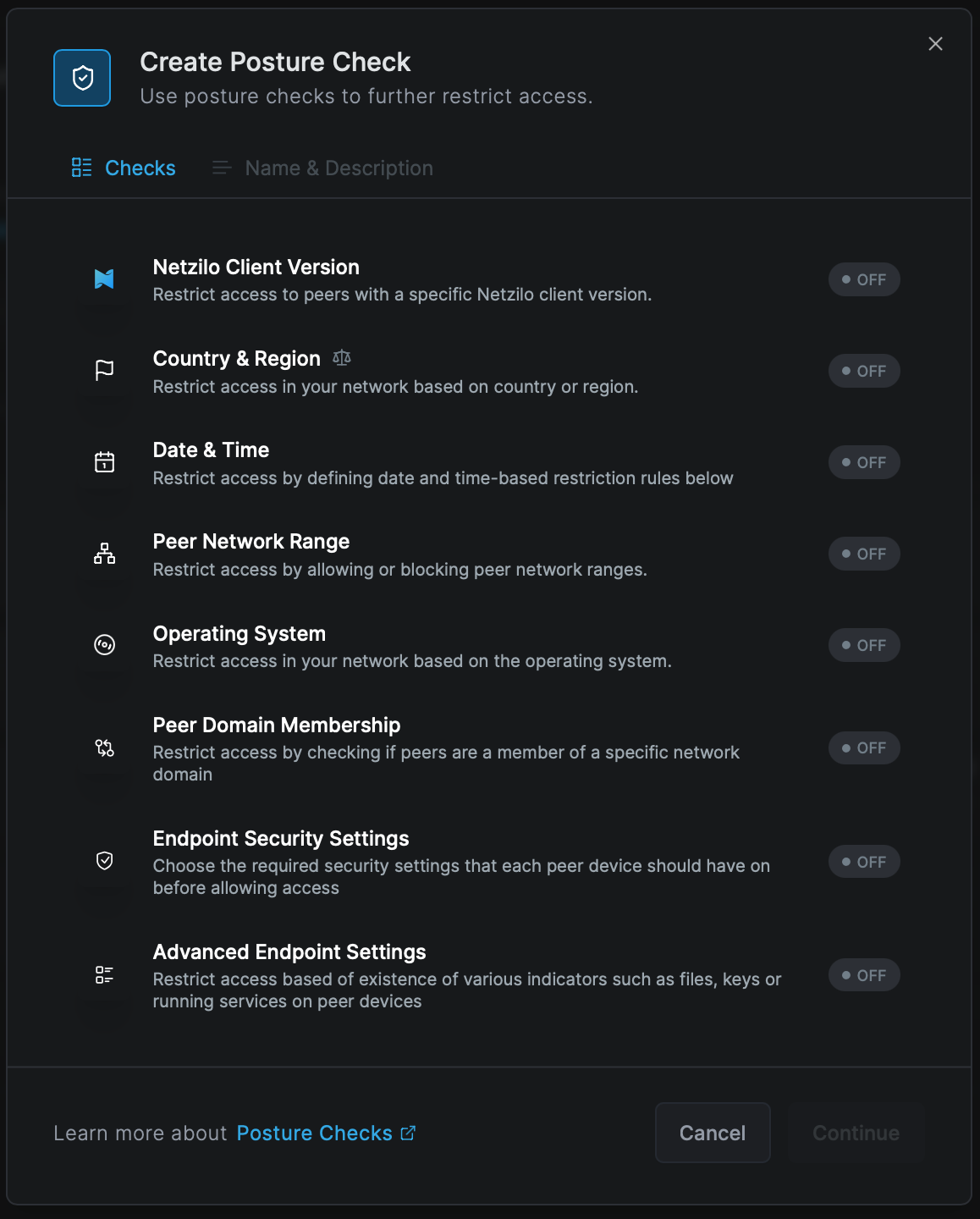
While we plan to expand the range of posture checks, these are the checks currently available for you to enforce:
- Netzilo Client Version Check
- Country & Region Check
- Date & Time Check
- Operating System Check
- Peer Network Range Check
- Peer Domain Check
- Endpoint Security Settings Check
- Advanced Endpoint Settings Check
Netzilo Client Version Check
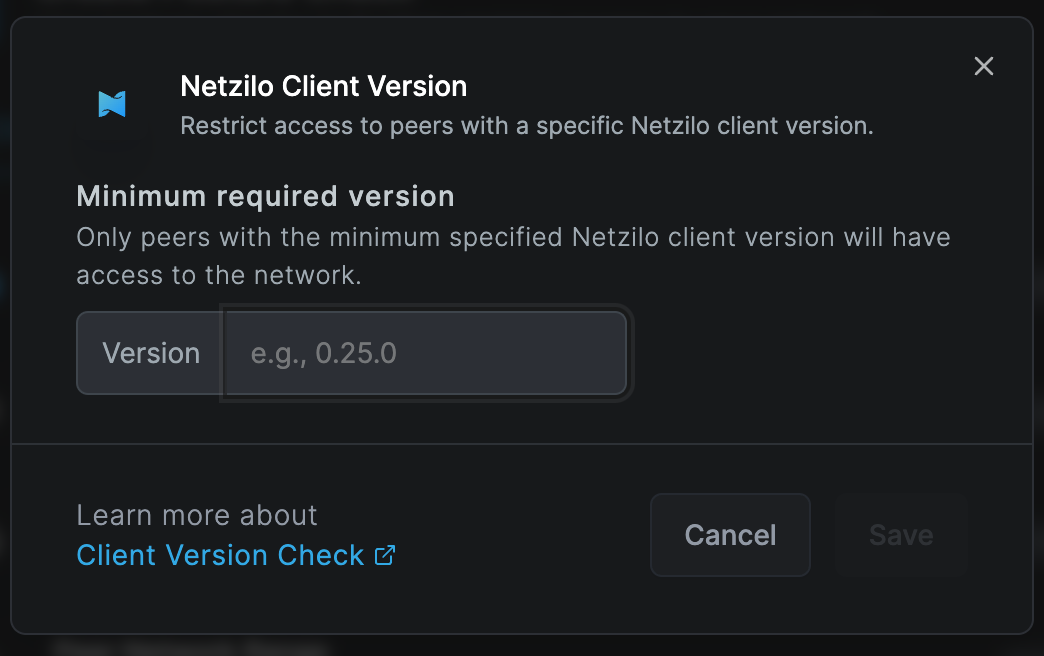
The Netzilo client version check ensures that only devices with the specified version of Netzilo installed can connect to the network, preventing security risks from outdated or incompatible versions.
Geolocation (Country & Region) Check
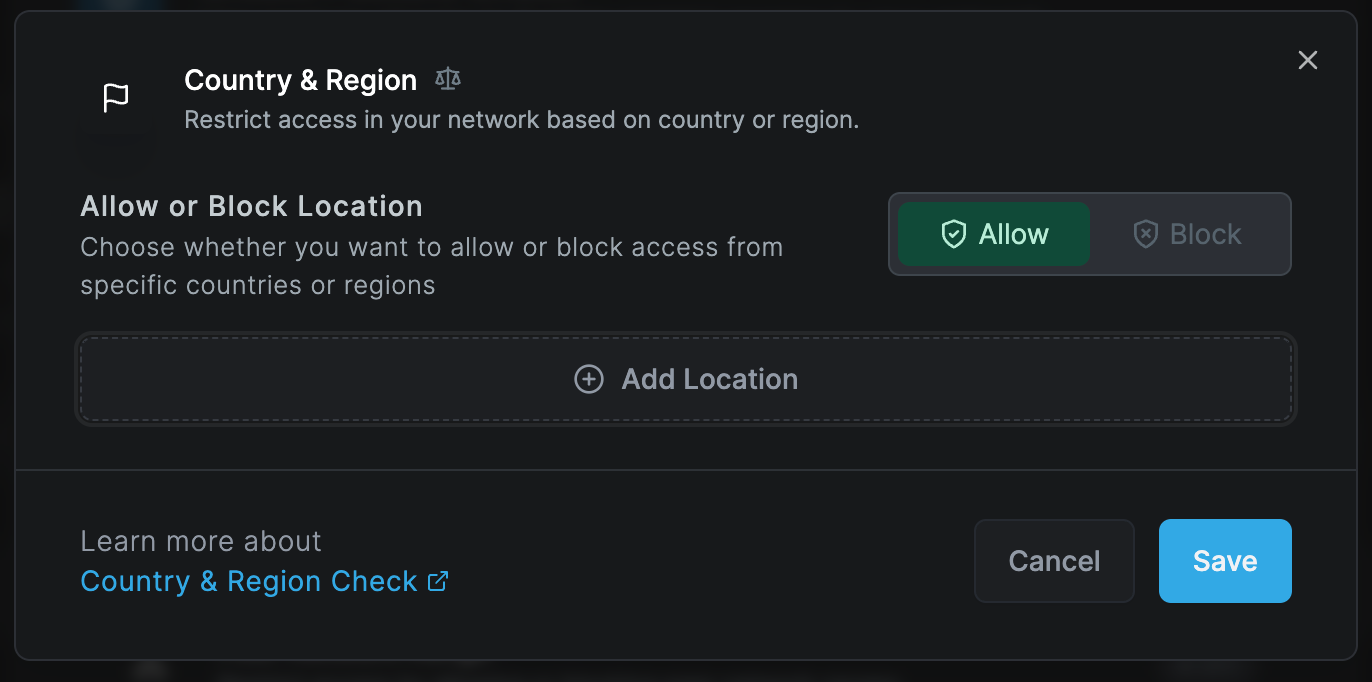
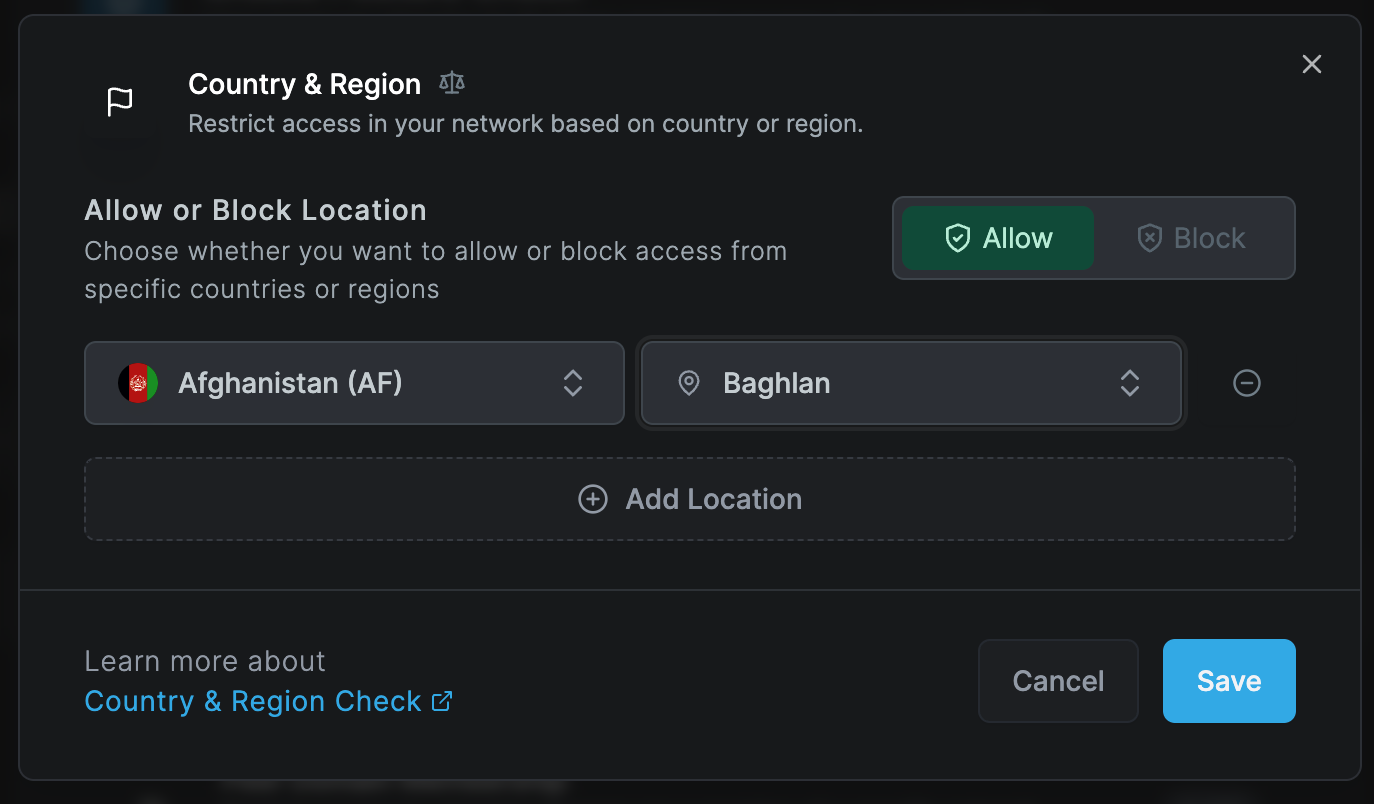
The geolocation check examines the connecting device's geographical location based on its IP address. This check allows to either block or allow access from certain geographic regions, offering country-wide and city-level granularity.
When allowing access from specific locations in the network settings, all other locations are automatically blocked. Conversely, blocking certain locations means only those are blocked, while access remains open for all other locations.
Date & Time Check
The date and time rule ensures that access occurs only during the designated date and time intervals. Outside these intervals, the rule evaluates as false, and depending on the usage scenario, access may be restricted or additional conditions may be applied.


Operating System Check
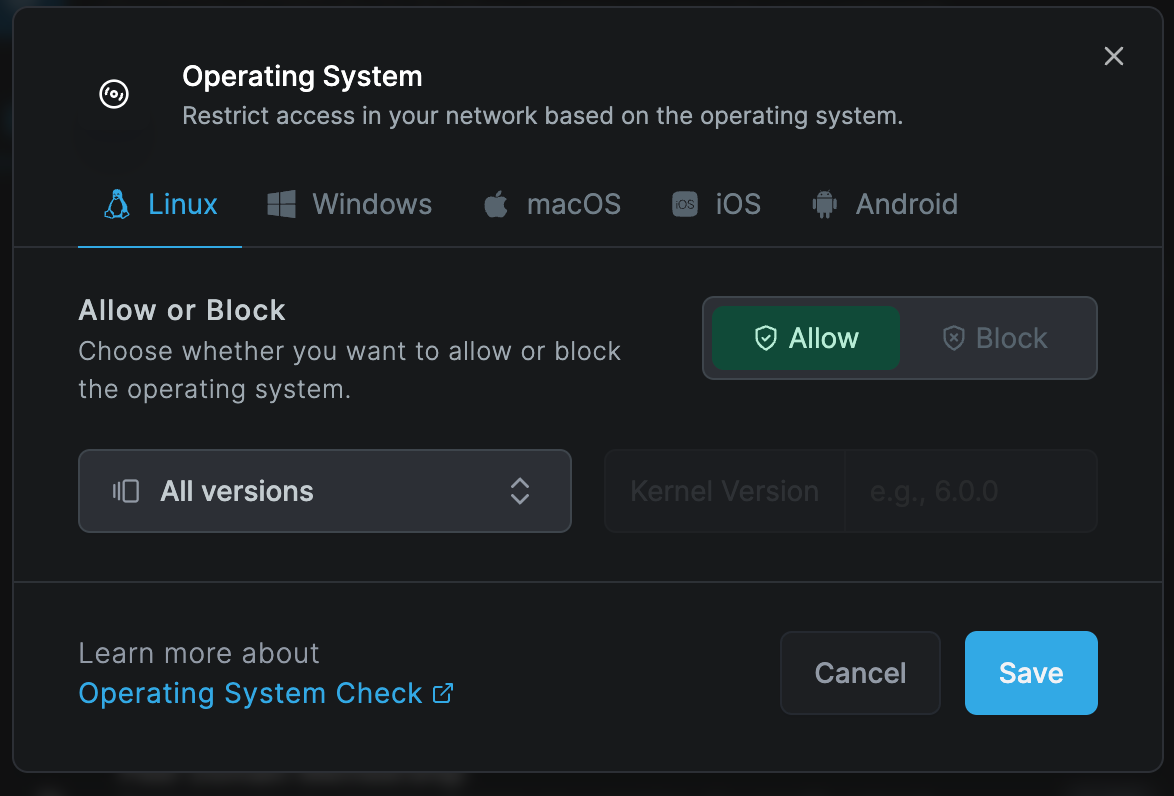
The operating system version check evaluates the operating system (OS) version running on the connecting device. This check allows for enforcing minimum OS requirements, ensuring that only devices with up-to-date and secure operating systems can access network resources.
The Operating System Check requires Netzilo version 0.26.0 or newer.
The check evaluates the actual OS version for Android, macOS, and iOS, while for Linux and Windows, it assesses the kernel version.
Below are some examples of OS versions for each operating system:
- Android 14 Upside Down Cake:
14,14.3 - macOS 13 Ventura:
13,13.6.4 - macOS 14 Sonoma:
14,14.3.1 - iOS 16 / iPadOS 16:
16,16.7.5 - Linux kernel:
6,6.7.5 - Windows 10, version 22H2:
10.0.19045 - Windows 11, version 23H2:
10.0.22631 - Windows Server 2022, Version 21H2:
10.0.20348
Peer Network Range Check
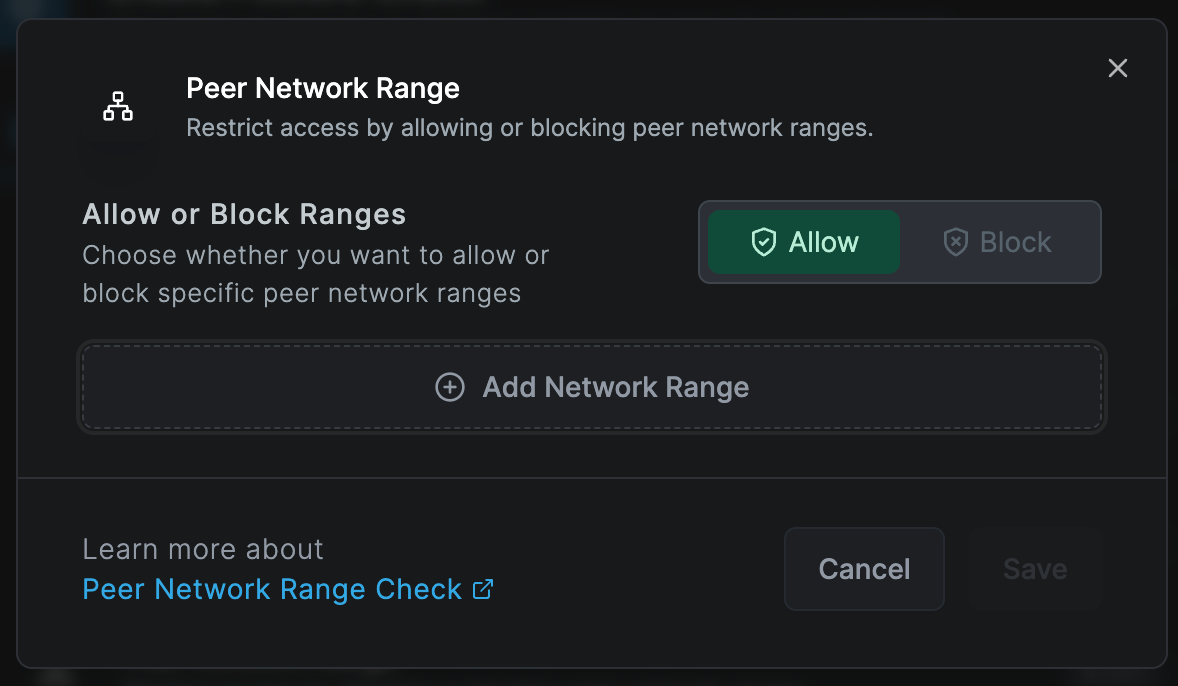
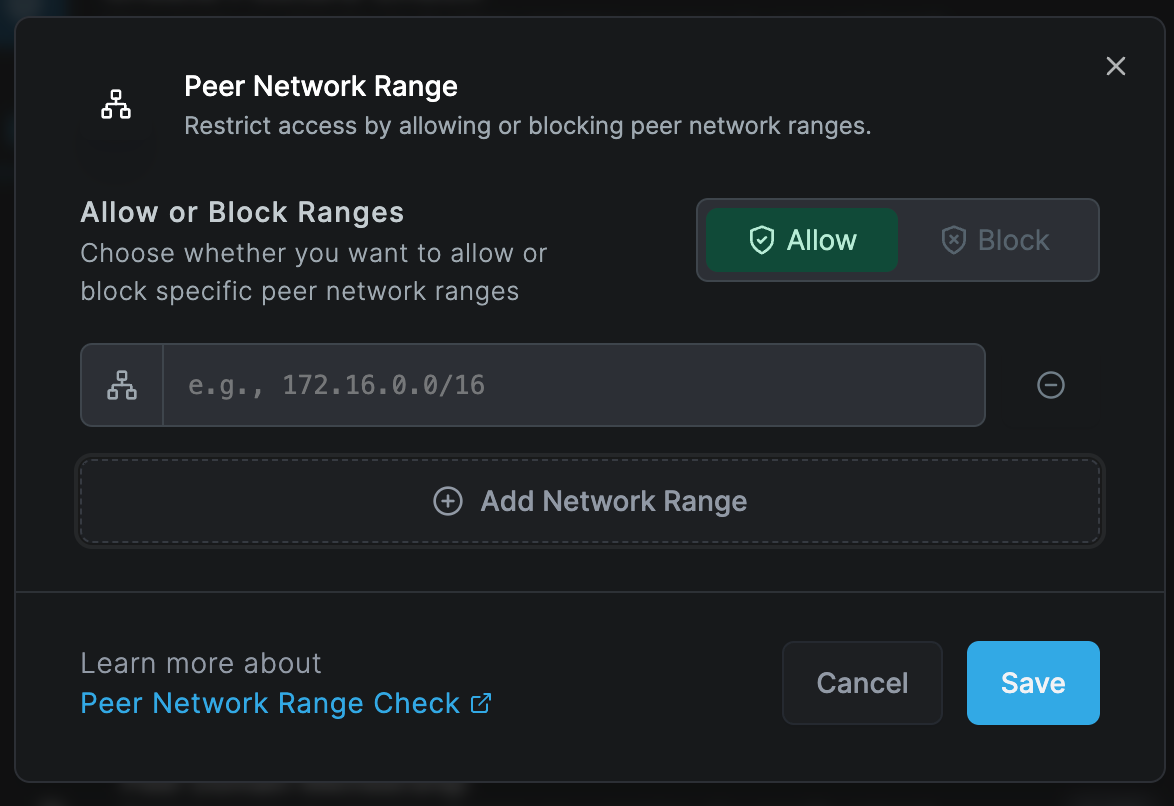
The peer network range check verifies if a device is in certain IP ranges before it can connect. This check is useful when wanting to control access based on the network location of a peer. For example, disabling a connection to a routing peer when the peer is connecting from the office network range.
Peer Domain Check
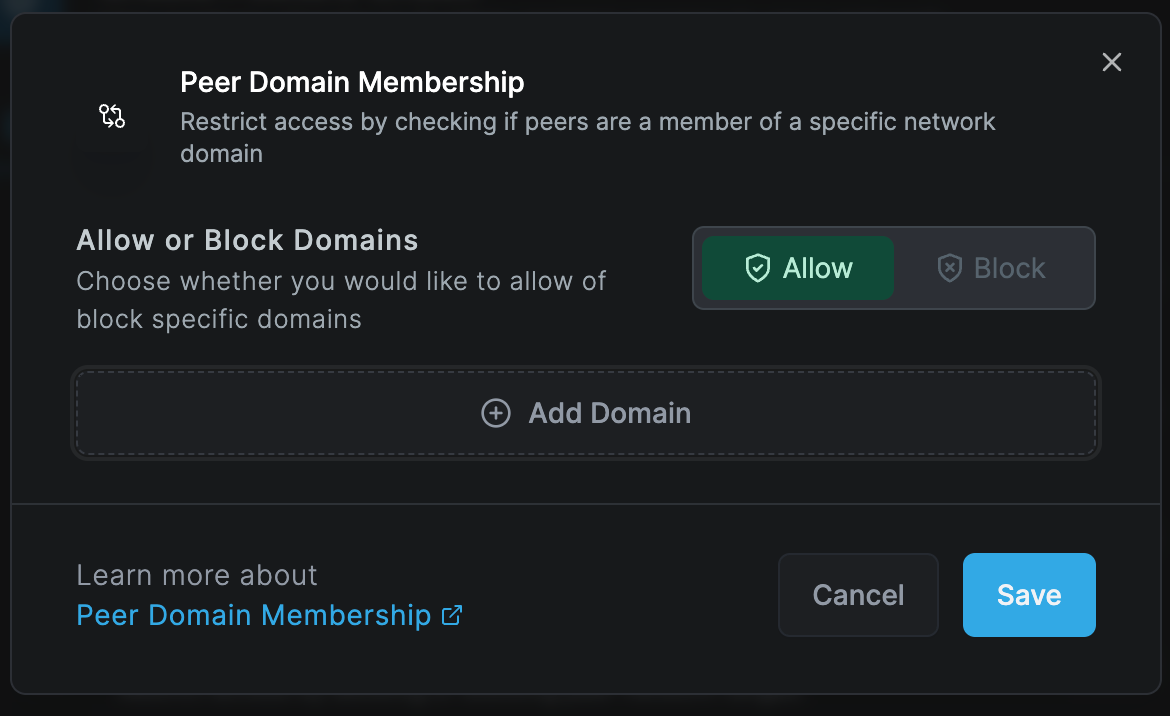
The peer domain check verifies if a device is joined into specified domains before it can connect. This check is useful when wanting to control access based on the joined domain of a peer. For example, connection is allowed if the peer is connecting from a corporate device.
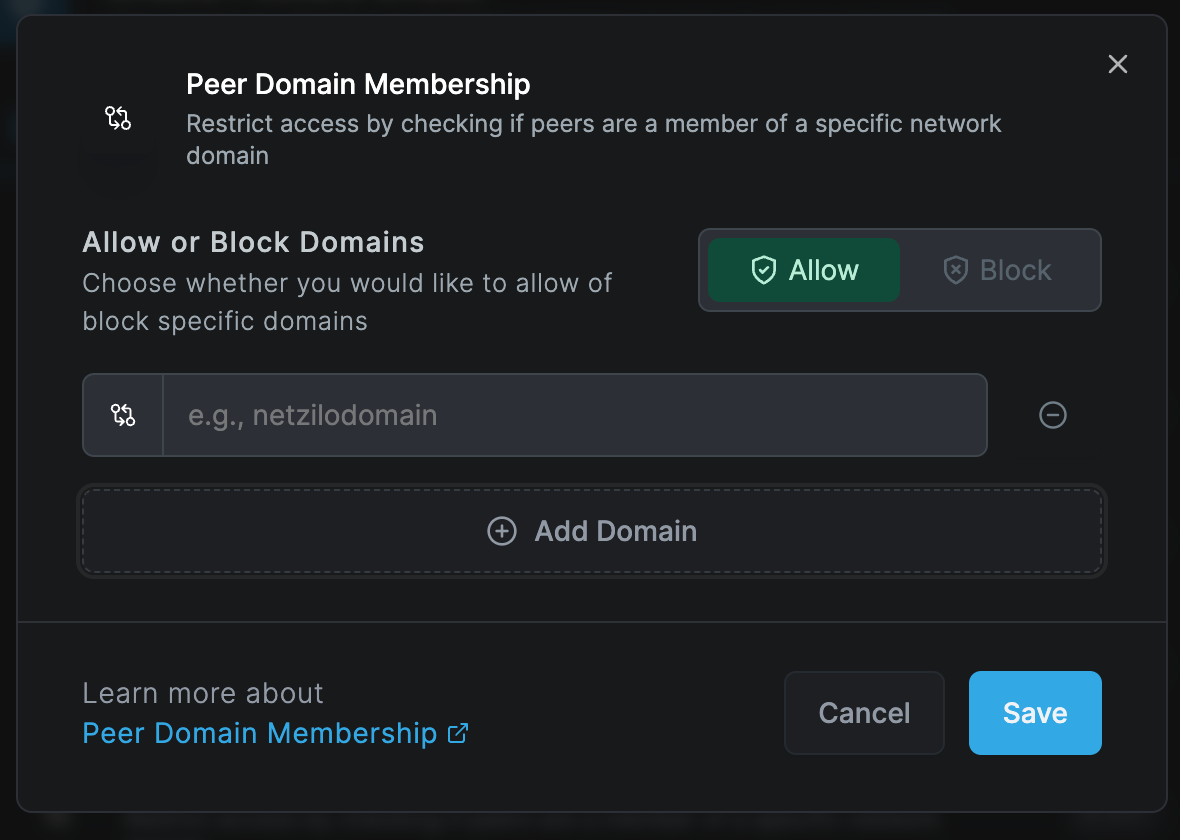
Endpoint Security Settings Check
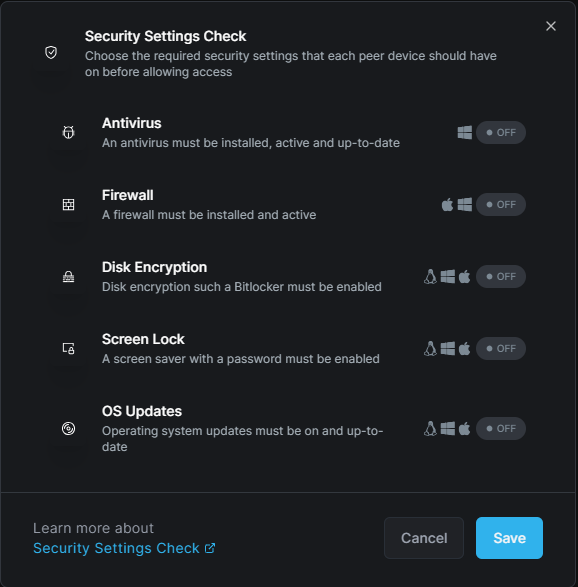
The endpoint security settings check verifies if the peer complies with security settings before it can connect. This check is useful when wanting to control access based on the security settings of a peer. For example, disabling a connection to a peer/routing peer when the peer is not complying with security measures.
- Antivirus
- Firewall
- Disk Encryption
- Screen Lock
- OS Updates
The peer needs to comply with all settings configured in the "Security Settings Check" to allow connection.
Antivirus Rule
Applicable to Windows peers only
The antivirus check verifies if an antivirus is installed, active and up-to-date.
Firewall Rule
Applicable to Windows and macOS peers only
The firewall rule verifies if a firewall is installed and active.
Disk Encryption Rule
Applicable to Windows, Linux, and macOS peers only
The disk encryption rule verifies if disk encryption, such as BitLocker, is enabled.
Screen Lock Rule
Applicable to Windows, Linux, and macOS peers only
The screen saver rule verifies if a screen saver with a password is enabled.
OS Updates Rule
Applicable to Windows, Linux, and macOS peers only
The operating system updates rule verifies if operating system updates are on and up-to-date.
Advanced Endpoint Settings Check
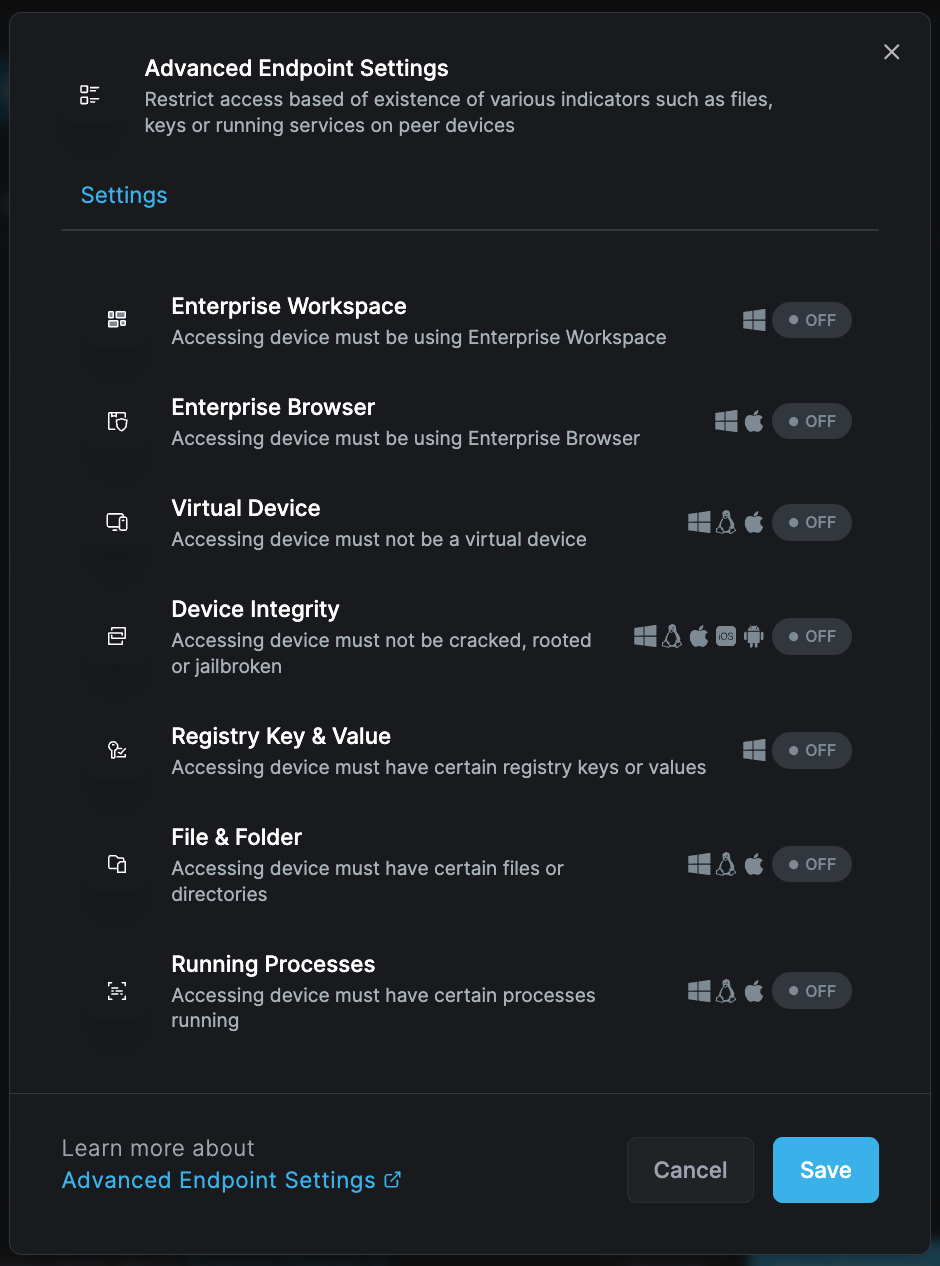
The endpoint settings check verifies if the peer complies with various device settings before it can connect. This check is useful when controlling access based on the device status of a peer. For example, it will not allow a connection if the peer does not have specific registry keys on the device.
- Netzilo Workspace
- Netzilo Browser
- Netzilo Gateway
- Netzilo Extension
- Virtual Device
- Device Integrity
- Registry Key & Value
- File & Folder
- Running Processes
The peer needs to comply with all settings configured in the "Advanced Endpoint Settings" to allow connection.
Netzilo Workspace Rule
Applicable to Windows peers only
This rule verifies that access is occurring through the Netzilo Workspace. On a published application it is judged at the application's door from the posture the Netzilo client inside the Workspace reports, whether or not that Workspace is registered as a peer.
Netzilo Browser Rule
Applicable to Windows and macOS peers
This rule verifies that access is occurring through the Netzilo Enterprise Browser. On a published application the browser is recognized at the door by its own User-Agent; nothing is installed or asked. The Enterprise Browser also satisfies the Netzilo Extension rule.
Netzilo Gateway Rule
Applicable to browser sessions of a Netzilo gateway (clientless access) only
This rule verifies that access is occurring through a Netzilo gateway: a browser with only the Netzilo extension, connected through clientless access. Every device with the Netzilo client fails this rule, so use it on policies meant for browser users only. It is the one rule of this group a browser session can pass.
- Turn on nothing else in the same posture check. Any other rule in this group fails for a browser session, so the check would admit nobody.
- Attach it to network access policies only. On a profile or an Edge filter, the device's own client evaluates it and blocks itself.
A peer that passes this rule shows the Netzilo Gateway indicator on its peer page. It never passes at a published application's door; do not add it to an application's posture checks.
Netzilo Extension Rule
Applicable to desktop peers, the Enterprise Browser, and browser sessions
This rule verifies that the accessing device carries the Netzilo browser extension. Every desktop client on Windows, macOS and Linux reports it, as does the Enterprise Browser; iOS and Android devices never do. A browser session of a Netzilo gateway passes it, since the extension is what the gateway serves; a reverse-proxy peer does not.
On a published application the rule asks the extension in the user's browser directly. When it is the only rule the user fails, the sign-in dialog shows Additional Protection Required and offers to add the extension, or to connect an installed one to this server, then opens the application again by itself.
Virtual Device Rule
Applicable to Windows, Linux and macOS peers
This rule verifies that access is being made from a non-virtual (physical) device.
Device Integrity Rule
Applicable to Windows, Linux, macOS, iOS and Android peers
This rule verifies that the accessing device is not cracked, rooted, or jailbroken.
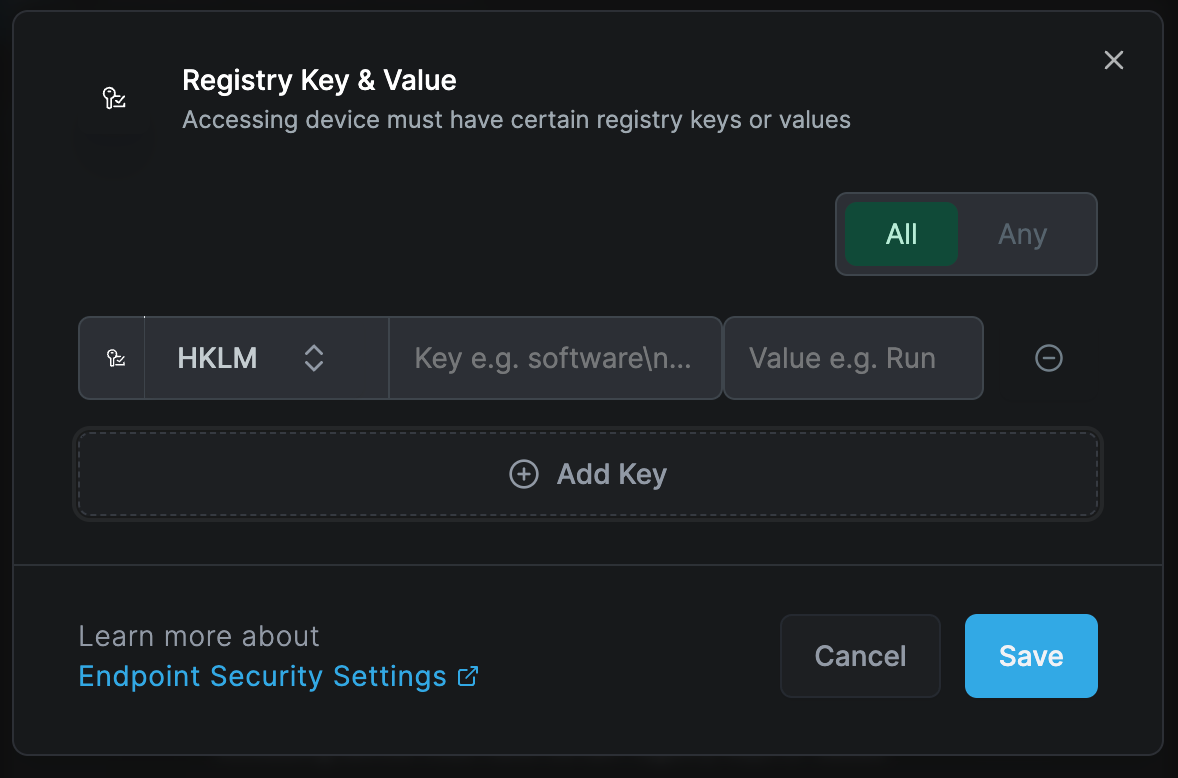
Registry Key & Value
Applicable to Windows peers only
This rule verifies that specified registry keys and values exist on the device. The system supports regular expression input for specifying these values, such as SOFTWARE\Microsoft\Wind*?urrent*
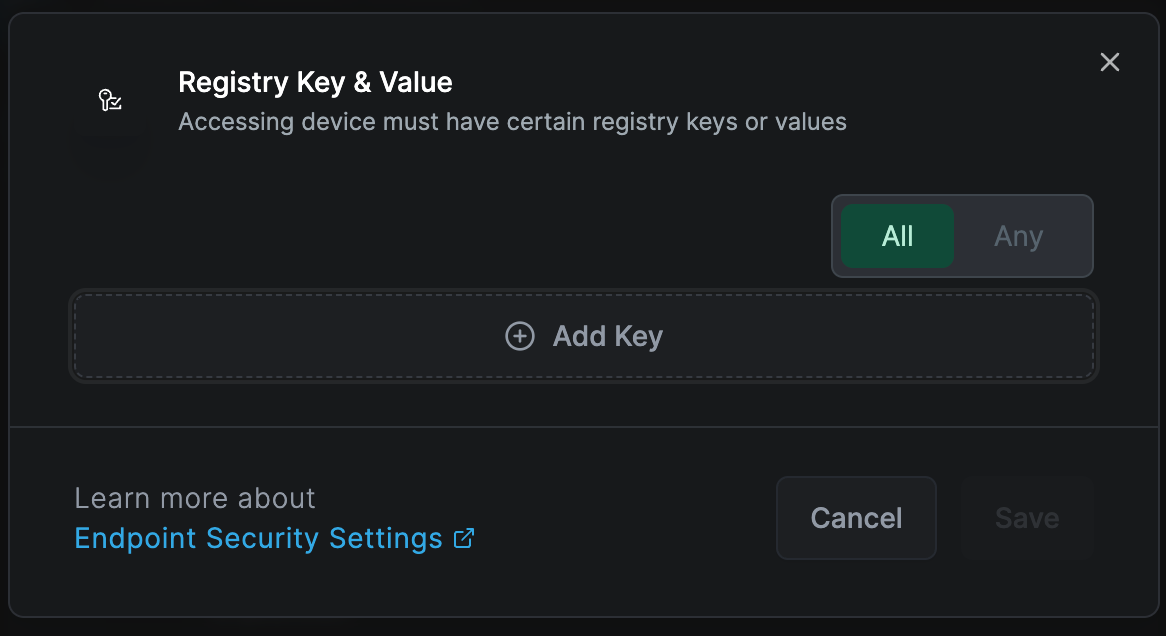
You can add registry key and value by clicking "Add Key" button.
File & Folder
Applicable to Windows, Linux, and macOS peers
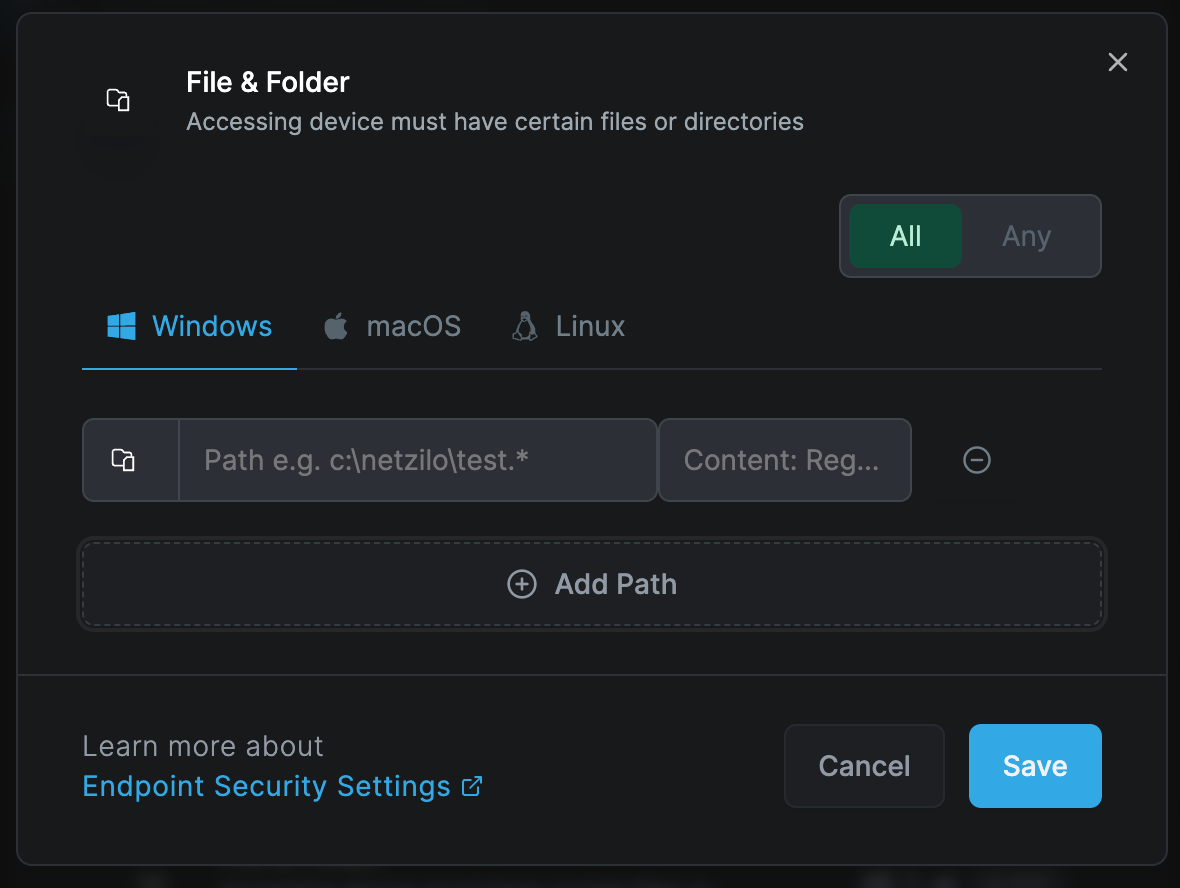
This rule verifies that the device contains specified files and folders. The system supports regular expression input for specifying these values, such as C:\Program Files\Netzilo*
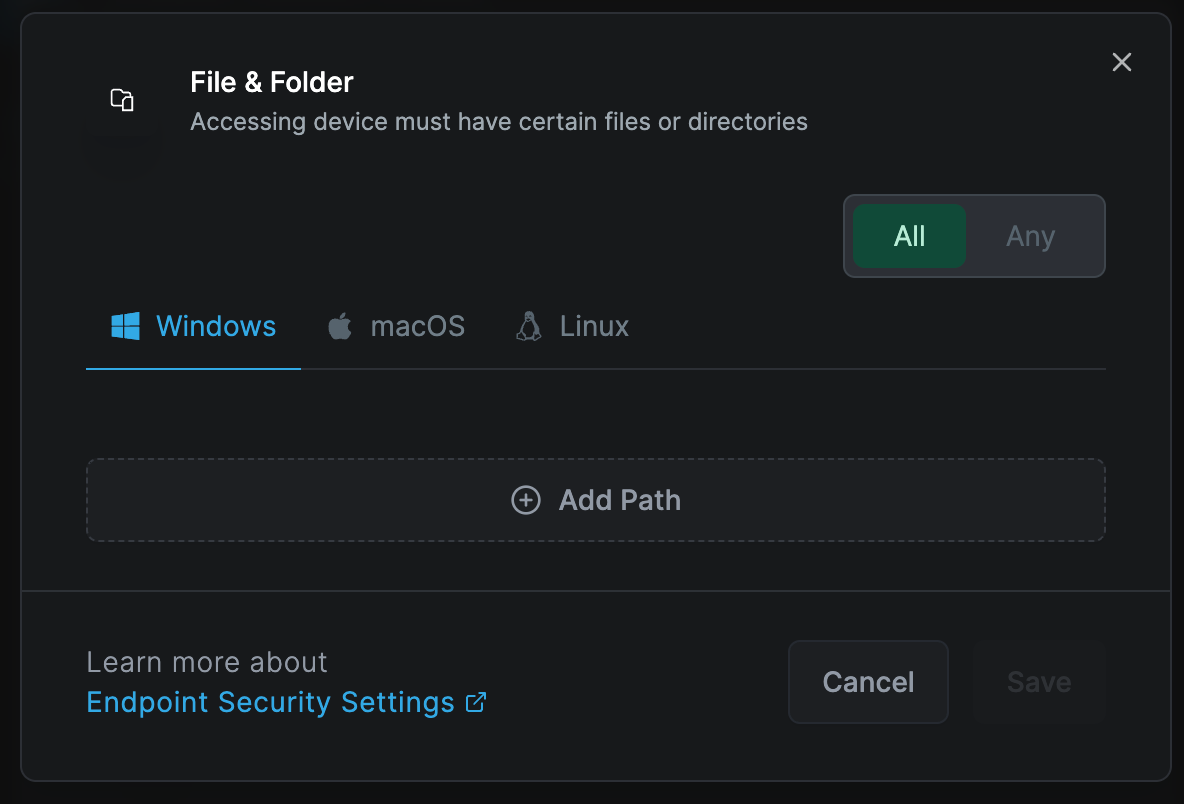
You can add folder and files by clicking "Add Path" button.
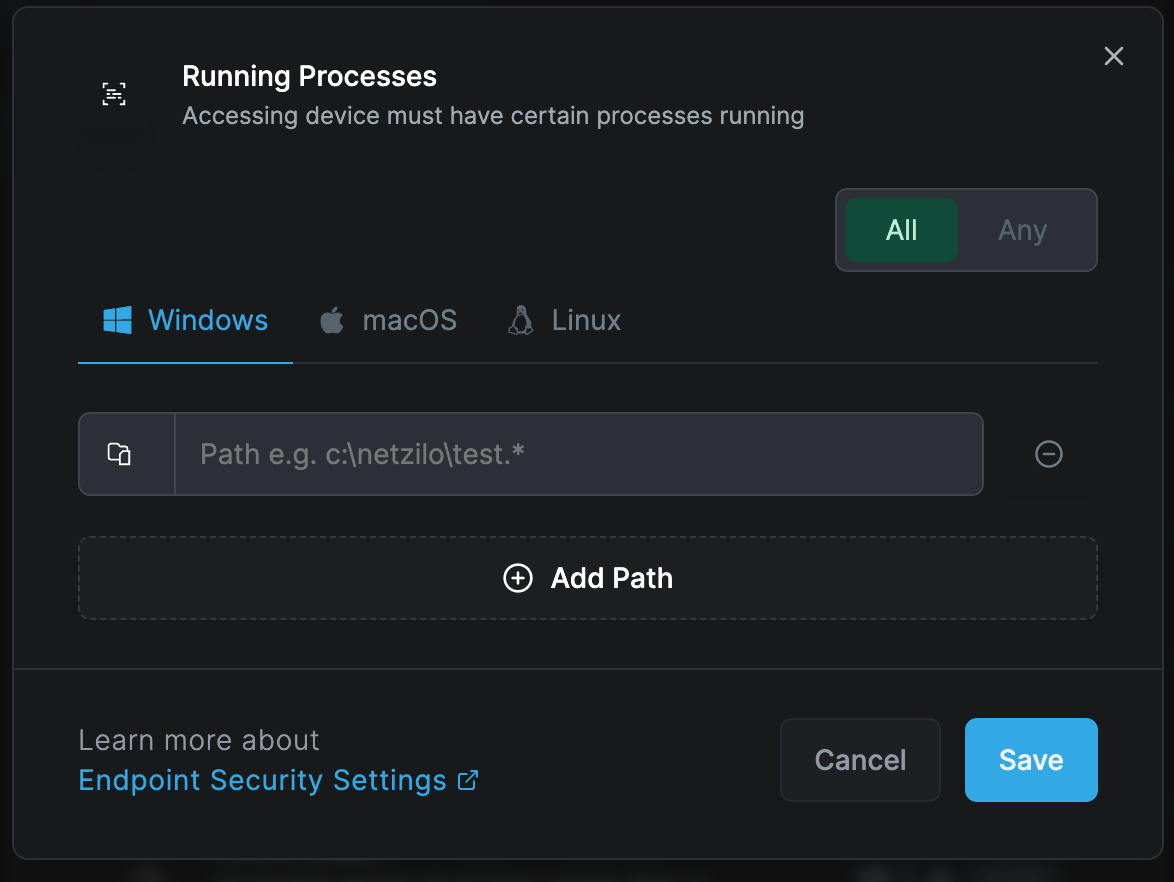
Running Processes
Applicable to Windows, Linux, and macOS peers
This rule verifies that specified processes are running on the device. The system supports regular expression input for specifying these values, such as C:\Windows\System32\svc*.exe
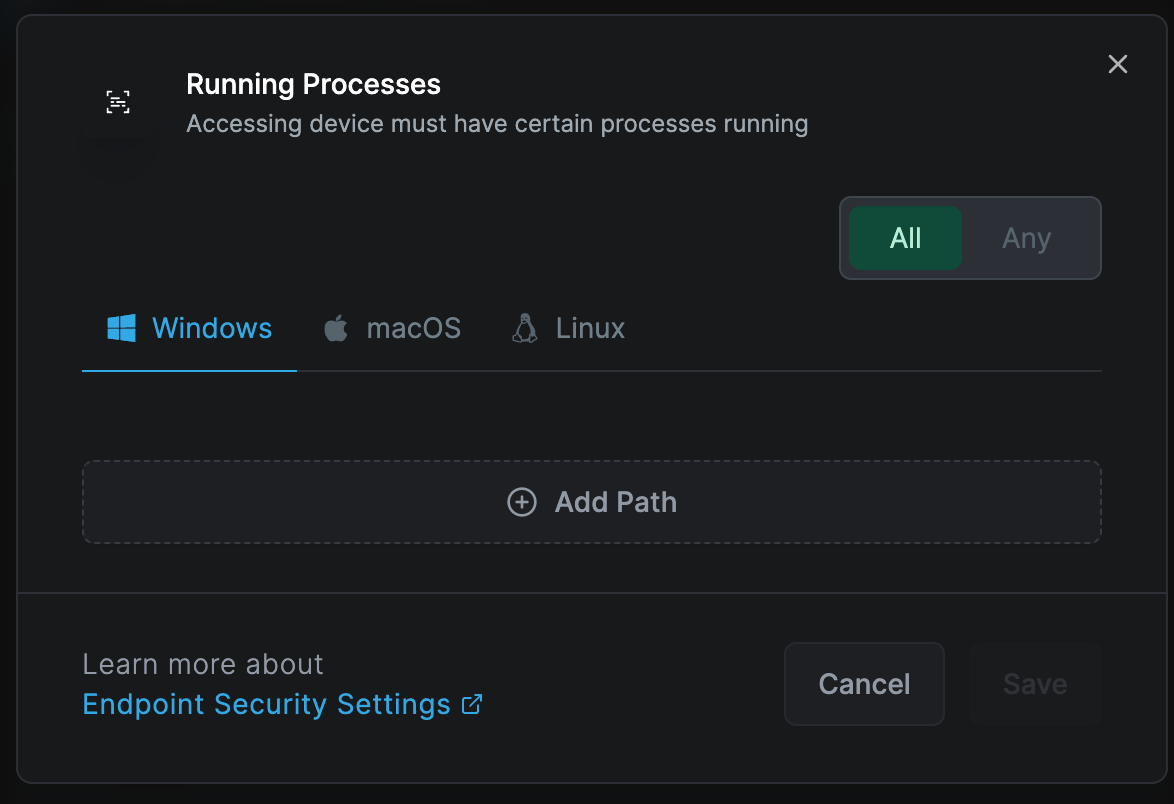
You can add running processes by clicking "Add Path" button.
Managing posture checks
Posture checks are dynamic, and you can create a policy with multiple posture checks. A single posture check can also be applied across multiple policies. When managing posture checks, you can update them as per your requirements.
Deleting a posture check is only possible if it's not currently used in any policy. If a posture check is in use, you need to unassign it from the respective policy before you can delete it. This precaution ensures the continuity and integrity of your security setup.
Here are some steps to help you create and manage your posture checks effectively:
In the example below, we are creating a posture check that will only allow clients running Netzilo version 0.25.0 or higher to connect and access network resources.
Creating posture checks
Access the Access Control tab, then the Posture Checks section, and click Create Posture Check.
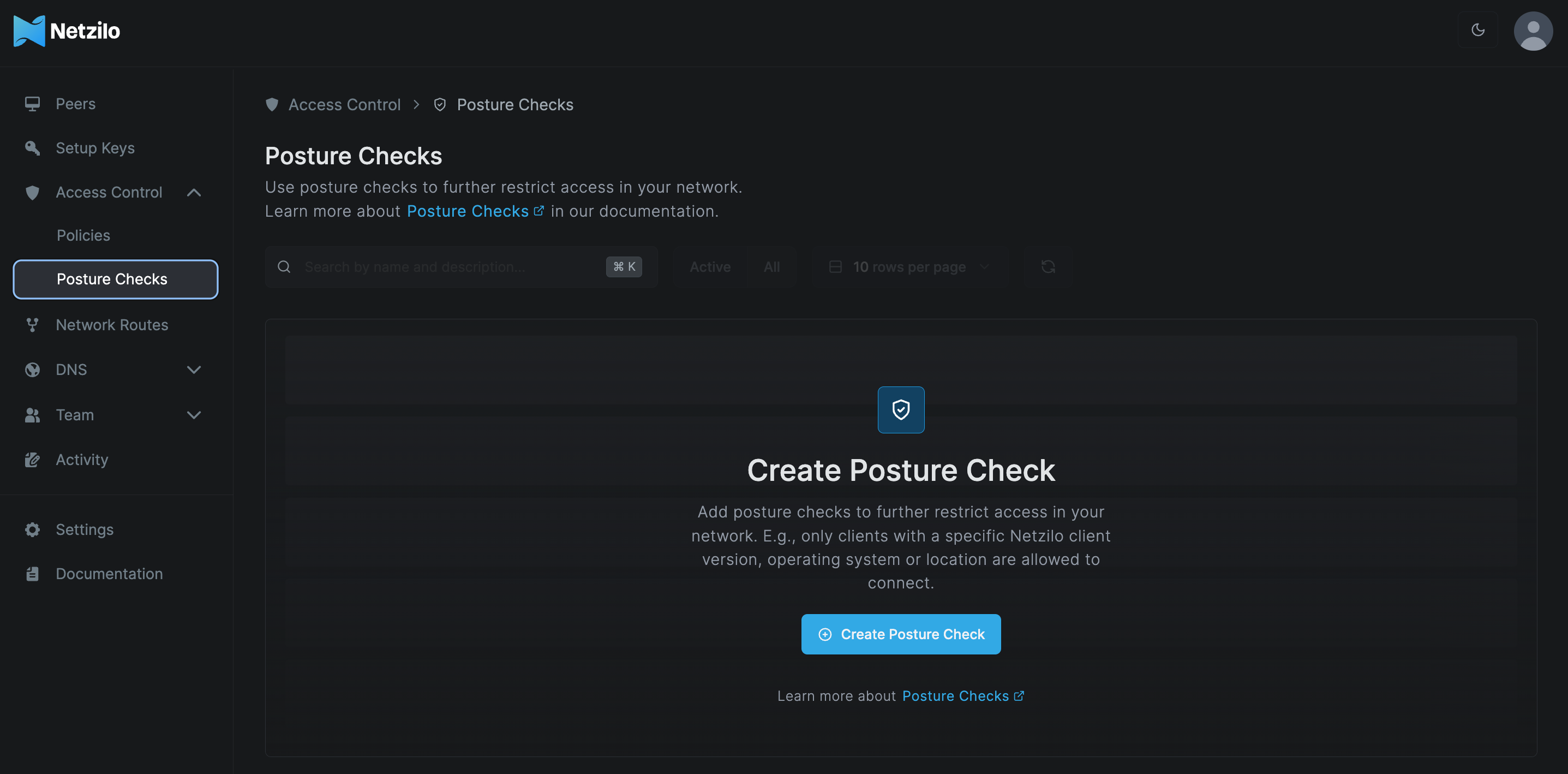
This will bring up a screen for configuring posture checks, where you can configure settings.
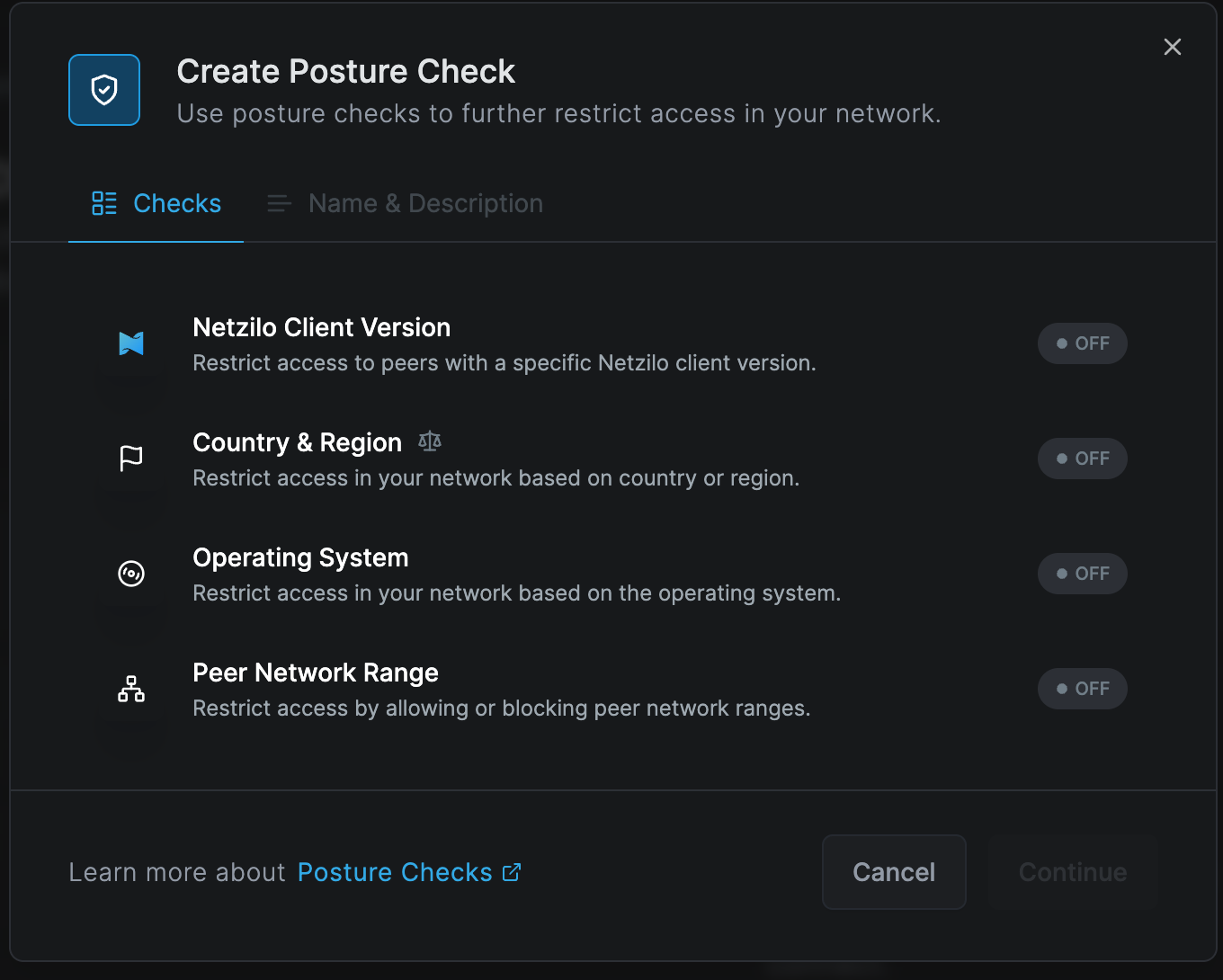
Select the Netzilo Client Version check option and Type in the desired Netzilo version; for this example, we are using :
- Version:
0.25.0
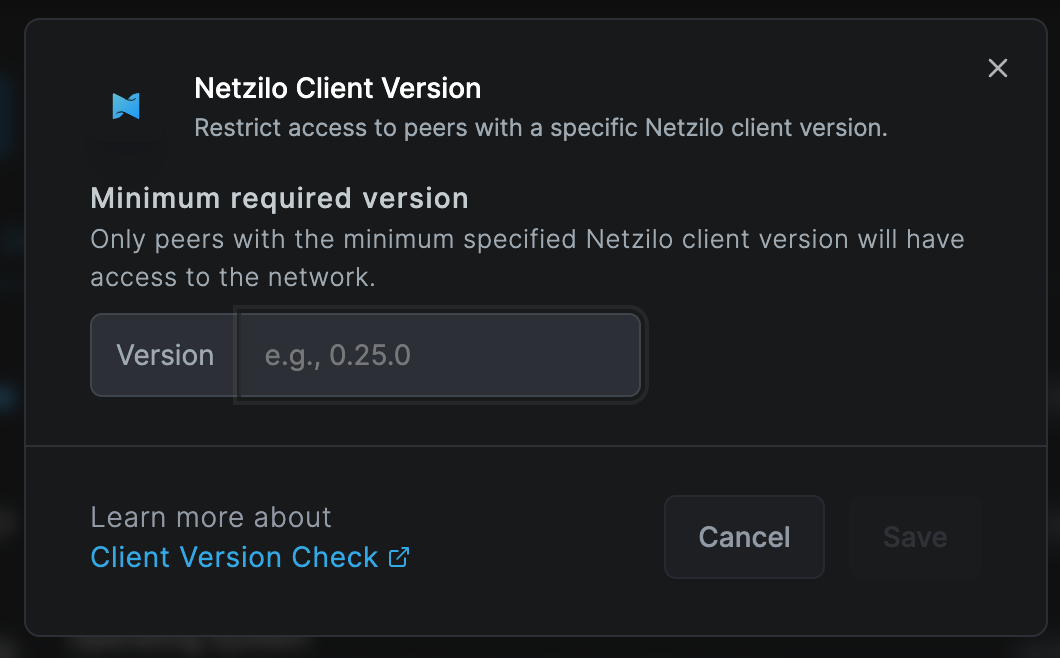
Click Save, and the Netzilo Client Version check will be enabled.
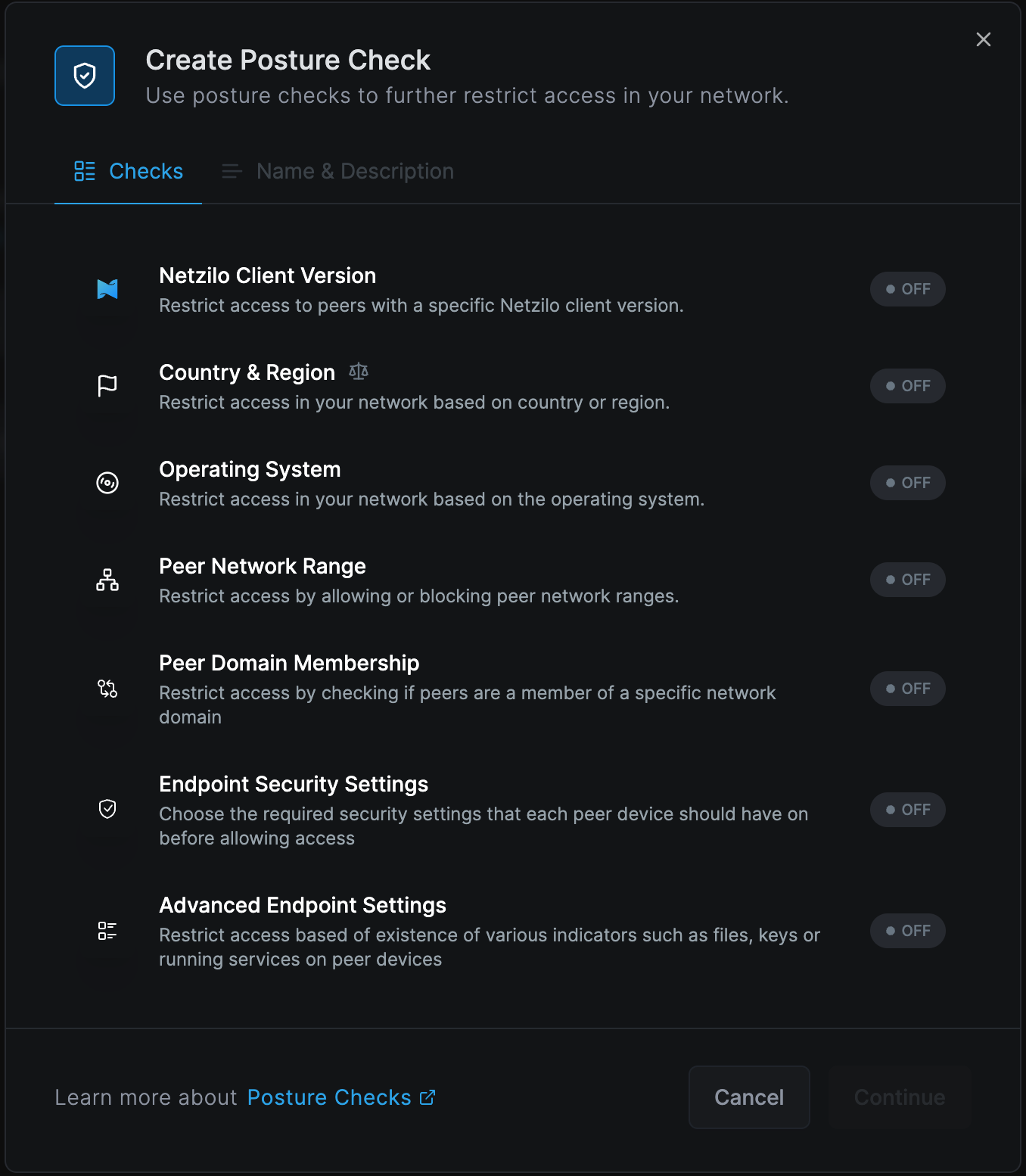
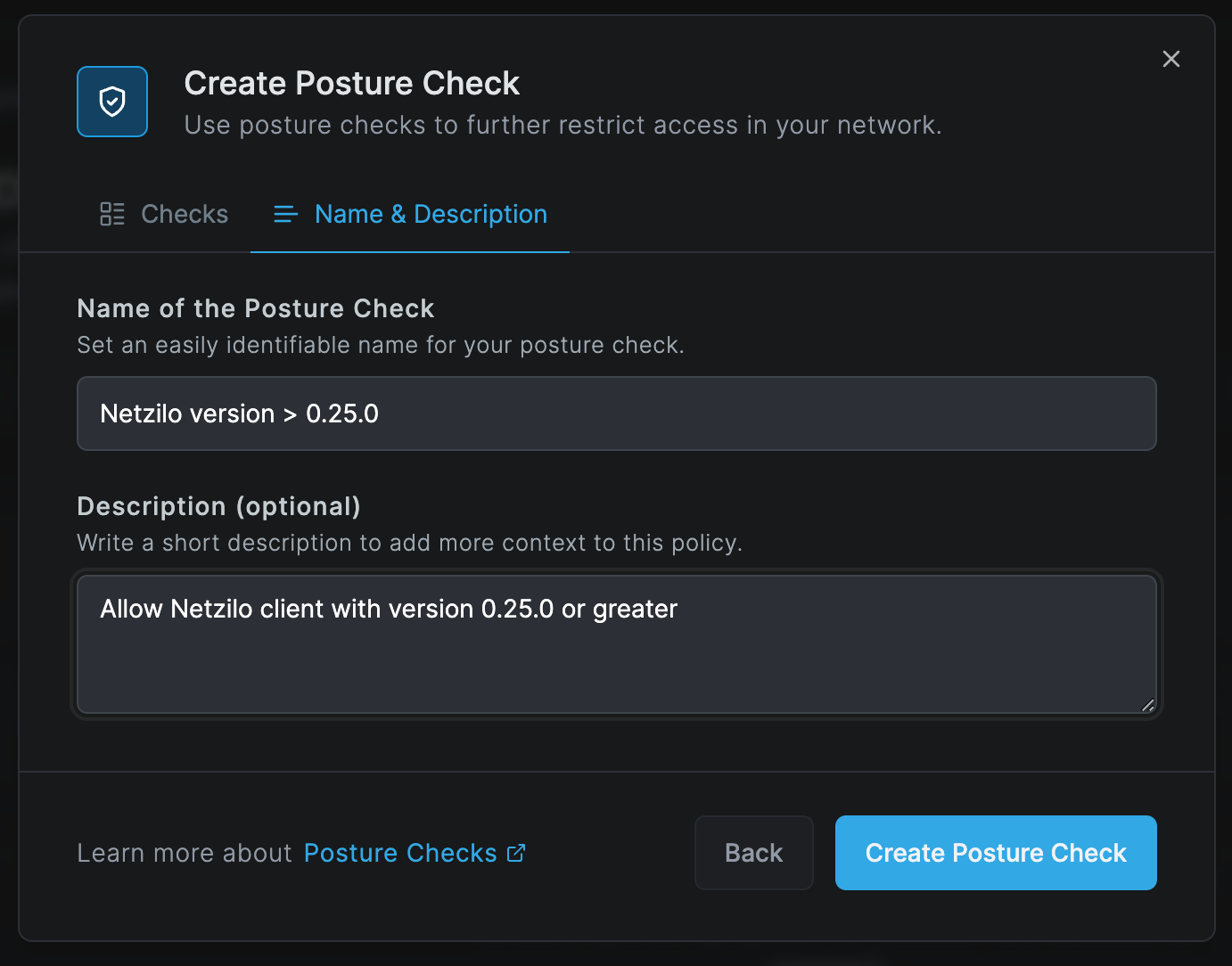
Click Continue, fill out the form with the following information, and click Create Posture Check to save:
- Name of the posture check:
Netzilo Version > 0.25.0 - Description:
Allow Netzilo client with version 0.25.0 or greater
Adding posture checks to policy
Navigate to the Access Control tab and select the Policies section.

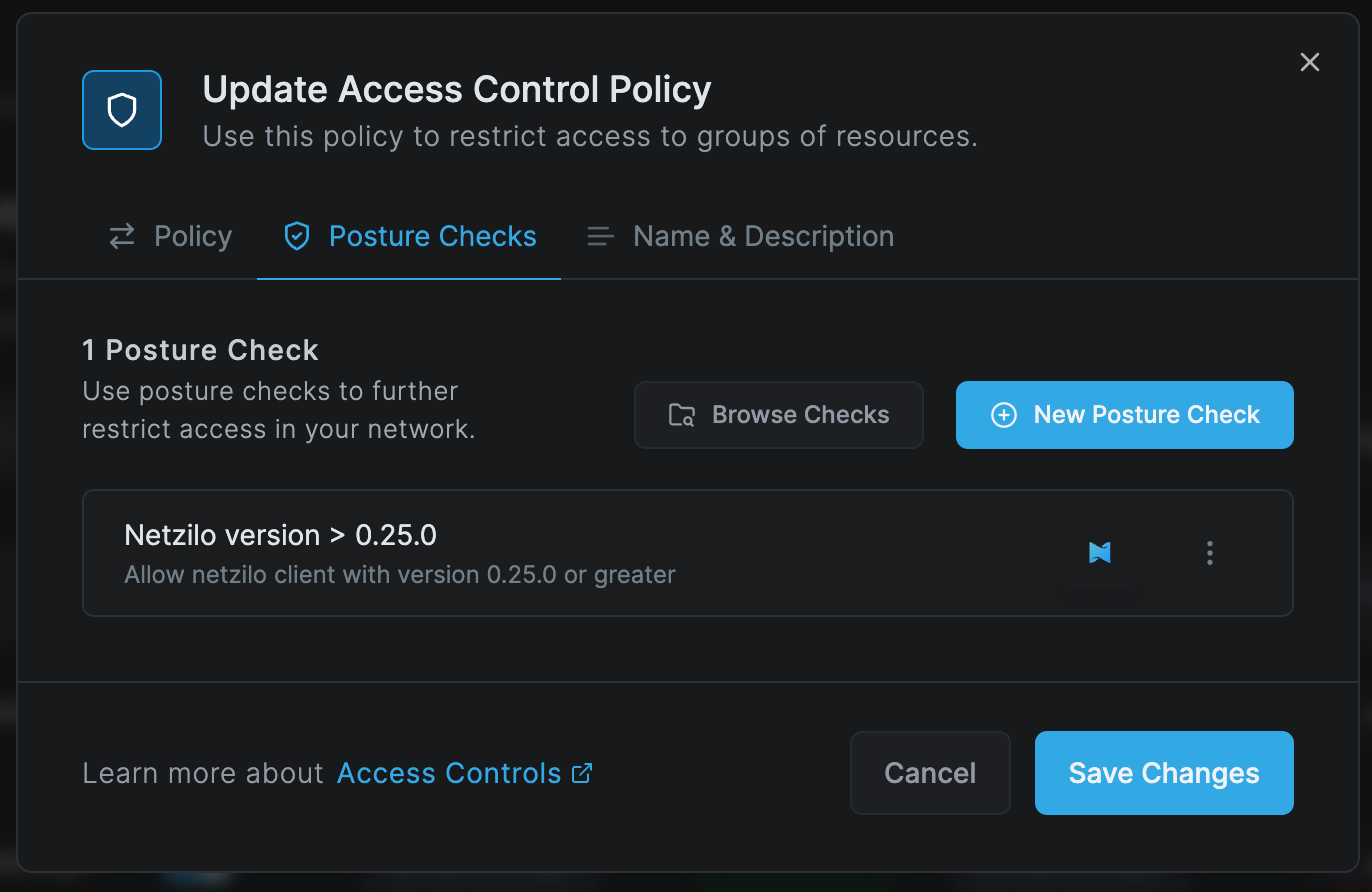
Choose the policy to which you want to assign the posture check. This will open the policy update screen. Then,
select the Posture Checks tab.
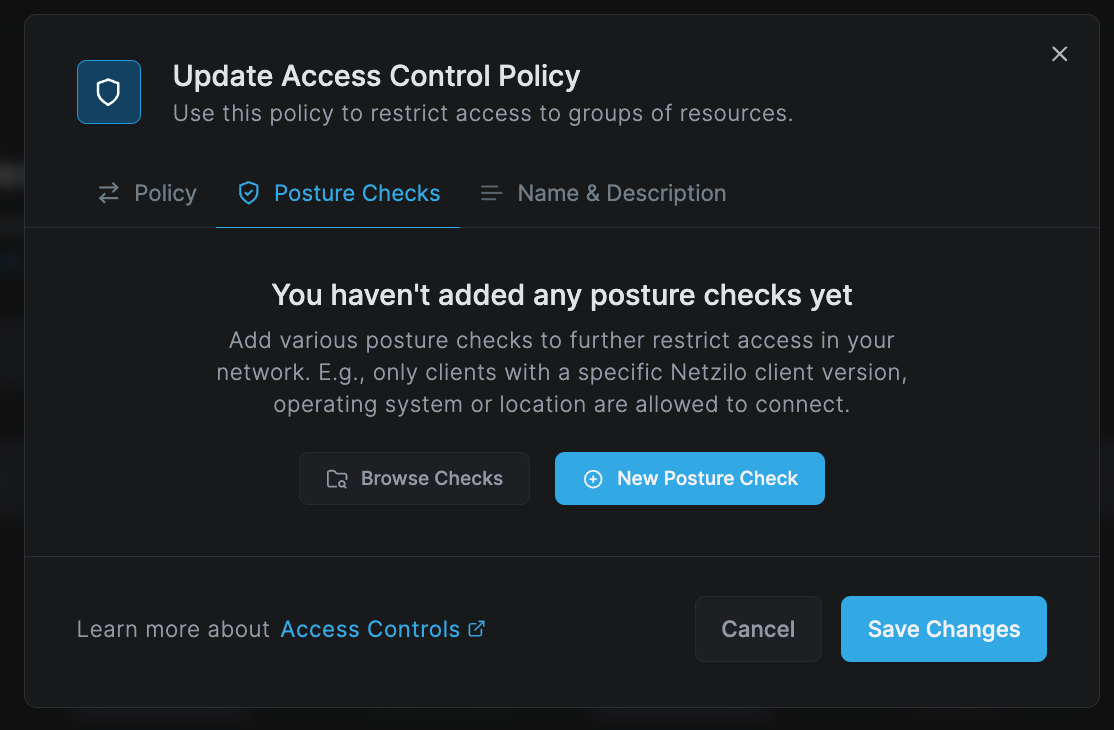
Click Browse Checks and select the posture check we created earlier, Netzilo Version > 0.25.0. Then, click Add Posture Checks.
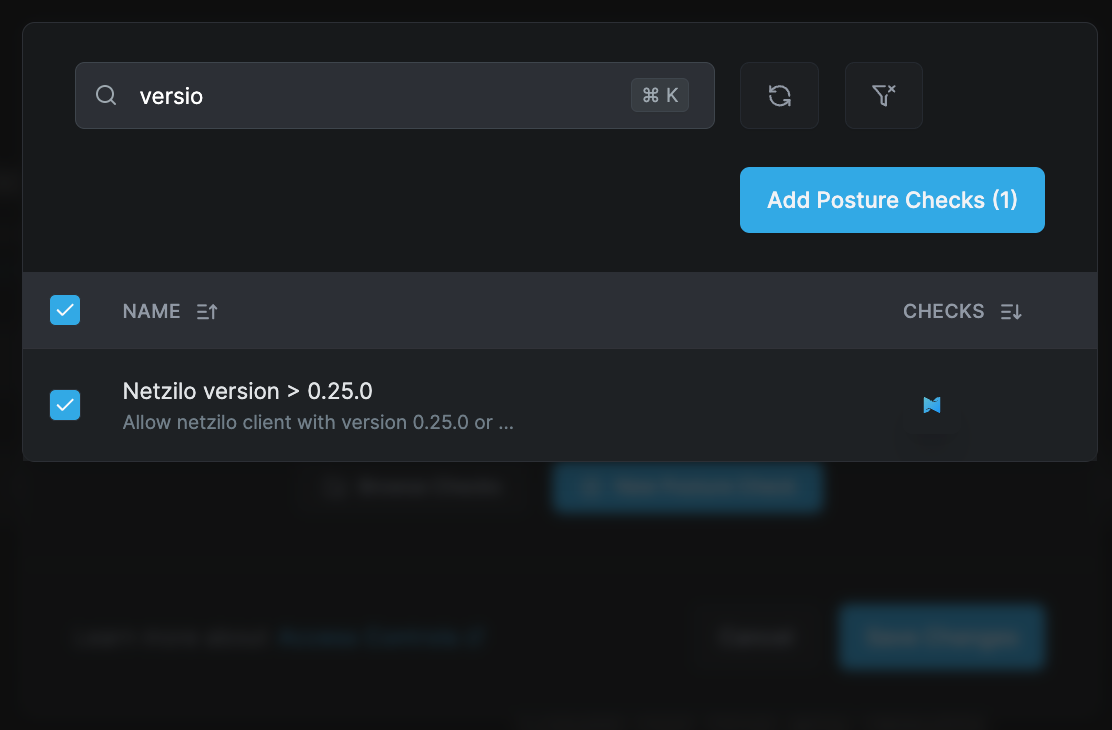
The Netzilo Version check will be assigned to the policy. Click Save Changes to save the policy updates.
Adding posture checks to a published application
Posture checks can also be chosen on a published application, on the Posture Checks tab of the application's dialog under Edge > Applications, with the same all-or-any choice as on a policy. They are judged at the application's door, when the user signs in at its address, against the device the browser runs on: its browser and connection, the Netzilo extension or Enterprise Browser in use, and the posture the Netzilo client on the device reports. Rules a device without the Netzilo client cannot satisfy fail for it. The outcome is recorded under Activity > Events as Application access allowed or Application access denied by posture. See Posture checks on the application.