

Published Applications
Published applications let users open a private web application at an address of its own,
such as crm.apps.example.com, from any browser. Nothing is installed on the device: no
desktop client, no browser extension. The user signs in at the Workplace once, and every
request then travels through that user's own private connection to the application.
This suits contractors, partners, personal devices and phones, and any web application you want to reach from anywhere without exposing it to the internet. The address answers only signed-in users the application admits. Everyone else is sent to the sign-in, and an address nobody published answers There is no application at this address.
Published applications need a Netzilo server and dashboard from September 2026 or later. On Netzilo Cloud everything is provided. On a self-hosted server the installer adds the reverse proxy when you give it an application domain, see Self-hosted servers.
How it works
- An administrator turns publishing on for the account and publishes an application: an
address, a target such as
http://10.1.2.3:8080, and the groups that may open it. - The address points at the Netzilo reverse proxy through a wildcard DNS record for
the application domain. On Netzilo Cloud that is
*.netzilo.app, already in place. On a self-hosted server it is*.apps.example.compointing at the server. - A user opens
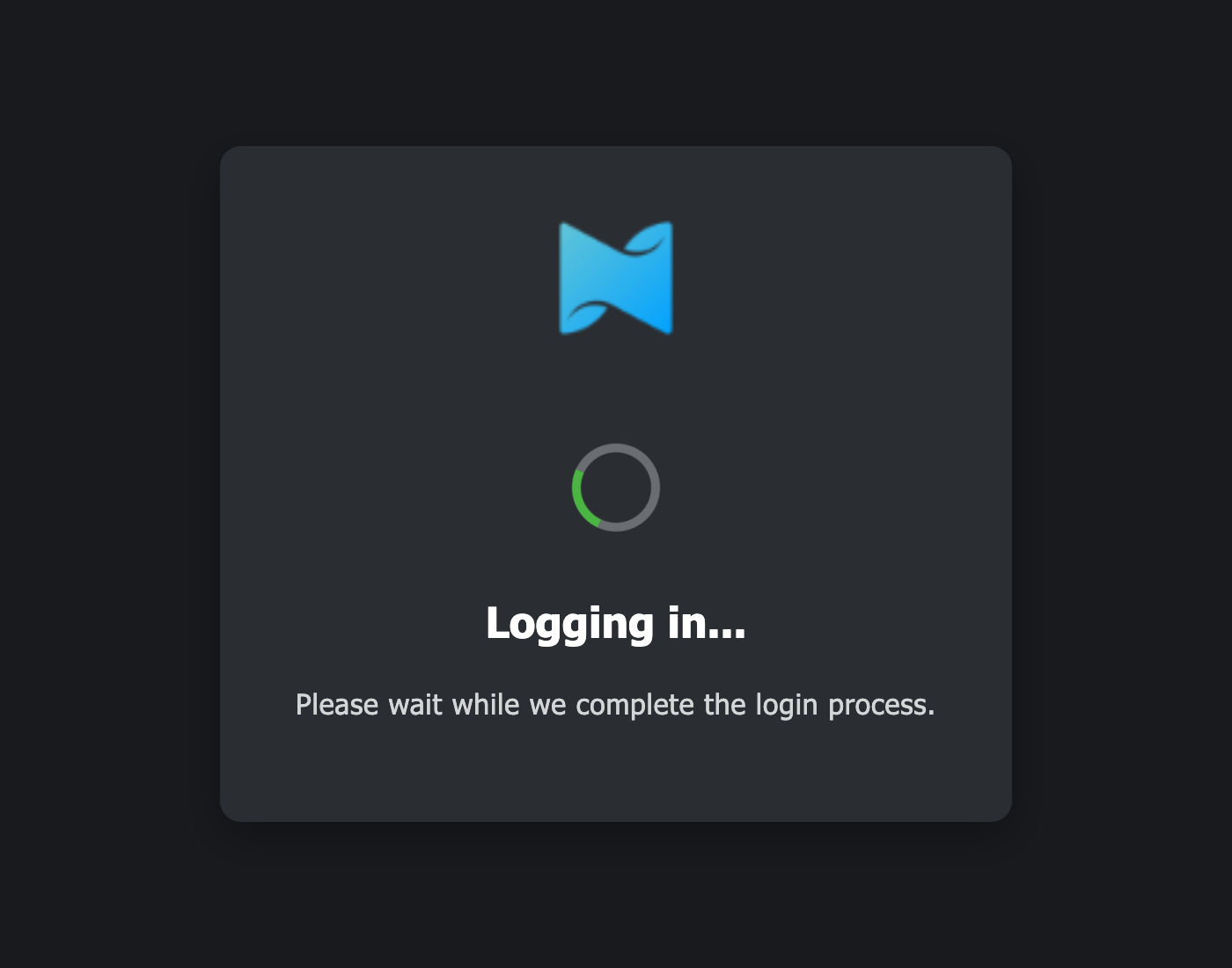
https://crm.apps.example.com/. The reverse proxy has no session for that browser, so it sends the user to the Workplace. The Workplace signs the user in if needed, checks that the address is one the user may open, and hands the sign-in back to the application's address. - The reverse proxy verifies the sign-in with the management server and sets a session cookie for that address only. The Workplace dialog shows Logging in while the user's private connection comes up, then opens the application.
- From then on every request on that address goes through the user's tunnel: a
virtual peer in the user's account, named
vp-<n>-RPROXY, with that user's policies, routes and DNS. The target is reached through that tunnel and nowhere else, so the user reaches exactly what their policies allow. The application receives two headers naming the user,Nz-User-IdandNz-User-Email, and the published address inX-Forwarded-Host. - A sign-in lasts 12 hours per address and is re-checked with the management server every 10 minutes. Removing an application, changing a group or blocking a user takes effect within that interval. After 60 minutes without traffic the tunnel stops and starts again on the next request, as the same peer.
Published never means public. The application's groups decide who may open it. The user's policies decide whether their tunnel reaches the target. A user admitted to an application whose policies do not reach the target sees Access Failed, not the page.
Before you start
- A wildcard DNS record. On Netzilo Cloud,
*.netzilo.appalready points at the reverse proxy. On a self-hosted server, create*.apps.example.compointing at the server's public IP, using a domain other than the server's own. - A route and a policy to the target. The target's network must be a route distributed to a group the user is in, allowed by a policy from one of the user's groups. See Routing traffic to private networks and Policies. Publishing adds no permissions of its own.
- Posture checks in the right place. Requirements on the user's device go on the application itself and are judged at its door, see Posture checks on the application. Posture checks on the policies that reach the target are judged against the user's reverse-proxy peer, which is not a managed endpoint, see Posture checks for reverse-proxy peers.
Step 1: Allow published applications for the account
Go to Settings > Permissions and turn on Allow published applications.
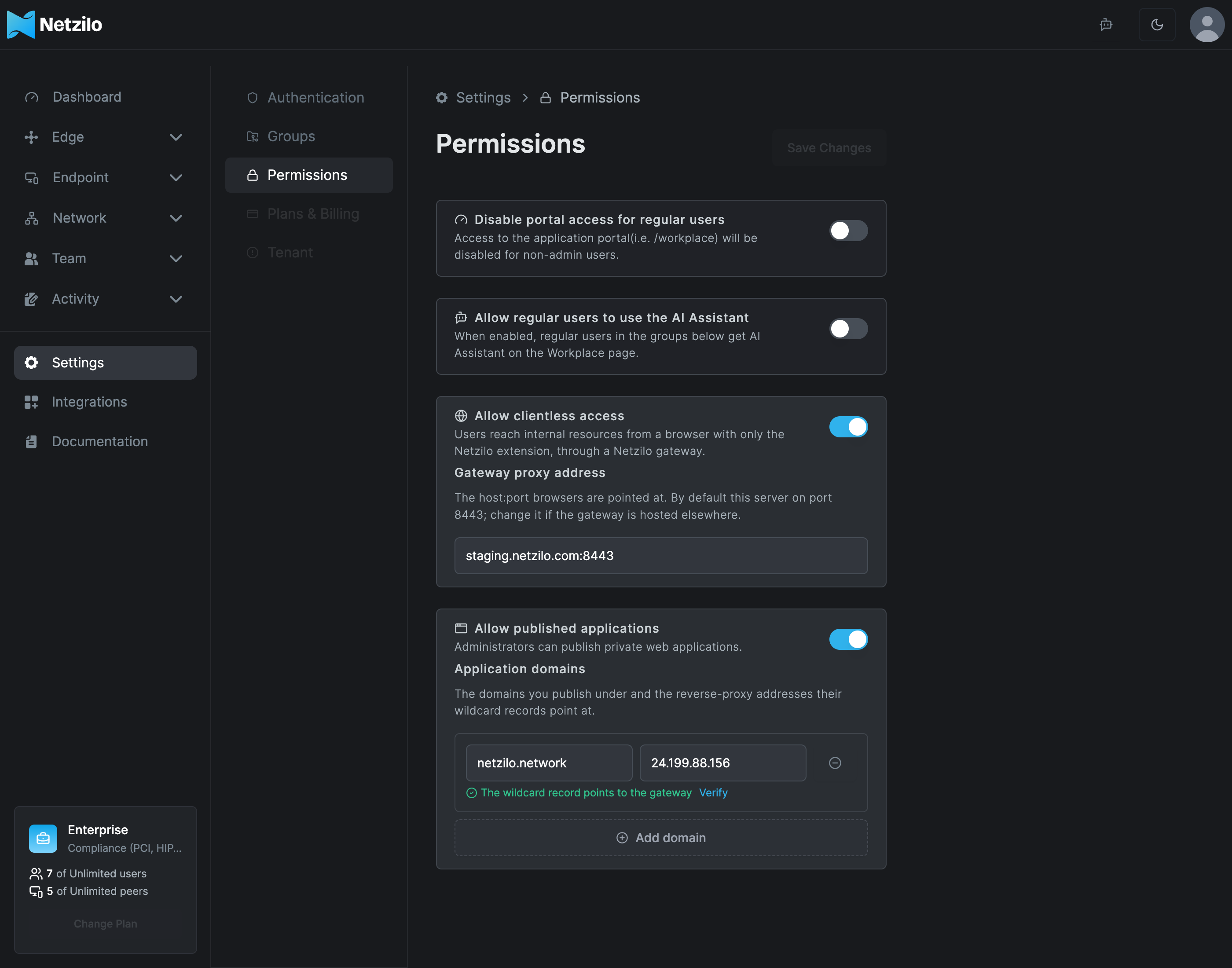
Under Application domains, add the domains you publish under, each with the address
its wildcard record points at. On Netzilo Cloud add netzilo.app with the address that
anything.netzilo.app resolves to. On a self-hosted server add the domain you gave the
installer, with the server's public IP.
Click Verify on a row to check the DNS record. Management resolves a random name under the domain through public resolvers and reports whether the wildcard points to the reverse proxy, points elsewhere, or is missing. It is a check, not a gate: you can save a domain before its record exists.
Click Save Changes. Turning the switch on or off is recorded in Activity > Events.
While the switch is off nothing is published. Existing applications keep their settings and come back when it is turned on again. A server upgraded to this release starts with the switch off.
Rules for application domains:
- On Netzilo Cloud, and on any self-hosted server with more than one account, every published address must be a name under one of the account's application domains.
- An application domain belongs to one account. A domain another account already uses, or
a name under or above it, is refused. The shared Cloud domain
netzilo.appis the exception every account adds. - Do not use the server's own domain, nor anything under
netzilo.network. Names there are resolved inside every tunnel and would never reach the reverse proxy.
Step 2: Publish an application
Go to Edge > Applications. The table lists each application's name, address, target and groups, with an Active switch per row.
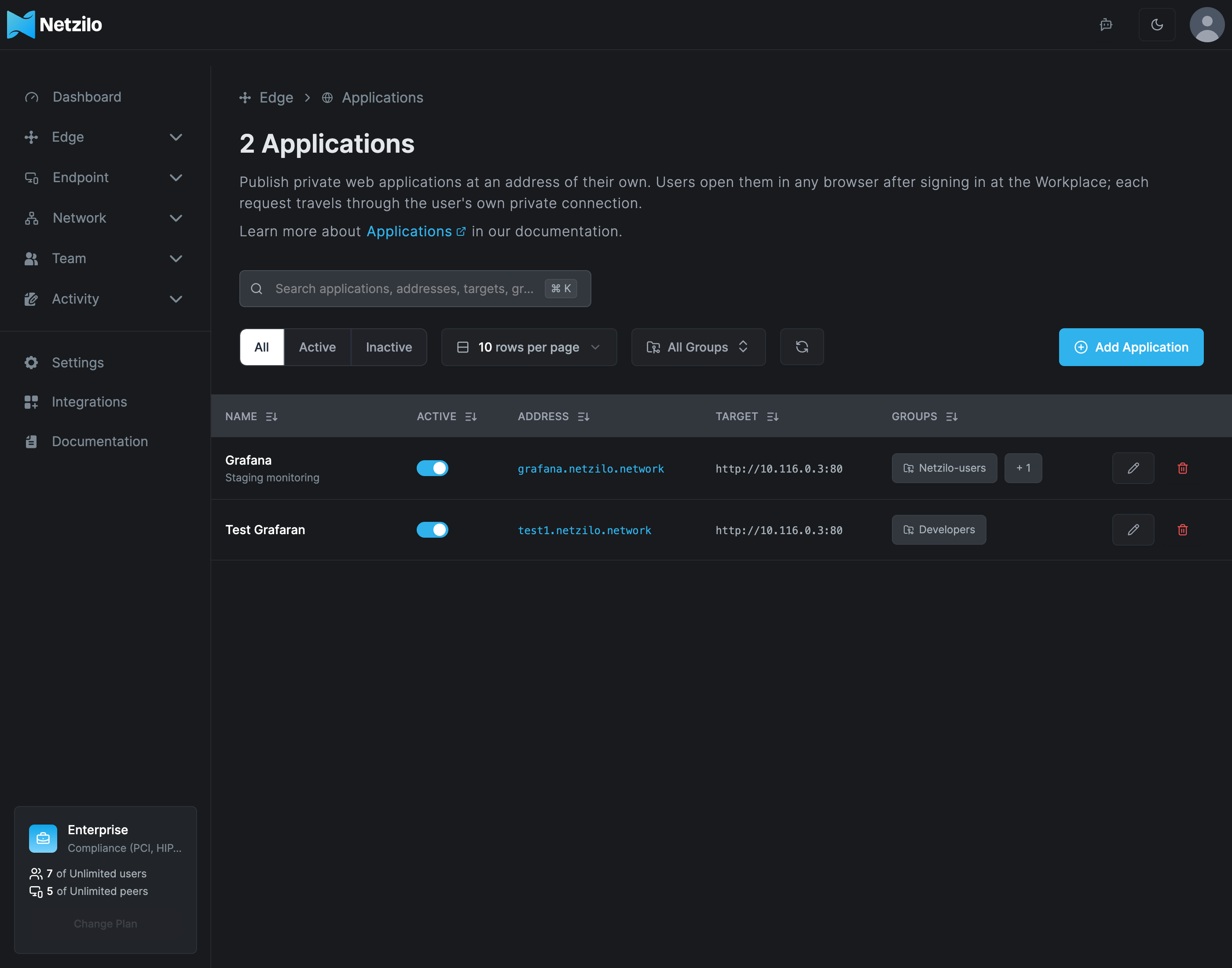
Click Add Application.
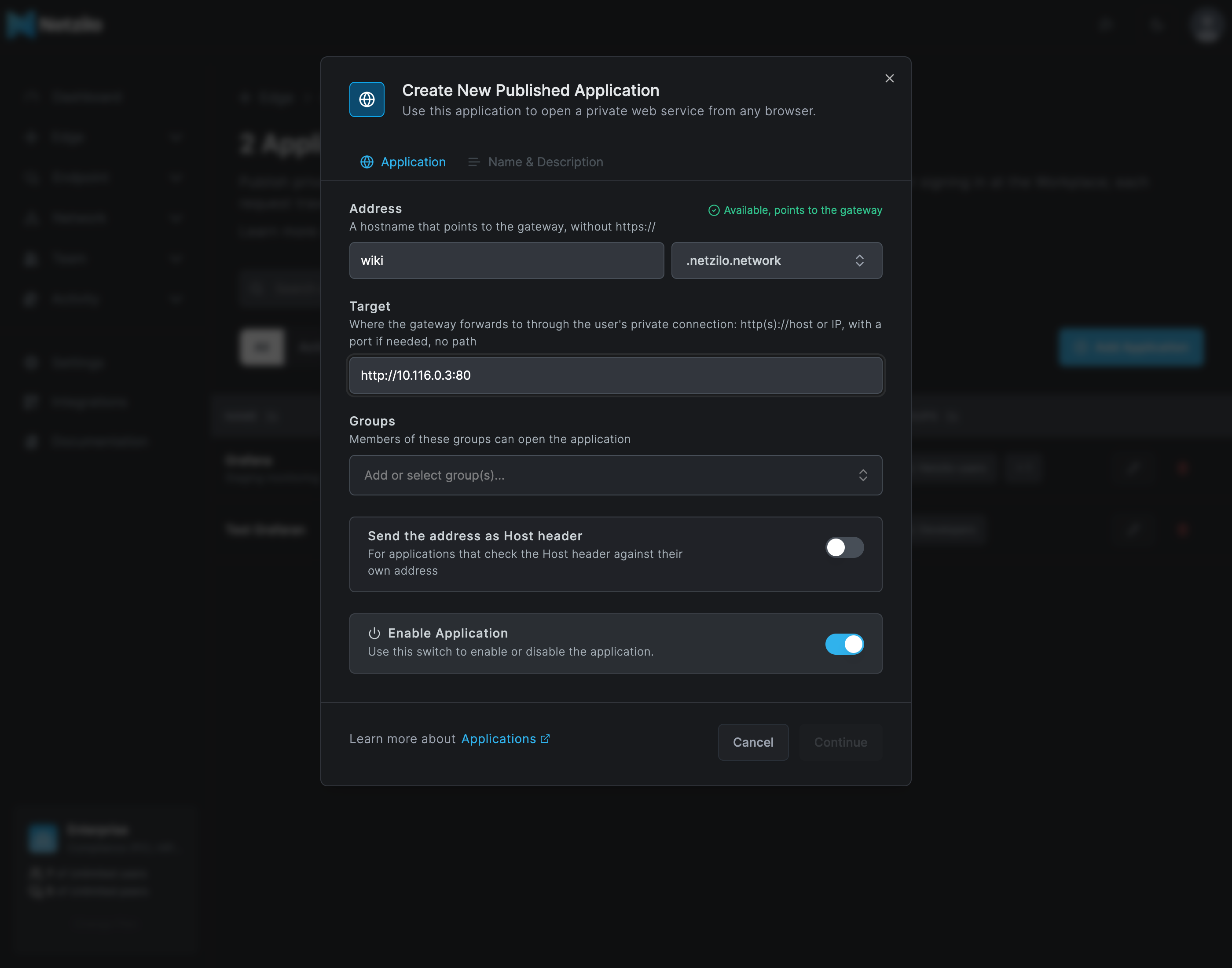
| Field | What to enter |
|---|---|
| Address | The label of the address, with the application domain picked as suffix, for example crm and .apps.example.com. Choose Custom address to type a full hostname. As you type, the availability check answers: Available with what the name resolves to, Unavailable when the address is already published by any account, Invalid, or Not under an application domain. |
| Target | Where the reverse proxy forwards to, through the user's private connection: http:// or https://, a host name or IP address, an optional port, no path. A name is resolved by the user's tunnel, so an internal name works when the user's DNS settings resolve it. Loopback, link-local and cloud metadata addresses are refused. |
| Groups | Who may open the application. The user must be in one of these groups. Empty means nobody. |
| Send the address as Host header | Off by default: the target sees its own host name. Turn it on for applications that compare the Host header with the address they are published under. |
| Enable Application | An application that is off is kept but not served. Its address answers There is no application at this address. |
Click Continue. The Posture Checks tab lists the account's posture checks. Pick the ones the user's device must satisfy to open this application, and choose whether all of them or any one must pass, as on a policy. Leave the tab empty for no device requirement. How the checks are judged is described under Posture checks on the application.
Then give the application a name that is shown on the Workplace tile, an optional description, and click Add Application.
The Applications table shows the number of posture checks per row. A posture check that an application uses cannot be deleted while it is in use; the Posture Checks page lists the applications that use it.
An address is unique across the whole server, first come, first served. On Netzilo Cloud
every account publishes under the shared netzilo.app, so choose distinctive labels such
as grafana-acme.
A new address answers within a minute of saving. On a self-hosted server with Let's Encrypt, the certificate for the name is obtained on the first visit, which can take a few seconds.
Publishing, updating and unpublishing an application are recorded in Activity > Events as Application published, Published application updated and Application unpublished.
What users see
The Workplace shows every application the user may open as a tile under Applications, next to the bookmarks and shortcuts. Opening a tile goes to the application's address in a new tab.
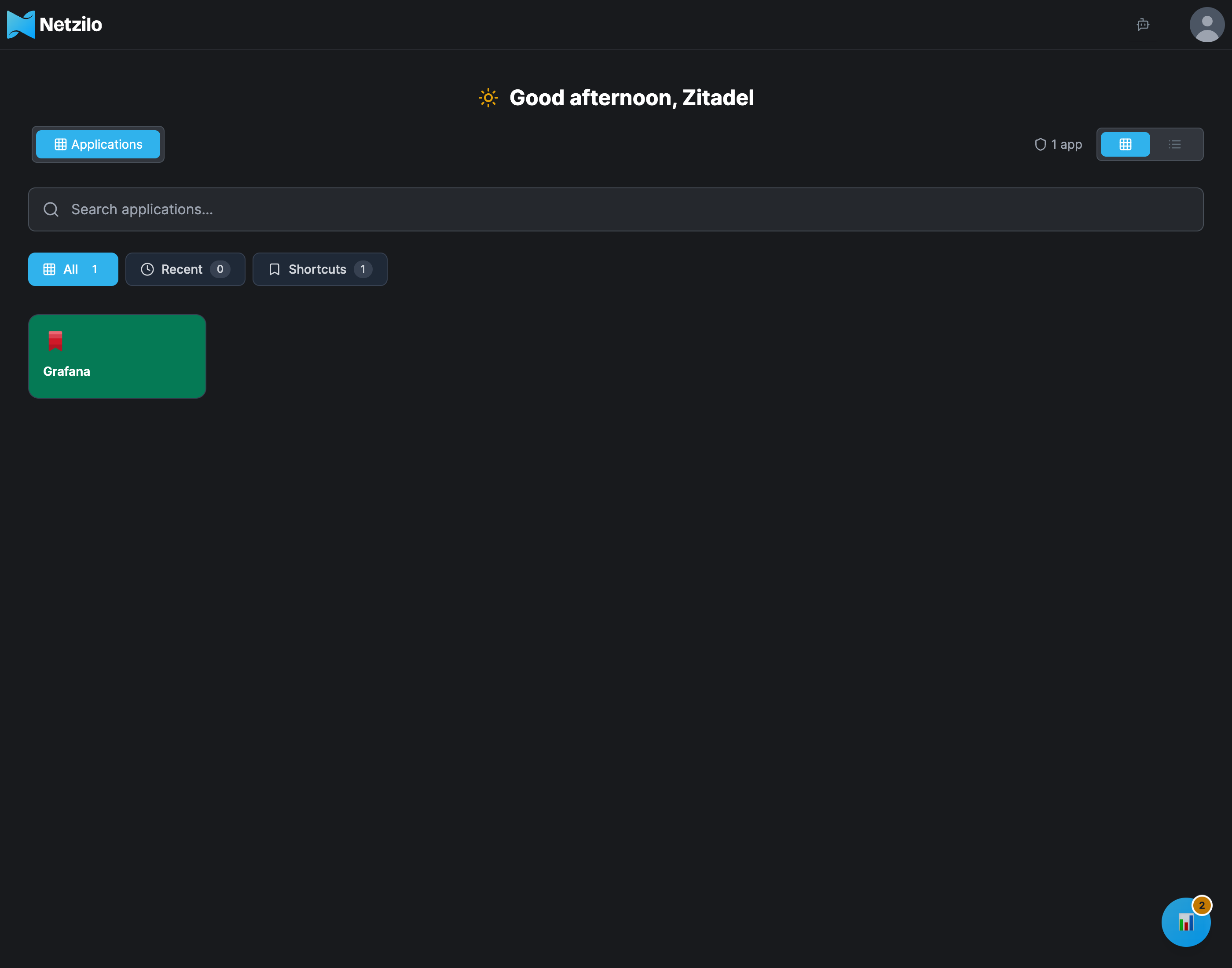
On the first open, and again after 12 hours, the user sees the Workplace's sign-in dialog. A user who is not signed in at the Workplace signs in there first and is brought back. The dialog shows Logging in while the user's private connection comes up, a few seconds, or 10 to 20 seconds the first time in an hour while the user's peer registers. Then the application opens.
| The dialog says | Meaning |
|---|---|
| Access Denied — Your account is not allowed to open the address | The user is in none of the application's groups, or publishing is off for the account. Only an administrator can change this. |
| Access Denied — because posture check (name) failed. Reason: (reason) | The user is admitted, but the device failed one of the application's posture checks. The reason names the failing rule, for example Peer is not using Netzilo Enterprise Workspace. See Posture checks on the application. |
| Additional Protection Required — the address requires the Netzilo browser extension | The only thing standing between the user and the application is the Netzilo browser extension in this browser. The dialog offers to add it, or to connect an installed one to this server, and opens the application again once the extension answers. |
| Access Failed — the address took too long to answer or did not answer | The user is signed in and admitted, but the application could not be reached through the user's private connection. See Troubleshooting. |
| This sign-in is no longer valid. Open the application again. | The sign-in link was older than 10 minutes or used twice. Opening the application again starts a fresh one. |
A second application opened from the same browser needs no new sign-in. A bookmark to the application works: the cookie on the application's address carries the session, and the Workplace is only needed to sign in.
Signing out of the Workplace ends the Workplace session and, in the same browser, every published application's session of that user. The applications ask for a sign-in again at once. A session that is not signed out ends after 12 hours, or within 10 minutes of the user's login being revoked.
Users with the Netzilo desktop client, and users on phones, use published applications the same way. The browser goes to the published address, and the reverse proxy carries the request.
Posture checks on the application
The posture checks chosen on the application are judged at the door: when the user signs in at the application's address, before a session exists. They apply to the device the browser runs on, which may or may not have the Netzilo client. This is different from the checks on policies, which are judged against the user's reverse-proxy peer once the session runs, see Posture checks for reverse-proxy peers.
What the door knows about the device. The Workplace's sign-in dialog collects the evidence and hands it to the application's address with the sign-in. Management judges it; the reverse proxy holds no posture logic of its own.
| Evidence | Where it comes from | Rules it serves |
|---|---|---|
| Operating system and version, browser, public address | The sign-in request: the browser's client hints and User-Agent, and the connection. Chrome and Edge report the real OS version. Firefox and Safari report macOS as 10.15 and Windows as 10.0. | Operating System, Geolocation, Peer Network Range |
| The Netzilo browser extension | The extension in this browser answers the Workplace page. When it has a gateway session, the sign-in names that session's device and management verifies it against the live session. | Netzilo Extension |
| The Netzilo Enterprise Browser | The browser identifies itself in its User-Agent; nothing is installed or asked. It also satisfies the Netzilo Extension rule. | Enterprise Browser, Netzilo Extension |
| The device's own posture | The Netzilo client running on the device, asked by the Workplace page over its local connection, the same posture the client reports for its peer: firewall, antivirus, disk encryption, screen lock, OS updates, virtual device, device integrity, Enterprise Workspace, registry, file and process results. A Netzilo Workspace reports its own posture, including that it is the Workspace, whether or not it is registered as a peer. | Endpoint Security Settings, Enterprise Workspace, Virtual Device, Device Integrity, Registry Key and Value, File and Folder, Running Processes |
Without a Netzilo client on the device, the rules in the last row fail, as they do for any browser. The posture is what the device reports about itself, as a peer's posture is. The Netzilo Gateway rule never passes at the door; it is for policies that admit browser sessions of a gateway.
All or any. With all (the default) every chosen check must pass. With any one, a single passing check admits the user. A check is a group of rules, and every rule in a check must pass for the check to pass.
When it is judged. At every sign-in, that is on the first open and again after 12 hours, and whenever the Workplace sends the user through the sign-in again. A running session is re-checked with management every 10 minutes with the evidence of its sign-in, so a change to the application's checks or groups takes effect within that interval, while a change on the device itself is seen at the next sign-in.
What the user sees when a check fails is Access Denied with the check's name and the failing rule's reason. When the extension alone is missing, the dialog shows Additional Protection Required instead and offers to add or connect the extension, then tries again by itself. See What users see.
Activity. Every decision at the door is recorded under Activity > Events:
| Event | When | Category |
|---|---|---|
| Application access allowed | A sign-in passed, once per sign-in. Re-checks of a running session are not recorded while it still passes. | Access Control |
| Application access denied by posture | A sign-in, or the re-check of a running session, failed a posture check. The event names the check and the reason. | Policy Violation |
| Application access denied: not admitted | A signed-in user asked for an address none of their groups is admitted to, or an address where nothing is published. | Access Control |
Each event names the user, the application and its address, the device's public address with its location, operating system and browser. The activity page's code filter finds them quickly: on a busy account they are soon pushed down by routine events.
Scripts and services
A script, a monitoring job or a service can call a published application without a browser by sending a Netzilo credential on every request:
curl https://grafana.apps.example.com/api/health \
  -H "X-Netzilo-Bearer: nzl_..."
X-Netzilo-Bearer carries the caller's personal access token, or a token from your
identity provider. It is consumed by the reverse proxy and never reaches the application.
Every other header, including Authorization, passes through as sent, so an application
that expects a bearer token of its own still gets it.
The credential is checked like a browser sign-in, and its owner must be admitted to the
application. The owner is the user the application sees. Answers to a caller without a
browser are JSON: 401 when the credential is refused, 403 when the owner is not allowed
to open the application, 404 when there is no application at the address, 429 after
20 refused credentials from one address in 5 minutes, and 503 with a Retry-After
header while the tunnel is not up yet. Every answer carries an X-Request-Id header.
Create the token as the user the application should see, under Team > Users, or as a service user. A token reaches every application its owner is admitted to, from anywhere, so treat it like a password.
Reverse-proxy peers in the Peers list
Each user's tunnel appears under Endpoint > Peers as a peer named vp-<n>-RPROXY.
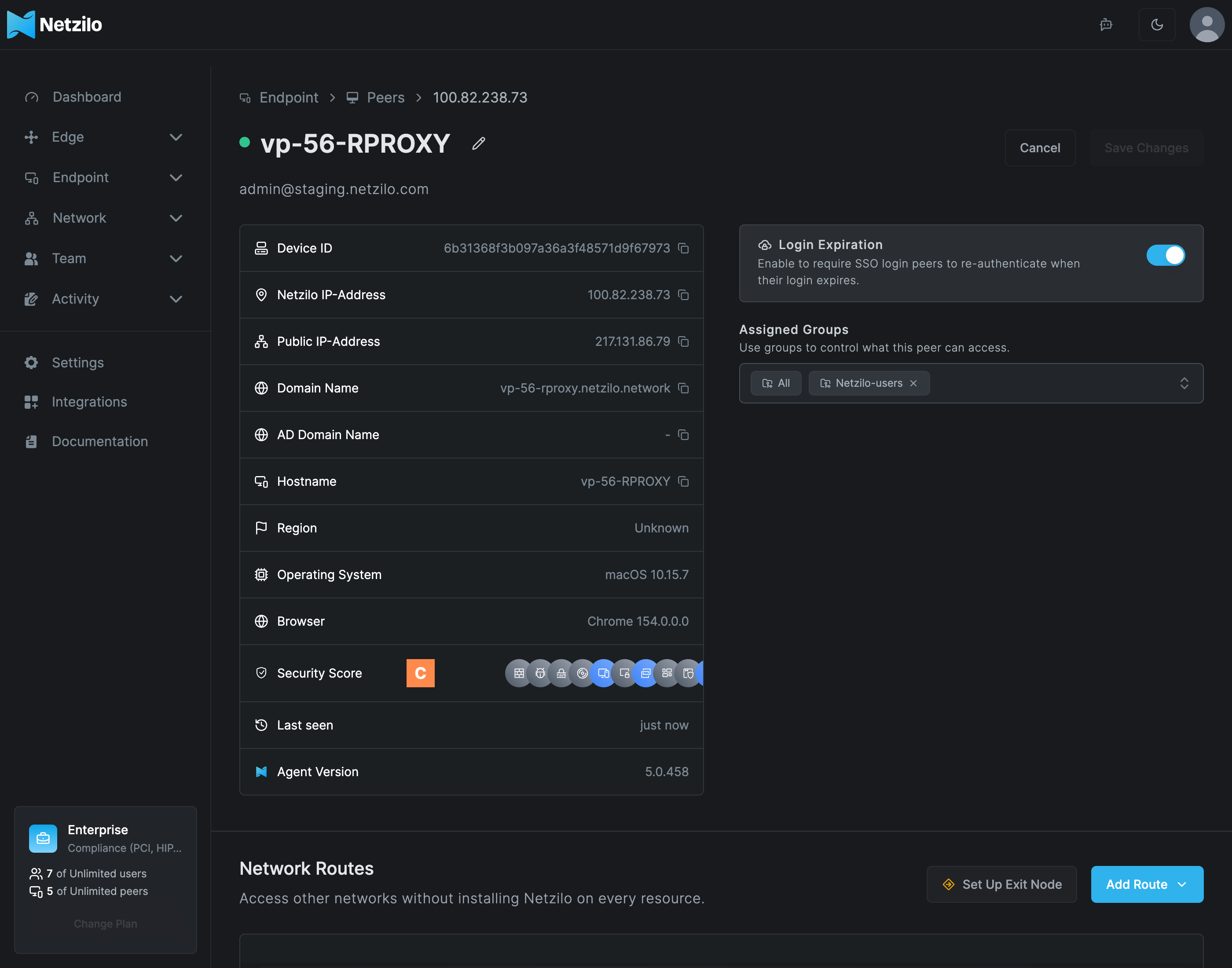
- One per user, public address and operating system. All of a user's browsers at one address on one operating system share the tunnel. The same user from home and from the office is two peers, each judged by its own location. A Mac and a Windows laptop behind one address are two peers, each judged by its own operating system. A user can have at most 16 tunnels at a time.
- The peer comes back. After the idle stop or a restart of the reverse proxy the same
vp-<n>-RPROXYreconnects instead of a new number appearing. An identity unused for 30 days is dropped. - What it shows. The user's public IP address and location, the operating system and version the browser reported when the user signed in, every browser that used the tunnel with its version, and the reverse proxy's version as the agent version. The Netzilo Gateway indicator in the security score is lit, as it is for browser sessions.
- Cleanup. The peers are ephemeral. Management removes them automatically once they have been offline for a while, and they register again under the same name on the next use.
- Not a browser session. The peer is the user's tunnel, not a browser with the extension. It does not appear in the Workplace's Private access status.
Posture checks for reverse-proxy peers
Posture checks on the policies that reach the target are evaluated against the user's reverse-proxy peer, after the door has admitted the user. Requirements on the device belong on the application, see Posture checks on the application.
| Check | Evaluated against |
|---|---|
| OS version | The operating system and version the browser reported at sign-in. Chrome and Edge report the real version. Firefox and Safari report macOS as 10.15 and Windows as 10.0, so a minimum above those values blocks them. |
| Netzilo version | The reverse proxy's version. |
| Geolocation | The location of the user's public IP address. |
| Peer network range | The user's public IP address. |
| Netzilo Gateway | Passes, as it does for browser sessions. |
| Process and Netzilo endpoint checks, such as firewall, antivirus or disk encryption | Always fail. A reverse-proxy peer is not a managed endpoint. |
To let browser users reach a target that desktop users reach only with endpoint checks, give them a separate policy without those checks, or with location, network range and operating system checks only. When a session starts, the activity log records Peer access blocked for each policy whose checks it fails. These events show the design working, not a fault.
Self-hosted servers
The self-hosted installers add the reverse proxy when you give them an application domain.
It runs as the reverse-proxy container behind Caddy, next to management and the
gateway. Nothing extra needs to be opened in the firewall: published applications use
port 443.
- Pick a domain for the applications, for example
apps.example.com, and create a wildcard record*.apps.example.compointing at the server's public IP. Use a domain other than the server's own. - Give it to the installer. The on-prem installer asks for the Published applications
domain; for an unattended install set
NETZILO_APPS_DOMAIN=apps.example.com. The AWS CloudFormation template has the parameter Published applications domain, and the Azure managed application asks for it on the Basics page. - After the first login, turn on Allow published applications under Settings > Permissions, add the domain with the server's IP, and publish under Edge > Applications.
Certificates. With Let's Encrypt, Caddy obtains a certificate per published name on
that name's first visit. Only names that are actually published get one. With a
certificate you provide, it must also cover *.apps.example.com, or pass a second one for
the wildcard with NETZILO_APPS_CERT_FILE and NETZILO_APPS_KEY_FILE. With a self-signed
certificate the installer adds the wildcard to its names.
A server installed without an application domain. Do not re-run the installer, which wipes the server. Add the reverse proxy to the existing installation instead. This needs a shell on the server and a management server and dashboard from a release with published applications; upgrade them first if needed. It applies to Let's Encrypt installs; with a certificate you provide, the wildcard must be in it.
- Create the wildcard record
*.apps.example.compointing at the server's public IP and confirm it resolves:dig +short nz-check.apps.example.com. - In the installation folder (
/opt/netzilo, or/opt/netzilo/runon the AWS and Azure images), back updocker-compose.ymlandCaddyfile. - Add the service to
docker-compose.yml, before the top-levelvolumes:line, with--workplace-urlset to the server's own address, and add the volume:
  reverse-proxy:
    image: ghcr.io/netzilo/net-reverse-proxy:latest
    container_name: reverse-proxy
    restart: unless-stopped
    cap_drop:
      - ALL
    security_opt:
      - 'no-new-privileges:true'
    networks:
      - netzilo
    depends_on:
      - management
    volumes:
      - /etc/ssl/certs:/etc/ssl/certs:ro
      - netzilo_reverse_proxy:/var/lib/netzilo-reverse-proxy
    command: [
      "run",
      "--management-url", "http://management:80",
      "--listen", "127.0.0.1:8443",
      "--egress", "off",
      "--publish-listen", ":8444",
      "--publish-tls", "none",
      "--publish-trusted-proxies", "172.20.0.0/24",
      "--workplace-url", "https://netzilo.example.com",
      "--admin-listen", ":9090",
      "--idle-timeout", "60m",
      "--data-dir", "/var/lib/netzilo-reverse-proxy",
      "--log-file", "console",
      "--log-level", "info"
    ]
volumes:
  netzilo_reverse_proxy:
If the gateway service has an extra_hosts block, copy it onto reverse-proxy too.
- In the
Caddyfile, add to the global options block at the top:
  on_demand_tls {
    ask http://reverse-proxy:9090/tls-ask
  }
and a site at the end:
*.apps.example.com:443 {
    tls {
        on_demand
    }
    reverse_proxy reverse-proxy:8444
}
- Apply and check:
sudo docker compose config -q && sudo docker compose up -d reverse-proxy && sudo docker compose restart caddy
sudo docker compose logs --tail=20 reverse-proxy | grep 'publishing on'
curl -sS -o /dev/null -w '%{http_code}\n' -H 'Accept: application/json' https://nz-check.apps.example.com/
The log shows publishing on [::]:8444, and a name nobody publishes answers 404.
Then add the domain under Settings > Permissions and publish under
Edge > Applications.
Tuning. The reverse proxy's settings are command-line options of the reverse-proxy
service in the server's docker-compose.yml. After changing them, restart the container
with docker compose up -d reverse-proxy.
| Option | Default | Controls |
|---|---|---|
--publish-session-max-age | 12h | How long a sign-in on one address lasts before the user signs in again. |
--revalidate | 10m | How often each session's admission is re-checked with management. |
--idle-timeout | 60m | How long a user's tunnel may go without traffic before it stops. |
--max-sessions | 2000 | How many tunnels the reverse proxy runs in total. |
--workplace-url | The server's address | Where users sign in. A wrong value refuses every sign-in with The sign-in did not come from the Workplace. |
The reverse proxy and the gateway are two containers with two purposes. The gateway serves browsers that carry the Netzilo extension, see Clientless Access. The reverse proxy serves published applications to browsers with nothing installed.
Troubleshooting
There is no application at this address. Publishing is off under Settings > Permissions, the application is disabled or deleted, or the address differs from the one published. A newly saved address can take up to a minute to answer.
The address does not resolve, or the browser shows a certificate error. Check the wildcard record with Verify under Settings > Permissions. On a self-hosted server with Let's Encrypt, the first visit to a new application obtains its certificate; try again after a few seconds. A certificate you provided must cover the wildcard.
Access Denied, your account is not allowed to open the address. The user is in none of the application's groups. Add the group, or turn publishing on. An existing session follows within 10 minutes; a new sign-in at once. The event Application access denied: not admitted records the attempt.
Access Denied because a posture check failed. The event Application access denied by posture names the check and the reason. Then:
- Peer is not using Netzilo Enterprise Workspace, from a device that is in the Workspace. The door learns this from the Netzilo client inside the Workspace. The client must be current: an older client answers nothing, and the rule fails as for a plain browser. Update the client in the Workspace and sign in again.
- Peer is not using Netzilo Enterprise Browser, from the Enterprise Browser. The browser is recognized by its own User-Agent. Check that the user is really in the Enterprise Browser, not in another browser on the same computer.
- An antivirus is not active, Disk encryption is not enabled and the other endpoint rules, from a device with the Netzilo client. The device reports these the same way it does for its peer: compare the indicators on its peer page. Without a client on the device these rules always fail.
- Peer is not a Netzilo gateway session. The Netzilo Gateway rule never passes at the door. Remove it from the application's checks; it is for policies.
- The check passes on the device now but the session is still refused. A running session is judged on its sign-in's evidence. Have the user sign out of the Workplace and open the application again.
Additional Protection Required. The application requires the Netzilo browser extension and this browser has none, or one that follows another server. The dialog offers to add it, or to connect it to this server, and opens the application again when it answers. An old extension that cannot be connected from the dialog is updated or connected from its own popup.
Access Failed. The user is signed in and admitted, but the target is not reachable through the user's tunnel. Check, in this order:
- The route. The target's network is a route distributed to one of the user's groups.
- The policy. A policy from one of the user's groups allows the target.
- Posture checks. The policy's checks can pass for a reverse-proxy peer. Endpoint checks never do, and an OS minimum above what the browser reports blocks it. See Posture checks for reverse-proxy peers.
- The target. The address and port are right and the application is up. A name is resolved by the user's DNS settings, not by the server.
- The peer. Look for the user's
vp-<n>-RPROXYpeer under Endpoint > Peers and check that it is connected.
The same user reaching the target with the Netzilo client proves the route and the policy.
Stuck at Logging in. The user's tunnel cannot connect, or management is unreachable
from the reverse proxy. On a self-hosted server, check the reverse-proxy container's log
while the user retries.
The sign-in did not come from the Workplace. On a self-hosted server the
--workplace-url option does not match the address users sign in at. Set it to the
server's address, scheme and host exactly, and recreate the container.
Sign-in expired. The sign-in link was older than 10 minutes, was used twice, or the browser blocks cookies for the application's address. Open the application from the Workplace tile again.
The application loads, but links, redirects or its own login go to an internal name. The application builds absolute URLs from its configured base address. Set that to the published address, or turn on Send the address as Host header for the application.
The application works for some users only. The users' groups admit them differently, or their policies reach the target differently.
A script gets 401 with a valid token. The token is expired or revoked, or its owner
is blocked. Through a proxy that strips headers, Proxy-Authorization is dropped: send the
token in X-Netzilo-Bearer.
After a restart every user is sent through the Workplace again. Sessions live in the reverse proxy's memory. This is expected, and silent while the Workplace session is alive.
Related Documentation
- Clientless Access - Browser access to internal resources with the Netzilo extension
- Policies - Decide what users reach
- Routing traffic to private networks - Network routes
- Posture Checks - Device requirements
- Manage DNS in your network - Nameserver groups and domains
- Access Netzilo public API - Personal access tokens