

Routes
Routes let peers reach networks where the Netzilo client is not installed: an office LAN, a cloud VPC, printers and IoT devices, or a SaaS service reached by domain name. A routing peer, a Linux machine with the Netzilo client inside that network, forwards the traffic between your peers and the network.
You manage routes under Network > Routes. The same page has Add Exit Node, which sends all internet traffic of a group through a routing peer, see Exit nodes.

How it works
- A route has a destination, either a Network Range such as
172.31.0.0/16or a list of Domains, a Routing Peer or a Peer Group of routing peers, and Distribution Groups: the peers that receive the route. - Routes with the same Network Identifier form one network. Several routing peers for one network give high availability: each client picks one by metric and connection quality and fails over on its own.
- Only Linux peers can route. The peer selector lists Linux peers only, and a peer group used for routing must contain Linux peers.
- A policy is still needed. The client's group must be allowed to reach the routing peer's group for the protocol and ports used. Without such a policy, or when the client fails the policy's posture checks, the client does not get the route at all. See Policies.
- Masquerade (on by default): the routing peer translates client traffic to its own LAN
address, so the target network needs no return route. With masquerade off, the target network
must route
100.64.0.0/10back to the routing peer. - Domain routes: the client resolves the domains through the device's own resolver about once a minute and routes the addresses it gets. Domain routes always masquerade.
- Routes fail open. When no routing peer of a network is connected, the client removes the route from the device, and traffic for that network takes the device's normal path.
Before you start
- A Linux machine inside the target network, enrolled as a peer, ideally with a setup key that
puts it in a group such as
dc-routers. See Routing peer installation. - The machine can reach the target hosts, and its host firewall allows forwarding between the
Netzilo interface
wt0and the LAN interface. - In a cloud, the target hosts' security groups allow traffic from the routing peer's private address.
Add a route
Go to Network > Routes and click Add Route. The Create New Route dialog has three tabs: Route, Name & Description and Additional Settings.
Route tab
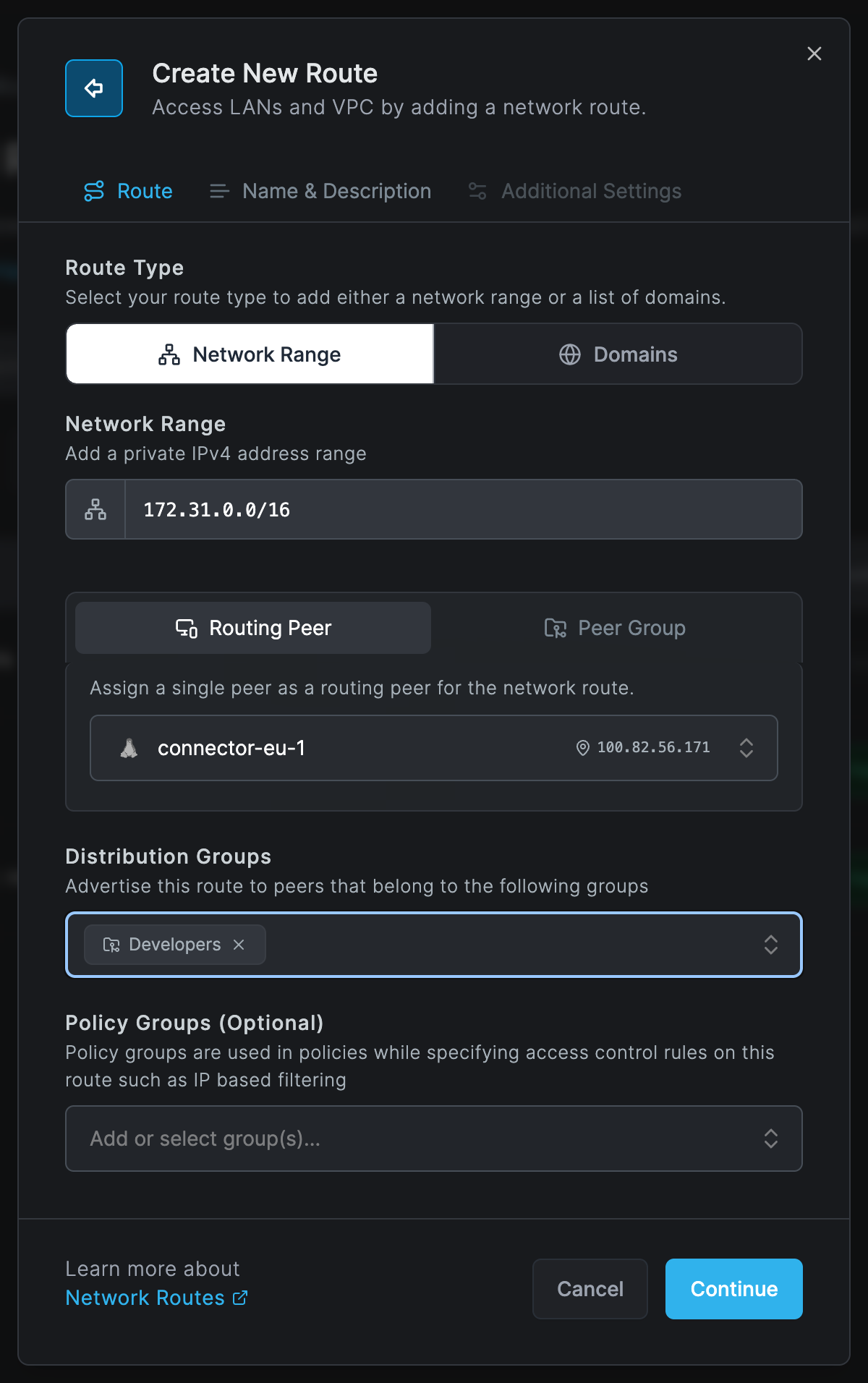
| Field | What to enter |
|---|---|
| Route Type | Network Range for an IP range, or Domains for names that resolve to changing addresses. |
| Network Range | A private IPv4 range in CIDR notation, such as 172.31.0.0/16. |
| Routing Peer | One Linux peer that routes this network. |
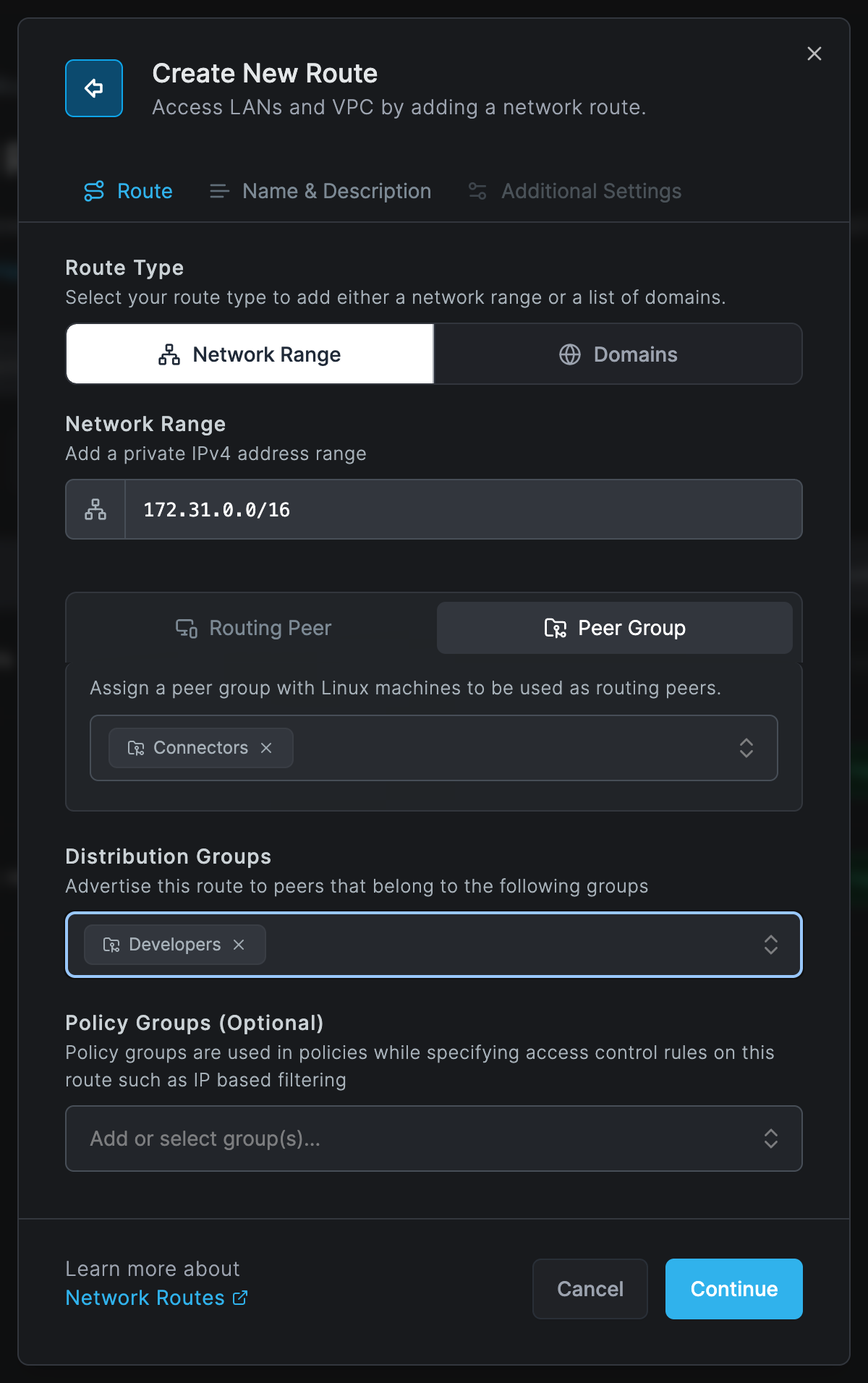
| Peer Group | Instead of a single peer: exactly one group of Linux peers. Every Linux peer in the group routes the network, which gives high availability. |
| Distribution Groups | The peers that receive the route. |
| Policy Groups (Optional) | Groups you can use in a policy rule's Routes field to allow only parts of this network, see Restrict what a routed network exposes. |
To use a group of routing peers, select Peer Group and pick the group:
For a domain route, select Domains, click Add Domain and type each name. Keep Routes (on by default) keeps addresses that a name resolved to before, so long-running connections survive DNS changes such as load balancing. Turn it off to replace the routes with each new answer.
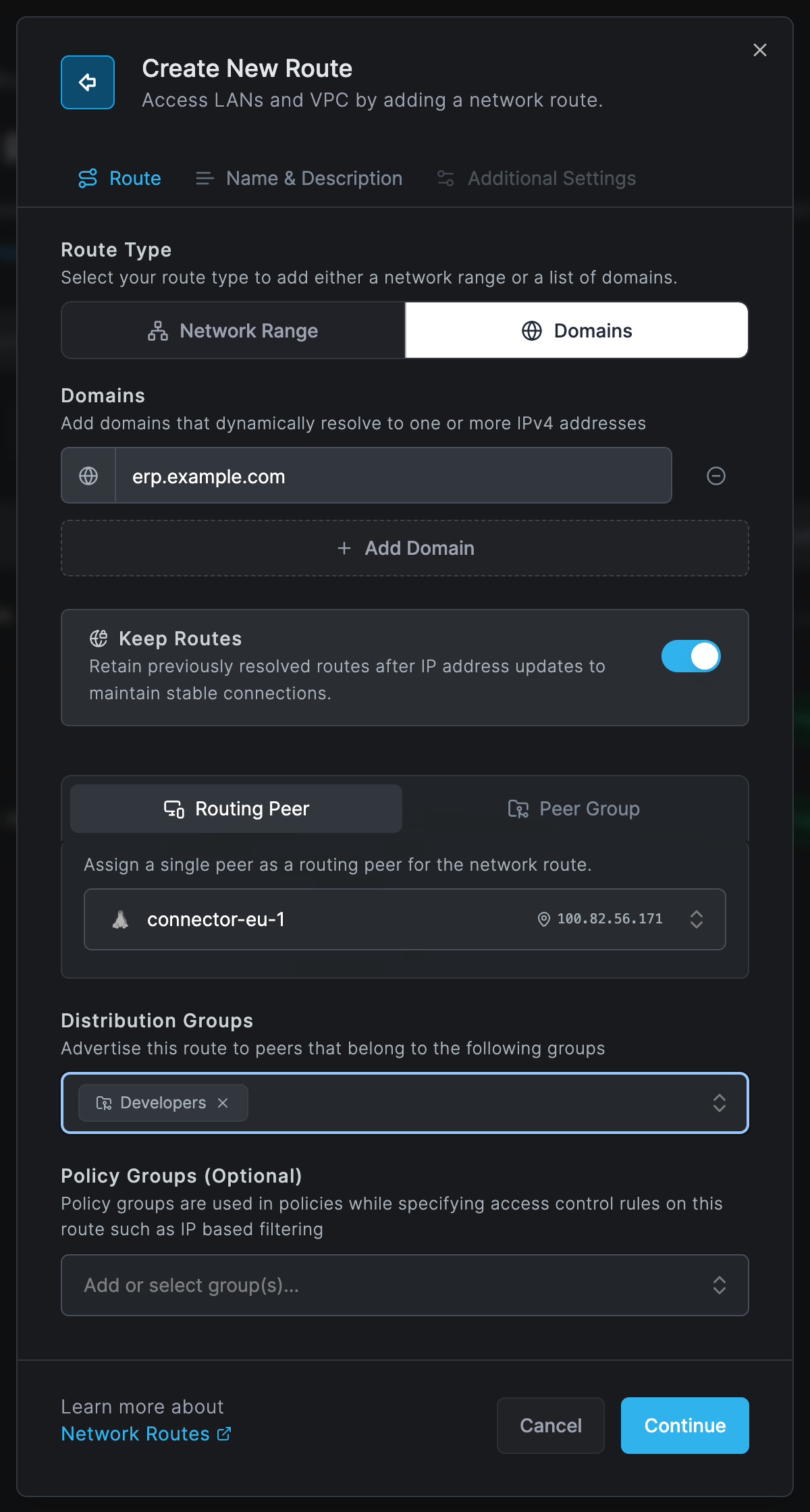
Clients re-resolve domain routes about once a minute. To change the interval on a client, start
it with --dns-router-interval, for example netzilo up --dns-router-interval 30s.
Name & Description tab
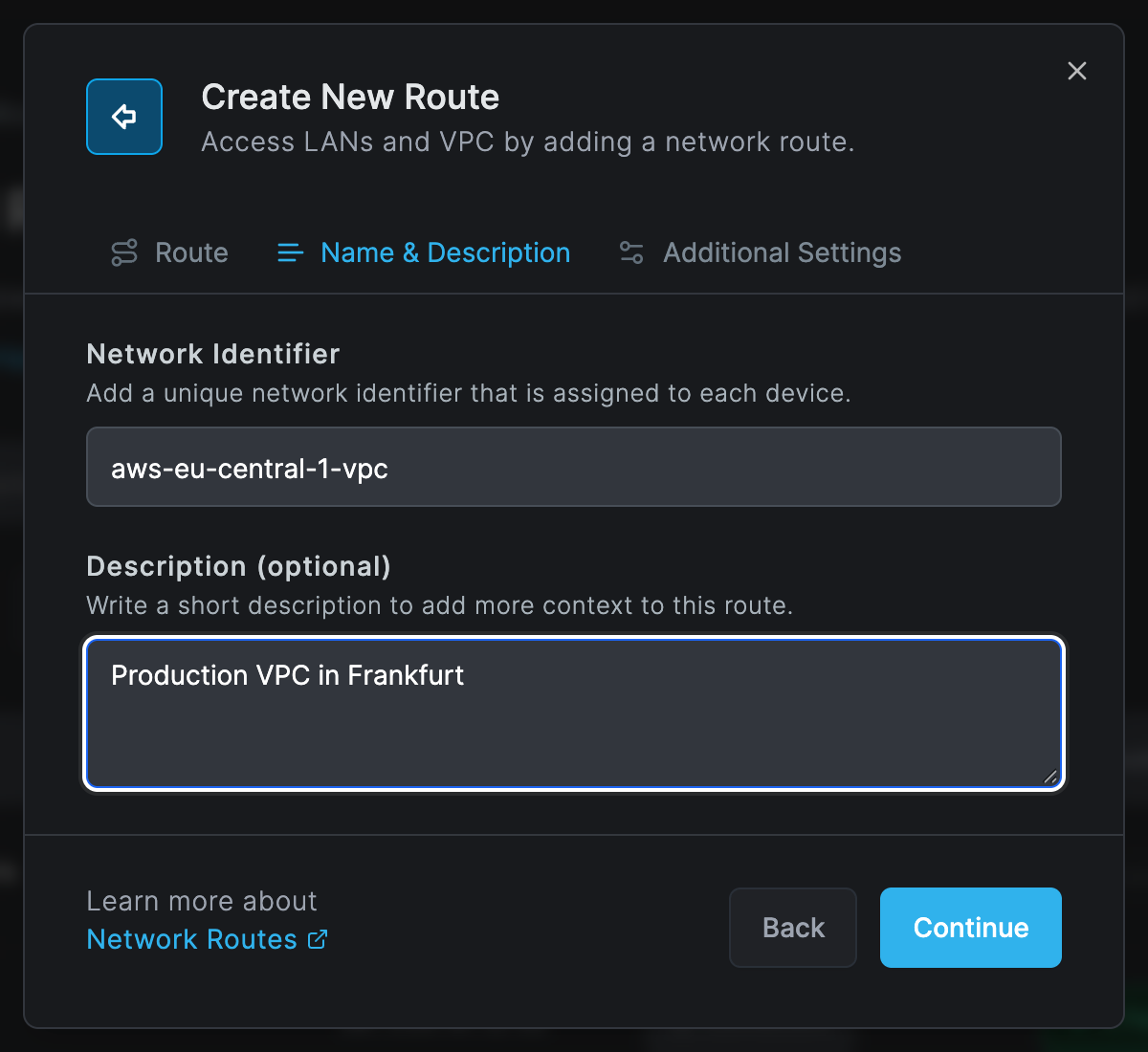
| Field | What to enter |
|---|---|
| Network Identifier | The network's name, up to 40 characters, such as aws-eu-central-1-vpc. Routes with the same identifier form one network. |
| Description (optional) | Any note for administrators. |
Additional Settings tab
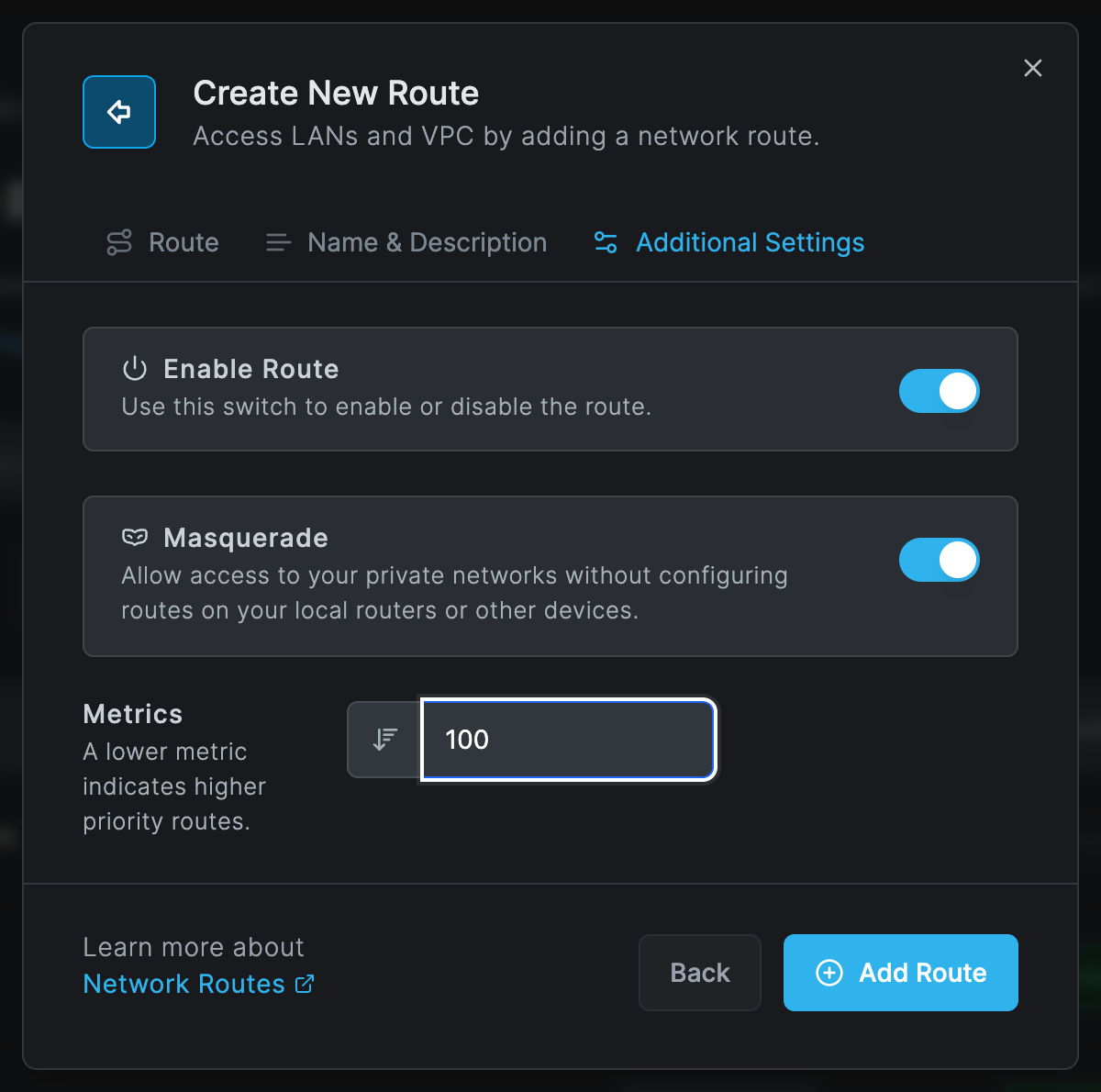
| Field | What to enter |
|---|---|
| Enable Route | Off keeps the route but distributes it to nobody. |
| Masquerade | On: the target network needs no route back. Off: route 100.64.0.0/10 back to the routing peer in the target network. |
| Metrics | 1 to 9999, default 9999. A lower metric means a higher priority when a network has several routing peers. |
Click Add Route. Then make sure a policy lets the distribution groups reach the routing
peer's group, for example employees to dc-routers.
The Routes table
Each row is a network. It shows the identifier, the range or domains (Exit Node for an exit node), the routing peer group or Routing Peers, and High Availability: the number of routing peers, or Disabled when there is only one. Click a row to see its routes, each with the routing peer, Metric, Active switch, Distribution Groups and Policy Groups.
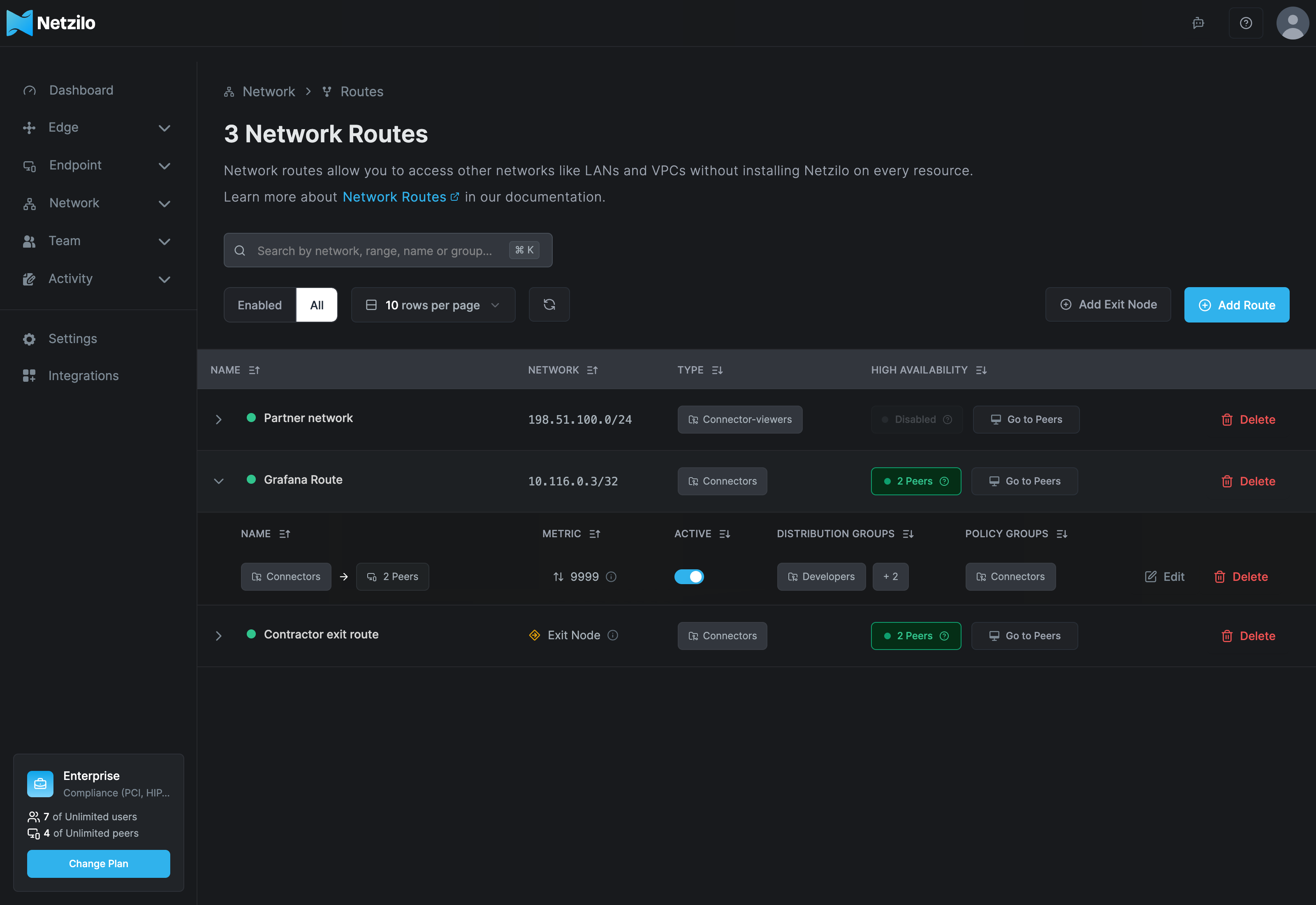
- Edit on a route changes the routing peer or peer group, the groups, the description, the switches and the metric. The range, the domains and the identifier cannot be changed: delete the route and create it again.
- Delete on a route removes that route. Delete on the network row removes every route in the network.
- Give different distribution groups to different routes of one network to send, for example,
the
berlin-officegroup through one routing peer andlondon-officethrough another.
Make a network highly available
Use two or more routing peers for a network:
- Peer group: select a Peer Group with two or more Linux peers. Adding a Linux peer to the group adds a routing peer.
- Single peers: on a network that uses single routing peers, click Add Peer in the High Availability column. The Add New Routing Peer dialog adds another route to the same network with a second Linux peer and its distribution groups.
Keep the metrics equal to let clients choose by connection quality, or give one routing peer a lower metric to prefer it. Clients fail over to another routing peer on their own.
To retire a routing peer, add its replacement first, check that clients use it, then delete the old route and the peer.
Check a route on a device
netzilo routes list
The route appears with Status: Selected. netzilo status -d shows which routing peer carries
each route. On Linux, ip route get 172.31.5.10 must name the wt0 interface; on macOS use
route -n get 172.31.5.10 (utun100), on Windows Find-NetRoute -RemoteIPAddress 172.31.5.10.
Troubleshooting
The client does not list the route. The client is in none of the distribution groups, the
route is disabled, no policy lets the client reach the routing peer, or the client fails that
policy's posture checks. Run netzilo refresh after fixing it.
The route is listed as Not Selected. Another network with the same range is selected, or the user deselected it. See Resolve overlapping routes.
The route is selected but traffic does not go through Netzilo. No routing peer of the network
is connected, or a local route on the device wins, typically a home network numbered like the
office. Check with ip route get, route -n get or Find-NetRoute as above.
Clients reach the routing peer but not the hosts behind it. IP forwarding or the host firewall
on the routing peer blocks the traffic, the target host's firewall or cloud security group
refuses it, or masquerade is off and the network has no route back to 100.64.0.0/10.
The whole network is unreachable. The routing peer is offline, needs a new login, or was deleted. Check it under Endpoint > Peers.
It works for some users only. Their groups get different policies, or some devices fail a policy's posture checks and therefore do not receive the route.
High Availability shows Disabled. The network has one routing peer. Add a peer or use a peer group with at least two Linux peers.
A peer cannot be selected as routing peer. It is not a Linux peer, or it already routes this network.
Related Documentation
- Routing peer installation - Prepare the Linux machine
- Exit nodes - Send internet traffic through a peer
- Resolve overlapping routes - Choose between routes with the same range
- Routing peers and Kubernetes - Route into a cluster
- Policies - Allow traffic to the routing peers
- DNS - Resolve names inside routed networks