Manage network access
Netzilo enables administrators to oversee and manage access between resources (peers) through access policies. These policies specify which peers and peer groups are permitted to connect to each other, detail the protocols and ports for these connections, and offer the option to include posture checks to apply zero trust principles, helping to adapt access control to specific contexts.
Introduction
Initially, a Netzilo account is configured with a Default policy which allows peers to connect via any protocol, resulting in the formation of a full mesh network. This setup often suits small networks or those requiring minimal security. In scenarios where higher security is needed or access to specific resources must be restricted for certain users or services, policies can be set up to determine access permissions.
Access control policies make use of groups to control connections between peers. These groups, which are sets of peers (meaning different machines with the Netzilo client installed), can be added as Source or Destination of a policy. They are evaluated when the Management service distributes the list of peers across your network.
Concepts
Groups
A Netzilo group works and follows a similar concept to tags in other platforms; they are easily created and can be associated with peers and used in policies to control traffic within your network.
Here are some key attributes of groups:
- Each group is unique.
- A single group can have multiple peers.
- Peers can be part of multiple groups simultaneously.
- Groups can be included in the 'Source' and 'Destination' lists of policies.
- Groups are generated within the 'Access Control' or 'Peers' tabs.
- Groups can be deleted only via the API.
- There exists a default group called 'All'.
You can assign groups automatically with the peer auto-grouping feature.
The All Group
The 'All' group serves as a default group that automatically includes every peer in your network. This group cannot be modified or removed.
Policies
Policies act as rules governing how different resources (peers) can communicate and connect. They specify the source and destination of communication and can allow bidirectional or unidirectional connections.
Policies are processed when the Management service shares a network map with all peers of your account. Because you can only create ALLOW policies, there is no processing order or priority. So, the decision to distribute peer information is based on its association with a group belonging to an existing policy.
For ICMP and ALL protocols, as well as for TCP and UDP protocols without specific port restrictions, communication between groups listed in the source and destination fields is bidirectional. This means that both source and destination groups can initiate connections with each other. To establish one-way connections, you must specify a protocol (UDP or TCP), along with a port.
If you need to allow peers from the same group to communicate with each other, you can do so by adding the same group to the Source and Destination lists.
Without policies, a network operates by denying traffic, meaning peers cannot communicate with each other. That's why the default policy is automatically created upon account creation.
The Default policy
The Default policy is created when you first create your account. This policy is very permissive because it allows communication between all peers in your network, utilizing the All group as both the source and destination. It's worth noting that the All group is also automatically present when the account is being created. If you want to have better control over your network, it is recommended that you delete this policy and create more restricted policies with custom groups.
If you need to restrict communication within your network, you can create new policies and use different groups. Then, you can remove the default policy to achieve the desired behavior.
Multiple Mesh Networks
As mentioned above, policies are bidirectional by default, essentially controlling how your network behaves as a mesh network. However, for TCP and UDP protocols, if you specify ports in the policy, it can become unidirectional.
There is a Default policy, which configures a default mesh connection between all peers of your network. With policies, you can define smaller mesh networks by grouping peers and adding these groups to Source and Destination lists. Additionally, you can create unidirectional policies to restrict traffic between groups for TCP and UDP protocols if you define ports.
Managing Policies
Creating Policies
After accessing the Access Control > Policies tab, click on the Add policy button to create a new policy. You can create as many rules as you need in this step.
Within each rule tab, specify the destination and source fields, and define the desired ports to establish the required access.
Then you can add Posture Checks if needed. Make sure to set traffic direction only when TCP or UDP protocols are selected. Finally, provide a name and description for your policy.
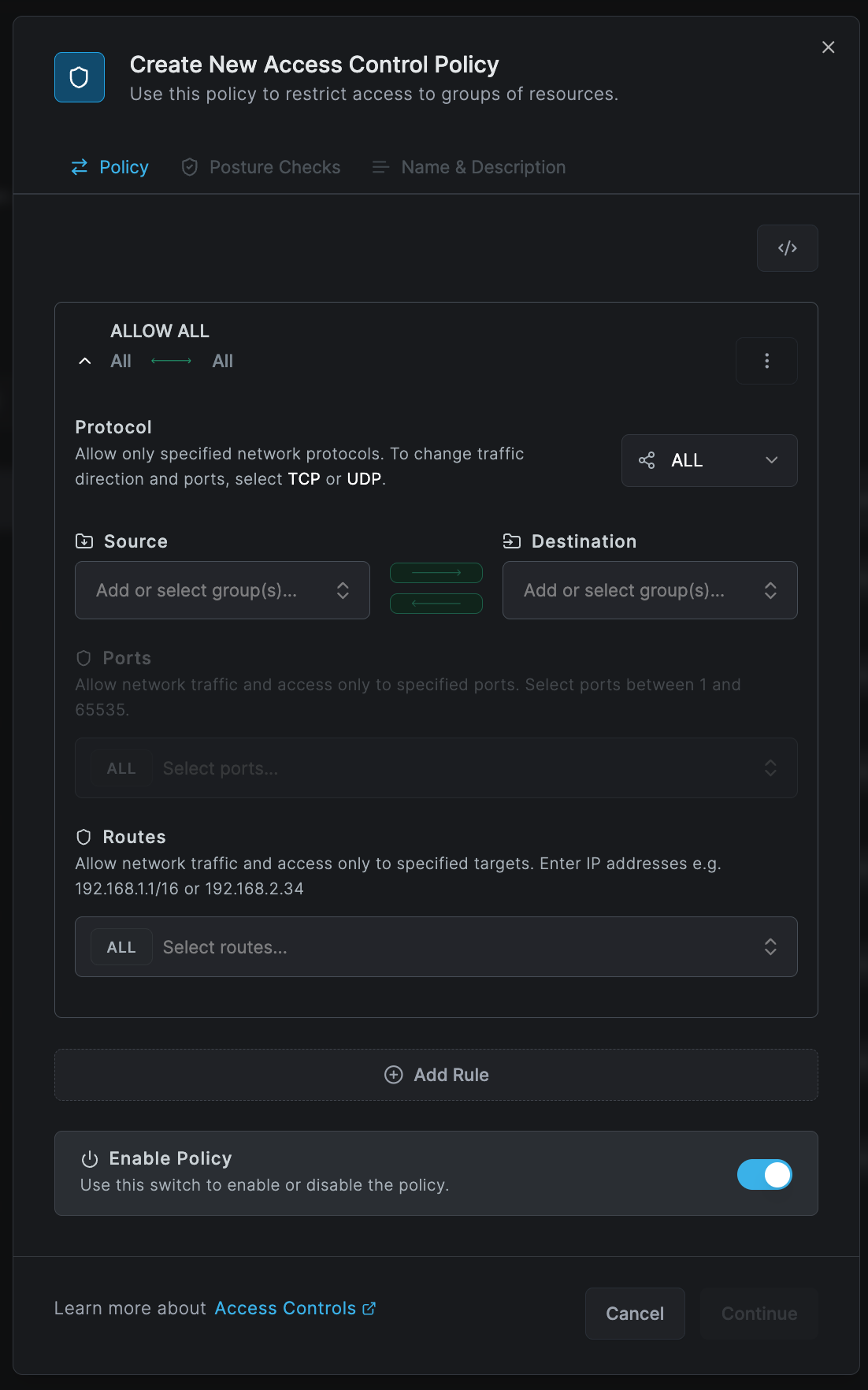
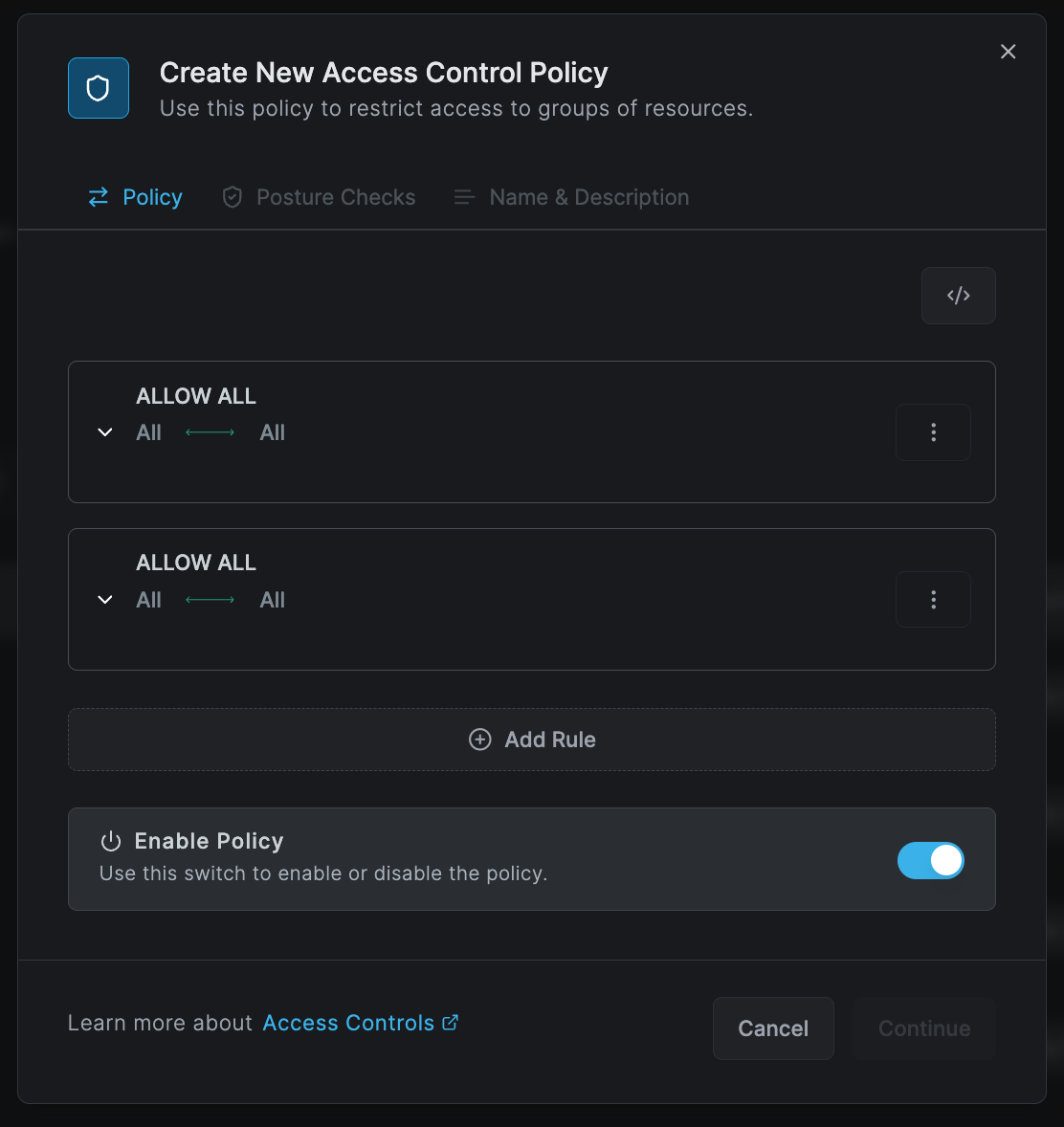
If necessary, you can create new groups simply by entering new names in the input box for either the source or destination lists.
Once you have finished configuring the policy, click Add Policy to save it. You will then see your new policy in the table.
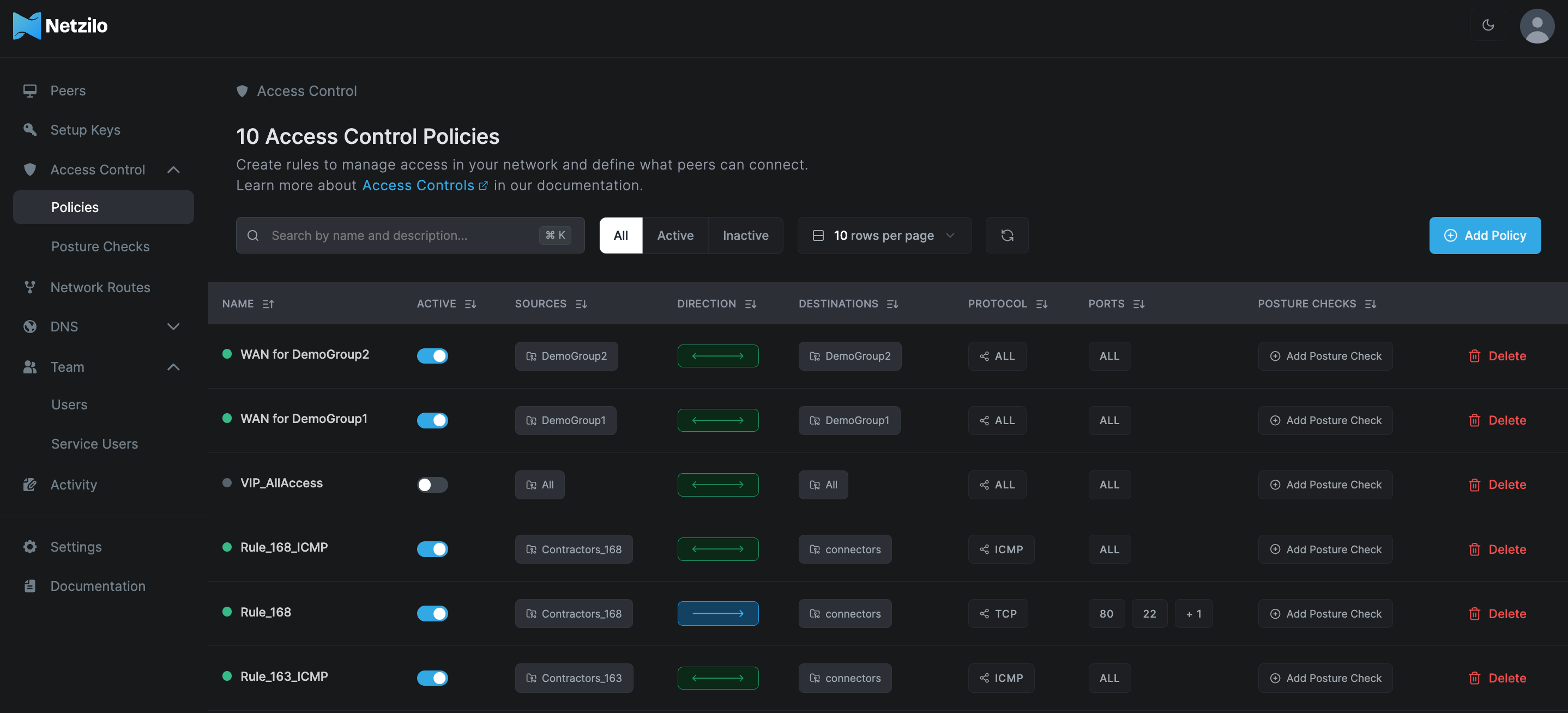
Because of its permissiveness, new policies will take effect once you remove the Default policy.
Protocol type All or ICMP must be bi-directional. Also unidirectional traffic for TCP and UDP protocol requires at least one port to be defined.
Configuring Policies in Json Format
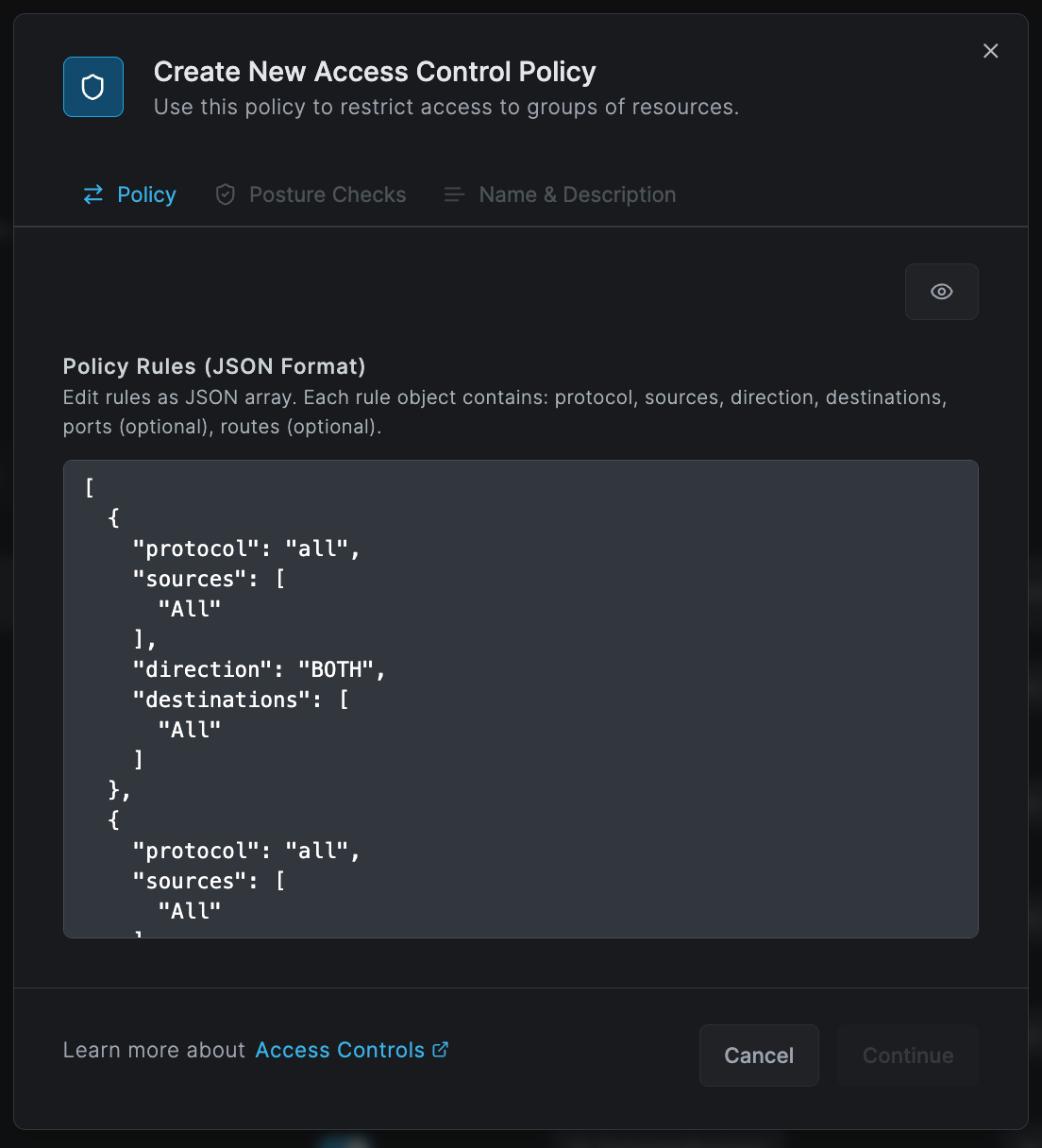
You can also use the JSON format feature to bulk update, import, or export policies. With the JSON format, you can define multiple policies and access rules collectively in a single operation.
Adding peers to groups
If you create a new group when defining a policy, you will need to add a peer to the group for the policy to take effect.
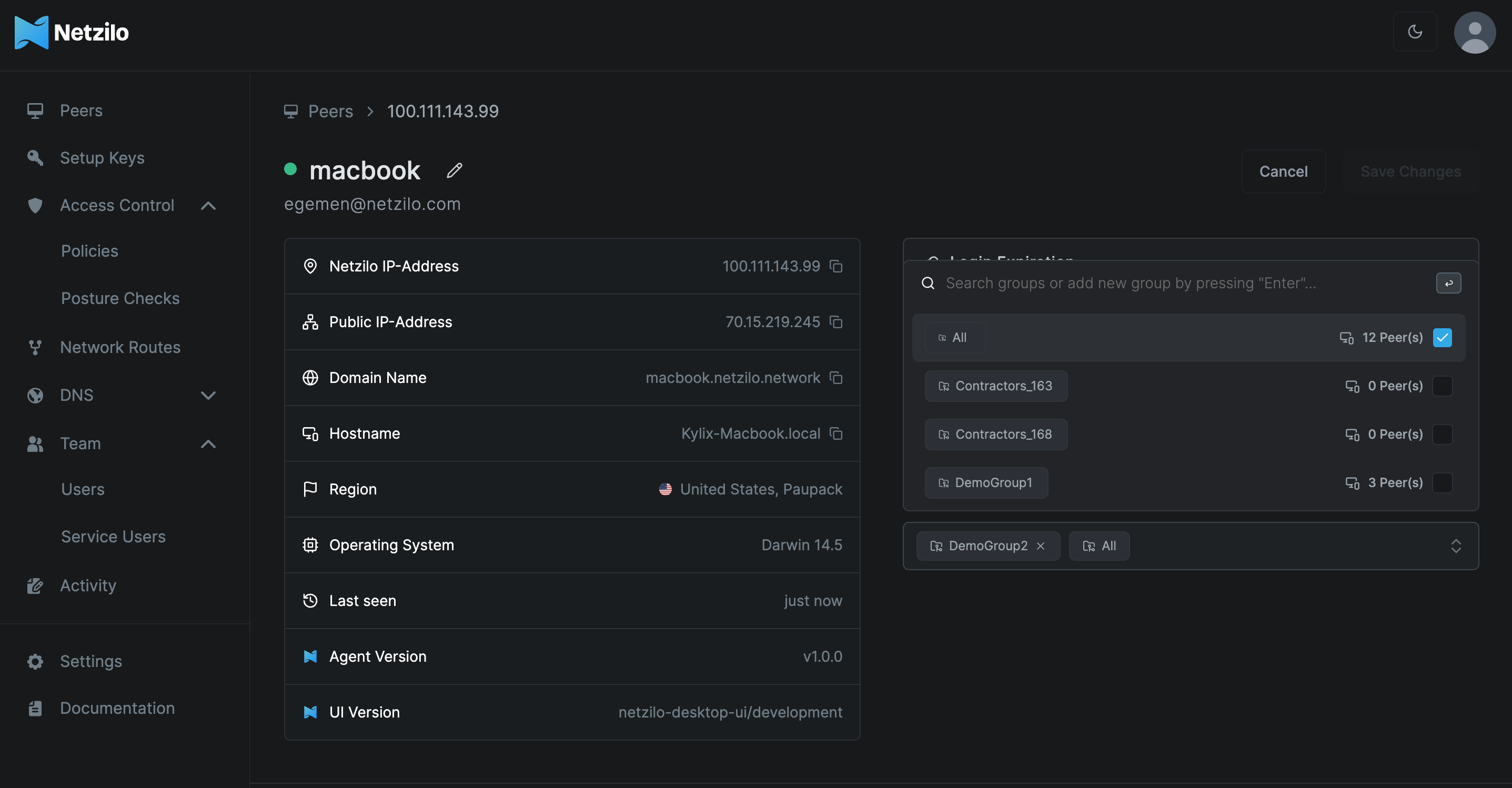
You can assign a peer to a group by accessing the Peers section. Then, choose the specific peer you want to assign to a group. Click on the Assigned Groups select box and select the group(s) you wish to assign to this peer.
You can assign groups automatically with the peer auto-grouping feature.
Updating Policies
To update a policy, just click on its name and customize it according to your requirements. This action will open the same screen where you can update policy groups, descriptions, and status, or modify allowed traffic direction, protocols with ports, and posture checks, similar to the information described in the "Creating Policies" section above.
Disabling Policies
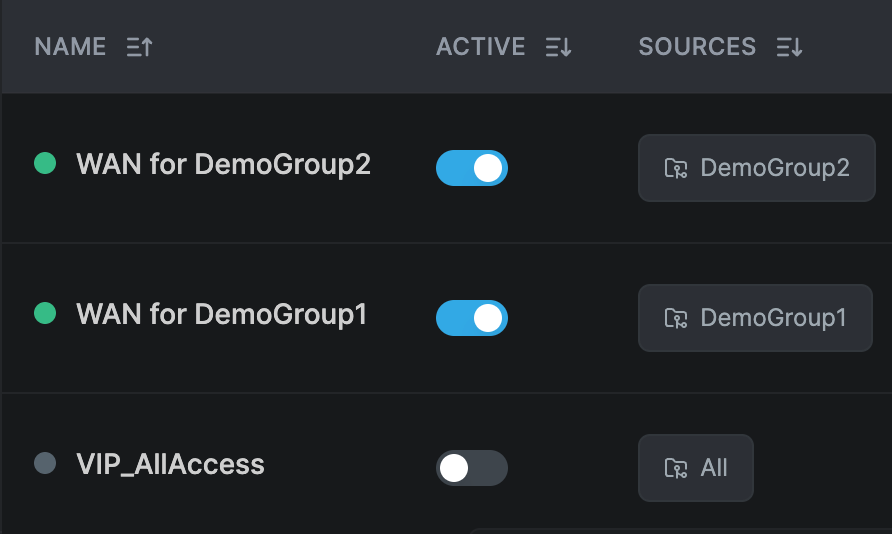
To disable a policy, use the switch in the Active column of the table.
Deleting Policies
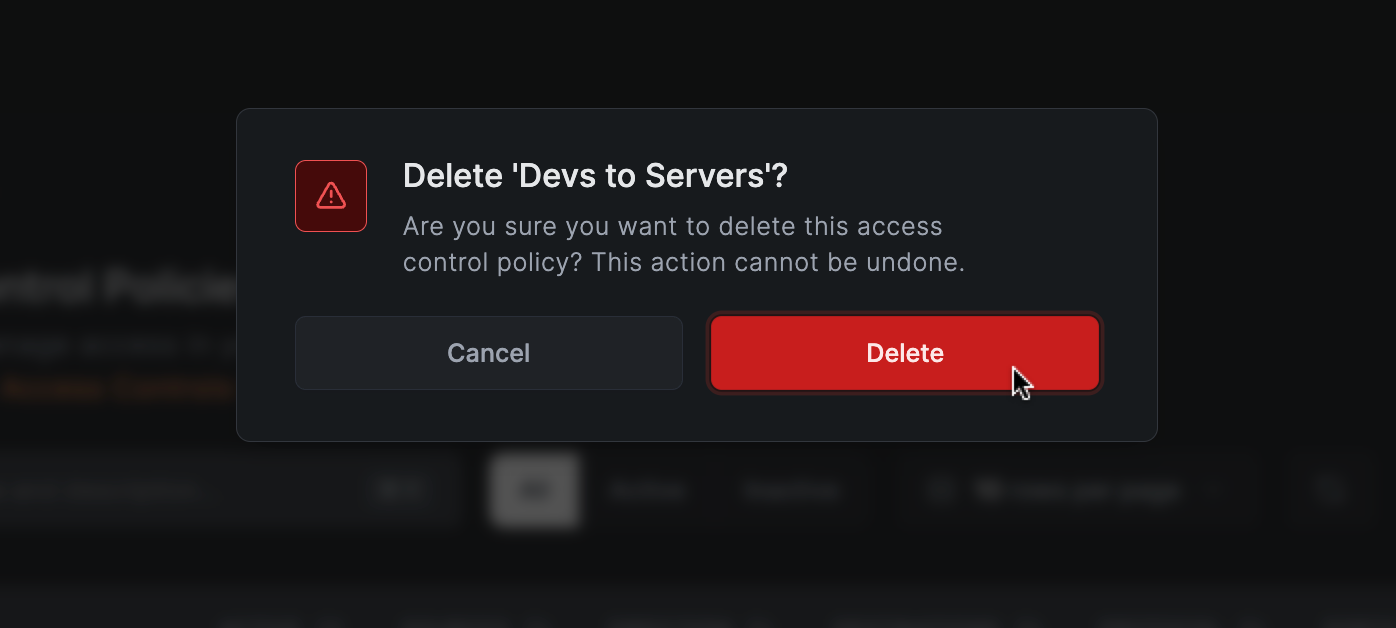
To delete a policy, click on Delete in the table, and confirm the message that appears.