

Peers
A peer is a device in your Netzilo network: a laptop, a server, a phone, a container or a
routing peer that runs the Netzilo client.
Every peer gets an address from 100.64.0.0/10 and a DNS name derived from its name. What
a peer may reach is decided by its groups and the policies of those groups.
The Peers page lists every peer of the account. Use it to add devices, approve new ones, assign groups, control login expiration and inspect a single device in detail. Open it under Endpoint > Peers.
How peers join
A device joins when someone runs the Netzilo client on it and signs in. There are three ways to do that:
| Method | Who owns the peer | Typical use |
|---|---|---|
| Single sign-on | The user who signed in | Laptops and phones of employees. The peer follows that user's groups. |
| Setup key | Nobody | Servers, routing peers, containers and automated installs. The peer joins the key's auto-assigned groups. See Setup Keys. |
| Access token | The token's user | Unattended installs that must still belong to a user. See Agents. |
Peers that joined with a setup key have no owner. Login expiration does not apply to them, and they appear under Agents in the AI Agent Activity report.
A new peer can show Approval required. Click Approve on the row, or filter the list with Pending Approvals to review all of them. Treat this as a review queue, not as a gate: to keep a device off the network, block its user or delete the peer.
Add a peer
Click Add Peer at the top right of the list. The first time you open the Peers page in an account without devices, the same dialog opens by itself.
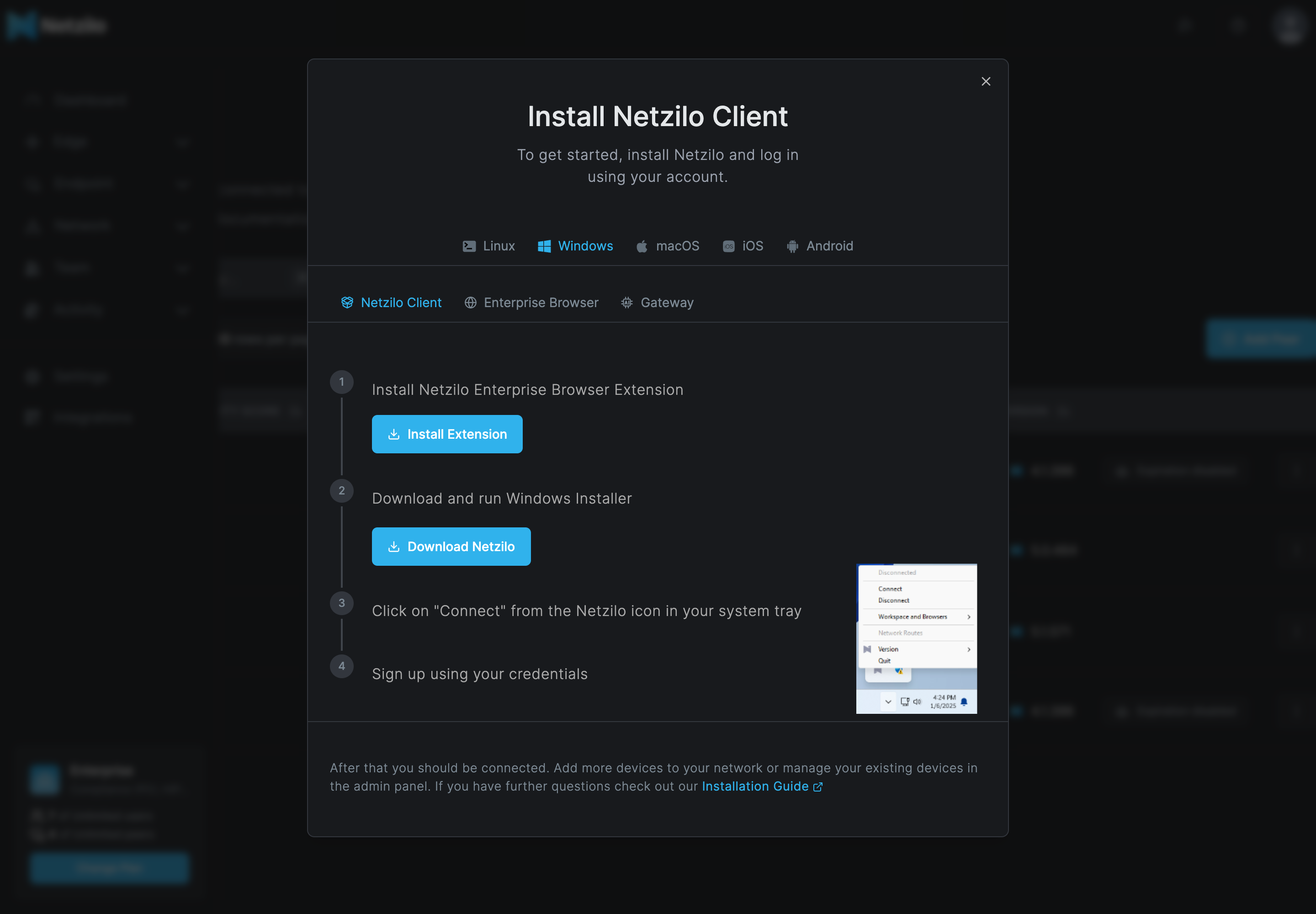
- Pick the device's operating system: Linux, Windows, macOS, iOS or Android.
- Pick what to install:
- Netzilo Client: the client for that system, with the download or the install command.
- Enterprise Browser (Windows, macOS, iOS, Android): the Netzilo Enterprise Browser. See Enterprise Browser.
- Gateway (Linux, Windows, macOS): the install command for the Netzilo AI Gateway. See AI Gateway.
- Follow the steps on the device. Once the user signs in, the peer appears in the list.
For every installer, silent install options and fleet deployment, see Install Netzilo and Installer command lines.
A user whose role has no access to the dashboard sees Add new device to your network on this page, with the same install steps, instead of the list.
The peers list
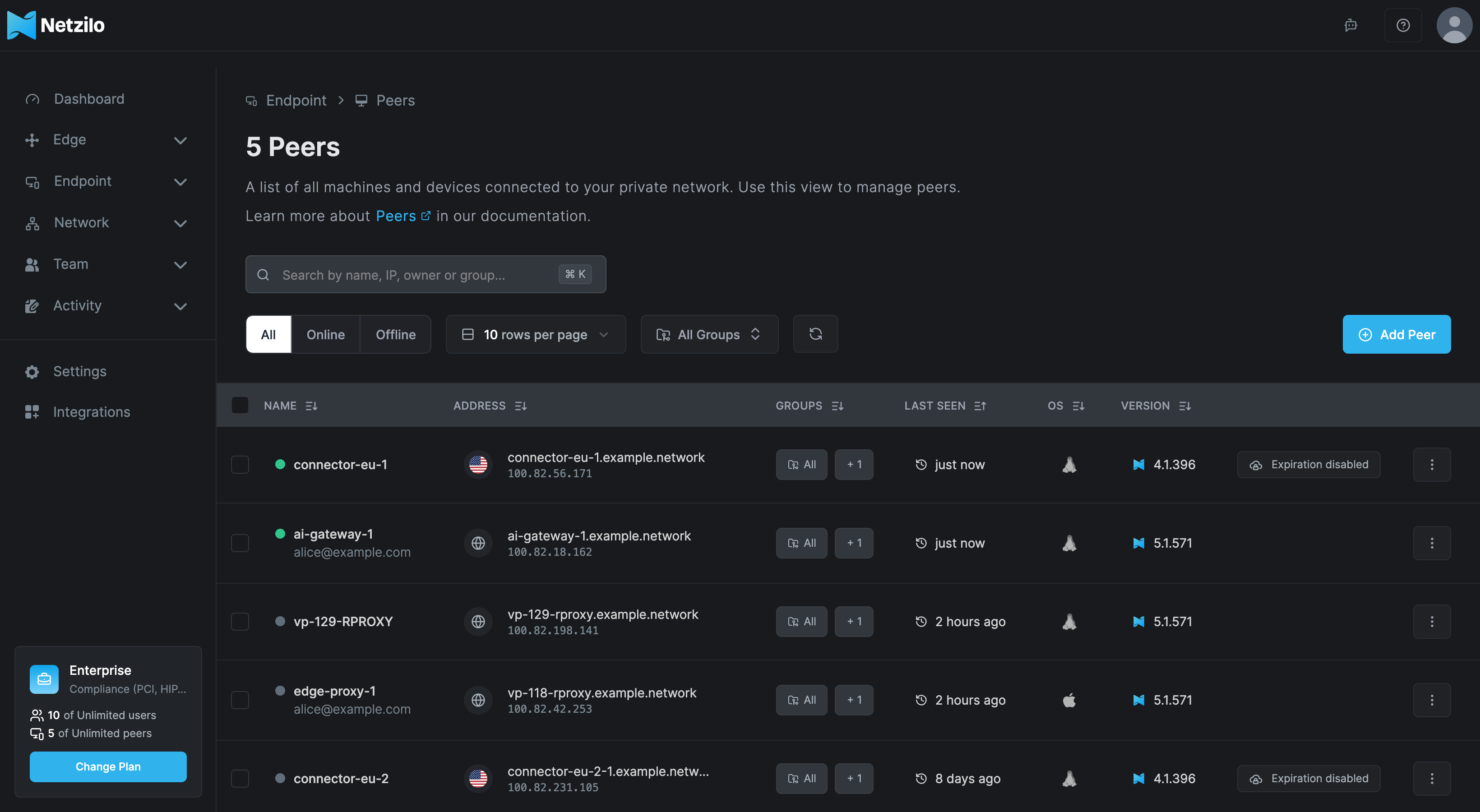
| Column | What it shows |
|---|---|
| Name | The peer's name, a green dot when it is connected, and the owner's e-mail for peers that joined with single sign-on. |
| Address | The DNS name and the Netzilo IP address. Click either to copy it. Hover to see the Netzilo IP, Public IP, Domain and Region. |
| Groups | The peer's groups. Click to change them. |
| Last seen | When the peer was last connected. A reverse-proxy peer (vp-<n>-RPROXY) also shows N sessions, the sessions it served in the last 15 minutes; hover over its name to list them. |
| OS | The operating system. |
| Version | The client version. A hint appears when a newer release is available. |
| Badges | Approval required with an Approve button, Expiration disabled when login expiration is off for the peer, and Login required when the peer's login has expired. |
Filter the list with All, Online and Offline, by group, or with Pending Approvals when peers wait for approval. Search by name, IP, owner or group. The refresh button reloads the list.
The ⋮ menu of a row offers:
- View Details: opens the peer's page.
- Enable Login Expiration or Disable Login Expiration: unavailable for peers that joined with a setup key.
- Set Up Exit Node or Add Exit Node (Linux peers): makes the peer an exit node. See Exit nodes.
- Delete: removes the peer. The device must join again to come back.
Change several peers at once
Select peers with the checkboxes. A bar at the bottom shows how many are selected and offers three actions.
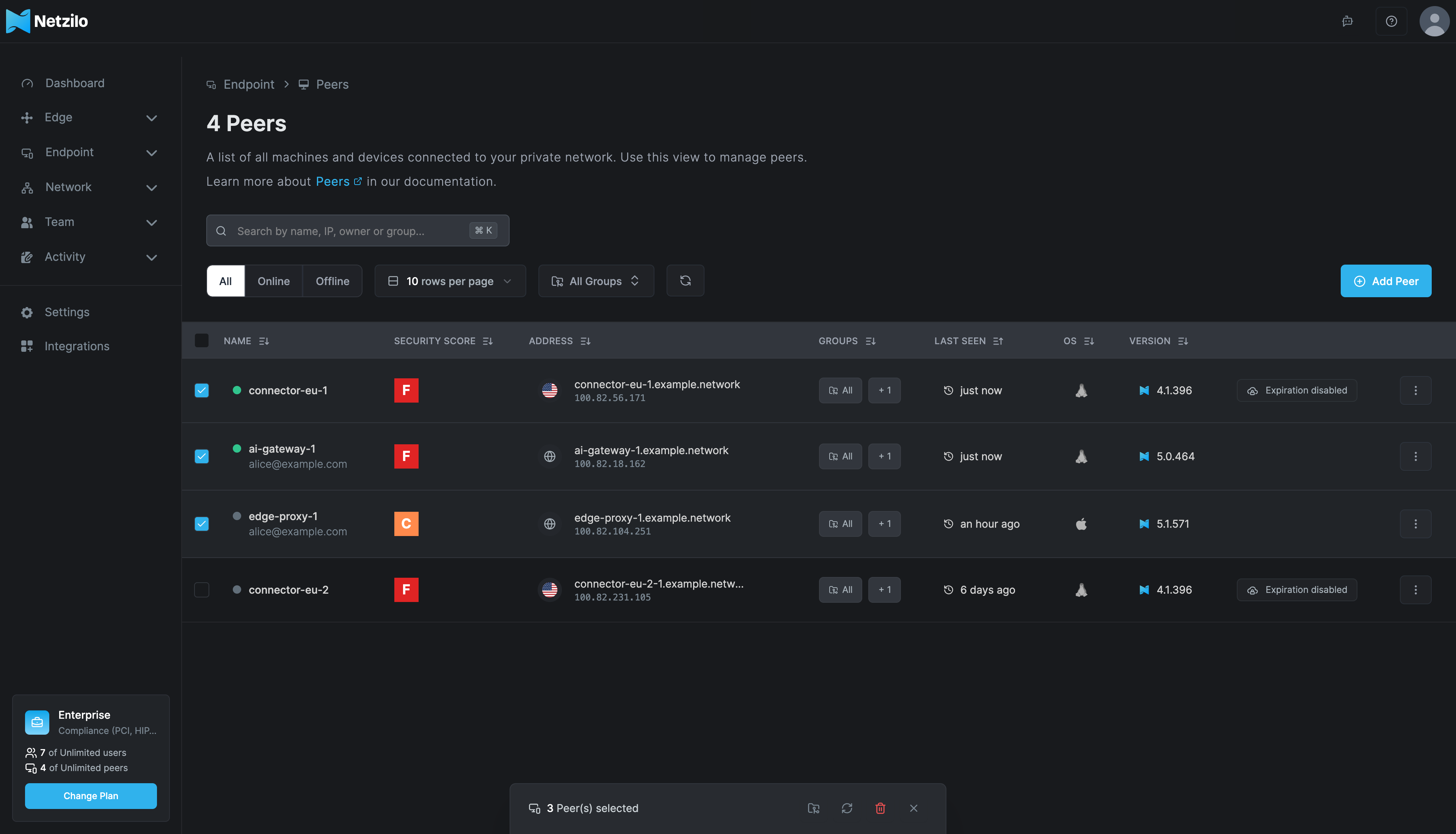
| Action | What it does |
|---|---|
| Assign Groups | Adds the groups you pick to every selected peer. Turn on Overwrite Existing Groups to replace their groups instead; the dashboard asks you to confirm. |
| Sync Peers | Asks the connected peers among the selection to fetch their configuration again. Peers that are not connected are reported as failed. |
| Delete All | Deletes the selected peers after confirmation. |
The peer page
Click a peer's name, or View Details in its menu, to open its page.
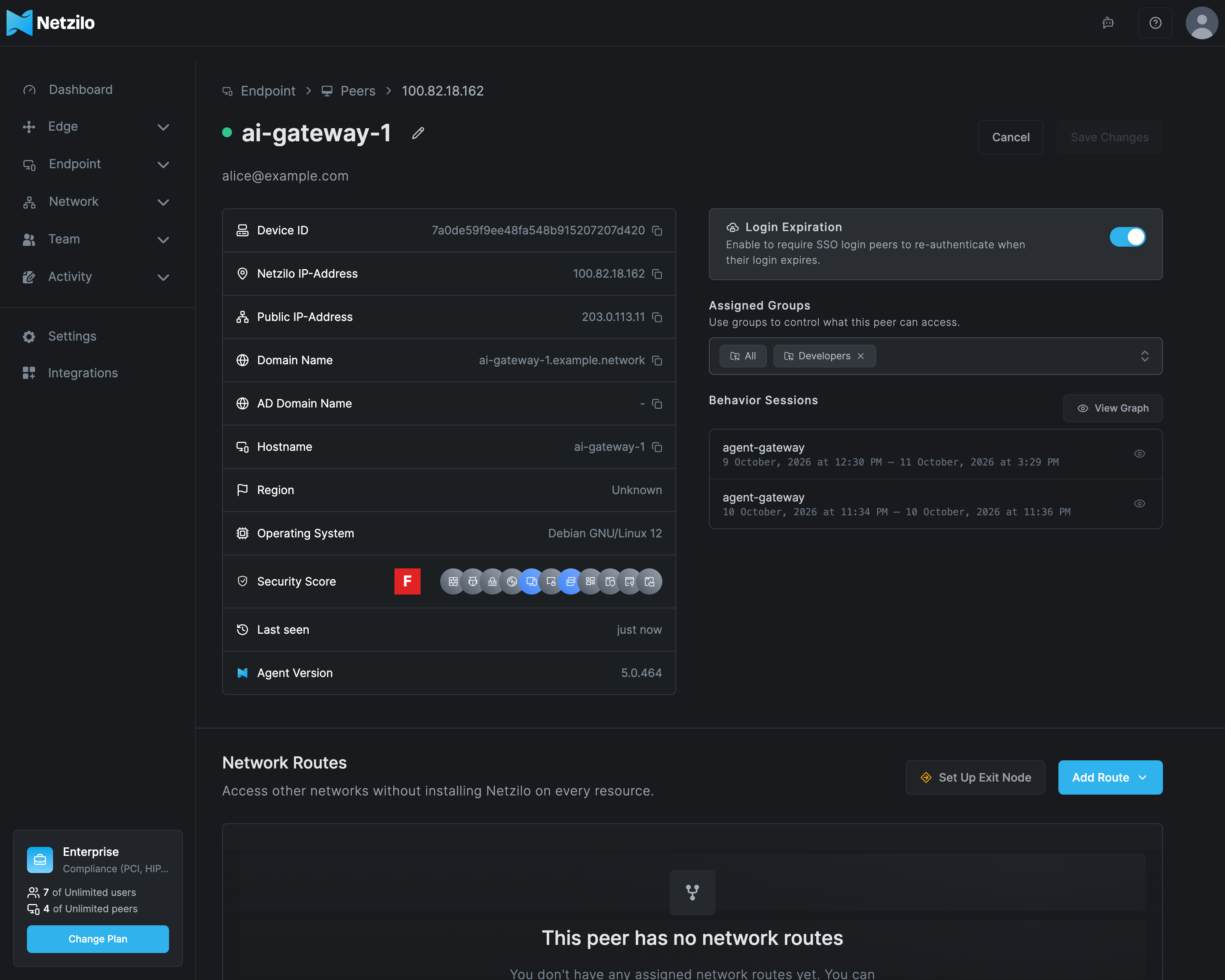
- Name. Click the pencil next to the name to rename the peer. Domain Name Preview shows the DNS name the new name produces. If that name exists already, a number is added to it.
- Login Expiration. Turn it on to make a peer that joined with single sign-on sign in again when its login expires. The period is set for the account under Settings > Authentication. The switch is disabled for peers that joined with a setup key.
- Assigned Groups. The groups decide what the peer can reach. Type a new name and press Enter to create a group on the spot.
- Information card. Device ID, Netzilo IP-Address, Public IP-Address, Domain Name, AD Domain Name, Hostname, Region, Operating System, Security Score, Last seen and Agent Version. Browser sessions and reverse-proxy peers also show a Browser row with the browser and its version.
- Network Routes. The routes this peer serves. Set Up Exit Node or Add Exit Node makes it an exit node. Add Route creates a New Network Route with this peer, or adds it to an Existing Network. See Routes.
Click Save Changes to apply the name, login expiration and groups. Cancel discards them.
Security score
The Security Score row shows the grade and one indicator per device signal. Hover over an indicator to read it, for example Disk Encryption is enabled or Peer is not a Netzilo gateway session.
| Indicator | Lit when |
|---|---|
| Firewall | The firewall is on. |
| Antivirus | The antivirus is active and up to date. |
| Disk Encryption | The system disk is encrypted. |
| OS up to date | The operating system is up to date. |
| Virtual device | The device is a virtual machine. |
| Screen locked | A password-protected screen lock is set. |
| Device Integrity | The device is not rooted, jailbroken or debugged. |
| Enterprise Workspace | The peer is an Enterprise Workspace's own peer. |
| Enterprise Browser | The peer is an Enterprise Browser's own peer. |
| Netzilo Gateway | The peer is a browser session of a Netzilo gateway. |
| Netzilo Extension | The device carries the Netzilo browser extension. |
The grade is the sum of points for the signals that are true, between 0 and 100: A from 80, B from 60, C from 40, D from 20, F below 20.
| Signal | Windows | Linux, macOS | Android, iOS |
|---|---|---|---|
| Antivirus active | +50 | +5 | none |
| Firewall on | +20 | +5 | none |
| Disk encryption on | +10 | +10 | none |
| OS up to date | +15 | +70 | +10 |
| Screen lock | +5 | +5 | +10 |
| Enterprise Workspace | +30 | +30 | +30 |
| Enterprise Browser | +30 | +30 | +30 |
| Netzilo Gateway session | +50 | +50 | +50 |
| Netzilo Extension | +15 | +15 | none |
| Virtual device | −5 | −5 | −50 |
| Being debugged | −50 | −30 | +80 when not debugged |
The score is informational. It never grants or blocks access. To require a device state, use Posture Checks, and use the indicators here to predict how a check will judge this device.
Behavior Sessions
Administrators see a Behavior Sessions panel on the page of a device where Netzilo has observed AI agents or programs. Each row is one session: the agent or program, and when it was first and last seen. The panel does not appear on devices without observed sessions.
- Click the eye icon on a row to open that session's graph.
- Click View Graph to open the graph of every session on this device.
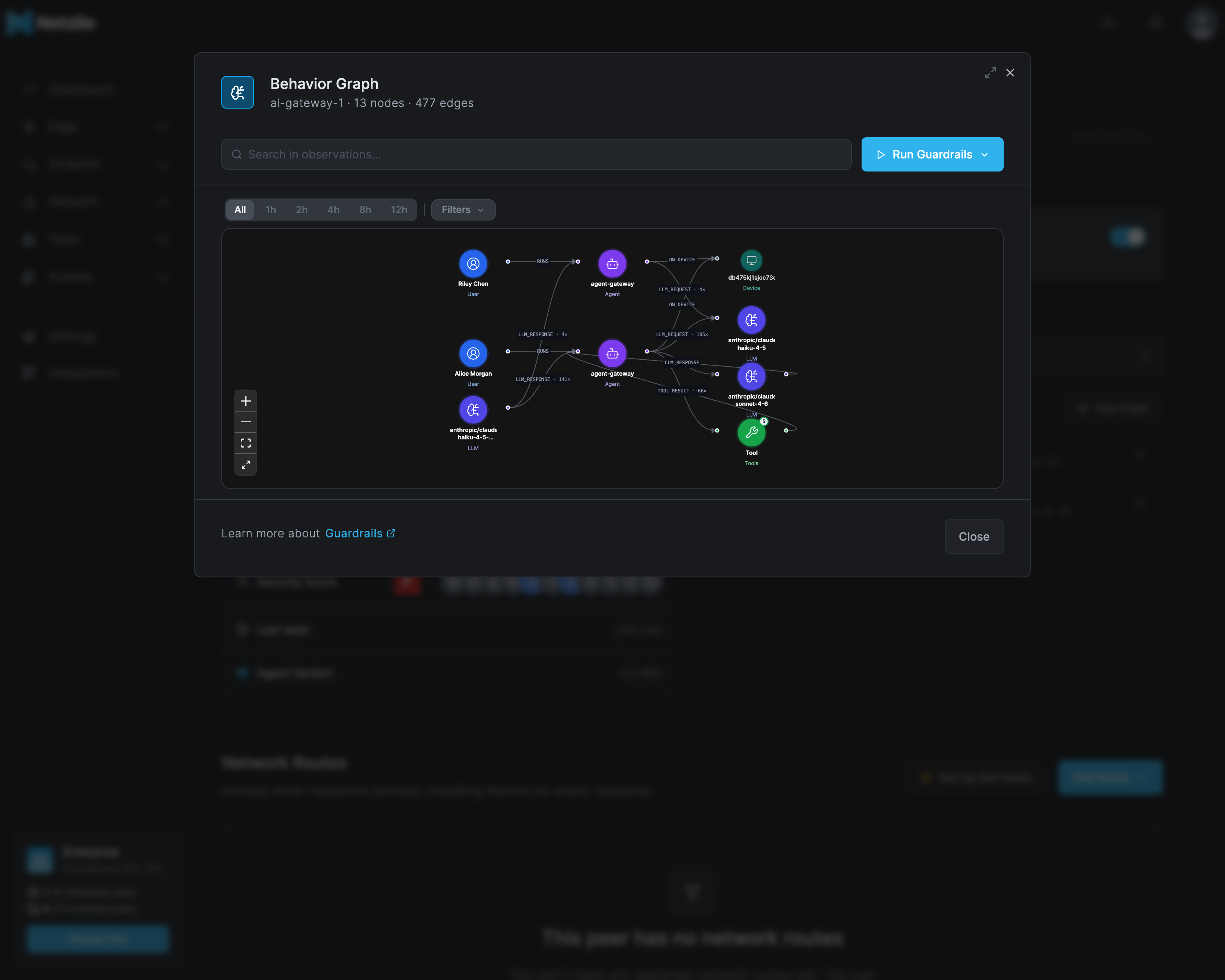
How sessions, observations and the graph work is described in Behavior Graph & Kill Chains.
Special peers
Some peers are created by Netzilo components rather than by a person installing the client. Recognise them by their names.
| Name | What it is |
|---|---|
vp-<n>-PROXY | A browser session of a Netzilo gateway, one per user and browser. Created by clientless access. Its page shows a Browser row and the Netzilo Gateway indicator. It is ephemeral. |
vp-<n>-RPROXY | The tunnel of a user's published applications, one per user. It shows the user's public IP, the operating system the latest browser signed in from, and the sessions it served. See Reverse-proxy peers. It is ephemeral and is reused after an idle stop. |
<host>-WORKSPACE | The own peer of an Enterprise Workspace that has a setup key. It has no owner. On macOS, a Mac enrolled in MDM can also carry this suffix: that is the Mac itself. |
<host>-BROWSER | The own peer of an Enterprise Browser. |
Only a peer named exactly vp-<n>-PROXY or vp-<n>-RPROXY that reports the browser
platform is treated as such a session. Any other device is an ordinary peer, whatever its
name.
Expiration and removal
- Login expiration applies to peers that joined with single sign-on. When the account's period has passed, the peer shows Login required and the user must sign in again. Set the period under Settings > Authentication, or turn it off per peer.
- Inactivity expiration, also under Settings > Authentication, expires peers that stay inactive for the configured period.
- Ephemeral peers joined with a setup key that has Ephemeral Peers turned on. They are deleted after 10 minutes offline.
- Deleting a peer removes it at once. A device that was running at that moment stops working and must join again. Deleting a user also deletes that user's peers.
Changes to peers are recorded under Activity > Events, for example user.peer.add,
setupkey.peer.add, peer.approve, peer.rename, peer.group.add and
peer.login.expire. See Event reference.
Troubleshooting
A new device does not appear. Check that the client points at the right management address and that the user finished signing in. With a setup key, read the error the client prints and use the two entries below. Then look under Pending Approvals.
The client says couldn't add peer: setup key is invalid. The key exists on this
server but is expired, revoked or used up. Under Activity > Events, the failed login
names the key and the reason. Create a new key, or raise the usage limit of a reusable
one.
The client says failed adding new peer: account not found. This server does not know
the key: it was mistyped, comes from another server, or the client points at the wrong
management address. Check the management address on the device first.
A device that worked shows "Needs login" and its log says peer is not registered. The
peer was deleted on the server while the device was running, for example by a bulk
clean-up, by deleting its user, or because it was ephemeral and went offline. Join the
device again with single sign-on or a new setup key.
A peer keeps disappearing. It joined with an ephemeral setup key and goes offline for more than 10 minutes. Use a key without Ephemeral Peers for permanent devices.
The same device is listed twice. The device joined again after it was logged out, for
example after netzilo down or a Linux one-line upgrade. Delete the stale entry.
Login Expiration cannot be switched. The peer joined with a setup key. Such peers have no user to sign in again. To expire their login, join the device with single sign-on instead.
The client says maximum number of personal peers reached. The account is on a plan
whose peer limit is reached. Remove peers or change the plan under
Settings > Plans & Billing.
The Security Score is low. Open the peer's page and hover over the indicators to see which signals are off. The score itself never blocks access.
Related Documentation
- Setup Keys - Enrol devices without a user
- Install Netzilo - Install the client on every platform
- Posture Checks - Require a device state for access
- Policies - Decide what groups of peers can reach
- Groups - Manage the groups peers belong to
- Behavior Graph & Kill Chains - Sessions observed on a device
- Exit nodes - Route internet traffic through a peer