

Clientless Access
Clientless access lets users reach internal resources from a browser that has only the Netzilo browser extension installed. No desktop client, no VPN adapter and no administrator rights on the device are needed. This suits contractors, partners and personal devices you do not manage.
The extension sends traffic for internal names and addresses to a Netzilo gateway. The gateway carries it into your network under the user's own policies. Everything else keeps going directly to the internet, or through your corporate proxy.
Clientless access needs version 5.0.455 or later of the Netzilo browser extension, on Google Chrome, Microsoft Edge or Mozilla Firefox. Safari is not supported.
How it works
- The user logs in with the Login button in the extension popup.
- The extension asks the management server how this user's browser should route. It repeats the question every 5 minutes, so changes you make reach browsers within that time.
- Management computes the answer as if the user had just added a new device. It takes the user's groups, the policies those groups are sources of, the routes and DNS settings distributed to them, and the posture checks evaluated against the browser. The result is a proxy auto-configuration (PAC) script.
- The extension installs the PAC in the browser. The PAC sends only internal traffic to the gateway. When the gateway asks the browser to authenticate, the extension answers with the user's login and the browser's device identity. The user never sees a password prompt.
- The gateway starts a session for that user on that browser. The session is a virtual
peer in the user's account, named
vp-<n>-PROXY. Traffic goes through that peer's tunnel, so the user reaches exactly what their policies allow and nothing more. The gateway also resolves the internal names, so they never have to exist in public DNS. - After 60 minutes without traffic the session stops. The next request starts it again, which takes a few seconds.
If a Netzilo desktop client is installed on the device, the extension leaves routing to the client and installs nothing. A client that has been seen on the device in the last 7 days counts as installed, even while it is stopped. A client that starts later takes over at once while the Workplace page is open, and within 30 seconds otherwise; the extension then removes its proxy setting and shows the client's state.
Before you start
- The gateway must be reachable. On Netzilo Cloud, the gateway is
srv.netzilo.com:8443and is already set up. On a self-hosted server, see Self-hosted servers. - Users need the browser extension. Deploy it as described in Enterprise Browser Extension.
- Policies decide what users reach. Clientless access adds no permissions of its own. A user reaches the same resources their policies give them on a desktop client, minus any resource protected by a posture check a browser cannot pass. See Posture checks for browser sessions.
Step 1: Allow clientless access for the account
Go to Settings > Permissions and turn on Allow clientless access.
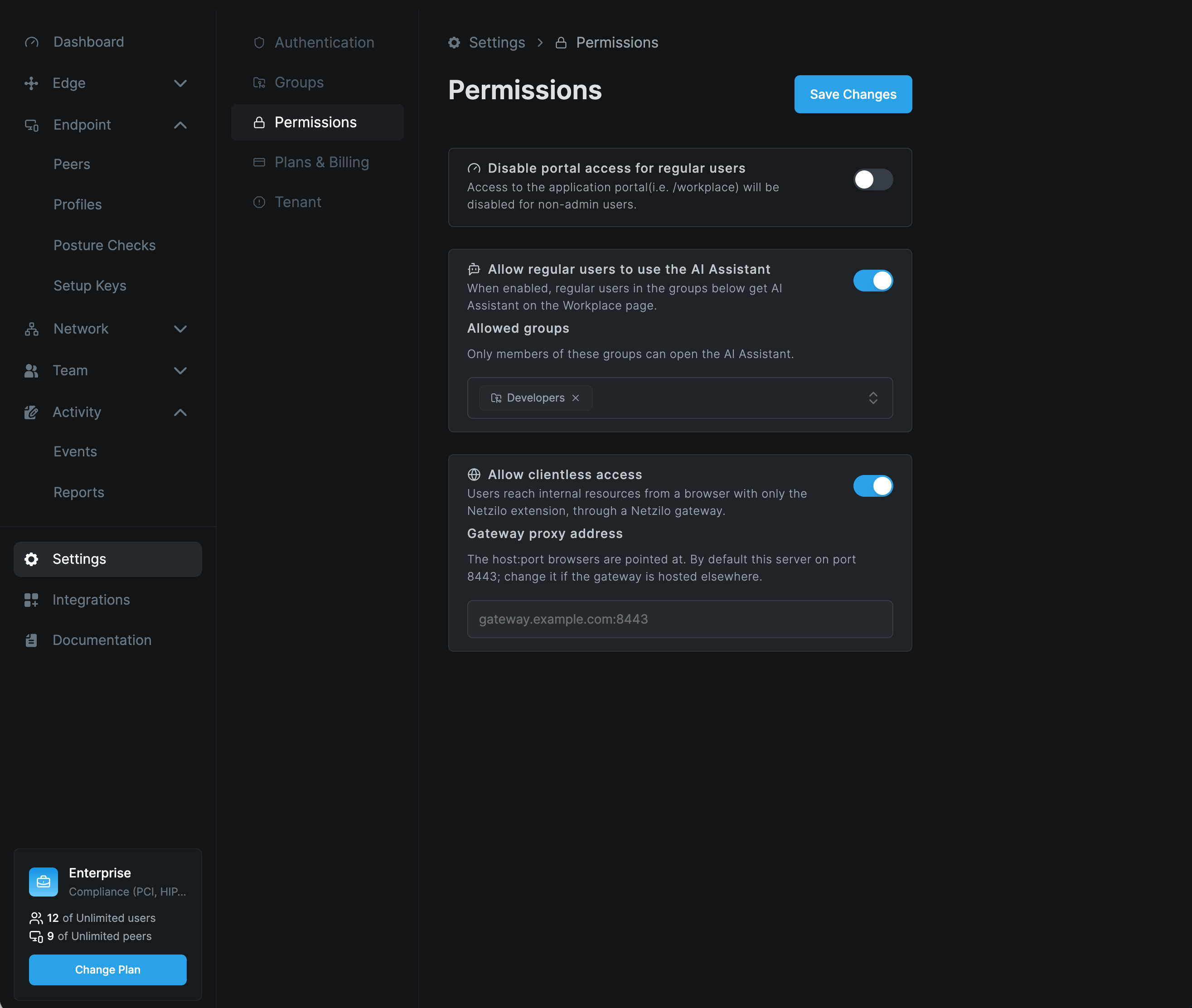
Gateway proxy address is the host:port browsers are sent to. Leave it empty to use
the management server's own address on port 8443. Enter an address only when the gateway
runs on a different host or port.
Click Save Changes. Turning the switch on or off is recorded in Activity > Events.
The switch controls whether management serves automatic routing. When you turn it off, browsers remove the Netzilo PAC at their next refresh, within 5 minutes. A profile set to Custom PAC keeps being served either way, because its script is entirely yours.
Step 2: Choose browser routing in a profile
Browser routing is set per profile. Go to Endpoint > Profiles, open a profile that includes the Enterprise Browser Extension, and select the Proxy tab.
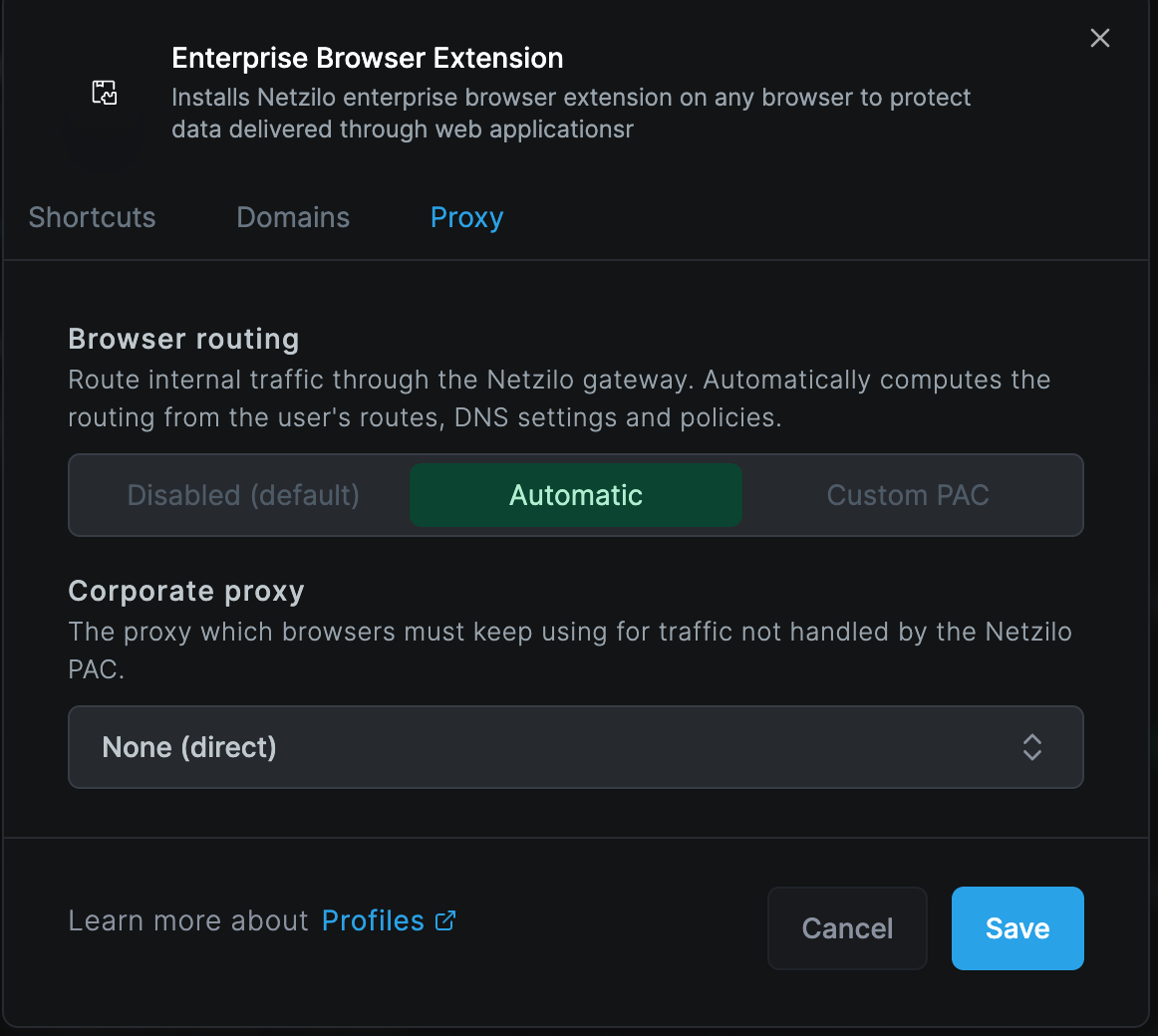
Browser routing has three modes.
| Mode | What the browser gets |
|---|---|
| Disabled (default) | No proxy. The extension removes any PAC it installed earlier. |
| Automatic | The PAC management computes for each user from their routes, DNS settings and policies. It follows every change you make to them. |
| Custom PAC | A PAC script you write, served exactly as you entered it. |
A user's browser follows one profile. Among the enabled profiles for the browser's operating system whose groups include one of the user's groups, the profile that comes first by name applies. Avoid giving the same user overlapping profiles with different proxy settings.
Automatic
In automatic mode, these go to the gateway:
- The names of your peers, such as
laptop.netzilo.network. - The domains of the nameserver groups distributed to the user.
- The domains of DNS routes, and the networks of network routes, served to the user.
- The Netzilo network address range.
- Everything, when the user has an exit node.
Only what the user may reach is included. A route behind a policy whose posture checks the browser fails is left out.
Corporate proxy
If your organisation requires a proxy for internet traffic, set Corporate proxy so browsers keep using it for everything the Netzilo PAC does not send to the gateway.
| Option | Use it when |
|---|---|
| None (direct) | Browsers reach the internet directly, or through a proxy set in the browser itself. |
| Proxy host:port | Internet traffic must go through a proxy at a fixed address, for example proxy.example.com:3128. |
| PAC URL | Your organisation already publishes a PAC file. Enter its http or https URL. |
When the corporate proxy is configured in the browser itself, the extension detects it and chains to it without any setting here. A proxy configured only in the operating system is invisible to browser extensions, so enter it here. If you don't, the extension notices that internet access breaks and removes its own PAC rather than cut users off.
The corporate proxy applies in automatic mode. In custom mode, your script decides everything.
Custom PAC
Choose Custom PAC to control routing yourself. The script must define
FindProxyForURL and can be at most 64 KiB. Send traffic to the gateway with the
HTTPS host:port directive, for example "HTTPS srv.netzilo.com:8443".
To start from what automatic mode would produce, click Generate.
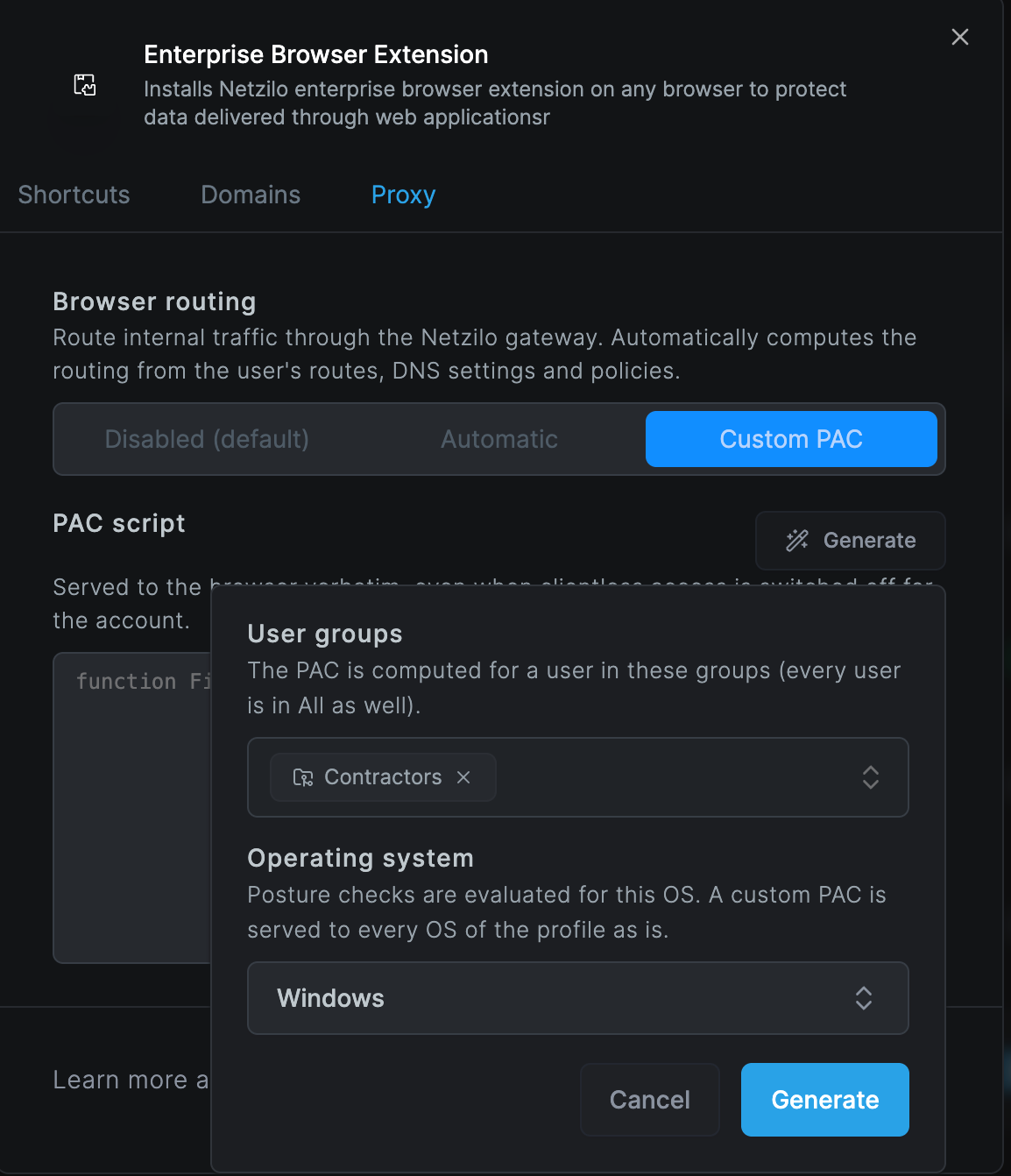
- Under User groups, choose the groups to compute the PAC for. Every user is also in the All group.
- Under Operating system, choose the OS that posture checks are evaluated for. A current version of that OS is assumed.
- Click Generate. The script replaces the one in the editor, after you confirm.
- Edit the script if needed, then click Save.
A custom PAC is a snapshot. It does not follow later changes to routes, DNS or policies. Generate it again after such changes.
What users see
The extension popup shows a Private access row.
| Private access shows | Meaning |
|---|---|
The gateway address, such as srv.netzilo.com:8443 | The Netzilo PAC is installed. Clicking the address shows the installed script. The copy icon copies the PAC as the server sent it, and the popup confirms with "Settings copied to clipboard". |
| off | The user is logged in, but their profile gives no routing, or clientless access is off for the account. |
| unavailable | The PAC could not be installed. Hovering over the word shows the reason. See Troubleshooting. |
| On or Off | A desktop client is connected on the device. The row shows whether the client is connected to management, and the extension installs nothing. A client that is installed but not running does not take this row: the gateway does. |
The Workplace page shows tabs for what is on the computer. With the desktop client, it shows Applications and Devices. Without the client, when the Netzilo extension is installed in that browser and the user's profile gives browser routing, it shows Applications and a Private access status. With neither, it shows Applications only.
| Workplace shows | Meaning |
|---|---|
| Private access · Online | The extension in this browser has its proxy installed and the gateway accepted its login. Hovering shows the gateway, the session name and address the gateway reported, when it came up, and the extension version. |
| Private access · Suspended | The extension in this browser has no proxy installed right now, or its last check failed; the hover names the reason. The extension may be off or logged out, its proxy setting may be blocked, or the gateway may be unreachable. |
The status is what the extension itself reports, the same way the desktop client reports its own device: nothing is inferred from the server or from the user's other browsers. The page asks the extension every 15 seconds while it is visible. When the desktop client runs on the computer, the Devices tab returns.
Browser sessions in the Peers list
Each browser session appears under Endpoint > Peers as a peer named vp-<n>-PROXY.
- What it shows. The peer shows the browser's operating system, the extension version
as its client version, and the browser's public IP address and location. A Browser
row names the browser and its version, such as
Edge 154.0.0.0. Chrome and Edge report only their major version; Firefox reports its full version. - Security score. In the Security Score row, the Netzilo Gateway indicator is lit. A session reports no other device signal, so it scores 50 (grade C) on Windows, macOS and Linux, and 100 (grade A) on Android and iOS.
- One per browser. A user gets one session per browser. The browser keeps a stable device identity, so logging in again reuses the same session. A user can have at most 5 browser sessions at a time.
- Cleanup. Sessions are ephemeral peers. Management removes them automatically once they have been offline for a while.
- Only these names. Only a peer named exactly
vp-<n>-PROXYthat reports the browser platform is treated as a browser session. A device that happens to have a name starting withvpis an ordinary peer. - Revocation. The gateway checks every session's login with management every 10 minutes. When you block or delete a user, or their login is revoked, their browser sessions lose access within that time.
Posture checks for browser sessions
Posture checks are evaluated against the browser, both when management computes the routing and when the gateway session connects. A browser is not a managed endpoint, so checks that need to inspect the device cannot pass.
| Check | Evaluated against |
|---|---|
| OS version | The operating system and version the browser reports. This version is approximate, see below. |
| Netzilo version | The browser extension's version. |
| Geolocation | The location of the browser's public IP address. |
| Peer network range | The browser's public IP address. |
| Process | Always fails for browser sessions. |
| Netzilo endpoint checks, such as firewall, antivirus or disk encryption | Always fail for browser sessions when enforced. |
| Netzilo Gateway | Passes only for browser sessions. Every device with the Netzilo client fails it. |
To give browser users access to a resource that desktop users reach only with endpoint checks, add a separate policy for the browser users without those checks. To keep that policy to browser users, attach a posture check with only Netzilo Gateway turned on. You find it under Endpoint > Posture Checks, in Advanced Endpoint Settings, next to Enterprise Workspace and Enterprise Browser.
Follow these rules for the Netzilo Gateway check:
- Keep it alone. Turn on nothing else in the same posture check. Any endpoint item beside it fails for every browser session, so the check would admit nobody.
- Use it on network policies only. Don't attach it to a profile's domain settings, a workspace or an Edge filter. Those are evaluated by the device's own Netzilo client, which is never a gateway session, so every device would be blocked.
- Treat it as segmentation. It tells a browser session apart from a device. Like the Enterprise Workspace and Enterprise Browser checks, it relies on what the peer reports, so it is not proof of the device's identity.
OS version checks are approximate for browser sessions. The gateway reads the operating system version from the browser's User-Agent. Chrome and Edge always report macOS as 10.15.7, and Windows 11 reports itself as Windows 10.0. A minimum version above those values therefore fails every Mac or Windows browser session. Leave OS minimums off the policies meant for browser users.
Blocked-access events are expected. When a session starts, it checks every policy that applies to its user. For each policy whose posture checks it fails, the activity log records Peer access blocked, usually with the reason Endpoint checks cannot be satisfied by a browser session. These events show the design working, not a fault.
Self-hosted servers and several servers
The extension follows one Netzilo server at a time: the one you last signed in on. It
knows go.netzilo.com and every server you connected it to.
- Connecting a self-hosted server. Open its Workplace. The page shows Netzilo extension — connect to this server. Click Connect to this server: the extension reads the server's details itself and shows its confirmation over the page. Nothing is typed into the extension. After you confirm, the extension signs in on that server.
- Moving between servers. Opening the Workplace of another server you already connected switches the extension to it; it signs out of the previous server first. Only a page opened in the foreground switches; focusing an already open tab does not (its page shows Connect to this server instead). Signing out of the dashboard signs the extension out only when that dashboard is the server the extension follows.
- Managed devices. Administrators can set the server through browser policy (the
extension's managed settings:
portals,activePortal,lockPortal). WithlockPortalthe extension uses only that server and the Workplace of any other says the choice is managed by the organization. - With the desktop client running, the client owns the login and none of this applies.
Browser support
| Browser | Clientless access |
|---|---|
| Google Chrome | Supported |
| Microsoft Edge | Supported |
| Mozilla Firefox | Supported. Firefox only lets an extension set a proxy when it may run in private windows. Users must allow this, as described below. |
| Safari | Not supported. Safari extensions cannot set a proxy. Use the Netzilo desktop client on Mac and iPhone. |
To allow the extension in private windows in Firefox:
- Open
about:addons. - Click Netzilo Secure Browser.
- Set Run in Private Windows to Allow.
Self-hosted servers
The self-hosted installers include the gateway: the custom installer, and the AWS and
Azure Marketplace images. It runs as the gateway container next to management.
- Open port 8443. Allow inbound TCP 8443 to the server, in addition to the usual ports.
- HTTPS is required. The gateway uses the server's certificate, whether it comes from Let's Encrypt or is one you provided. A server installed without HTTPS gets no gateway.
- A different address. If browsers must reach the gateway at another host or port, for example through a load balancer, set Gateway proxy address in Settings > Permissions.
- Tuning. The gateway's settings are command-line options of the
gatewayservice in the server'sdocker-compose.yml. After changing them, restart the container withdocker compose up -d gateway.
| Option | Default | Controls |
|---|---|---|
--idle-timeout | 60m | How long a session may go without traffic before it stops. |
--max-devices-per-user | 5 | How many browser sessions one user may have at a time. |
--max-sessions | 2000 | How many sessions the gateway runs in total. |
--revalidate | 10m | How often each session's login is checked with management. |
--egress | public | Whether the gateway may carry traffic the user's tunnel does not cover to public addresses from its own host. Set off to allow only the user's tunnel. |
--egress-allow | none | Private address ranges the gateway's host may reach for such traffic. Private ranges are refused otherwise. |
The gateway never lets a browser reach the gateway host itself or cloud metadata addresses.
Troubleshooting
Private access shows "unavailable". Hover over the word to see the reason.
- Allow Netzilo in private windows. The browser is Firefox. Follow the steps in Browser support.
- Proxy managed by policy or proxy managed by another extension. A browser policy or another extension controls the proxy setting, and Netzilo cannot change it. Remove the conflicting policy or extension, or use the desktop client.
- Upstream proxy required: an operating-system proxy is in use. Internet traffic on this device needs a proxy set in the operating system. Enter it under Corporate proxy in the profile.
- Routing: HTTP followed by an error code. The extension cannot get routing from the management server. Check that the server is reachable and up to date.
Private access shows "off". Check the following:
- Allow clientless access is on in Settings > Permissions.
- The user is in a group of an enabled profile for their operating system.
- The profile's Browser routing is not Disabled.
The extension button says "Session expired – Login". The extension's login token expired while the browser was closed and could not be renewed. Open the Workplace page: a signed-in dashboard hands its session to the extension, which signs in again by itself. Signing out of the dashboard signs the extension out as well.
Workplace shows "Private access · Suspended". Hover over it: the reason is the extension's own. Then open the extension popup and check the Private access row. If it shows the gateway address, open an internal site: the status turns Online within 15 seconds once the gateway has answered the extension. If the row shows unavailable or off, follow the steps above.
Private access shows On or Off instead of an address. A desktop client is installed on the device, so the extension leaves routing to it. This is expected.
Public sites load but an internal site does not. Check the following:
- Policies. Confirm the user has a policy to the resource.
- Posture checks. Confirm the policy's posture checks can pass for a browser. An OS minimum version often fails, because a session's OS version is approximate. See Posture checks for browser sessions.
- The session. Look for the user's
vp-<n>-PROXYpeer in Endpoint > Peers. - Idle restart. The first request after an idle period takes a few seconds while the session starts.
Devices with the Netzilo client lost a domain, a workspace or Edge tools after a posture check change. The check probably includes Netzilo Gateway and is attached to a profile or an Edge filter. Move it to a network policy.
The policy with the Netzilo Gateway check admits nobody. The same posture check also turns on an endpoint item. Keep Netzilo Gateway alone in its check.
A user cannot open another browser. The user already has 5 browser sessions. Idle
sessions stop after 60 minutes, or you can raise --max-devices-per-user on a self-hosted
server.
Related Documentation
- Enterprise Browser Extension - Deploy and configure the extension
- Managing Profiles - Assign settings to groups and operating systems
- Policies - Decide what users reach
- Posture Checks - Device requirements
- Routing traffic to private networks - Network routes
- Manage DNS in your network - Nameserver groups and domains